This is the place to maintain (add, edit, delete, and print) chart of accounts.
Go to G/L > click Account Maintenance 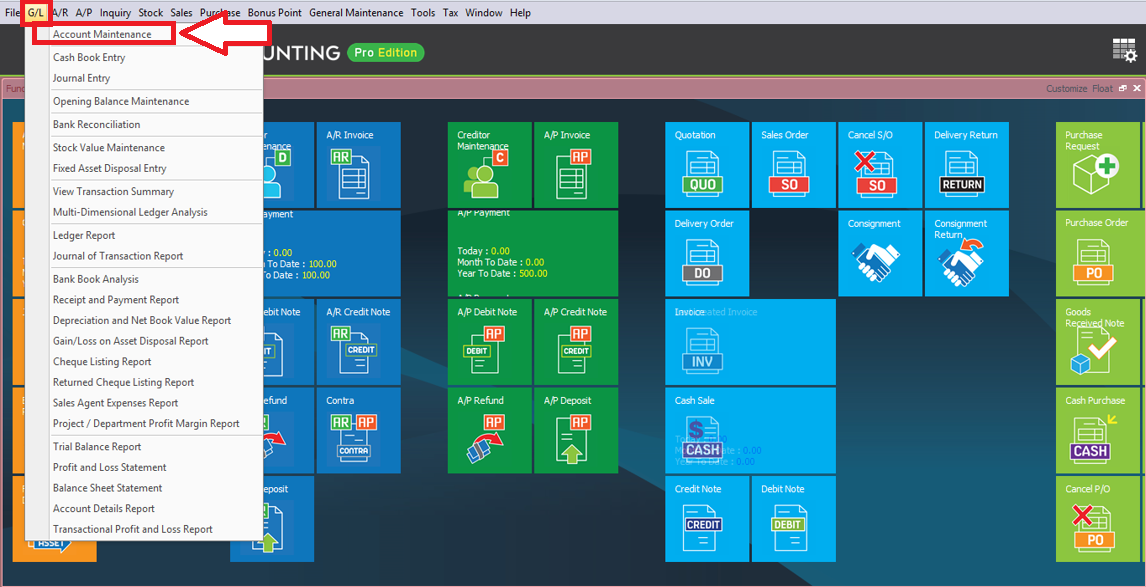
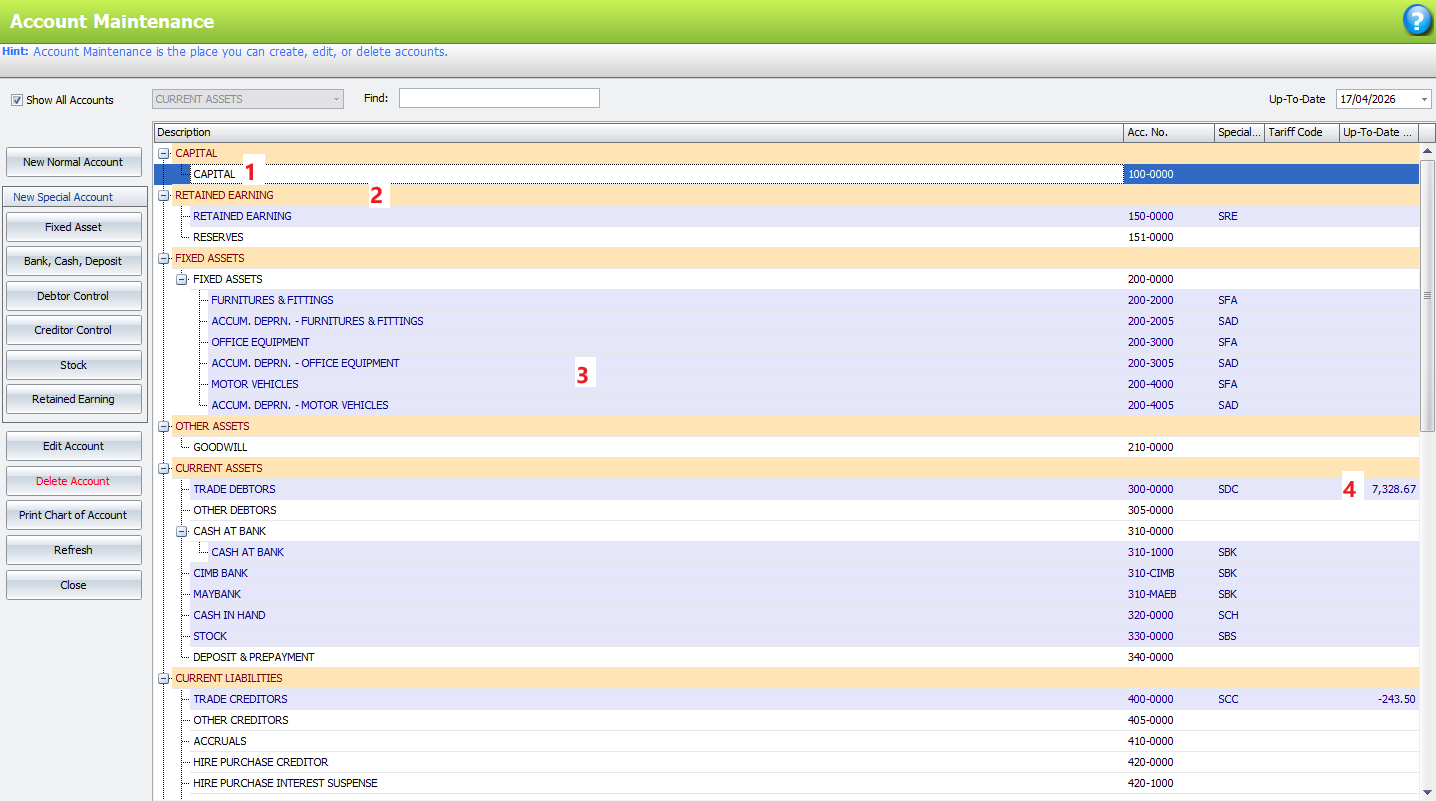
1. No color – Normal Account
2. Beige color – Account Type
3. Light Blue – Special Account
4. Balance – Double click to drill down transaction
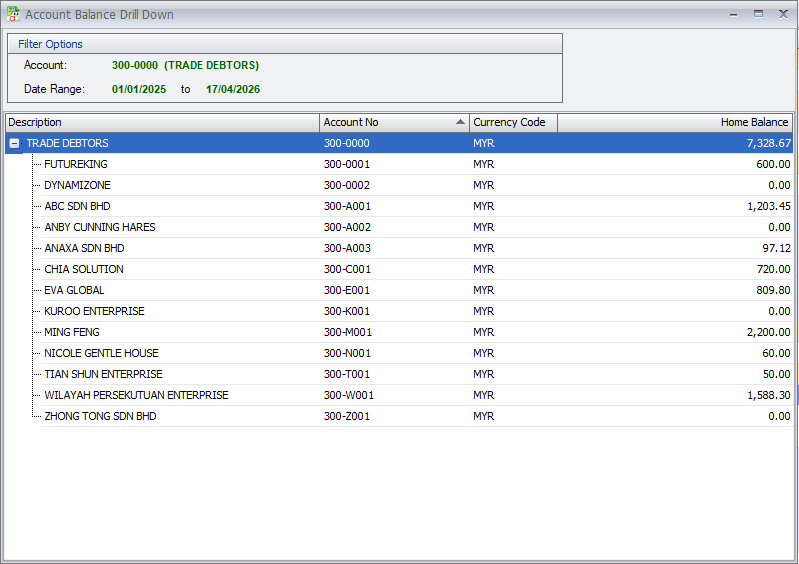
Show “Account Balance Drill Down” after double clicked
You may drag and drop an account under another account to be a sub account but only normal account that carry no transaction can carry a sub account
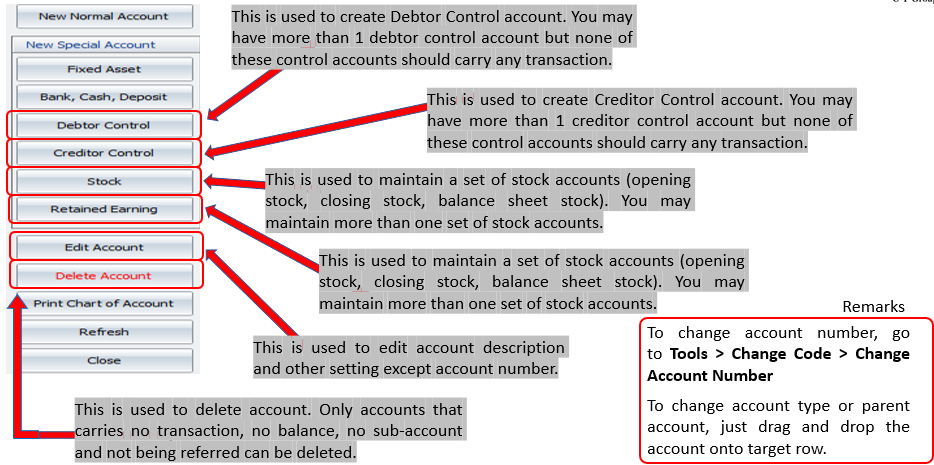
1. New Normal Account –
Used to create a ledger account which is not belonged to any of special account types.
To add a new normal account, highlight the account type, then click on this button
2. Fixed Asset –
This is used to maintain fixed asset accounts and accumulated depreciation accounts that are not parent accounts. These accounts need special treatment when carrying forward balances at the end of fiscal year and the balances will be used in Net Book Value report.
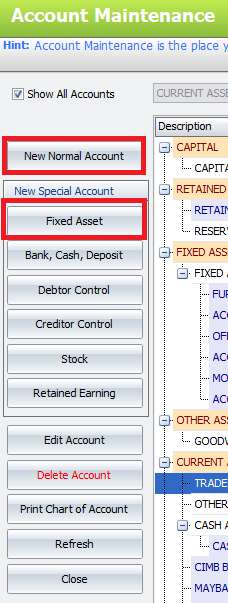
To create a pair of fixed asset account (together with its accumulated depreciation account), click on the button of Fixed Asset:
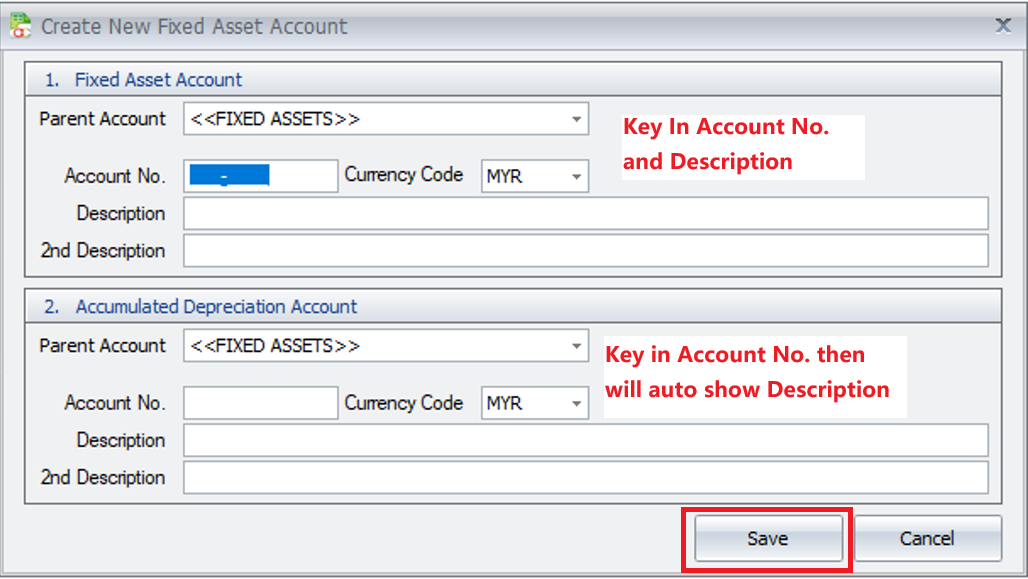
1. In [ 1. Fixed Asset Account ] fields, key in the Account No. & Description
2. In [ 2. Accumulated Depreciation Account ] key in the Account No. then the description will be auto
3. Click “Save”.
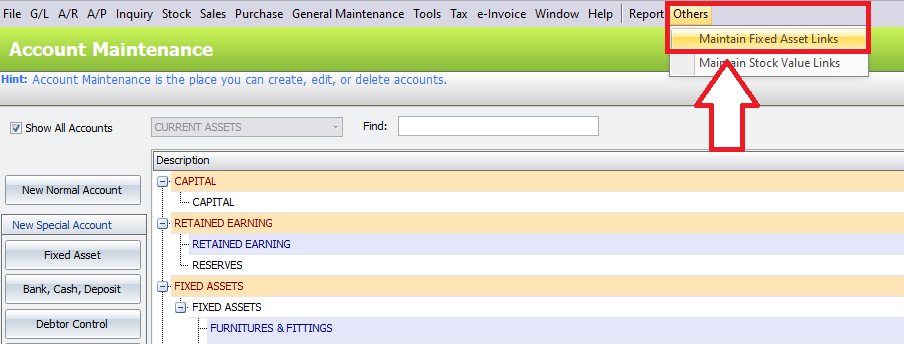
Go to Others > Maintain Fixed Asset Links
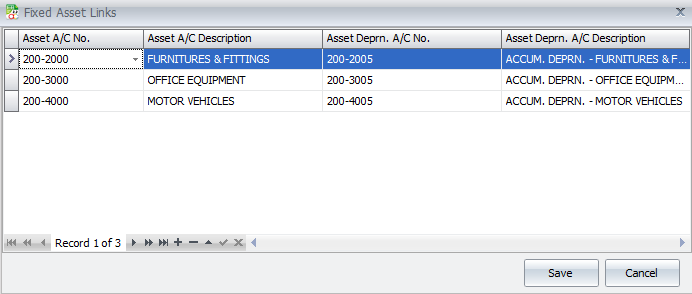
This screen shows the relationship (link) of each fixed asset account and its respective accumulated depreciation account. You may click on ‘+’ sign to add a link.
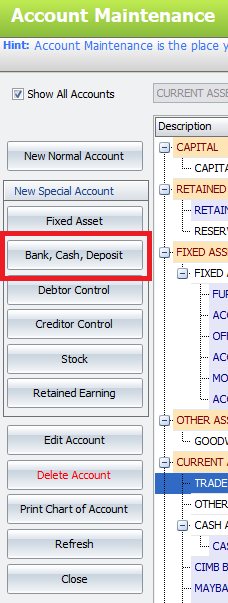
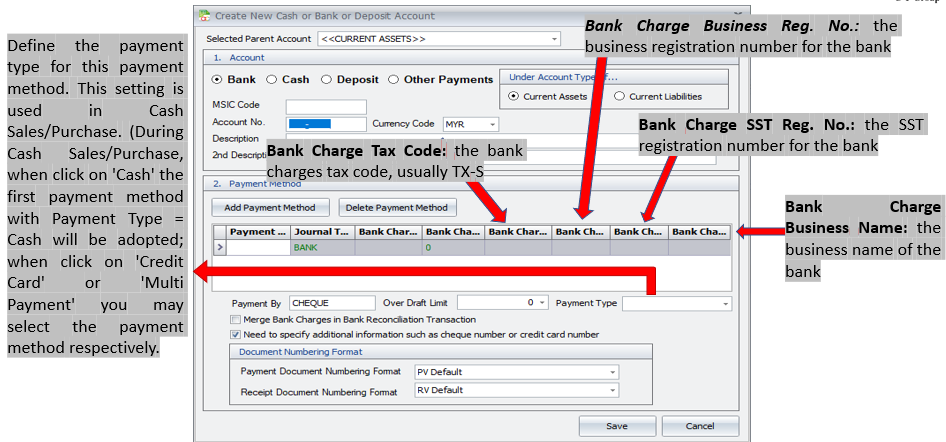
Bank, Cash, Deposit is to maintain the following accounts:
- Bank accounts (and related payment methods)
- Cash accounts (and related payment methods)
- Deposit accounts (and related payment methods). * Deposits accounts is needed for AR/AP Deposit entries.
Each account may have more than one payment method but the name of payment method must be unique.
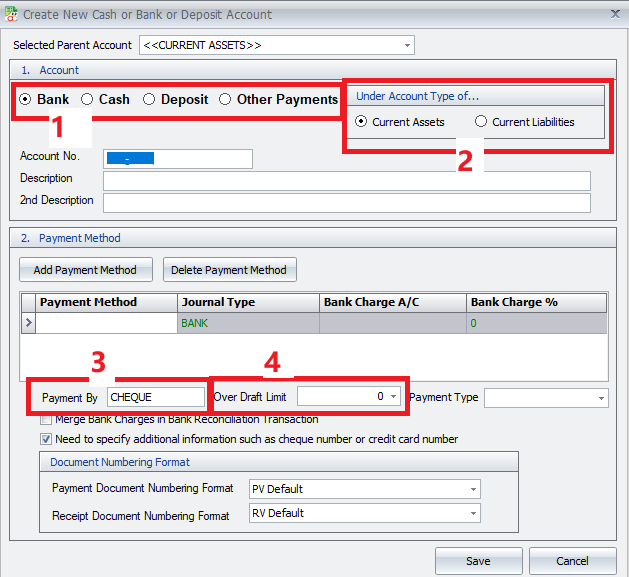
1. Choose either Bank, Cash, Deposit, or Other Payments. Then key in the Account No., Description, 2nd Description
2. Choose either current assets or current liabilities (only for deposit received)
3. Key in words such as ‘Cash’, ‘Cheque’, ‘Credit Card’…to be printed on vouchers/receipts
4. Key in overdraft limit if any (for reference only)
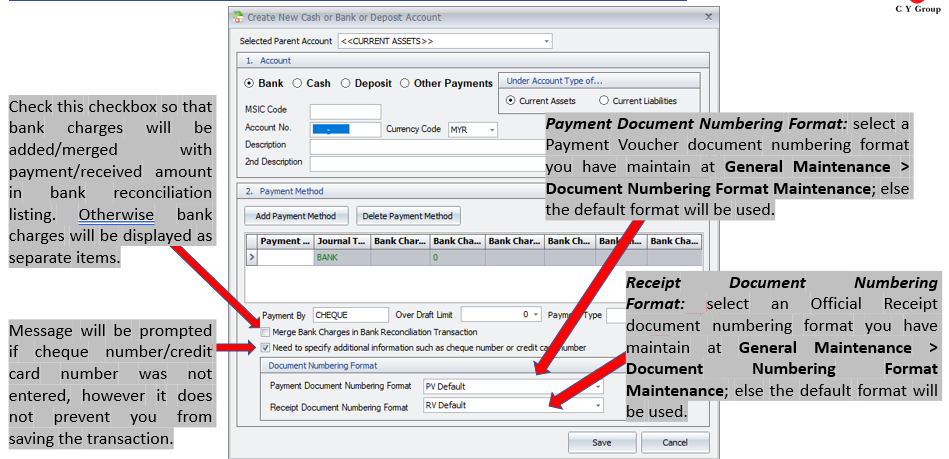
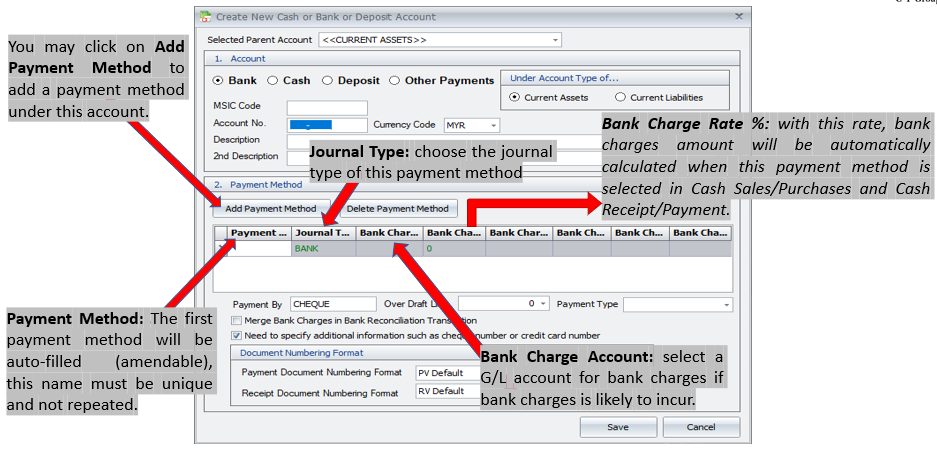
Go to Others > Maintain Stock Value Links
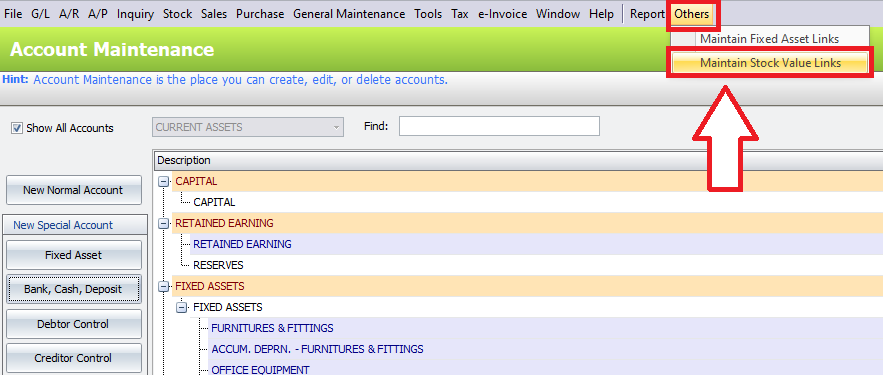
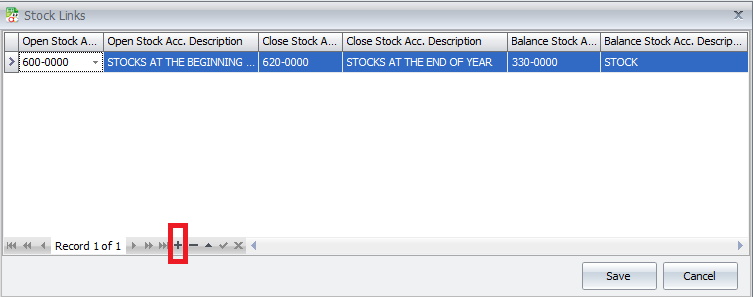
Here will shows the relationship (link) of stocks component accounts. You may click on ‘+’ sign to add a link