
AutoCount SST
Chapter 2: Configure Malaysia SST Wizard
2.1 Configure Malaysia SST Tax Code
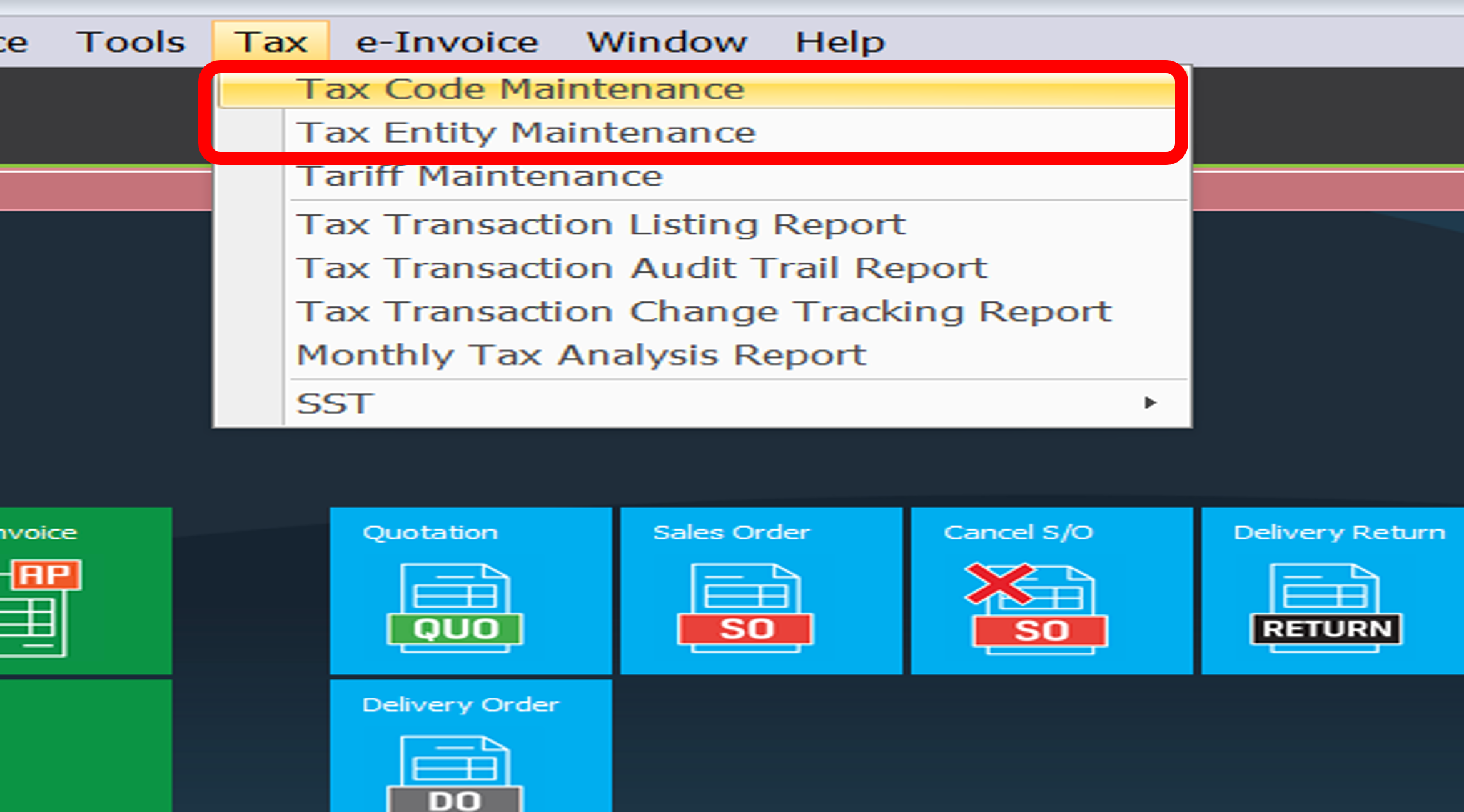
A) Tax > Tax Code Maintenance
Click “Configure Malaysia SST”

Click “Next”

B) Configure Sales & Service Tax Code, key in Sales Tax/Services Tax Registration No.
After you done configuration, click “Next” to continue

| A | “YES” if you are charging SALES TAX to your customer |
| B | “YES” if any of your selling item is chargeable at 10% SALES TAX |
| C | “YES” if any of your selling item is chargeable at 5% SALES TAX |
| D | Key in company Sales Tax Registration No. This will be updated into company profile |
| E | “YES” if you are charging SERVICE TAX to your customer |
| F | Key in Service Tax Registration No. This will be updated into company profile |
C) Configure Purchase & Services Tax Code
“YES” (1) if your company purchases are from SST registered company > click “NEXT” (2)
If you are not SST registered but you have some suppliers/vendors charge you SST, you may answer “YES”

D) Configure proposed SST account
“YES” if you wish the system auto generate SST related GL accounts, “NO” if you want to create manually
After that click “NEXT” to continue

E) Click FINISH to complete SST Account

F) System will generate GL Account No as below
Tick to select/Untick to ignore (1) > Click SAVE (2)

2.2 Modify Malaysia SST Tax Code
A) Tax > Tax Code Maintenance > Configure Malaysia SST
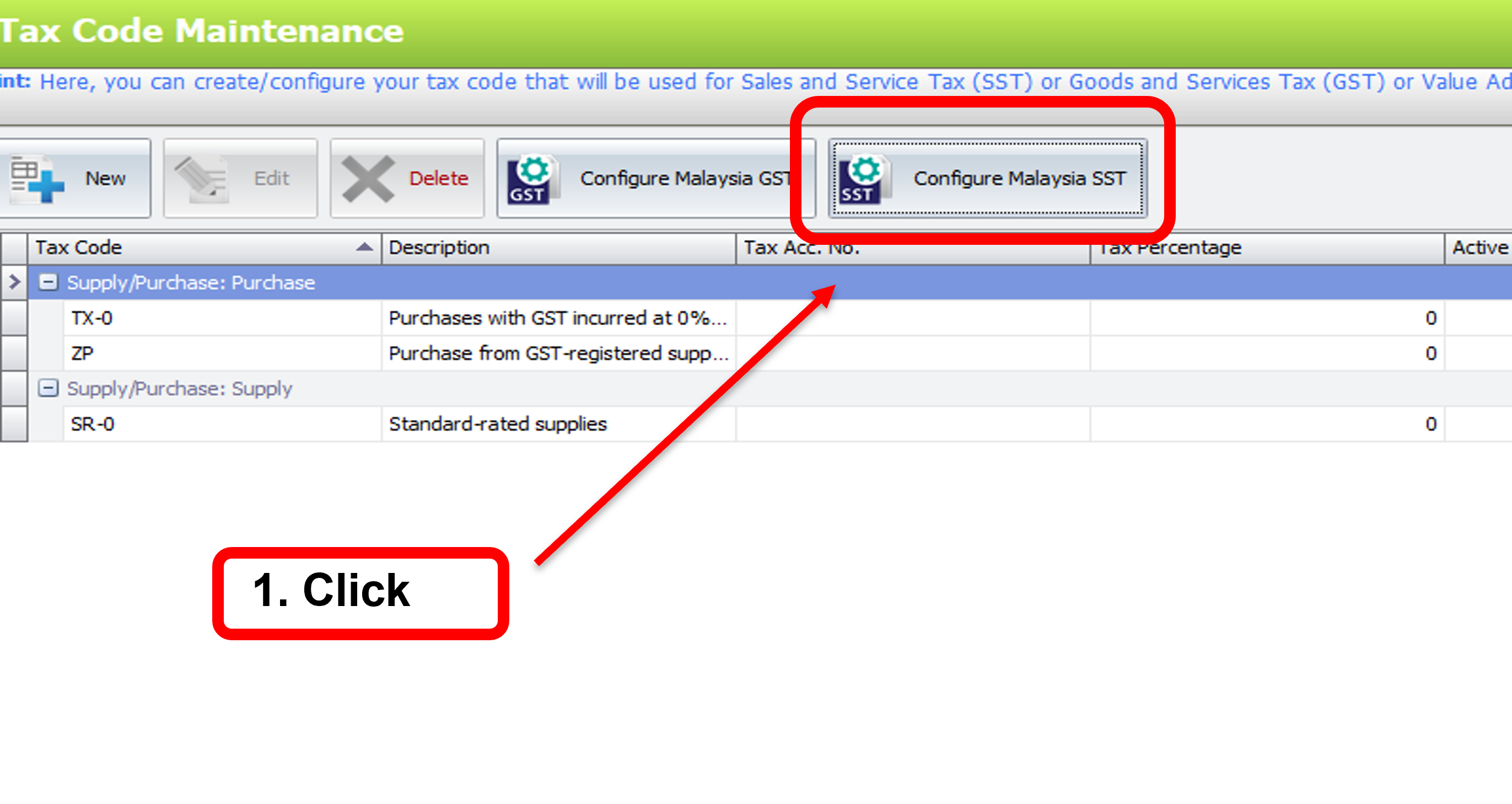
B) Select Input Tax > Tick to select/Untick to ignore (2) > Click SAVE (3)

C) Select Output Tax > Tick/Untick (2) > SAVE (3)

Implementation Note:
Currently the system only considers some of the general cases of an SST companies.
目前,系统仅考虑了 SST 公司的一些一般情况
Configure specific tax codes manually if your company has specific listed items not automatically handled by system
如果您的公司存在以下列出的某些情况,您可能需要采取额外步骤来配置系统未完成的一些税码
| No. | Scenario(s) | Type | Related Tax Codes |
| 1 | Purchase Exemption under Schedule C | Input Tax | EPC-A, EPC-B, EPC-C |
| 2 | Export Sales | Output Tax | EEM |
| 3 | Special Area Sales | Output Tax | ESP |
| 4 | Designated Area Sales | Output Tax | EDA |
| 5 | Exemption under Schedule A | Output Tax | ESA |
| 6 | Exemption under Schedule B | Output Tax | ESB |
| 7 | Sales Exemption under Schedule C | Output Tax | ESC-A, ESC-B, ESC-C |
| 8 | Own use or disposal | Output Tax | SU-10, SU-5, SVU-6 |
Tax Code Maintenance Option “Add to Cost”
Go to Tax > Tax Code Maintenance > Select a Tax Code

B) New Option “Add to Cost”: Not SST Registered Company
- Suppliers/Vendors that charge them SST, can use our purchase tax codes when key in their purchases
- No need to recalculate their costing per quantity of item when key in their purchases
- The purchase tax figure can be included in item costing by editing any purchase tax code, resolving concerns about costing

2.3 SST Option
Go to Tax > Tax Code Maintenance > Configure Malaysia SST
Click SST Option (2)

| 3 | Set the day/month where you start to charge your customer SST |
| 4 | Set the submission period for SST-02 form to 2 months by default. For companies with odd fiscal year ends, adjust to 1 moth for the first period only. |
| 5 | Default SST Code is where you can set generally which tax code to be capture |
| 6 | Once done click SAVE |
Implementation Note:
Under your Sales Tax/Service Tax registration you are given 1st Taxable Period according to your FYE Month
a) ODD FYE Months – 1st – First Taxable Period = 1 month 1st Taxable Period = 1/9/2025 – 30/9/2025 (1 month) 2nd Taxable Period = 1/10/2025 – 30/11/2025 (2 months) and so on |
b) EVEN FYE Months – 1st – First Taxable Period = 2 months 1st Taxable Period = 1/9/2025 – 31/10/2025 (2 months) 2nd Taxable Period = 1/11/2025 – 31/12/2025 (2 months) and so on |
1. ODD FYE Months
| Month of Financial Year End | January, March, May, July, September, November |
| First Taxable Period | 1 – 30/9/2025 |
| Return & Payment Period Due | 1 – 31/10/2025 |
| Subsequent Taxable Period (Every Two Months) | Second: 1/10/2025 – 30/11/2025 Third: 1/12/2025 – 31/1/2026 Fourth: 1/2/2026 – 31/3/2026 and so on |
2. EVEN FYE Months
| Month of Financial Year End | Febuary, April, Jun, August, October, December |
| First Taxable Period | 1/9/2025 – 31/10/2025 |
| Return & Payment Period Due | 1 – 30/11/2025 |
| Subsequent Taxable Period (Every Two Months) | Second: 1/11/2025 – 31/12/2025 Third: 1/1/2026 – 28/2/2026 Fourth: 1/2/2026 – 31/3/2026 and so on |
3. Tax Returns must be submitted electronically at https://mysst.customs.gov.my/
Payments via FPX or by post with Cheque/Bank Draft on the name of Ketua Pengarah Kastam can be submitted by post to the Customs Processing Center (CPC) are also accepted
2.4 SST Setting
Go to Tax > Tax Code Maintenance > Click Configure Malaysia SST
Click SST OPTION (1) > SST Settings (2)

Create Number Format for SST Processor
General Maintenance > Document Numbering Format Maintenance
Expand “Category: GL” (1) > Click “NEW” (2)

1. Specify Format Name > 2. Tick on the check box > 3. Click “+” > 4. Set the Format > 5. Click “OK”

4. Format | Carefully read the hint & create a numbering format with ‘GTS’. ‘YY’ – last 2 digits of the Year ‘MM’ – for the month ‘<000>’ – for the running number |
| Sample | Type the format to see a sample output. Adjust monthly starting numbers by clicking ‘+’ or ‘-‘ to add years & highlight to fill in values |
Change of Tax Code Logic
The system checks for maintenance in tax exemption for debtor/creditor; if present, it captures relevant data, otherwise remains unchanged.
*To get this tax code logic, you’ll need to UNTICK “USE DEFAULT SST CODE” at SST Option
