
1.0 | Introduction
E-invoice
The implementation of e-Invoicing in Malaysia aims to support the growth of the digital economy and enhance the efficiency of the country’s tax administration. By replacing traditional paper-based invoices, e-Invoices will improve the recording of financial transactions and facilitate real-time data collection. The government will roll out e-Invoicing in stages to bolster these efforts and further streamline tax administration management.
1.1 Advantages of E-Invoice 电子发票的好处
Here are some of the advantages of e-Invoice
| User | LHDN |
Improve efficiency 提高效率 | Streamline taxpayer business operations 简化纳税人业务 |
| Reduce manual processes and errors 减少手动流程和错误 | Improve operational efficiency 提高运营效率 |
| Efficiency for checking and auditing 检查和审计的效率 | Transparent Account 透明账户 |
| Easier for audit, all required field is filled 更容易审核, 所有必填字段均已填写 | Better data analysis 更好的数据分析 |
1.1a 66,000 e-commerce businesses not complying with tax regulations, says LHDN

LHDN has identified 66,000 businesses on e-commerce platforms that do not comply with the estimated tax instalment payments under the Income Tax Act 1967.
1.1b 5,800 taxpayers for failure to submit income tax forms
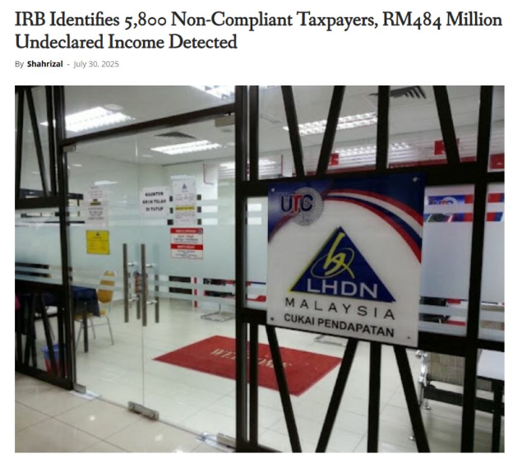
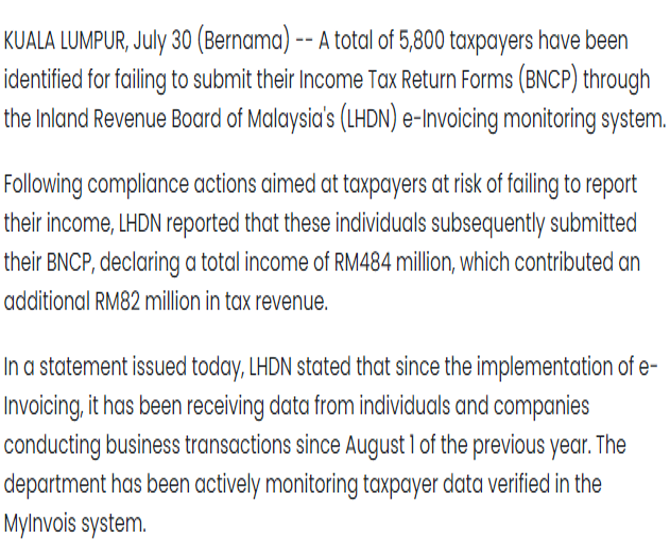
Source: Bernama 30/7/2025
1.2 Implementation TimeLine 实施时间表
| Targeted taxpayers 目标纳税人 | Implementation date 实施时间 | **Interim Relaxation Period 宽限期 |
| Taxpayer with an annual turnover or revenue of more than RM 100 million 年营业额或收入超过 1 亿 令吉的纳税人 | 1/8/2024 | 1/8/2024 – 31/01/2025 |
Taxpayers with an annual turnover or revenue exceeding RM25 million and up to RM100 million 年营业额或收入超过 2500万令吉至 1 亿 令吉的纳税人 | 1/1/2025 | 1/1/2025 – 30/06/2025 |
Taxpayer with an annual turnover or revenue exceeding RM5 million and up to RM25 million 年营业额或收入超过 500万令吉至 2500万令吉的纳税人 | 1/7/2025 | 1/7/2025 – 31/12/2025 |
Taxpayer with an annual turnover or revenue exceeding RM1 million and up to RM5 million 年营业额或收入超过 100万令吉至 500万令吉的纳税人 | 1/1/2026 | 1/1/2026 – 30/06/2026 |
Taxpayers with an annual turnover or revenue of less than RM1 million 年营业额或收入低于 100 万令吉的纳税人 | Exempted | Exempted |
*Based on Audited Financial Statement for Year 2022
**During the interim relaxation period, Government of Malaysia has agreed to allow taxpayers to issues consolidate e-invoice for all activities and transacitons. Please refer to LHDN webpage for more details.
***Updated On 07 Dec 2025
1.2a Business Year 2022 less than RM500,000 e-Invoice Implementation date 业务电子发票实施日期
| Year / 年份 | Implementation Date / 实施日期 |
2022 Annual Turnover Less Than RM1 million 2022年营业额低于100万令吉 | e-Invoice Exempted 电子发票豁免 |
2023-2025 Annual Turnover More than RM1 million 2023-2025年营业额超过100万令吉 | 1 July 2026 |
2023-2025 Annual Turnover Less than RM1 million 2023-2025年营业额低于100万令吉 | e-Invoice Exempted 电子发票豁免 |
2026 Annual Turnover More than RM1 million 2026年营业额超过100万令吉 | 1 Jan 2028 |
1.2b New Business e-Invoice Implementation Date 新业务电子发票实施日期
| Year / 年份 | Implementation Date / 实施日期 |
From 2023-2025 turnover at least RM1 million 2023-2025年营业额至少达到100万令吉 | 1 July 2026 |
New Business/Operation commencing From 2026 Onward 2026年起开始的新业务/运营 | 1 July 2026/Upon Operation Commercement date – 2026年7月1日/商业运营日期 Total annual turnover reached RM1 million Implementation date 1 Jan in the Second Year – 年度营业额达到RM100万实施日期为第二年1月1日 |
1.2c 2026 New Business e-Invoice Commencing Year 2026新业务电子发票起始年
| Year / 年 | Issuance Time / 开具时间 |
2026 Annual Turnover RM430,000 2026年营业额 RM430,000 | e-Invoice Exempted 电子发票豁免 |
2027 Annual Turnover RM1, 580,000 2027年营业额 RM1, 580,000 | Reached RM1 million 达到RM100万令吉 |
2028 Annual Turnover RM610,000 2028年营业额 RM610,000 | 1st Year e-Invoice Exempted 第一年豁免 |
2029 Annual Turnover RM700,000 2029年营业额RM700,000 | 2nd Year Start Implement e-Invoice 第二年开始实施电子发票 |
1.2d e-Invoice Implementation Date 电子发票实施日期
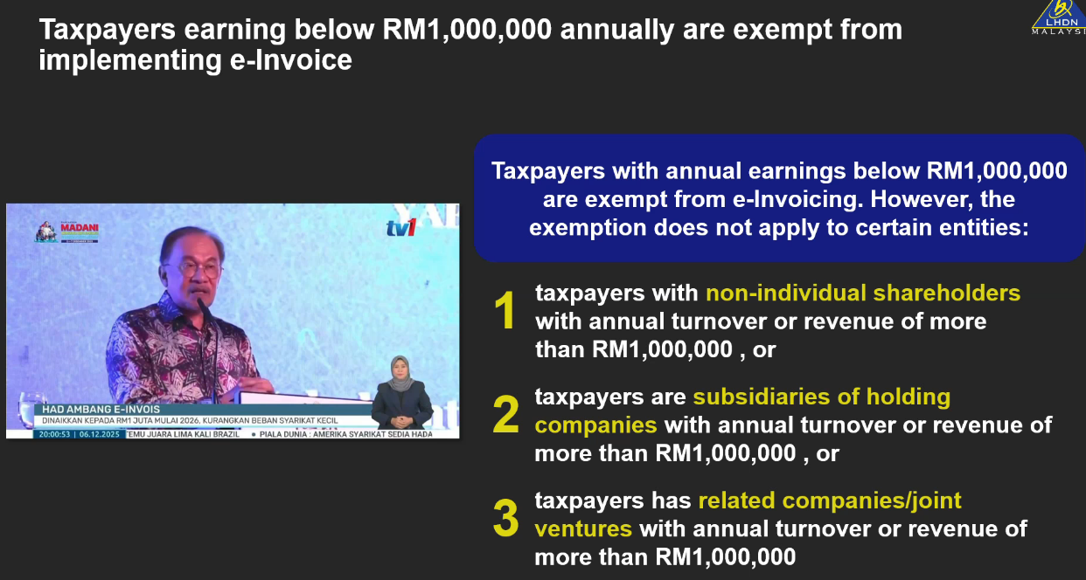
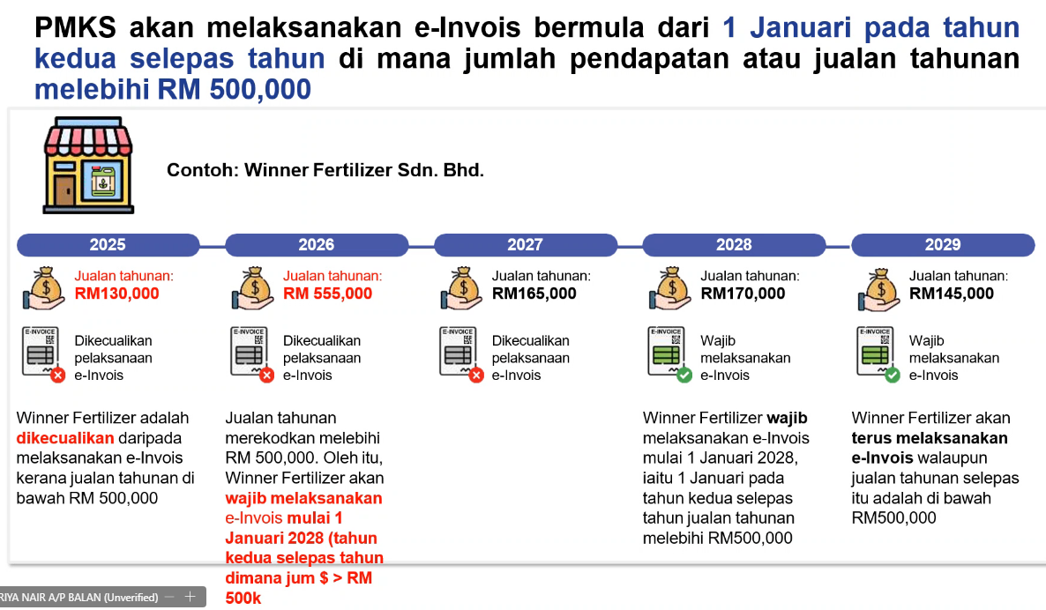
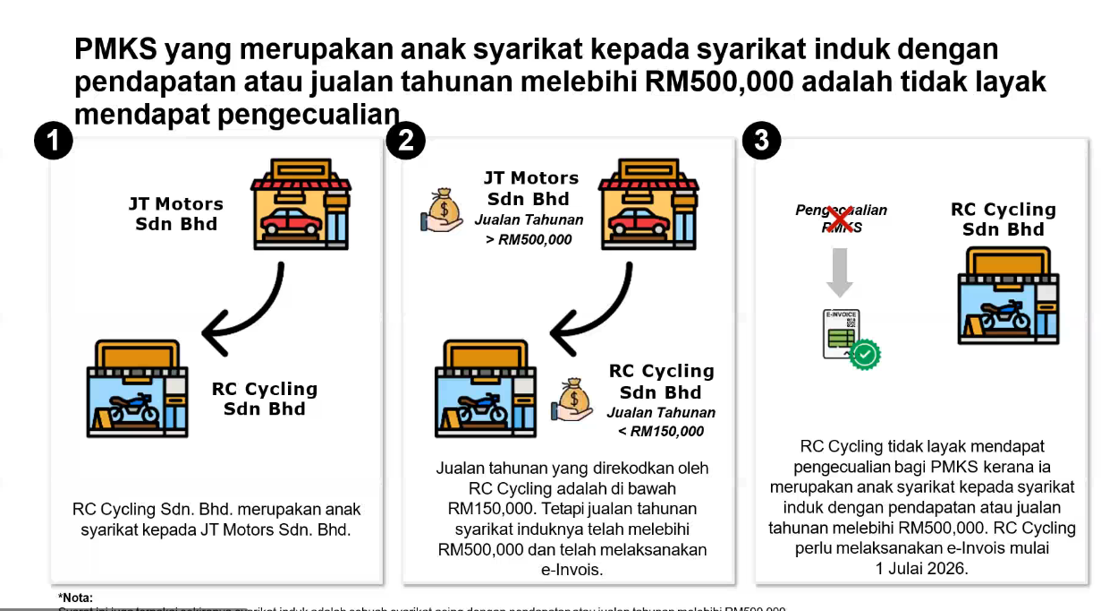
1.2e Related Company Implementation Date 相关公司实施日期
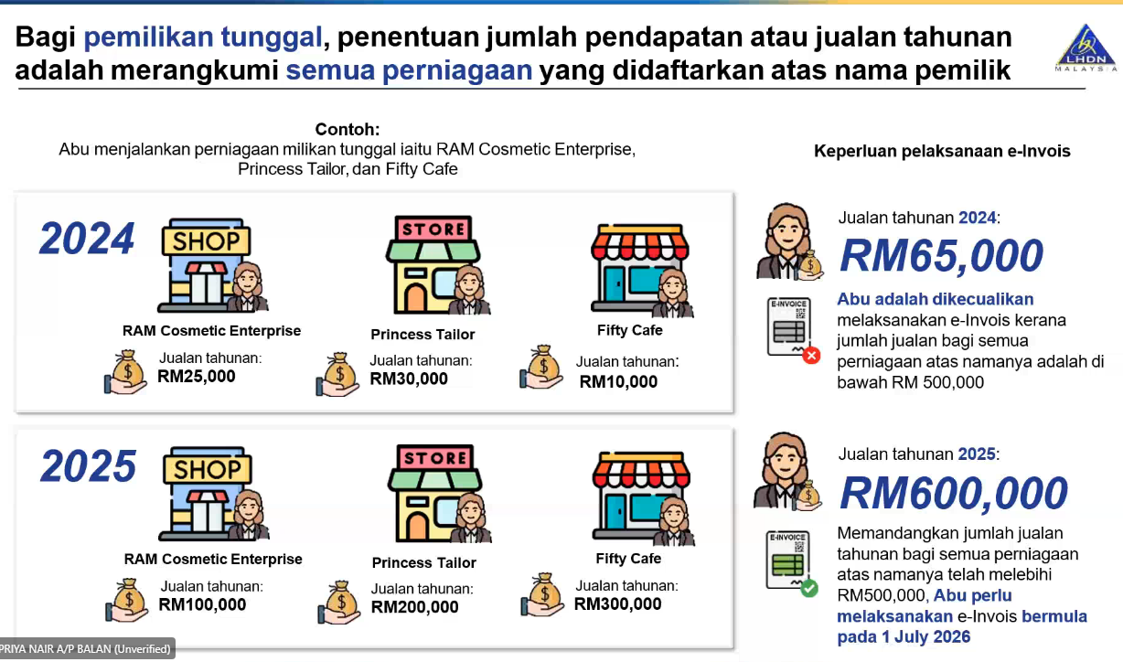
1.2f Sole Proprietor Implementation Date 个体经营者实施日期
1.3 Penalty for Failure Issue e-Invoice 未能开具电子发票的罚款

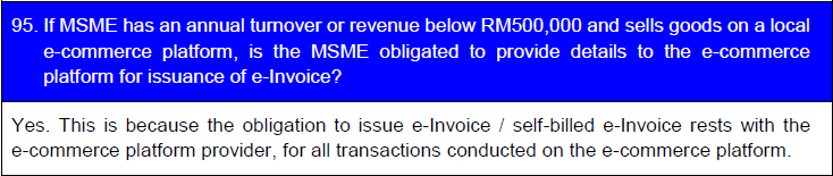
FAQ
 | Q: How to determination which phase for the implementation of e-Invoice for MSMEs? 问:如何确定中小微企业电子发票实施的哪个阶段? |
1. Taxpayers with audited financial statements: Based on Audited Financial Statement for Year 2022 2. Taxpayers without audited financial statements: Based on the annual income reported in the relevant tax return for the taxable year |  |
3. For sole proprietorship, how will the mandatory implementation be determined if a sole proprietor has more than one business?

EXAMPLE:
1.4 E-Invoice Treatment During Interim Relaxation Period 过渡期间电子发票处理
1. Allowing all activities and transaction to issue consolidated E-invocie 为所有活动和交易发出合并电子发票
2. Issue consolidated self-billed e-invoice for all self billed circumstances 针对所有自开具合并电子发票
3. Allowing any desciption of transaction to be included in the description of product or services 在产品/服务描述中输入任何信息/详细信息
4. Not to issue individual e-invoice or individual self-billed e-invoice even if the buyer/supplier has mad a request 即使买方/供应商提出要求,也可以不开具个人电子发票或个人自记电子发票
5. IRBM will not undertake any prosecution action during the SIX months interim relaxation during interim period. 在6个月过渡期间的灵石放宽间,内陆税收局不会采取任何检控行动
1.5 Type of E-Invoice Documents 电子发票文件类型
 | Invoice Record Sales Transaction 记录销售交易 Self Billed e invoice 自开电子发票 |  | Debit Note Record Increase in the value of original e invoice 记录原始发票价值的增加 |
 | Credit Note Record reduction in Value of Original einvoice
| | Refund Note Return monies to buyers Exception:
*Select refund note doc type in credit note |
1.5a Credit Note VS Refund Note 贷项通知单 VS 退款通知单
| Credit Note 贷项通知单 | Refund Note 退款通知单 |
|
|
1.5 Conventional Validation VS E-Invoice 传统发票验证 VS 电子发票
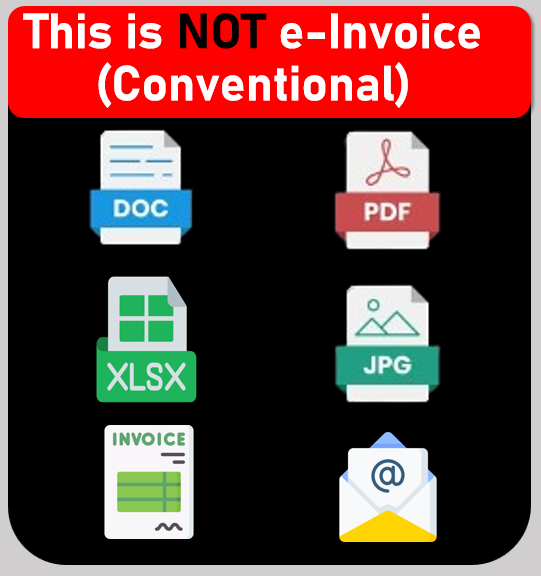 |  |
| Conventional | E-Invoice |
No validation Required 无需验证 | Have to submit to LHDN for validation before sending to customer 需验证 |
Invoice can be voided or cancelled anytime 发票可以随时作废或取消 | Invoice can void within 72 hours. After 72 hours, Credit Note or Debit note for any adjustment or cancelled Invoice 发票可在 72 小时内作废. 72 小时后, 任何调整或取消的发票的贷方票据或借方票据 |
Only Basic Information 仅基本信息 | More specific Information is required eg: Email address, Tin Number, Company registration or IC Number 需要更具体的信息,例如电子邮件地址、税务识别号、公司注册或身份证号码 |
1.6 E-Invoice is Required 电子发票是必须的
Proof of Income 收入证明 | – Sales 销售 – Other transaction is made to recognize income of taxpayer 其他交易用于确认纳税人的收入 |
Proof of Expenses 费用证明 | – Purchases 购买 – Spending by taxpayers, includes returns and discounts used to correct or subtract an income receipt 退货和折扣用于纠正或减去收入收据 – Self-billed e-Invoice to document an expense such as Oversea transactions 自开票电子发票至记录费用 比如海外交易 |
1.7 Income / Expenses that are not required for E-Invoice 不需要开电子发票的收入/支出
| Employment Income 就业收入 | Pension Fund 养老保险基金 |
| Zakat 天课 | Alimony 赡养费 |
| Dividend 股息 | Disposal of Shares 股份处置 |
Contract value for the buying or selling of securities or derivatives traded on a stock exchange or derivatives exchange in Malaysia 在马来西亚证券交易所或衍生品交易所交易的证券或衍生品买卖的合约价值 | Donation or Contribution Received 收到的捐款或捐赠 (New as 7/7/25) |
1.8 Business that will be affected 受到影响的企业
| B2B – Business to Business 企业与企业之间 | B2C – Business to Consumer 企业对消费者 |
| B2G – Business to Government 企业对政府机构 | Other – All taxpayers undertaking commercial activities in Malaysia 所有在马来西亚从事商业活动的纳税人 |
1.9 All individuals and legal entities, namely: 所有个人和法人,即:
| Assoications 协会 | Business trust 商业信托 | Partnerships 合作伙伴 | Co-operative society 合作社 | Real estate investment trust (REIT) 房地产投资信托 |
| Branches 分支机构 | Corporation 企业 | Property trusts 财产信托 | Trust bodies 信托机构 | Unit trusts 单位信托 |
Body of person 独资经营者 | Limited liability partnerships 有限责任合伙企业 | Representative offices and regional offices 代表处何地区办事处 | Property trust funds 财产信托基金 |
1.10 Exempted from Implementing e-Invoice 免于实施电子发票
a. Foreign Diplomatic Office 外国外交办公室
b. Individual not conduct Business 个人不开展业务
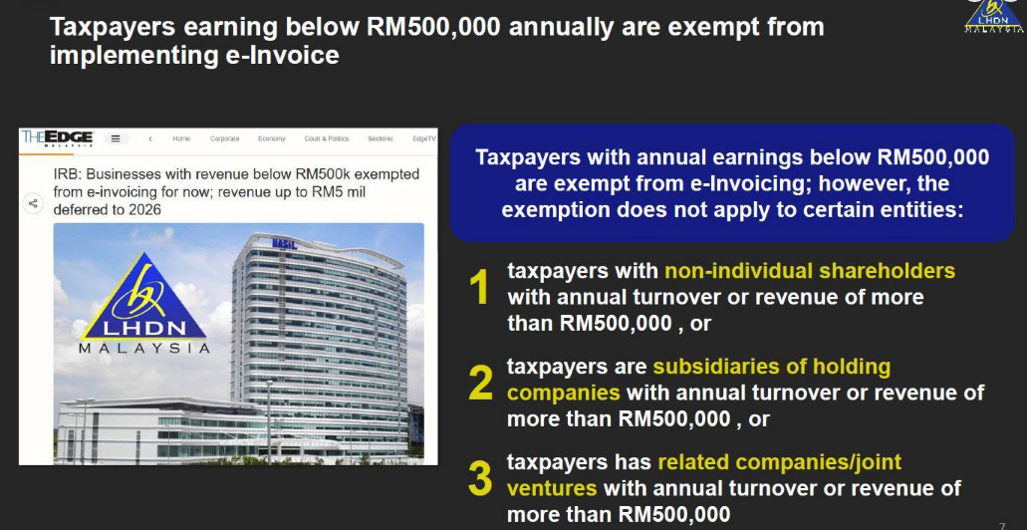
c. Taxpayer annual turnover less than RM500k 纳税人年营业额低于50万令吉
d. Statutory Authority % Statutory Body 法定权利与机构
—Collection of payment, fees, charges, statutory levy, summon and penalty under written law
*Supplier who supply goods / services to exempted person still required to issue e-Invoice
1.11 Exempted from Implementing e-Invoice Not Apply to Certain Entities
2.0 | AutoCount System Design for E-Invoice
2.1 AutoCount Solutions to Malaysia e-Invoicing
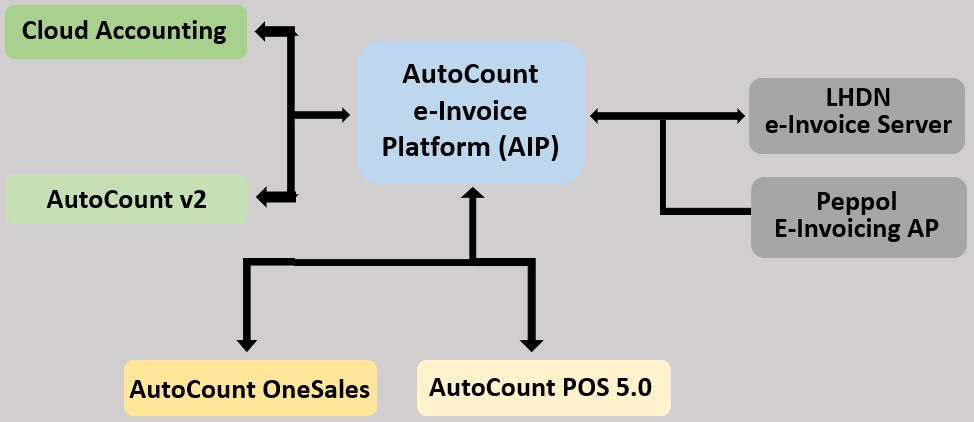
2.2 Overview of AutoCount E-Invoice Platform (AIP)
- Will be implemented as a module like feature 作为一个模块化的功能实现
- Only available for account book under country – Malaysia 仅适用于马来西亚的记账本
- Can enable at: Tools > Option > General > Country & Tax Section
- Will implement a start date for e-invoice, similar to GST start date and SST start date 实施电子发票(e-inv) 的启动日期,类似于消费税(GST)启动日期喝销售税(SST)启动日期
2.3 AIP Highlights
1. Runs 24/7 & responsible to handle any submission of e-Inv to IRBM server via API, including:
7天 24 小时运行,并负责通过 API 将任何电子发票提交到 IRBM 服务器,包括:
- Standard e-Inv
- Consolidated e-Inv
- Self-Billing e-Inv
- To streamline the request of e-Inv for POS related transaction (Post-Transaction) 为了简化销售点 (POS) 相关交易 (事后) 索取电子发票的流程
- Manage, share, request and update Tax Entity & TIN details of business 管理、分享、请求和更新企业税务主体和税务登记号
- Support retry mechanism on submission e-Inv, if there is any failure due to IRBM server failure 对于电子发票提交,如果因 IRBM 服务器故障导致提交失败,支持重试机制
- Act as layer of protection for duplication submission e-Inv 作为电子发票重复提交的防护层
2.4 e-Invoice Submission Status
- An inquiry function to lookup all e-Inv submission records 电子发票提交记录查询功能
- Can also act as an audit trail or log report to trace submission 也可用作审计跟踪或日志报告,以跟踪提交
- Support filters such as: Date, Document Type, Keyword, Status
- Records can export to Excel 记录可以导出到 Excel
3.0 | AutoCount E-Invoice Setting
3.1 Configure e-Invoice Setting
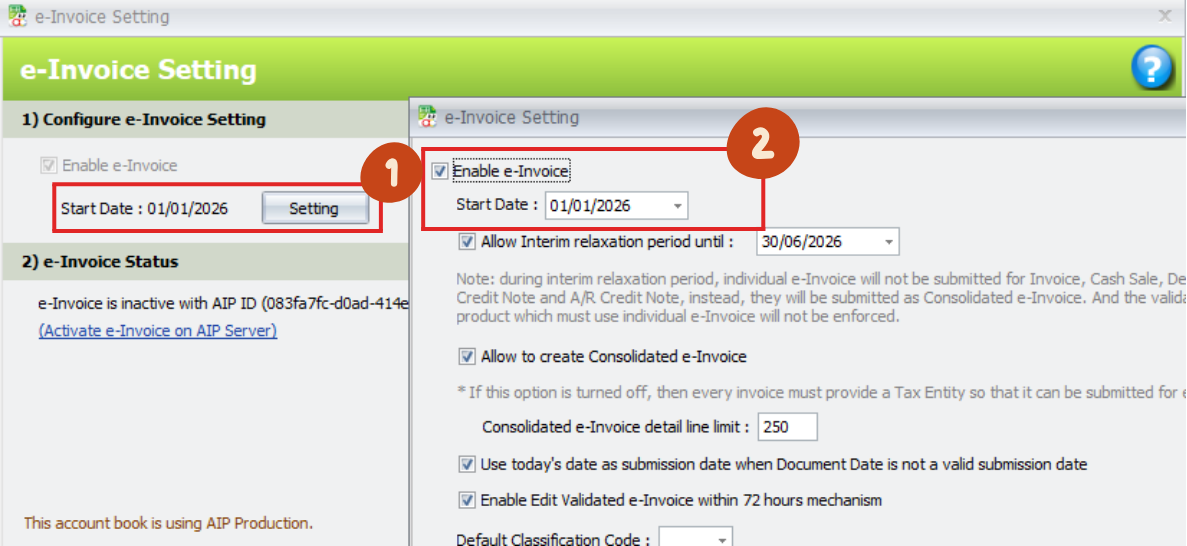
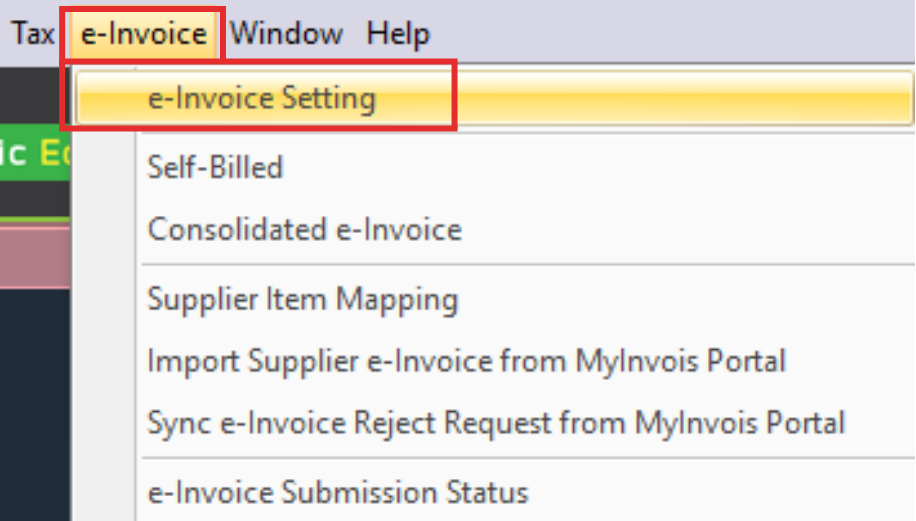
e-Invoice > e-Invoice Setting
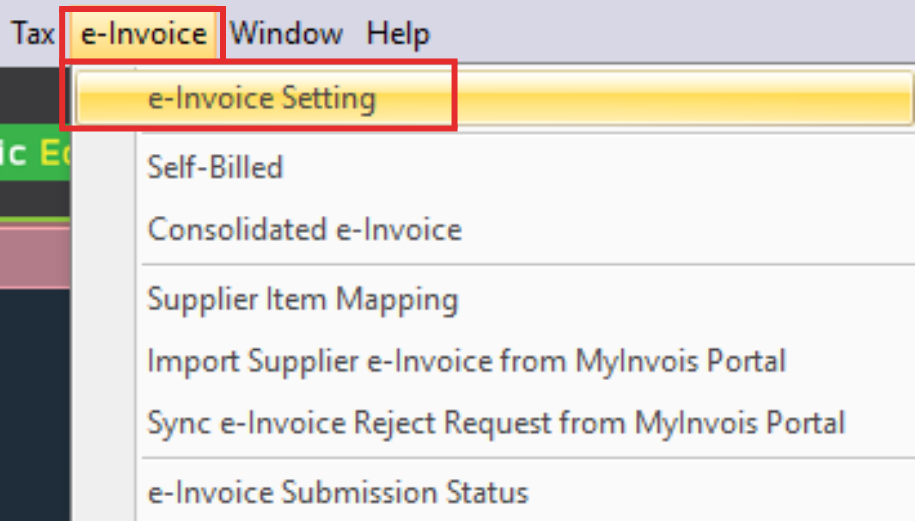
Setting (1) > Enable e-Invoice (2)
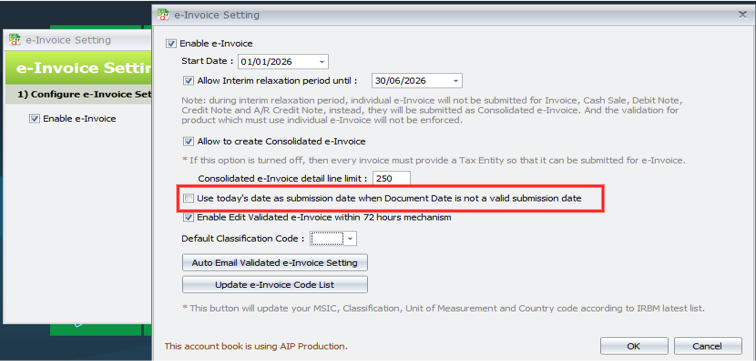
3.1b Auto Assign Approve Date as e-Invoice Issue Date
Tick the checkbox, system will automatically update the issue date to today’s date when you save document with document date more than 3 days earlier than today’s date
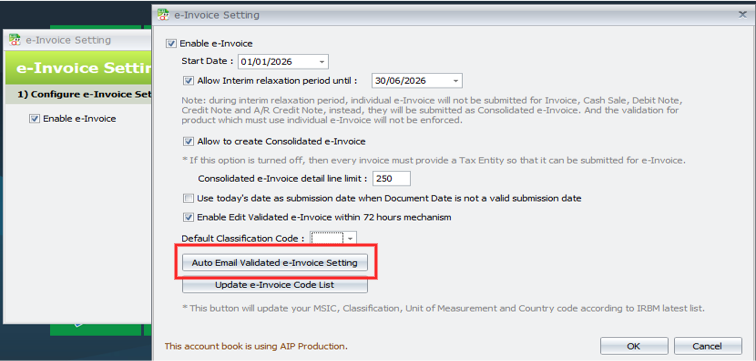
Auto Email Function for Validated e-Invoice to Debtor’s Email
- New function to automatically send emails to debtors once an e-Invoice is validated
- Enable this function at e-Invoice Setting
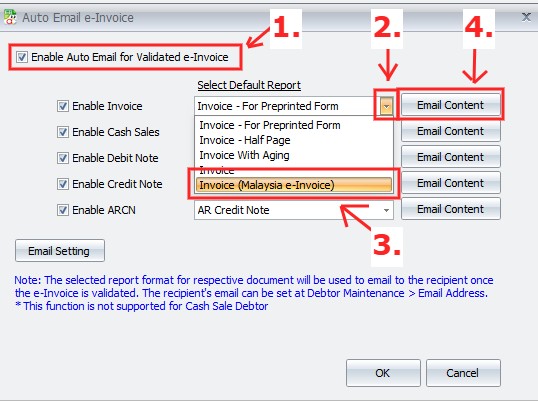
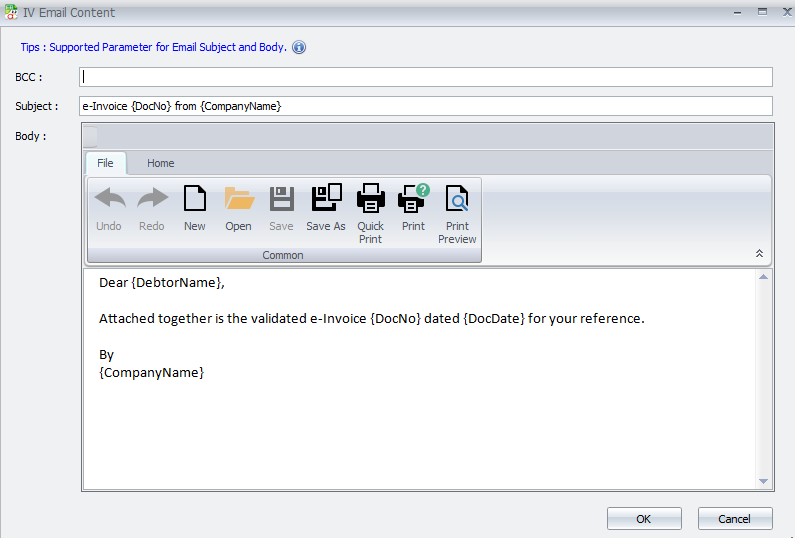
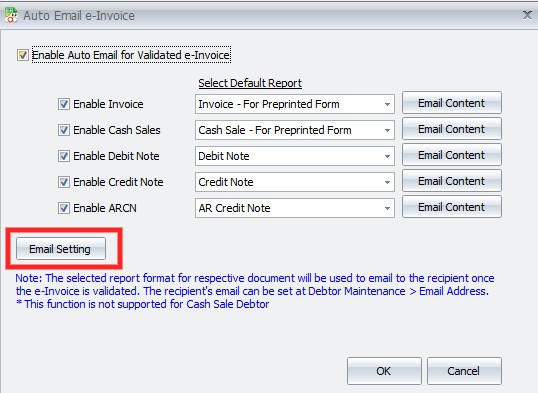
Tick to enable this function for specific documents (1) > Click on the drop down menu (2) > Select “Invoice (Malaysia e-Invoice)” (3) > Click “Email Content” (4) to customize as needed
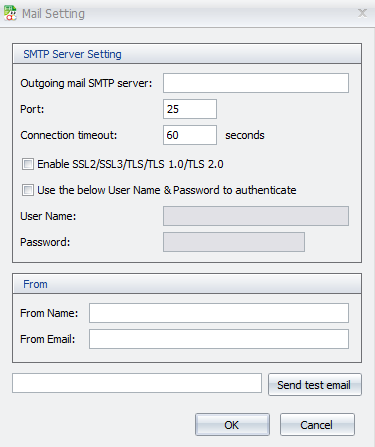
*Important: must configure the Email (SMTP) settings for this function to work properly
To configure the Email settings, Click “Email Setting”
Fill in the blank for this function & Click OK
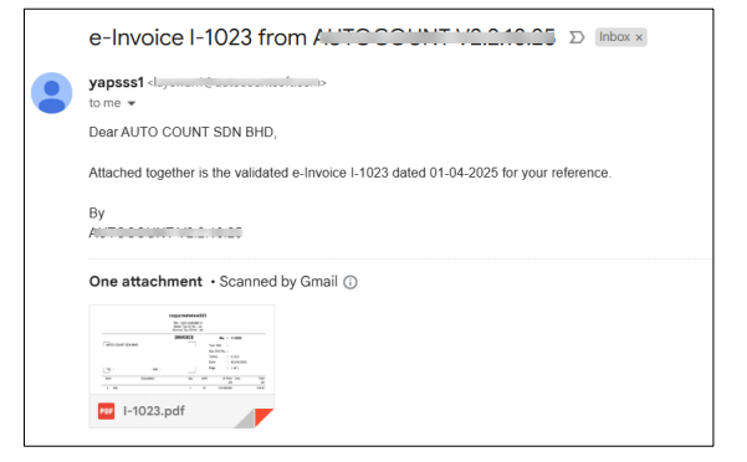
Once the invoice is issued & the e-Invoice is submitted and successfully validated, AutoCount will automatically send an email to your customer
Consolidated e-Invice exceeds the 300KB size limit, try to reduce the details line limit & try to submit again
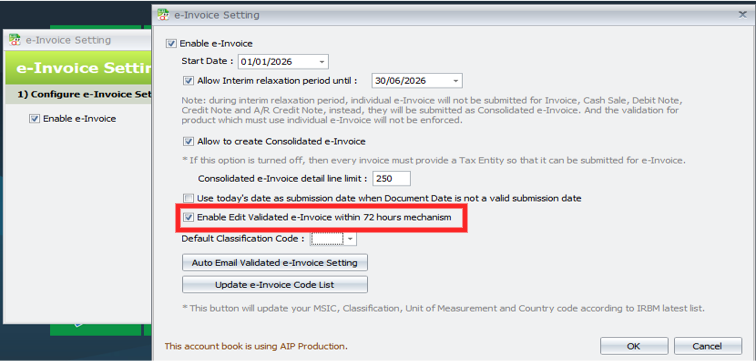
Add Option to Enable Edit Validated e-Invoice within 72 hours Mechanism
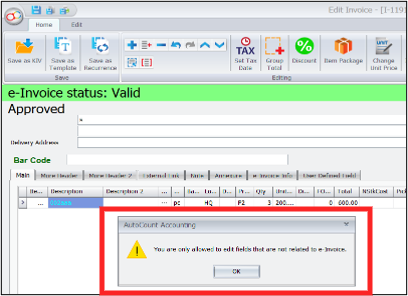
- When disabled, only non-e-Invoice-related fields can be edited
- This setting is checked by default. If you do not wish to run this mechanism, kindly uncheck it
- If the setting is unchecked & you attempt to edit any e-Invoice related fields, a blocking message will prompt you during save
You can find this option under e-Invoice > e-Invoice Setting > Setting
Tick the checkbox to enable it
If untick, a blocking message will prompt you when you modified related fields and want to save
3.2 Setting of Approval Workflow
Tools > Option > Approval Workflow > Enable Approval in Documents
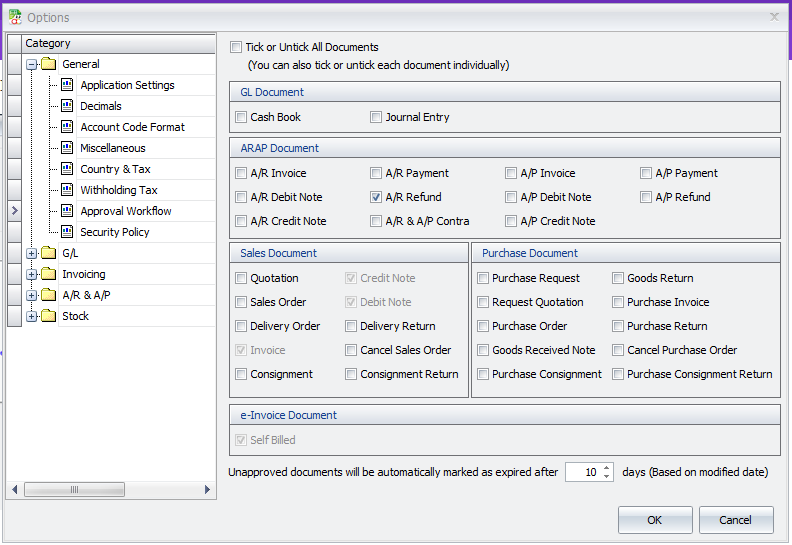
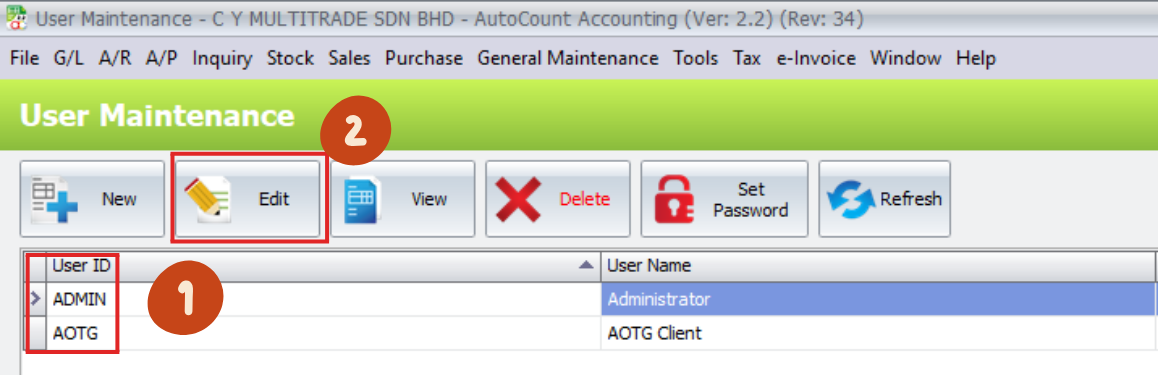
3.3 Setting for e-Invoice Access Right
General Maintenance > User Maintenance > Select a User ID (1) > Click Edit (2)
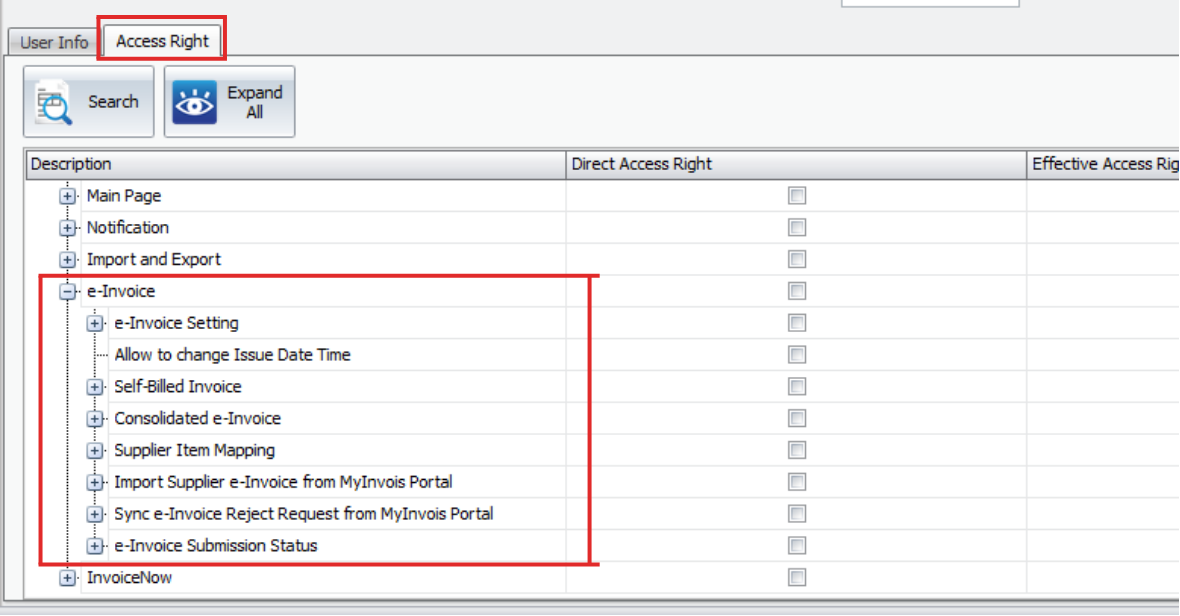
Click Access Right > Expand e-Invoice, and tick the function you want to access
4.0 | Configuration and setting @ MyInvoice Portal to set AutoCount as Intermediaries
4.1 MyInvois Portal
Before you register your MyInvoice Portal account, please take note that there are 2 MyInvoice Portal:
| Testing (Sandbox) | Production (Actual) |
|
|
4.2 MyInvois Setting
1. First Time Registration:
First time login user guide to MyTax Portal (Testing Enviroment)
–Company Director and Company Representative
2. Link Company Profile:
- Click on the User icon on the right > Role Application
- Upload supporting documents
3. Add Representative:
- Access to your company by clicking on the Role Selection > Select your company
- To assign representatives, click on the right-side User icon > Select Appointment of Representative > Select ID Type (IC) > Key IC Number > Click submit
4. Add AutoCount as Intermediaries:
- Allowing AutoCount to submit e-Invoices
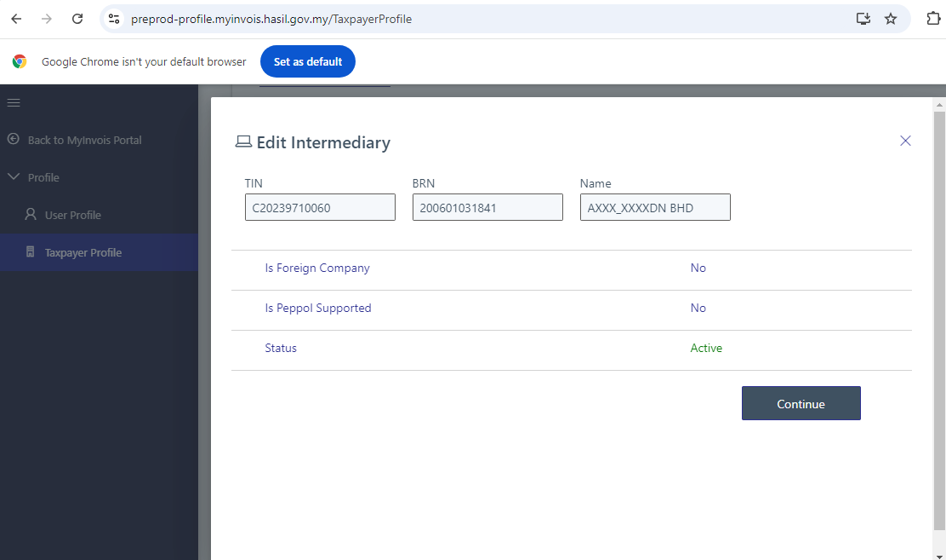
- At MyInvois Portal, click on “Taxpayer profile”
- Click on the “Add Intermediary”. Key in intermediary TIN, BRN & Name
- AutoCount info:
TIN: C20239710060 BRN: 200601031841 Name: AUTO COUNT SDN BHD Preprod: AXXX_XXXXHD
5. Register & Manage ERP:
- At MyInvois Portal, click on “Taxpayer profile”
- Scroll to bottom, click ERP tab > Click Register ERP > Fill in details, toggle Primary ERP if applicable > Copy and securely save the Client ID & Client Secrets
- Access the ERP tab to view all registered systems & their status
- Click more options (⋮) on a specific ERP to:
- Regenerate Secrets if expired/lost
- Update ERP details/expiration dates
- Deactive the ERP to stop access
*For more detailed step and information, please refer to https://www.cy-grp.com/autocount-einvoice/autocount-e-invoice-setting/5-mytax-preprod-register/
4.3 MyInvois Testing Portal
https://preprod-profile.myinvois.hasil.gov.my/TaxpayerProfile
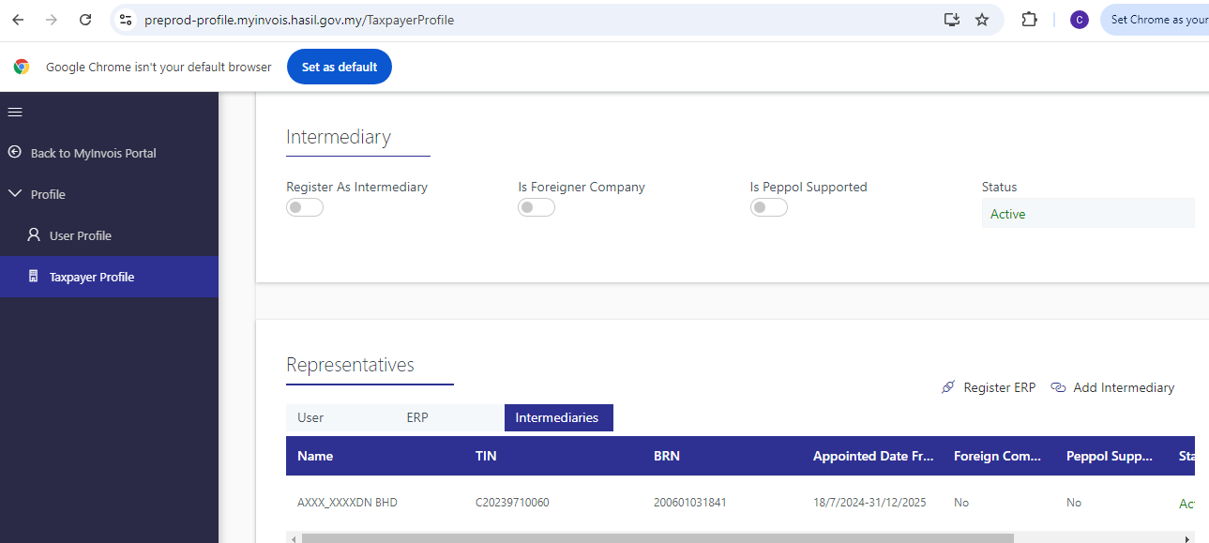
4.4 Setting Autocount As Intermediary
4.5 Issuing e-Invoices Under the Name of A Sole Proprietorship
First Time Registration
- Issuing e-Invoices under the name of a Sole Proprietorship is now streamlined through the MyInvois Portal
- 以独资企业的名义开具电子发票,现可以通过 MyInvois 门户轻松完成
- Business owners must ensure their business details are correctly registered with LHDNM and follow a simple process to apply for the “Business Owner” role
- 业主需确保其业务信息已在 LHDNM 注册,并按照简单的步骤申请“企业主”角色
Approved
- Once approved, they can easily select their business name and issue legally recognized e-Invoices
- 一旦批准,他们即可轻松选择企业名称并开具合法认可的电子发票
- This ensures compliance and enhances the efficiency of invoicing for sole proprietors
- 这不仅确保了合规性,还提升了独资企业开票的效率
4.6 Sole Proprietorship Issue an e-Invoice Under Different Name
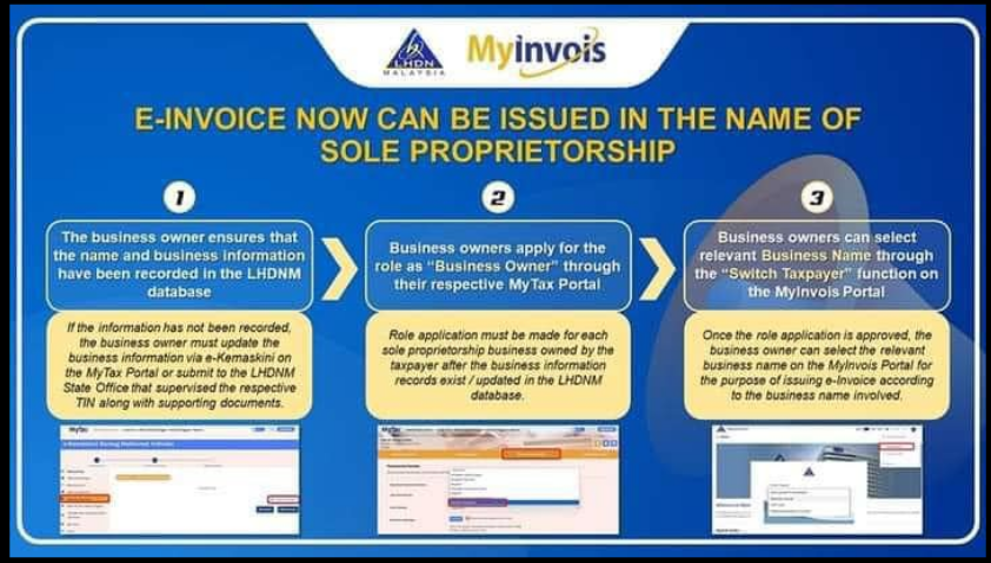
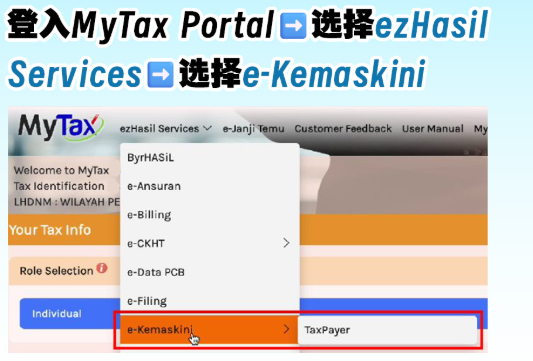
1. Login to the MyTax Portal > Select ezHasil Services > Choose e-Kemaskini
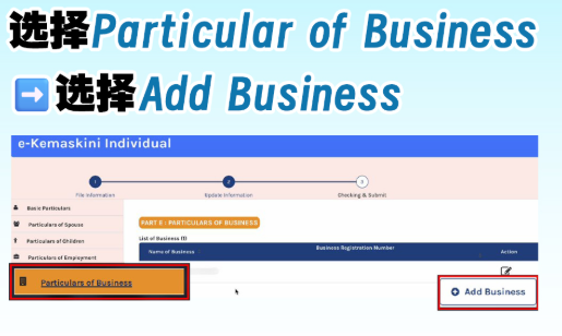
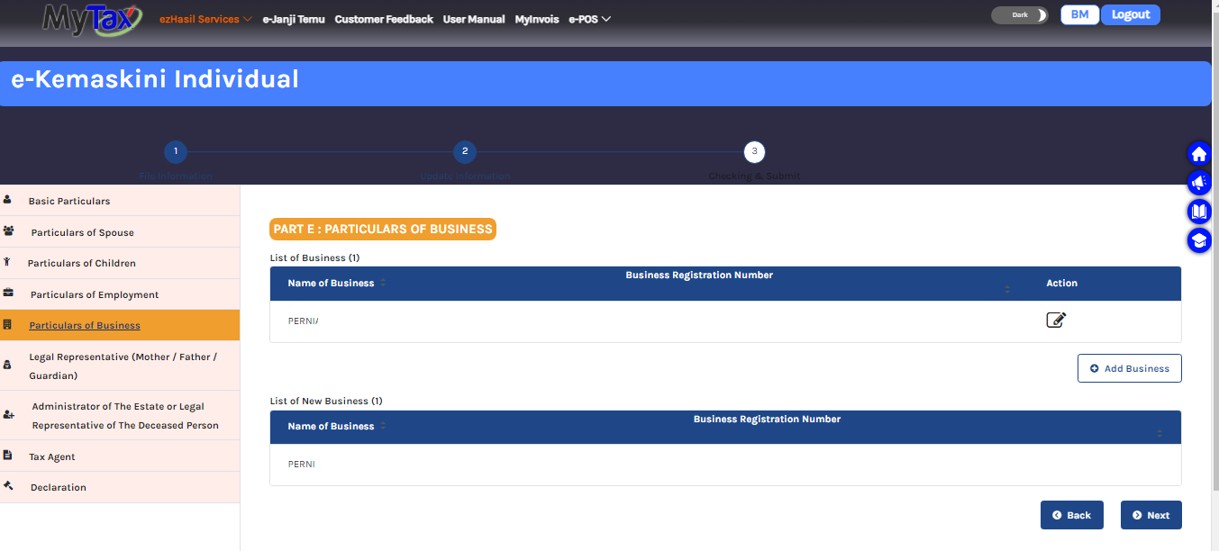
2. Select “Particular of Business” > Click “Add Business”
3. Fill in the required details > Click “Add Business”
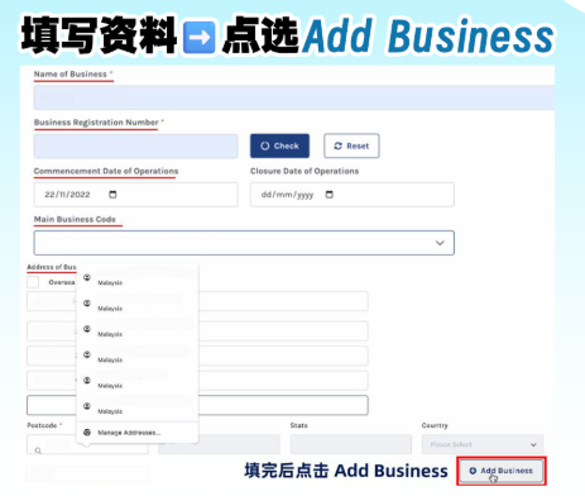
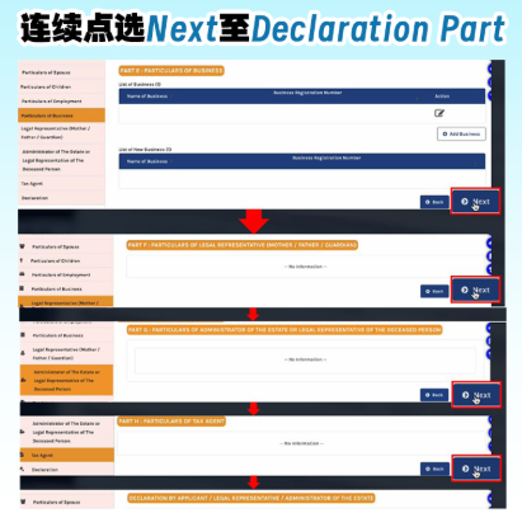
4. Keep clicking “Next” until you reach the Declaration section
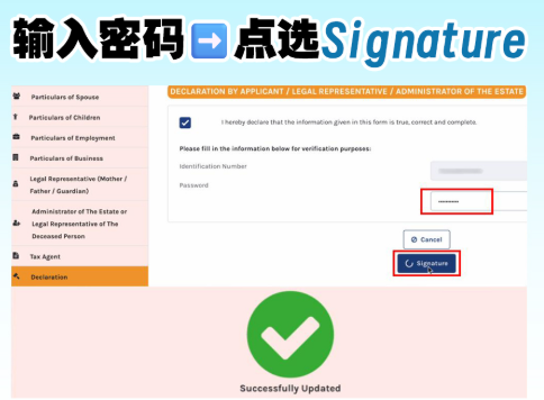
5. Enter your passowrd > Click “Signature”
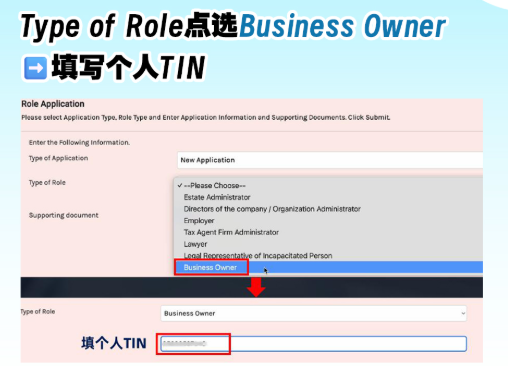
6. In MyTax, click profile > Select “Role Application” > Click “New Application”
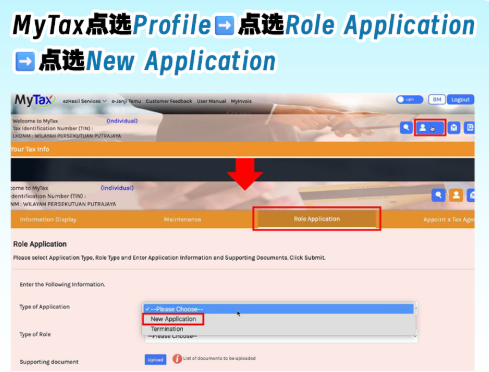
7. For Type of Role, select “Business Owner” > Fill in your personal TIN
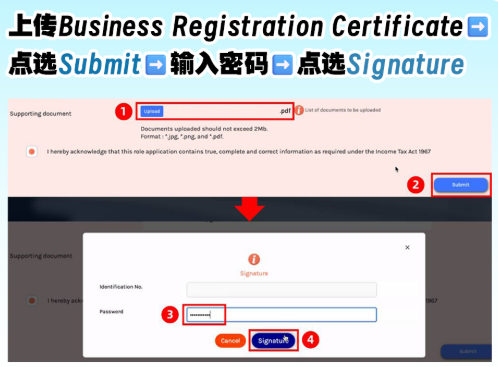
8. Upload your Business Registration Certificate > Click Submit > Enter password > Click “Signature”
9. Once completed, wait for 5 working days for approval > The next time you log in to MyTax, you can select your Business Name under Switch Taxpayer to issue e-Invoices directly registeres with LHDNM and follow a simple process to apply for the “Business Owner” role
完成后,请等待5天工作日以获取批准 > 下次登入时您可在“切换纳税人” 选项下选择您的企业名称,直接向 LHDNM 注册开具电子发票,企业主需确保其业务信息已在 LHDNM 注册,并按照简单的步骤申请“企业主”
5.0 | Function of Tax Entity and TIN
5.1 What is TIN 什么是TIN
In Malaysia, both individuals & entities who are registered taxpayers with the Inland Revenue Board of Malaysia (IRBM) are assigned with a Tax Identification
马来西亚内陆税收局(IRBM)注册纳税人的个人和实体都会被分配税务识别号
TIN will be issued to all Malaysian citizens who attained the age of 18 years old and above
TIN将发给所有年满18岁及以上的马来西亚公民
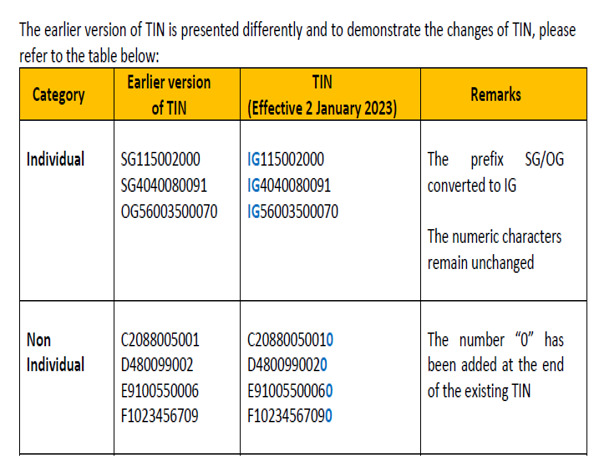
5.2 Tax Identification Number (TIN) 税务识别号
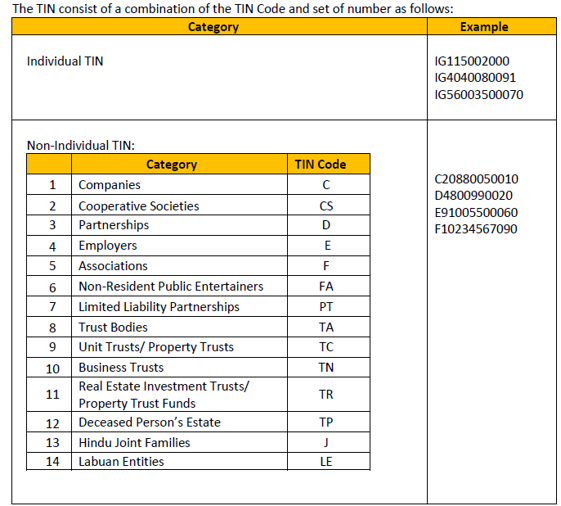
| For Individual TIN (with prefix IG) | For Non-Individual TIN (with prefix C/CS/D/F/FA/PT/TA/TC/TN/TR/TP/J/LE) |
|
|
|
|
Individual TIN:

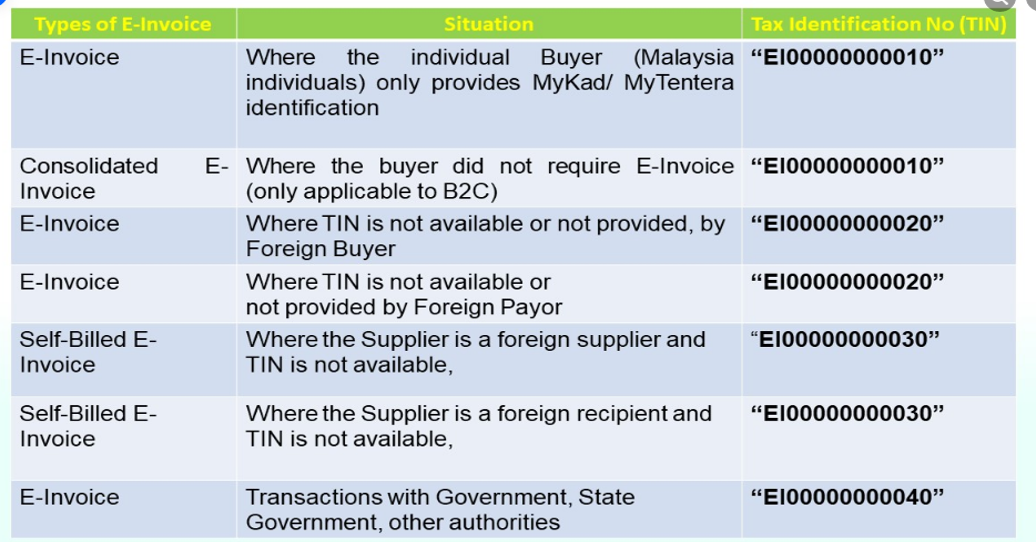
5.3 e-Invoice TIN Type 电子发票TIN类型
TIN:
5.4 How to Search TIN in MyTax 如何在MyTax中搜索TIN
1. Visit MyTax Official Website: https://mytax.hasil.gov.my/
1a) Log into account with Idendity number & Password 填写身份证号码和密码登录户口
1b) You need to register MyDigital ID first if you want to use “TIN Search” function
如要使用 TIN Search,需要先注册 MyDigital ID 才能搜索 TIN
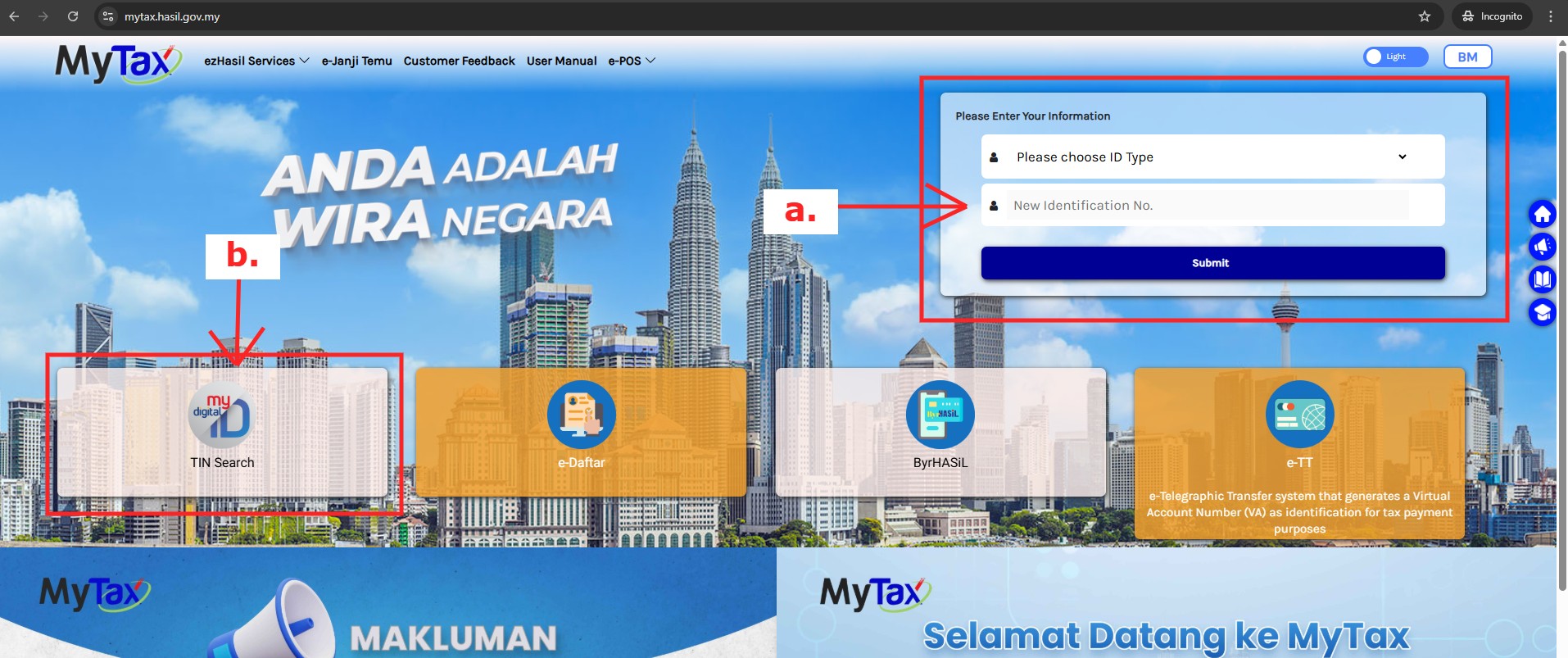
b1) If choose “TIN Search” function on left of the portal (1b):
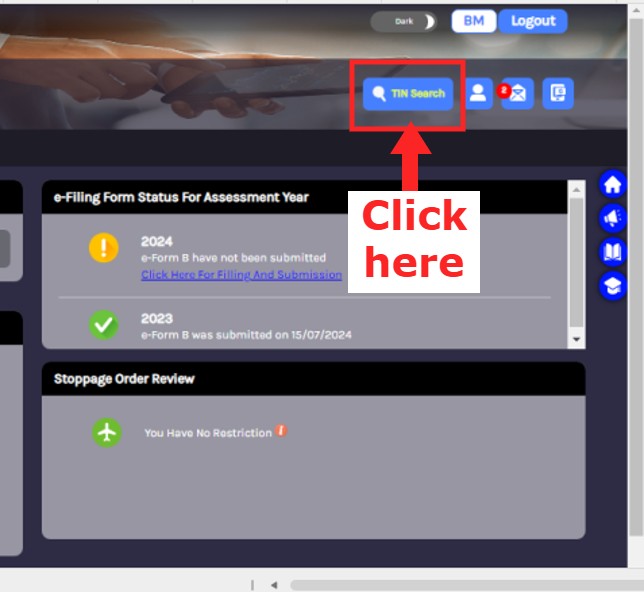
b2) Enter to Search TIN system 进入 Search TIN 系统
当滥用税务识别号 (TIN) 信息时,将启动刑事诉讼程序,并处以不超过4,000令吉的罚款或不超过一年的监禁,或两者并处 (1967年所得税法第66A条)
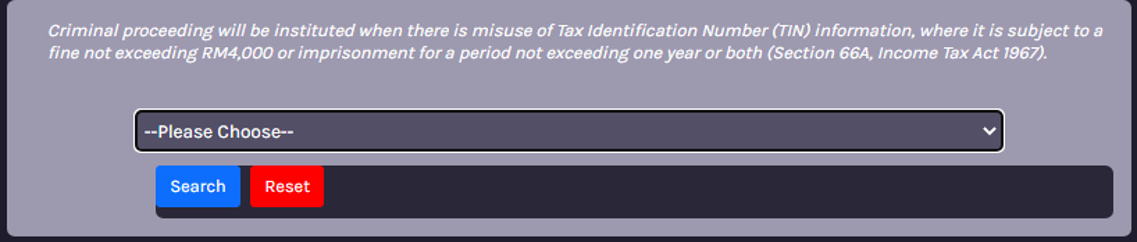
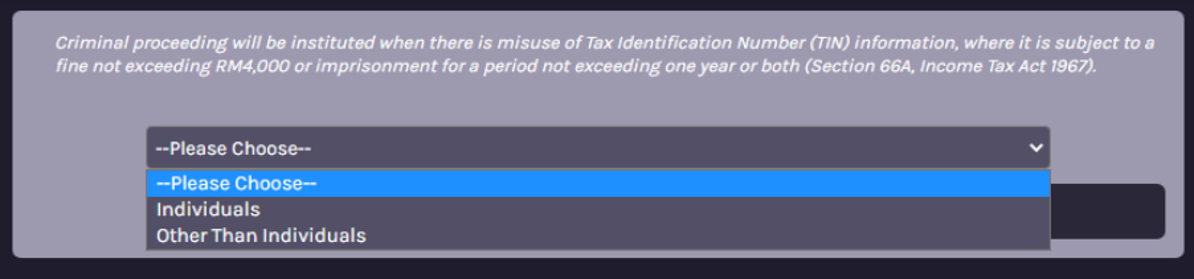
b3) Choose the taxpayer type to be searched for TIN 选择搜索的纳税人类型
| Individual | Other than Individual |
To search for an individual, enter their IC number 用于搜索个人类型,填写身份证号码即可搜索 | To search for entities other than individual, enter the registration number to search 用于搜索个人以外的类型,填写注册号码就能搜索 |
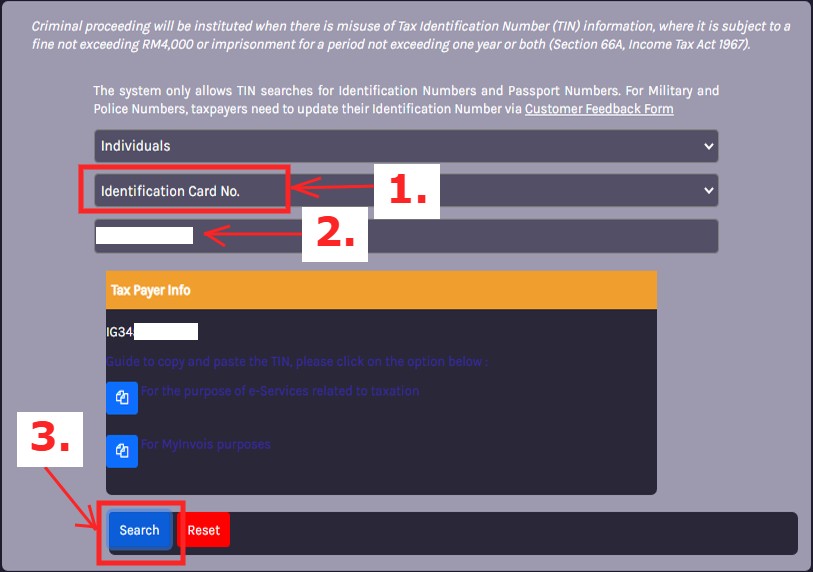
b4) For Individual
Select “Identification Card No.” (1) > Enter IC No. (2) > Click “Search” (3)
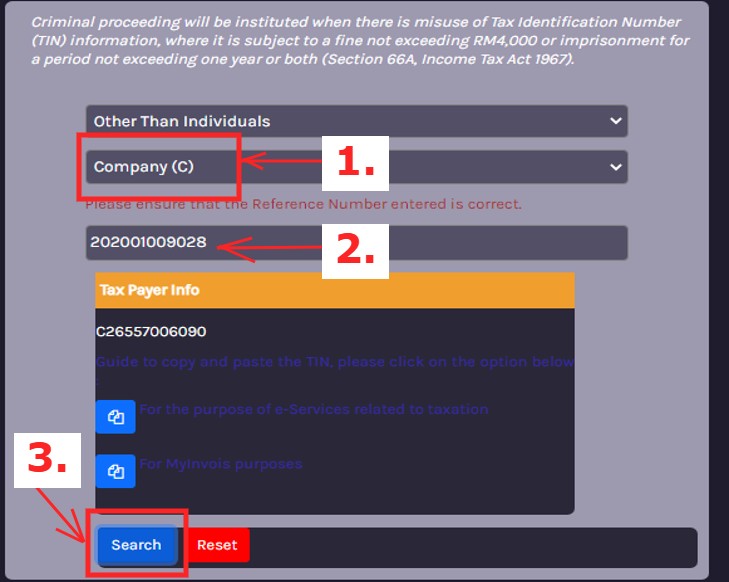
b5) For entities Other Than Individual
Select “Company” (1) > Enter Company Registration No. (2) > Click “Search” (3)
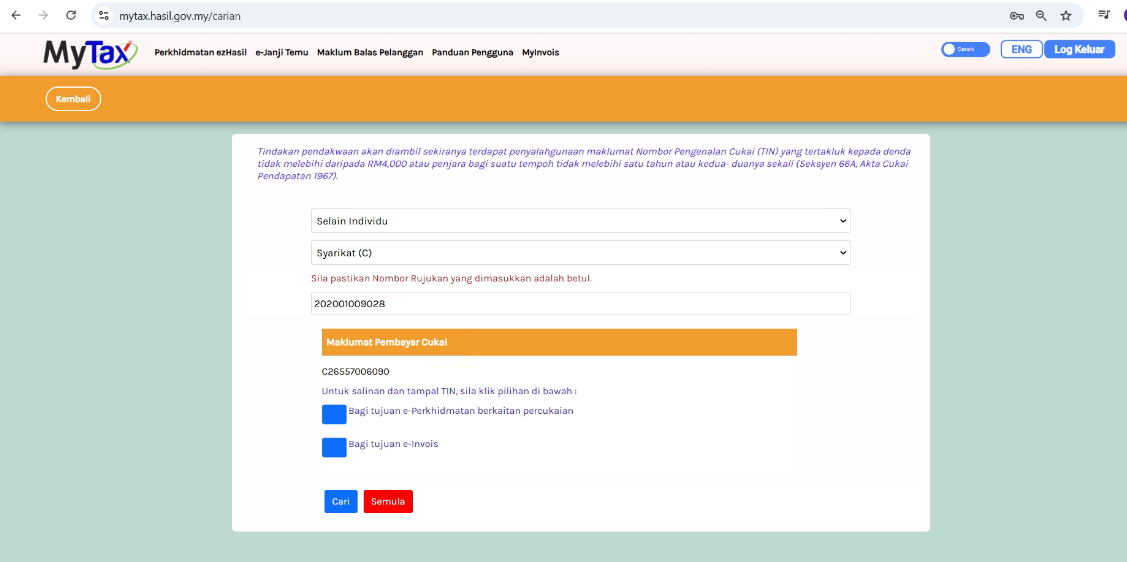
5.5 Search TIN in MyTax Portal 在 MyTax 门户中搜索所得税号码
5.6 General TIN to be used 通用的税务识别号
5.6a Malaysia Individual TIN 马来西亚个人所得税号码
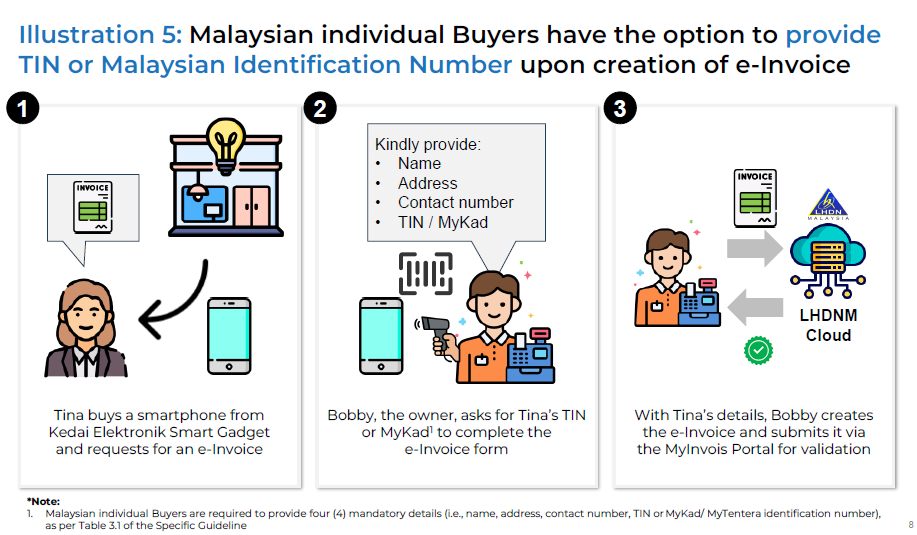
5.7 What are the Supplier/Buyer Information Field Validation?
| No | Field | Validation Rules |
| 1. | Supplier/Buyer Name |
|
| 2. | Email Address |
|
| 3. | Phone Number |
|
| 4. | Address (Line 1-3) |
|
| 5. | City Name |
|
| 6. | Postal Code |
|
| 7. | SST Number |
|
| 8. | TTX Number |
|
5.8 Information Update for AIP 更新AIP信息
Our AIP Server will handle the folowing common scenarios:
1. Phone No – Should consist of at least 8 characters and must not have dash (-) and empty space
-Remove dash (-) and empty space. Example “03-3000 3000” will be formatted to become “0330003000”
-Remove unnecessary additional remark. Example “03-3000 3000 (MR ONG)” become “0330003000”
-Convert multiple numbers to capture first numbers only. Example “03-3000 3000, 03-3000 3001” or “
2. Email – Any data key in this field needs to be in email format “xxx@yyyy.com”
-Any value that cannot fulfill the email format will be converted to empty for submission
3. SST No & TTX No – If have these two number, the data should not contain empty space in between
-Remove empty space. Example “S 12345” become “S12345”
-If don’t have SST/TTX No., fill in “NA” instead of “N/A” or “n/a”
You don’t have to edit these data 1 by 1 and still get your e-Invoice validated with the help of AIP Server. No AutoCount updates required as well!
Scenarios that’s not mentioned above will need you to correct the data manually
5.3 TIN Setting Highlight
| 1. Tin | 2. Business Type | 3. Business Registration | 4. MSIC Code |
| 5. SST Register | 6. Registered Name | 7. Trade name | 8. Phone Number |
| 9. Email Address | 10. Address | 11. Post Code | 12. City |
| 13. Country | 14. State | 15. My Invoice Portal | 16. Autocount as Intermediaries |
6.0 | AutoCount Tax Entity & TIN Function
6.1 New Tax Entity Maintenance 新税务实体维护
To store TIN & other business / individual details 用于存储税务识别号,和其他企业或个人详细信息
Method 1: Can manual create Tax Entity & link to Debtor, Creditor and own company 方法1:手动创建税务实体并将其链接到债务人、债权人和本公司 |
Method 2: Get TIN Function to request customer/supplier to fill in such details
|
6.2 Method 1 – Manual Create Tax Entity
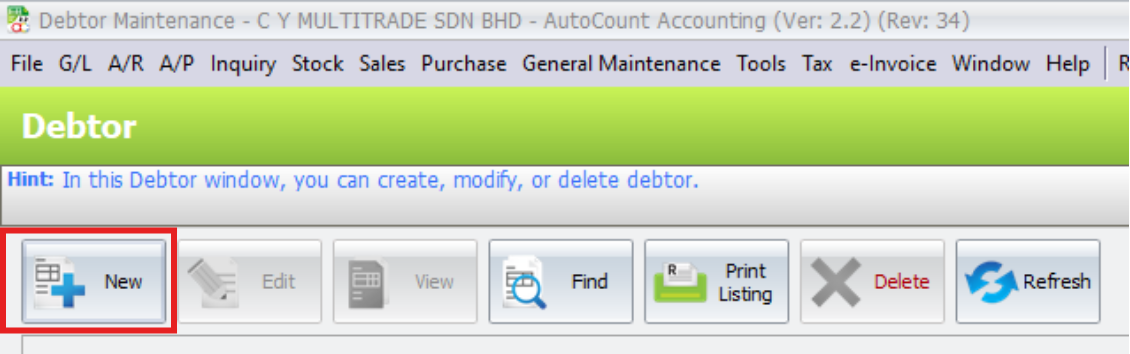
6.2.1 Tax > Tax Entity Maintenance
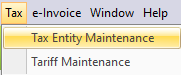
6.2.2 Click on New
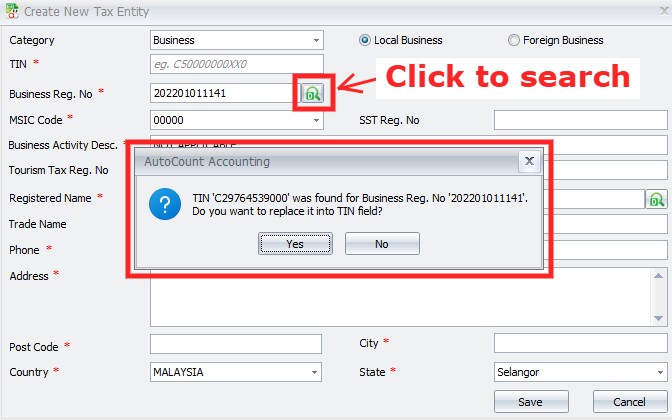
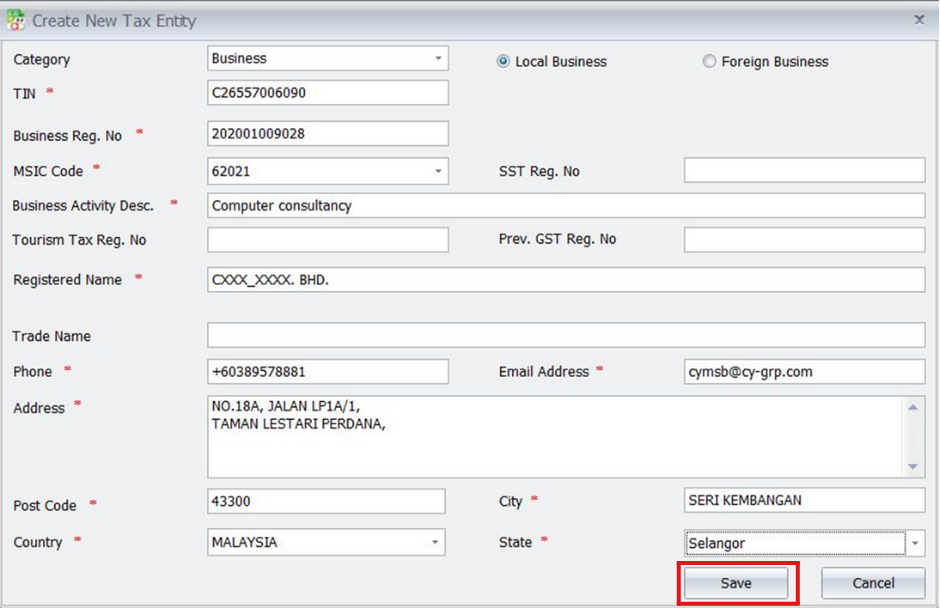
6.2.3 Fill in the details and click Save

You can enter the BRN and click the button to Search TIN, and it will show the TIN founded for that BRN
6.3 Method 2 – Get TIN from AIP Server
6.3.1 LEFT CLICK on the Debtor Maintenance tile
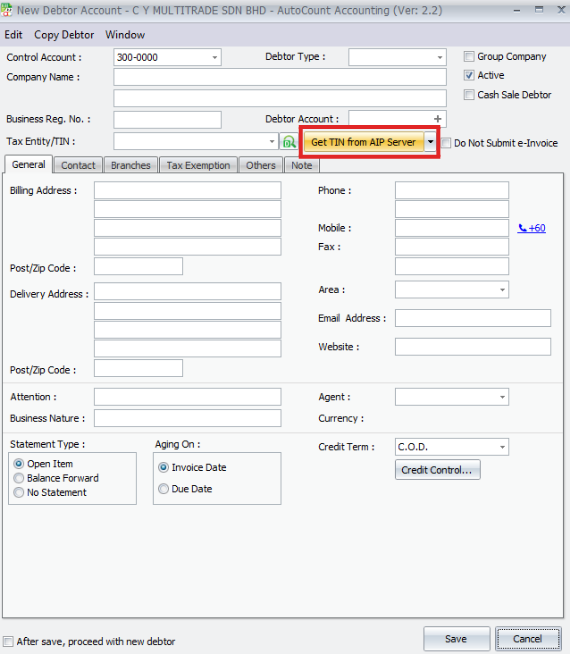
6.3.2 Click Get TIN from AIP Server
6.3.3 Enter the company name and click Search button
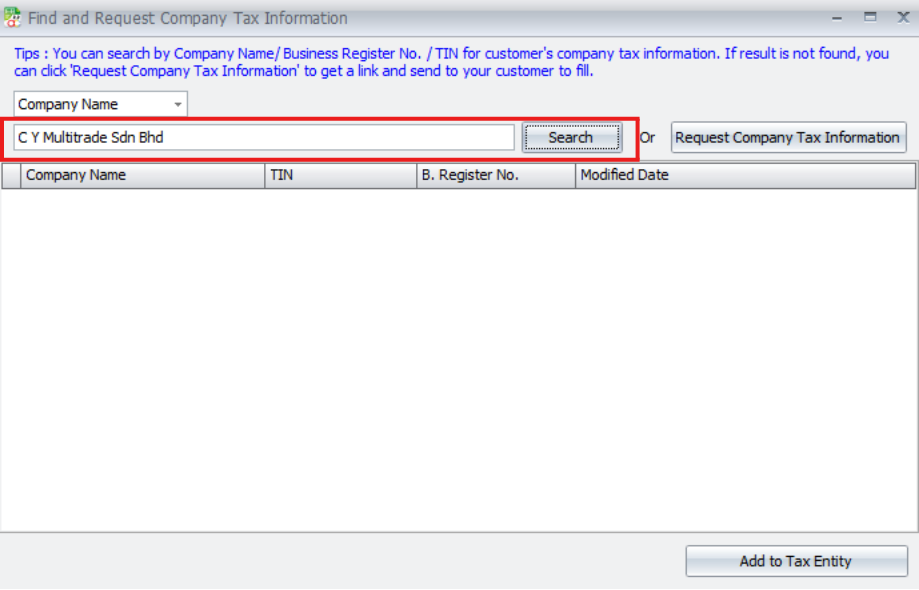
6.2.4 You may also search by TIN or BRN

6.4 Method 3 – Request Link
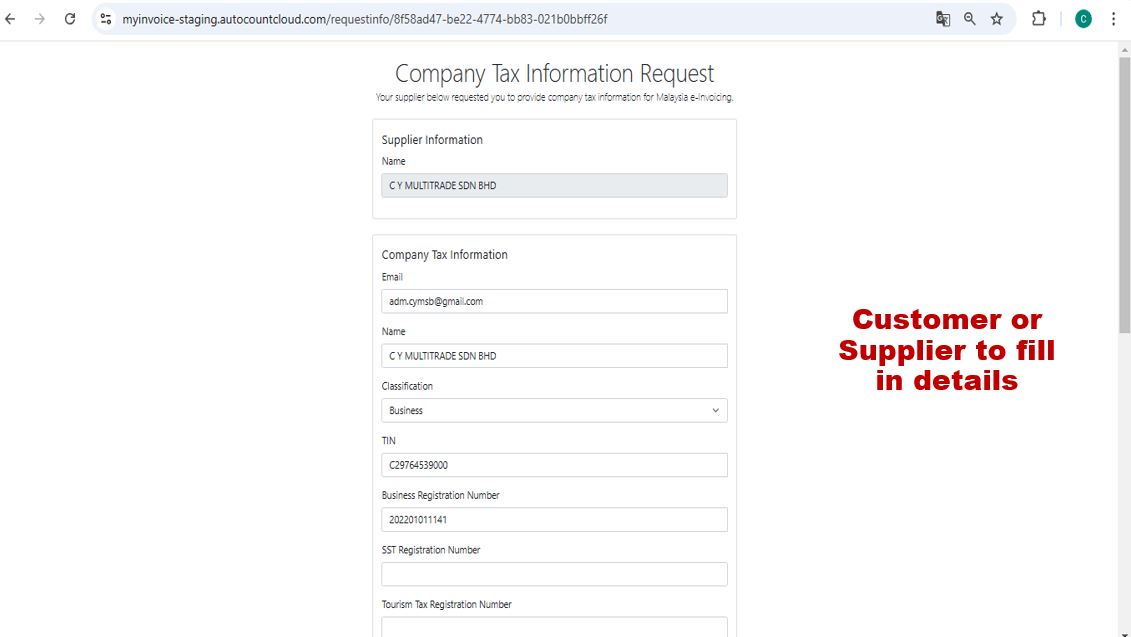
6.4.1 Click Request Company Tax Information
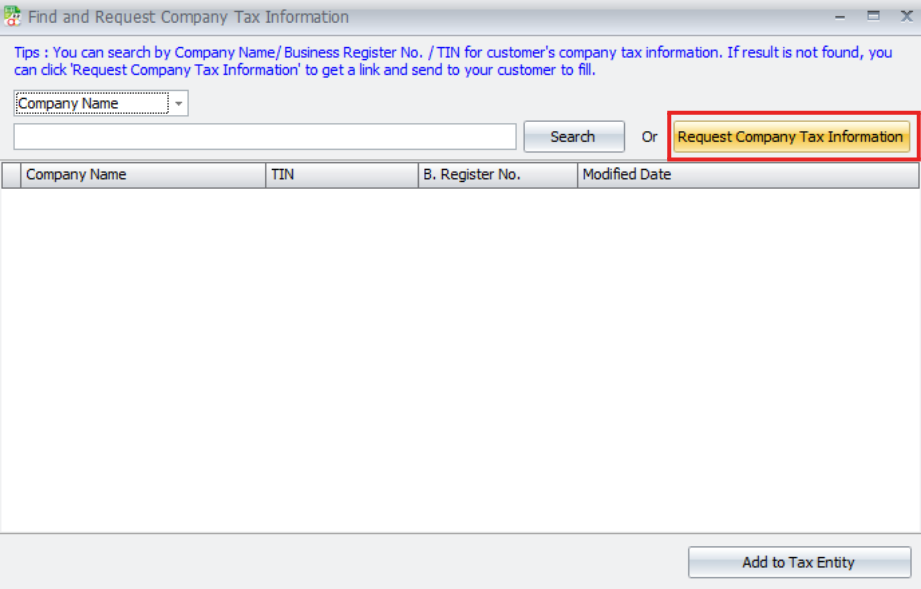
6.4.2 Fill in the details and click Get Link button to get link
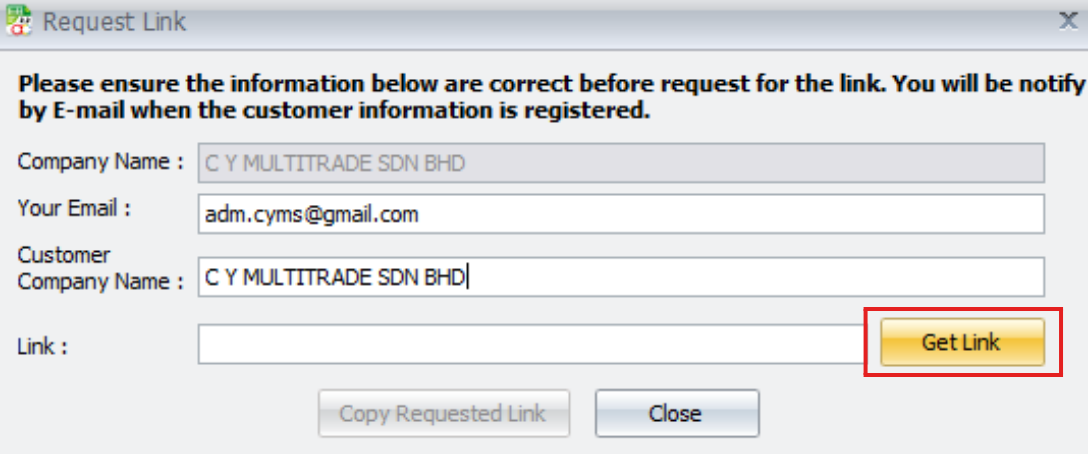
6.4.3 Copy the auto generated request link
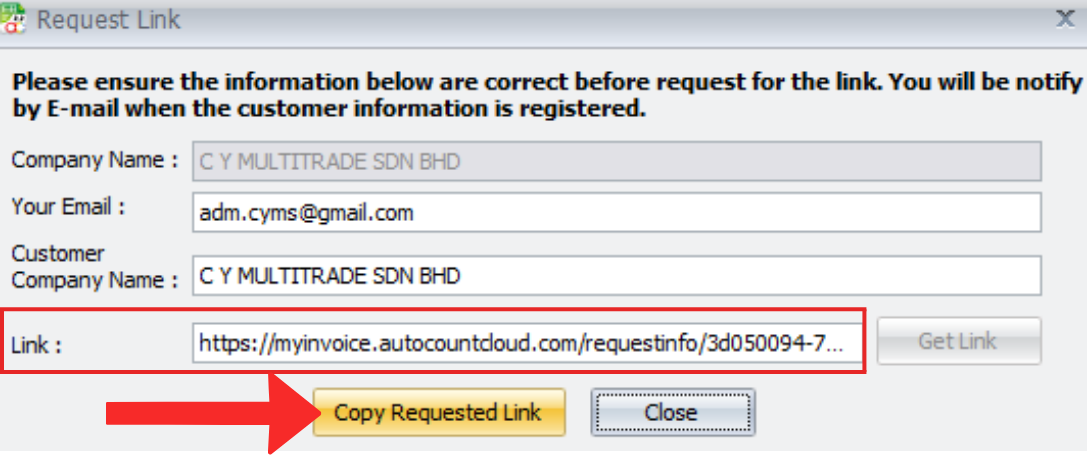
6.4.4 Send the link to your customer or supplier to fill in details
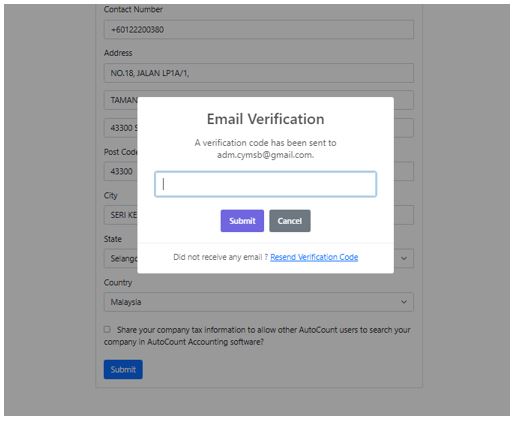
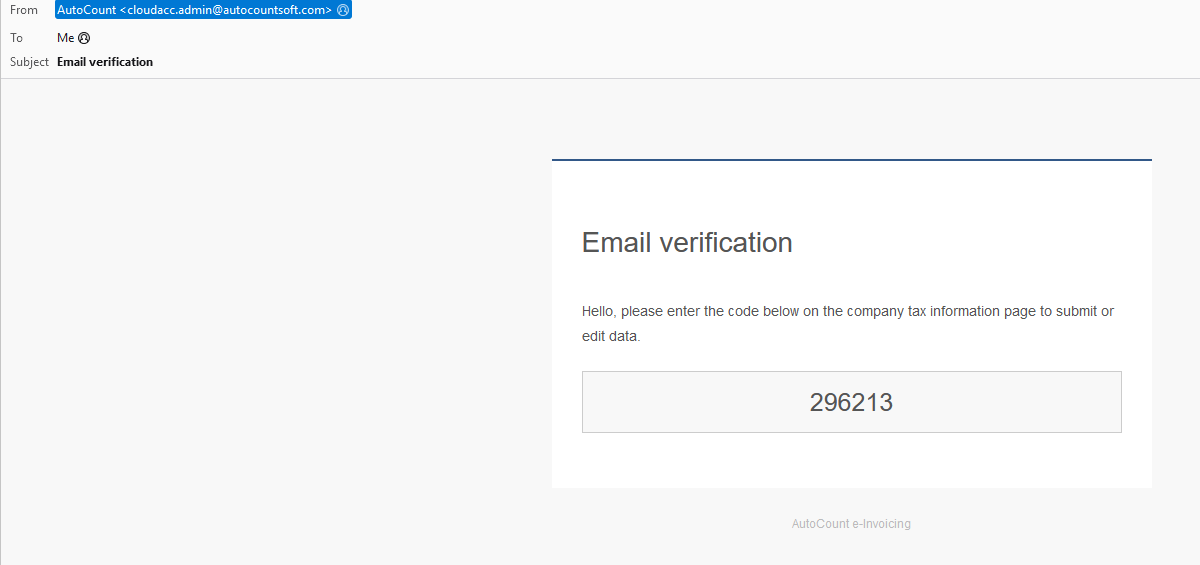
6.4.5 Check the email to get verification code
6.4.6 Will receive an email after submitted the information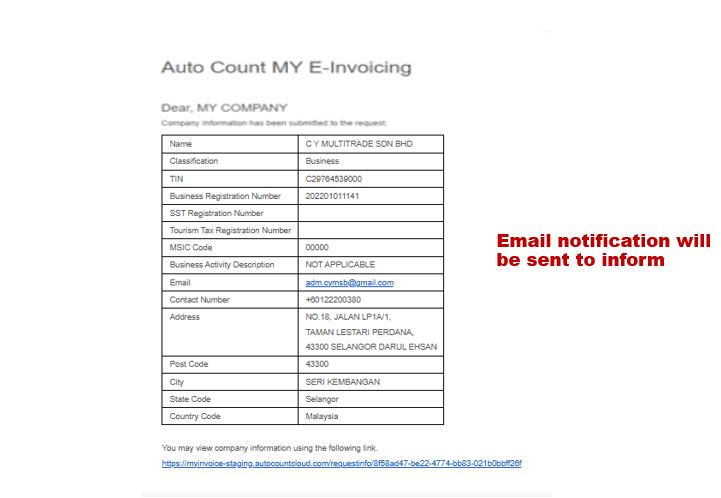
6.5 Method 4 – Batch Get TIN
6.5.1 RIGHT CLICK on the Debtor Maintenance tile
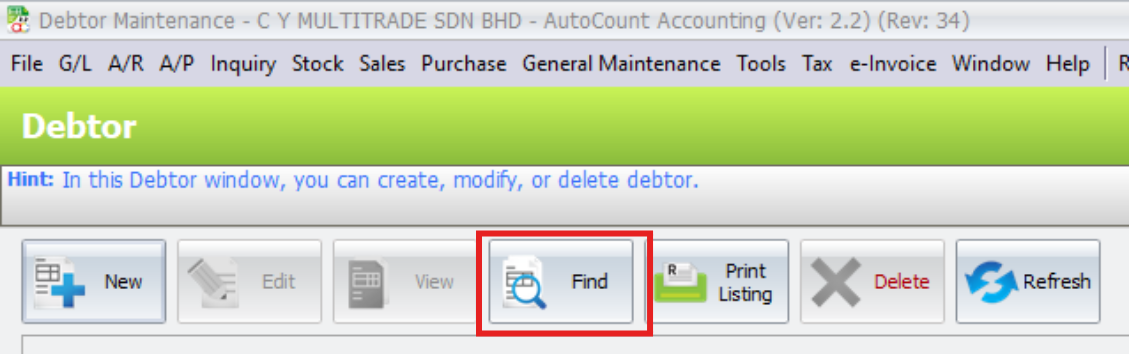
6.5.2 Click Find
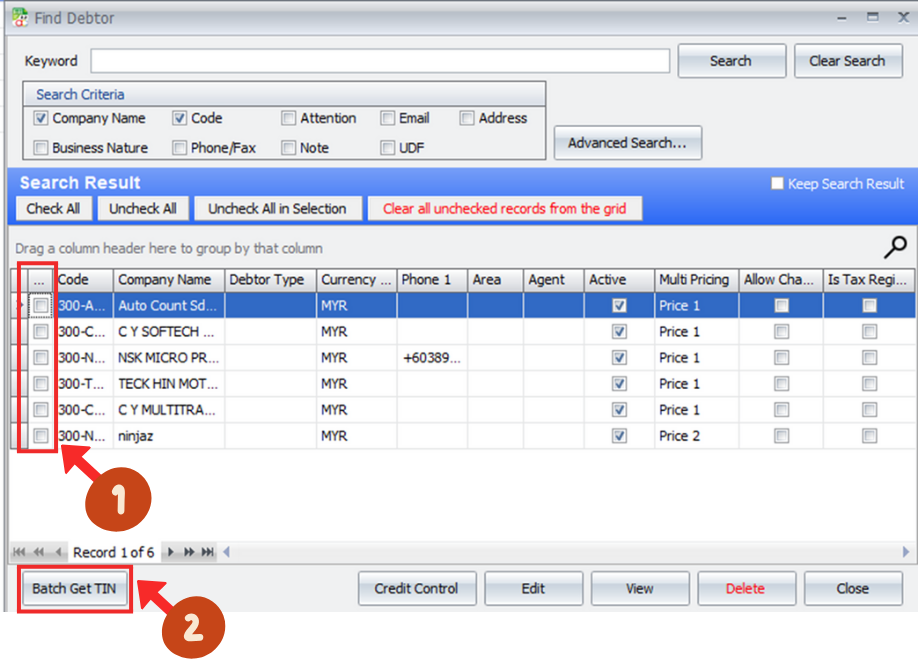
6.5.3 Tick a debtor name (1) and select Batch Get TIN (2)
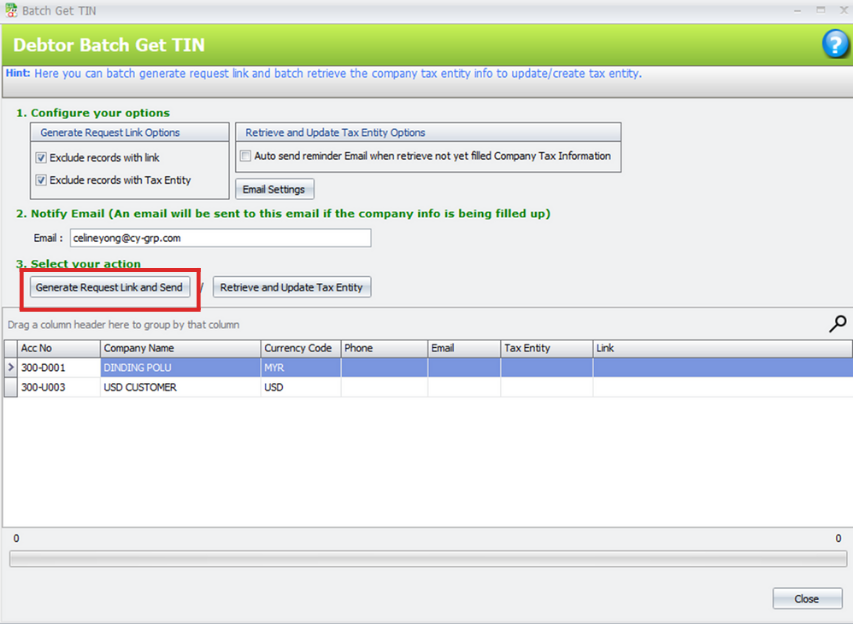
6.5.4 Click Generate Request Link and Send
6.6 Method 5 – Import QR Code
6.6.1 Tax > Tax Entity Maintenance
6.6.2 Import QR Code (1) > Select your QR code file (2) > Click Open (3)
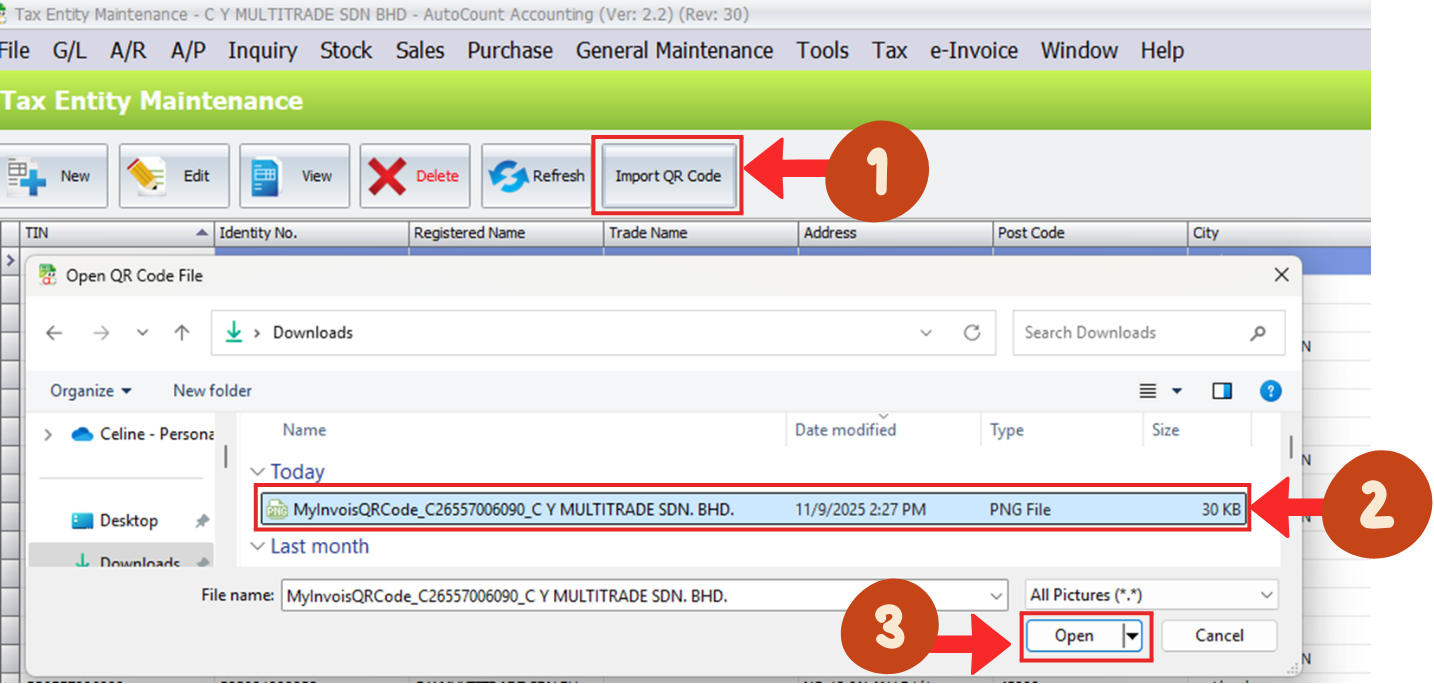
6.6.3 The information will auto load after import the QR code, you may click on Save
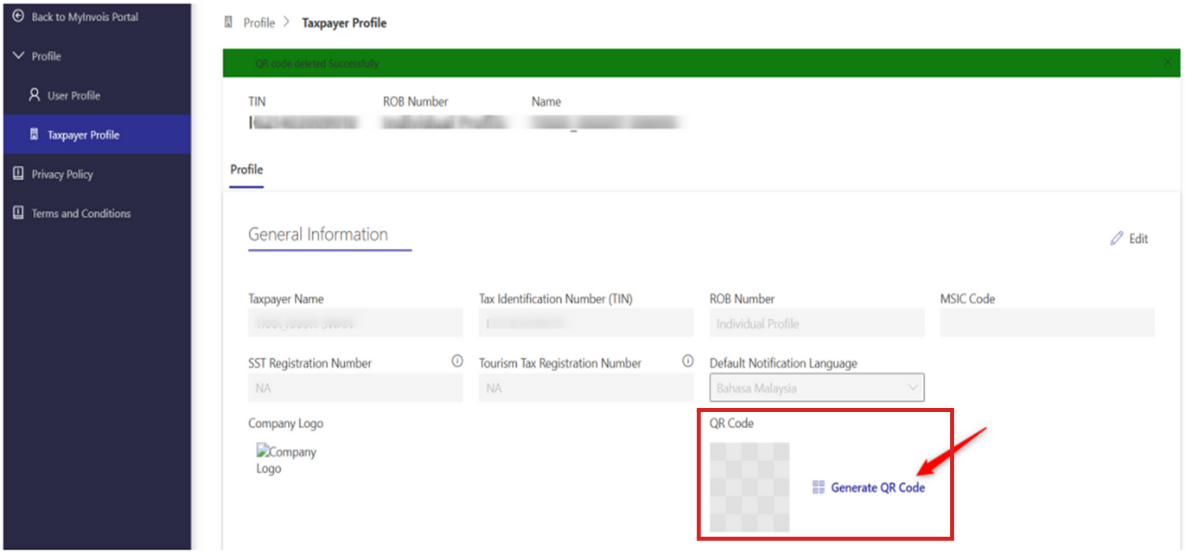
6.6.4 You can go to MyInvois portal to generate the QR code and download tax entity info
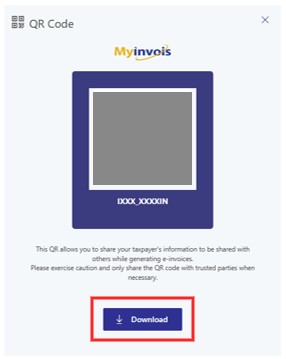
Click “Download” to download your QR Code
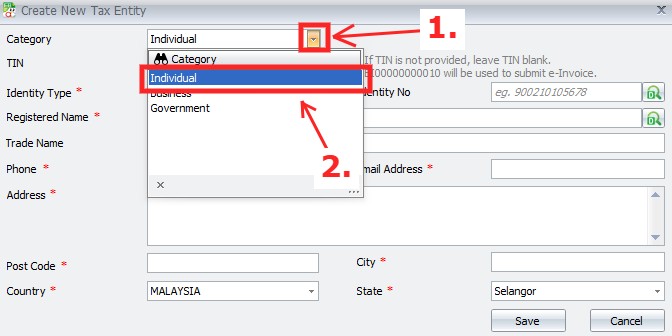
6.7 Add Search TIN Function at Tax Entity – Individual
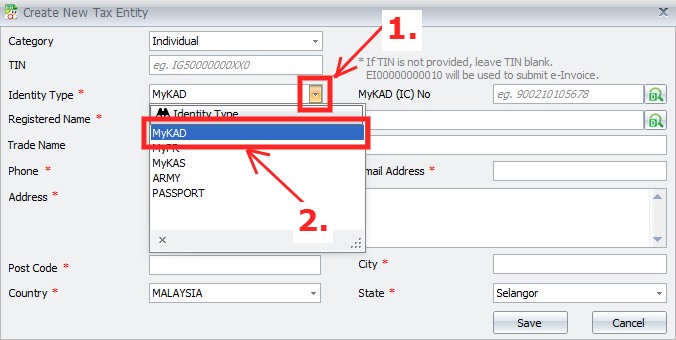
Click the drop down menu button (1) > Select “Individual” (2)
Click the drop down menu (1) > Select MyKad for Identity Type (2)
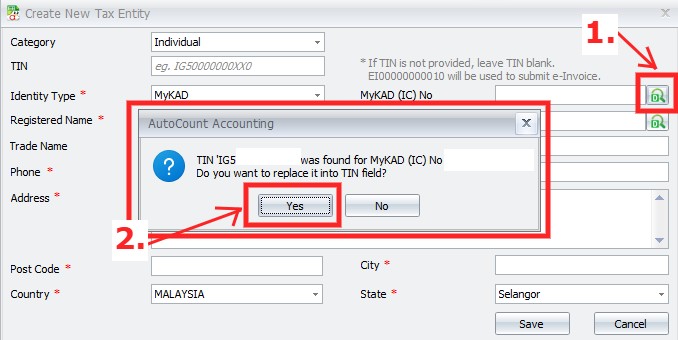
Fill in the IC No and Click search button (1) > Click “Yes” to update the TIN (2)
7.0 | Data Classification
7.1 Data Classification 数据分类
- Consider as a category of products / services being billed due to a commercial transaction 视为该商业交易而计费的一类产品或服务
- This data classification code is represented by a 3-digits integer 该数据分类代码由3位整数表示
- Currently as per last data catalogue by LHDN, consist of 001-045 目前根据LHDN的最新数据目录,包括001-045
7.1a Example of Data Classification Code
| Code | Description |
| 001 | Breastfeeding equipment | 母乳喂养设备 |
| 002 | Children centres and kindergarten fees | 儿童中心和幼儿园费用 |
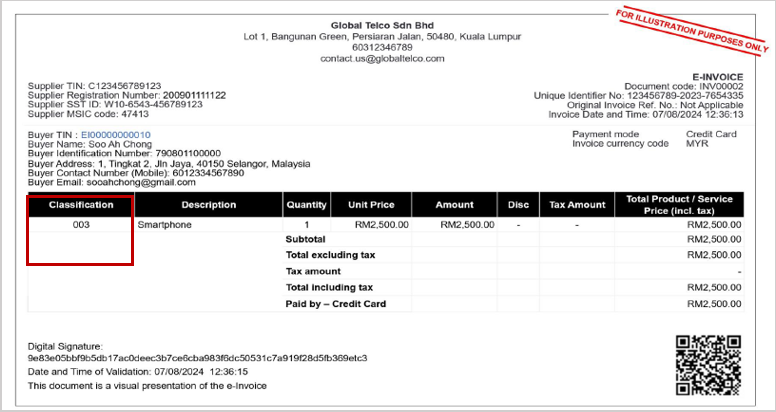
| 003 | Computer, smartphone or tablet | 电脑、智能手机或平板电脑 |
| 004 | Consolidtaed E-Invoice | 合并电子发票 |
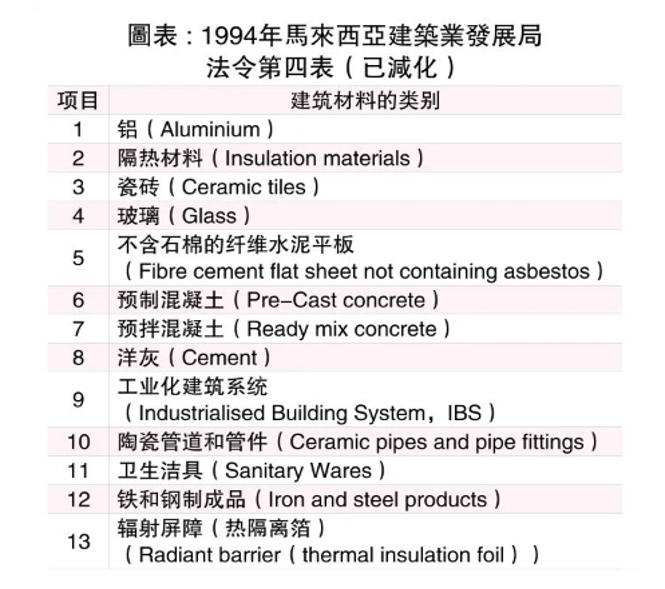
| 005 | Construction materials (as specified under Fourth Schedule of the Lembaga Pembangunan Industri Pembinaan Malaysia Act 1994) | 建筑材料(根据 1994 年马来西亚工业设备制造法第四附表的规定) |
| 006 | Disbursement | 支出 |
| 007 | Donation | 捐款 |
| 008 | e-Commerce – e-Invoice to buyer / purchaser | 电子商务 – 向买方/购买者提供电子发票 |
| 009 | e-Commerce – Self-billed e-Invoice to seller, logistics, etc. | 电子商务——向卖家、物流等开具自开电子发票。 |
| 010 | Education fees | 教育费用 |
| 011 | Goods on consignment (Consignor) | 寄售货物(托运人) |
| 012 | Goods on consignment (Consignee) | 寄售货物(收货人) |
| 013 | Gym membership | 健身房会员 |
| 014 | Insurance – Education and medical benefits | 保险 – 教育及医疗福利 |
| 015 | Insurance – Takaful or life insurance | 保险 – 回教保险或人寿保险 |
| 016 | Interest and financing expenses | 利息和融资费用 |
| 017 | Internet subscription | 互联网订阅 |
| 018 | Land and building | 土地及建筑物 |
| 019 | Medical examination for learning disabilities and early intervention or rehabilitation treatments of learning disabilities | 学习障碍的医学检查以及学习障碍的早期干预或康复治疗 |
| 020 | Medical examination or vaccination expenses | 体检或疫苗接种费用 |
| 021 | Medical expenses for serious diseases | 重大疾病医疗费用 |
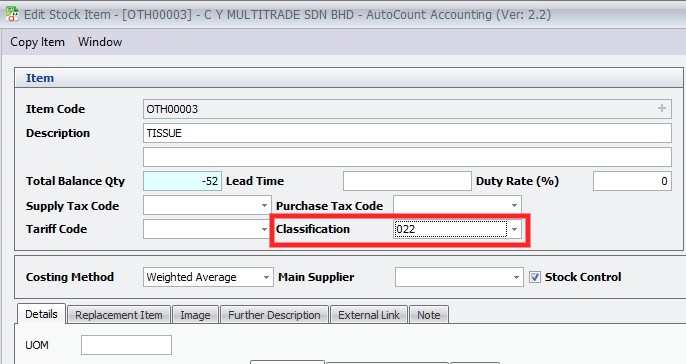
| 022 | Others | 其他的 |
| 023 | Petroleum operations (as defined in Petroleum (Income Tax) Act 1967) | 石油作业(定义见 1967 年石油(所得税)法) |
| 024 | Private retirement scheme or deferred annuity scheme | 私人退休计划或延期年金计划 |
| 025 | Motor vehicle | 机动车 |
| 026 | Subscription of books / journals / magazines / newspapers / other similar publications | 订阅书籍/期刊/杂志/报纸/其他类似出版物 |
| 027 | Reimbursement | 报销 |
| 028 | Rental of motor vehicle | 机动车租赁 |
| 029 | EV charging facilities (Installation, rental, sale / purchase or subscription fees) | 电动汽车充电设施(安装、租赁、销售/购买或订阅费) |
| 030 | Repair and maintenance | 维修和保养 |
| 031 | Research and development | 研究与开发 |
| 032 | Foreign income | 外国收入 |
| 033 | Self-billed – Betting and gaming | 自费 – 博彩和游戏 |
| 034 | Self-billed – Importation of goods | 自开票 – 进口货物 |
| 035 | Self-billed – Importation of services | 自开票 – 进口服务 |
| 036 | Self-billed – Others | 自费 – 其他 |
| 037 | Self-billed – Monetary payment to agents, dealers or distributors | 自开票 – 向代理商、经销商或分销商支付货币费用 |
| 038 | Sports equipment, rental / entry fees for sports facilities, registration in sports competition or sports training fees imposed by associations / sports clubs / companies registered with the Sports Commissioner or Companies Commission of Malaysia and carrying out sports activities as listed under the Sports Development Act 1997 | 向马来西亚体育委员会或公司委员会注册并开展《1997年体育发展法》所列体育活动的协会/体育俱乐部/公司征收的体育器材、体育设施租赁/入场费、体育比赛注册费或体育训练费 |
| 039 | Supporting equipment for disabled person | 残障人士辅助设备 |
| 040 | Voluntary contribution to approved provident fund | 自愿缴纳核准公积金 |
| 041 | Dental examination or treatment | 牙科检查或治疗 |
| 042 | Fertility treatment | 生育治疗 |
| 043 | Treatment and home care nursing, daycare centres and residential care centers | 治疗和家庭护理、日托中心和住宅护理中心 |
| 044 | Vouchers, gift cards, loyalty points, etc | 代金券、礼品卡、积分等 |
| 045 | Self-billed – Non-monetary payment to agents, dealers or distributors | 自开票——向代理商、经销商或分销商进行非货币支付 |
Full list may refer to Data Catalogue by IRBM: https://sdk.myinvois.hasil.gov.my/codes/classification-codes/
7.2 Example of Data Classification Code in E-Invoice
7.3 Other Data Code
| Code | Description |
| Country | Country of Origin |
| Currency | Supply precise currency information when providing document information |
| E-Invoice Types | Used to indentify the document type |
| MSIC Codes | 5-digit numeric code that represent the taxpayer’s business nature and activity |
| Payment Mode | Mechanism which funds are transferred from buyer to supplier |
| State Code | States and federak territories in Malysia |
| Tax Types | Donation |
| Unit of Measurement | Used as part of the document lines in document submission |
** Full list may refer to Data Catalogue by IRBM :https://sdk.myinvois.hasil.gov.my/codes/classification-codes/
8.0 | AutoCount Item Maintenance E-Invoice Field
8.1 Classification setting in AutoCount
8.2 E-Invoice Measurement setting in AutoCount


***Full list may refer to Data Catalogue by IRBM: https://sdk.myinvois.hasil.gov.my/codes/classification-codes/
9.0 | Overview of E-Invoice Flow
9.1 Type of Submission Mode 提交模式
1. MyInvoice Portal:

- A web-based platform hosted by LHDN where you can create invoices follow a pre-defined template
- Free option without software
- Require manual entry
- Not user-friendly for bulk create invoice
2. Application Programming Interface (API)
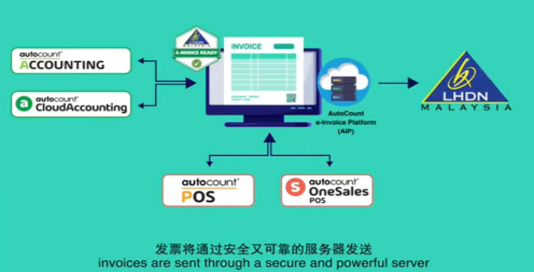
- Submission from AutoCount to MyInvoice Portal
- Add on e-Invoice module with cost
- More user friendly
- Support bulk create invoices
9.2 Steps of E-Invoice 电子发票步骤
| Step 1 | When a sale or transaction is made (including e-invoice adjustments), the supplier creates an e-invoice and shares it to LHDN via MyInvoice Portal OR API for validation 当发生销售或交易(包括电子发票调整)时,供应商会创建电子发票并通过 MyInvoice 门户或 API 将其发送给 LHDN 进行验证 |
| Step 2 | LHDN validation is performed in real time, ensuring that the e-invoice meets the necessary standard and criteria. Once validated, the supplier will receive a Unique Identifier Number from IRBM via MyInvoice Portal OR API. The Unique Identifier number will allow traceability by LHDN and will reduce instances of tampering with e-invoice 电子发票实时进行 IRBM 验证,以确保其符合必要的标准。经过验证后,供应商将通过 MyInvoice 门户或 API 从 LHDN 获得一个唯一标识号。唯一识别码将允许 LHDN 追溯,并减少篡改电子发票的事件。 |
| Step 3 | LHDN will inform both the supplier and buyer once e-invoice has ben validated via MyInvoice Portal OR APIs 一旦电子发票通过 MyInvoice 门户或 API 验证,LHDN 将通知供应商和买方 |
| Step 4 | Upon validation, the supplier is obligued to share the cleared e-invoice (embedded with a QR code) with the buyer. The QR code can be used to validate the exisatence and status of the e-invoice via MyInvoice Portal 经过验证后,供应商必须将已清结并嵌入二维码的电子发票与买方共享。可以通过 MyInvoice 门户扫描二维码,验证电子发票的存在和状态 |
| Step 5 | Upon issuance of e-invoice , a stipulated period of time is given to :
Rejection request or cancellation must be accompanied by justifications 电子发票开具后,会有一段指定的时间用于: – 买方要求拒绝电子发票 – 供应商执行取消电子发票 拒绝或取消请求必须附有理由。 |
| Step 6 | Supplier and Buyer will be able to obtain a summary of the e-invoice transactions via MyInvoice Portal 供应商和买方可以通过 MyInvoice 门户网站获取电子发票交易的汇总。 |
10.0 | MY Invoice Portal
10.1 e-Invoice to LHDN
1) Methods available
- MyInvoice Portal
- API
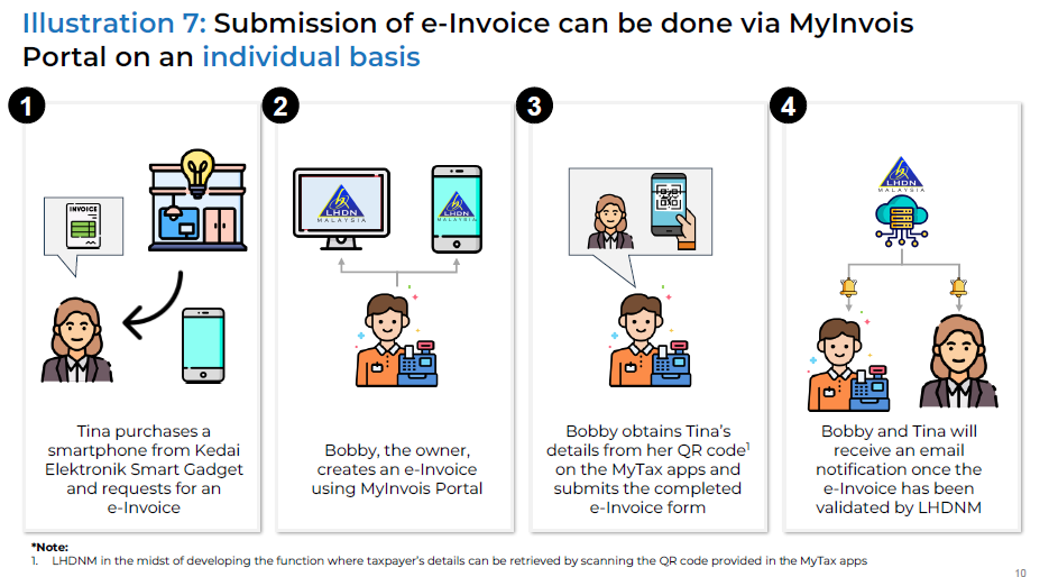
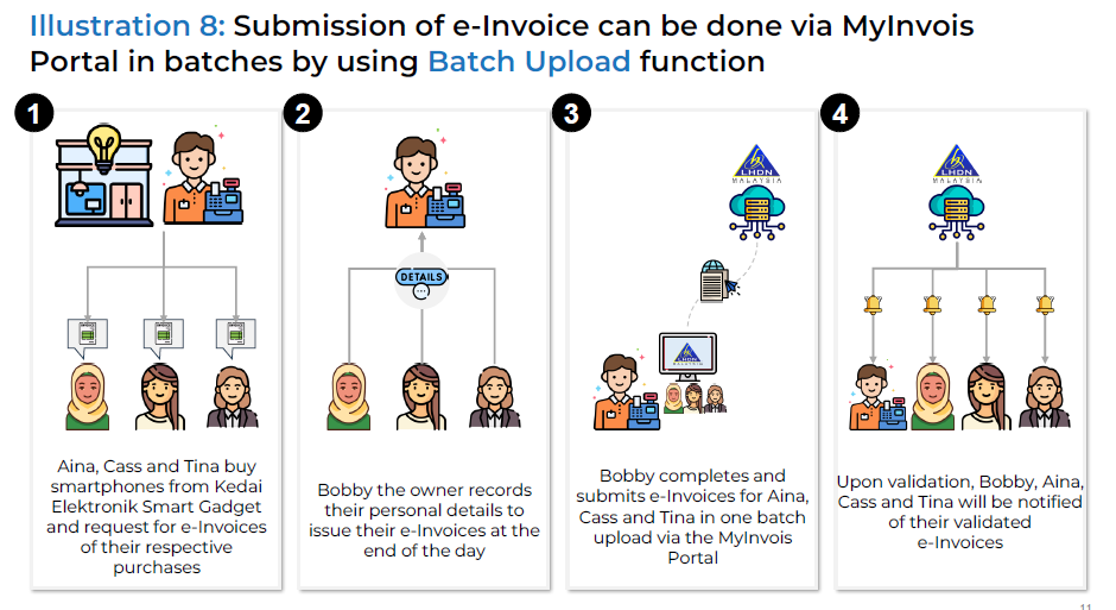
2) MyInvois Portal is manual submission where Supplier needs to manual key in per Inv or bulk import through excel.
MyInvois是手动提交的,供应商需要手动逐个发票录入或通过 Excel 批量导入
3) API is automated submission through software 软件可以通过 API 实现自动提交数据
4) Futher divided into 2 methods for API:
- Direct intergration with LHDN 与 LHDN 的集成
- Integration through PEPPOL Network 通过 PEPPOL 网络集成
***To understand more about API or SDK from IRBM, may visit: https://sdk.myinvois.hasil.gov.my/
10.2 e-Invoice by MYInvoice Portal
10.3 e-Invoice by MYInvoice Portal by Batch
10.4 Printig / Saving the Visual Display of e-Invoices through the MyInvois Portal
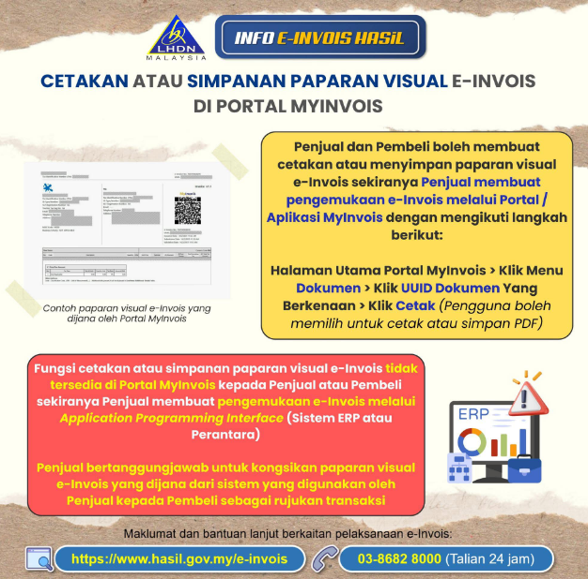
Limitation for API Users API用户的限制:
1) Submits e-Invoices through the Application Programming Interface (API) (ERP system or other intermediary systems), the MyInvois Portal does not provide a function to print / save the e-Invoice
卖家是通过应用程序接口(API)(若ERP系统或其他中介系统)提交电子发票,MyInvois门户不提供打印或保存电子发票的功能
2) The seller is responsible for sharing the visual e-Invoice generated from their system with the buyer as a transaction reference
卖家有责任通过自己的系统生成电子发票的视觉显示,并分享给买家作为交易
10.5 Search for Documents via the MyInvois Portal
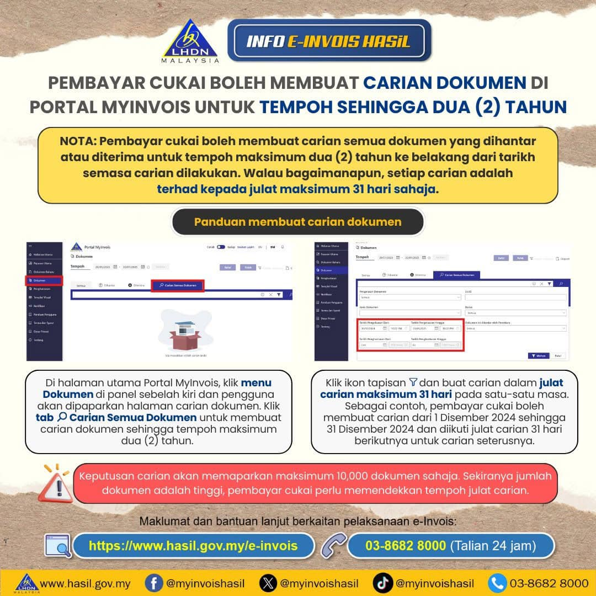
1) Search Period 查询时间范围: a. Search for documents sent / received within the past two years 纳税人可以查询过去两年内发送或接收的文件 b. Limited to a maximum date range of 31 days 查询的日期范围限制最多31天 | 3) Date Range Limit 日期范围限制: Use filter icon to limit the search to a 31 day period per query 将查询范围限制在31天内 |
2) Search Steps查询步骤: a. Select the “Documents” menu to access the document search page 从左侧面板选择”Documents”菜单,进入文件查询页面 b. Click the tab “Search All Documents” within the allowable time frame 点击”Search All Documents”选项卡以在允许的时间范围内查询文件 | 4) Document Display Limit 文件显示上限: a. Search results will show maximum of 10,000 documents 查询结果最多显示 10,000 个文件 b. If the number of documents exceeds this limit, taxpayers should narrow the date range 文件数量超过此限制,纳税人需缩小日期范围 |
10.6 Relief from Penalties due to system Disruption
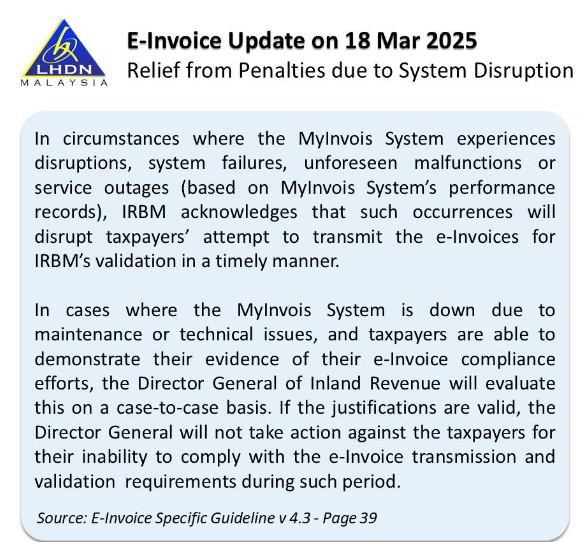
Latest Update from IRBM on Relief from Penalties Due to MyInvois System Disruptions
内陆税收局(IRBM)更新关于 MyInvois 系统中断罚款减免事项
The IRBM has issued an update regarding relief from penalties in cases of MyInvois system disruptions. While the document does not specify the exact proof requirements, we recommend that businesses take the following steps to ensure compliance
内陆税收局(IRBM)发布了一项关于 MyInvois 系统中断罚款减免的最新更新。虽然该文件未明确具体证明要求,但我们建议采取以下步骤以确保合规:
- Keep record or document error messages or system logs that show system failures记录或存档显示系统故障的错误消息或系统日志
- Notify IRBM or MyInvois Support about the issue as soon as possible 尽快通知内陆税收局或 MyInvois 支持团队
- Submit e-Invoices immediately once the system is restored 系统恢复后立即提交电子发票
11.0 | AutoCount E-Invoice Flow
11.1 Document Status Flow
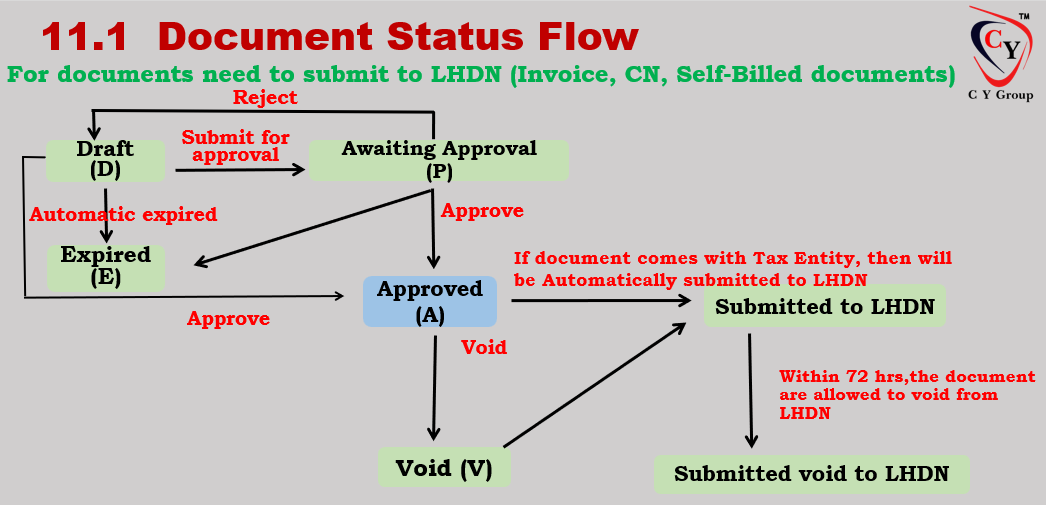
11.1 b Various Document Status within the e-Invoice Workflow
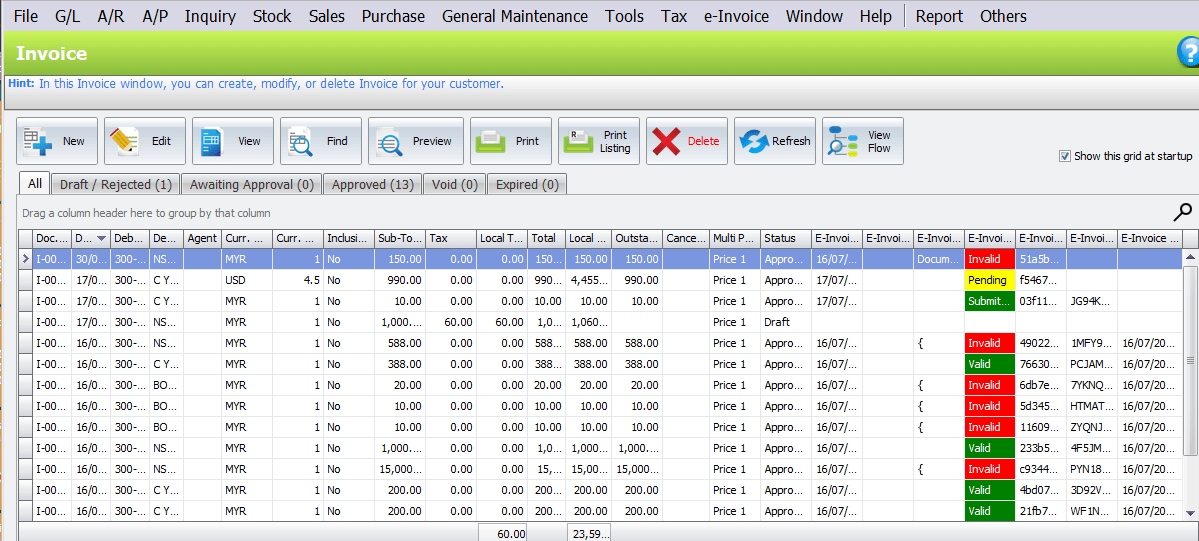
1. Pending: pending submit to LHDN
2. Failed: failed to submit to LHDN, this usually caused by the connection issus or incompatibility of API. Server will retry submit to LHDN
3. Submitted: invoice submitted to LHDN, but is pending additional validations to be completed
4. Valid: invoice validated by LHDN successfully
5. Invalid: invoice has validation issues
6. Cancelled: invoice cancelled by the issuer
11.2 Sample Autocount E-Invoice Interface
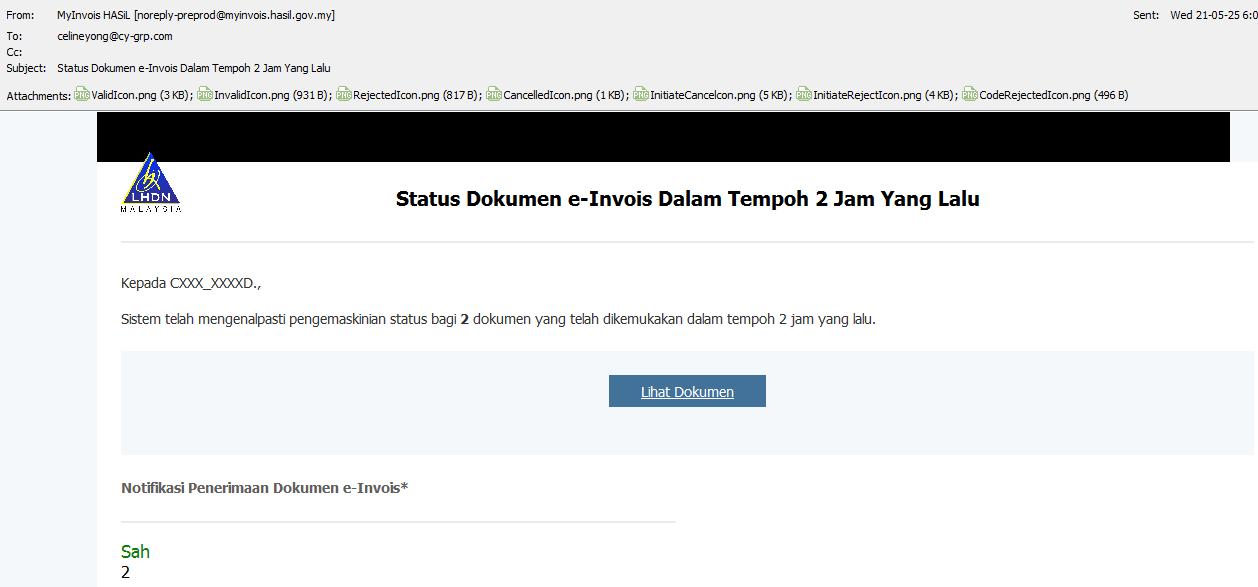
11.3 Sample MYInvoice Notification
12.0 | Type of e-Invoice
12.1 Type of e-Invoice Issued 电子发票类型
1) Request e-Invoice Business to Business (B2B) *buyers that need e-Invoice as proof of expenses
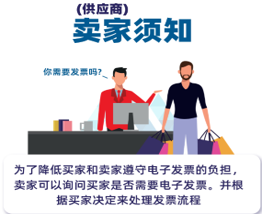
| 2) No need e-Invoice (Consolidated e-Invoice) Business to Consumer (B2C) *buyers that does not need e-Invoice and some specific industries
|
3) Self Billed
|  |
12.1a Summary Sales e-Invoice Issued
1. e-Invoice:

2. Consolidated e-Invoice

3. Self Billing

12.2 Time Frame/Due Date to issues E-Invoice 电子发票的开票时间/到期日
| Situation | Type of Invoice | Timeframe | |
Normal Situation (B2B) 一般情况 | E-Invoice | X | No specific requirement on the timing of e-invoice issuance (refer to general FAQ on E-Invoice Q17) 关于电子发票开票时间的具体规定 |
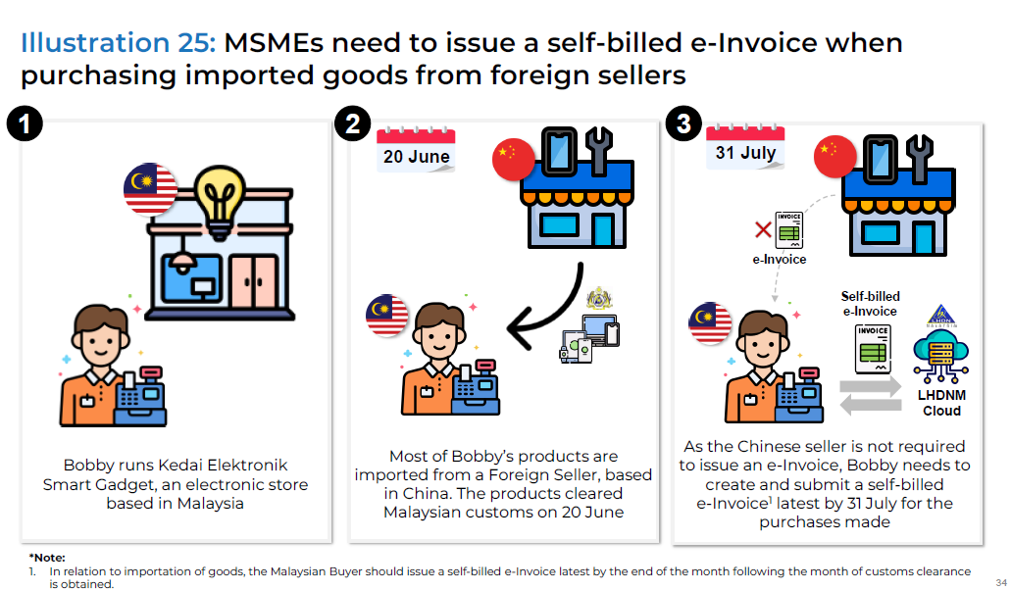
Important of Good 进口商品 | Self-billed e-Invoice 自开电子发票 | YES | Issue latest by end of the month following the month of customs clearance being obtained upon obtain customs clearance 取得通关后当月的2个月底之前最迟发布 |
Important of Service 导入服务 | Self-billed E-invoice | YES | Issue latest by the end of the month following the month upon最迟在下个月月底前发布 1. Payment made by Malaysian Purchaser由马来西亚买方付款 2. Receipt of invoice from foreign supplier whichever earlier 最早收到外国供应商发票的日期 |
| Foreign incomer received in Malaysia 在马来西亚收到的国外收入 | E-Invoice | YES | Issue latest by the end of month following the month of receipt of the said foreign income 外籍收入当月收到的当月底之前最迟开票 |
| Sales goods/ service to end user (B2C) 直销商品/服务给最终用户 | Consolidated e-invoice 汇总电子发票 | YES | Submit a consolidated e-invoice to IRBM within seven days after the month end 月底之后七天内向IRBM提交汇总电子发票 |
13.0 | Standard E-Invocie
13.1 Standard e-invoice 标准电子发票

13.2 Cancel of Standard e-Invoice 标准电子发票的取消
1. Buyer can request for cancellation of the e-Invoice with valid reasons
买方可以要求取消具有正当理由的电子发票
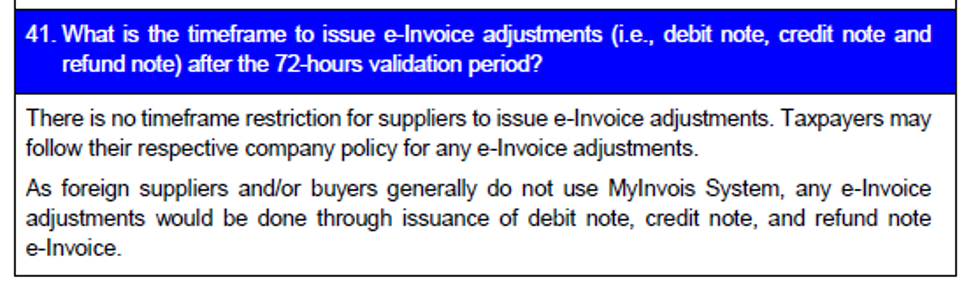
2. Any request of cancellation should be done within 72-hrs after e-Inv is validated
任何取消请求均应在电子发票验证后72小时内提出
3. If the supplier want to accept the cancellation, perform a cancellation of e-Inv from their end
如果供应商接受取消,请从其端执行取消电子发票
4. Any request of cancellation not responded by seller within 72-hrs frame will be deemed as accepted, means the e-Inv is valid as the previous submission
任何卖方在72小时内未回复的取消请求将被视为已接受,这意味着电子发票和之前提交的电子发票一样有效
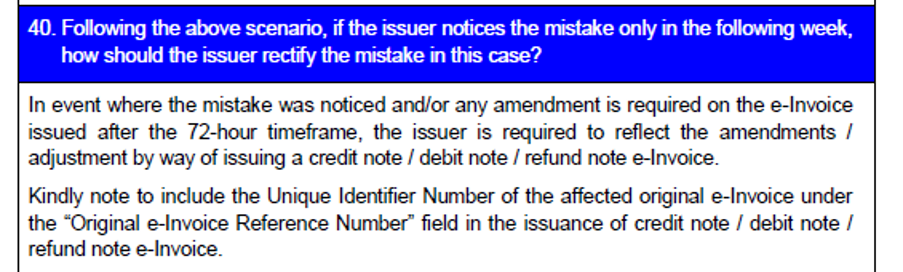
5. Any adjustment required after the 72-hrs time frame will have to undergo issuing DN/CN
72小时期限后所需的任何调整都必须通过签发DN或CN
13.3 e-Invoice for Rental Received 已收到租凭的电子发票
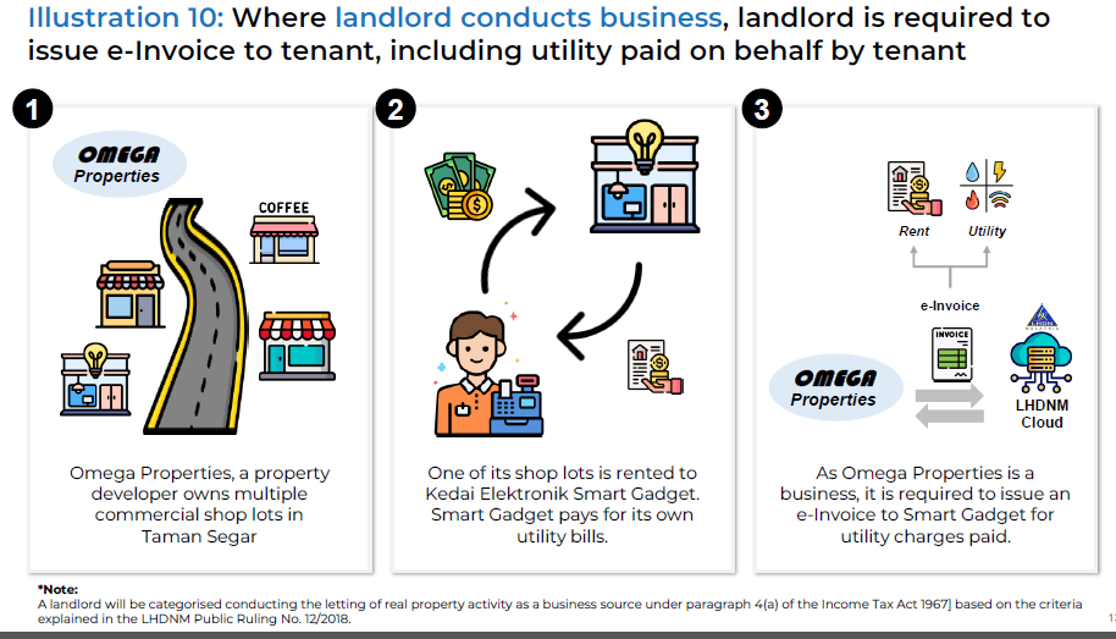
13.3a Mistake on Invoice within 72 hours
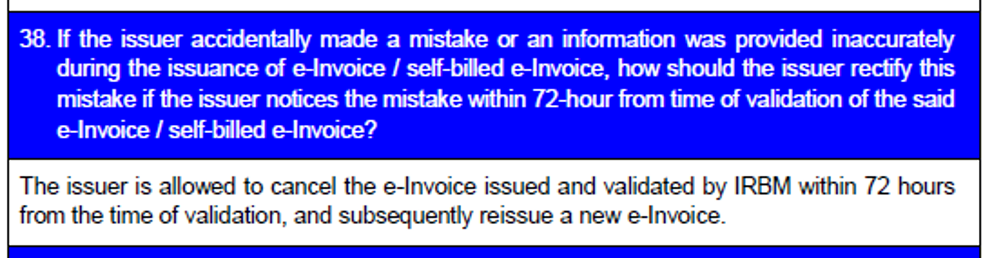
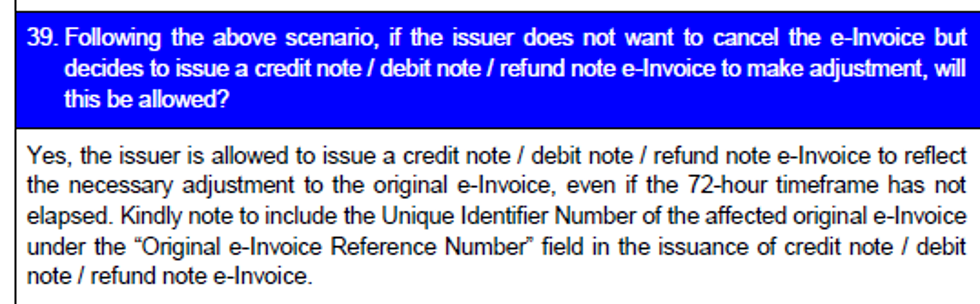
13.3b Mistake on Invoice within 72 hours
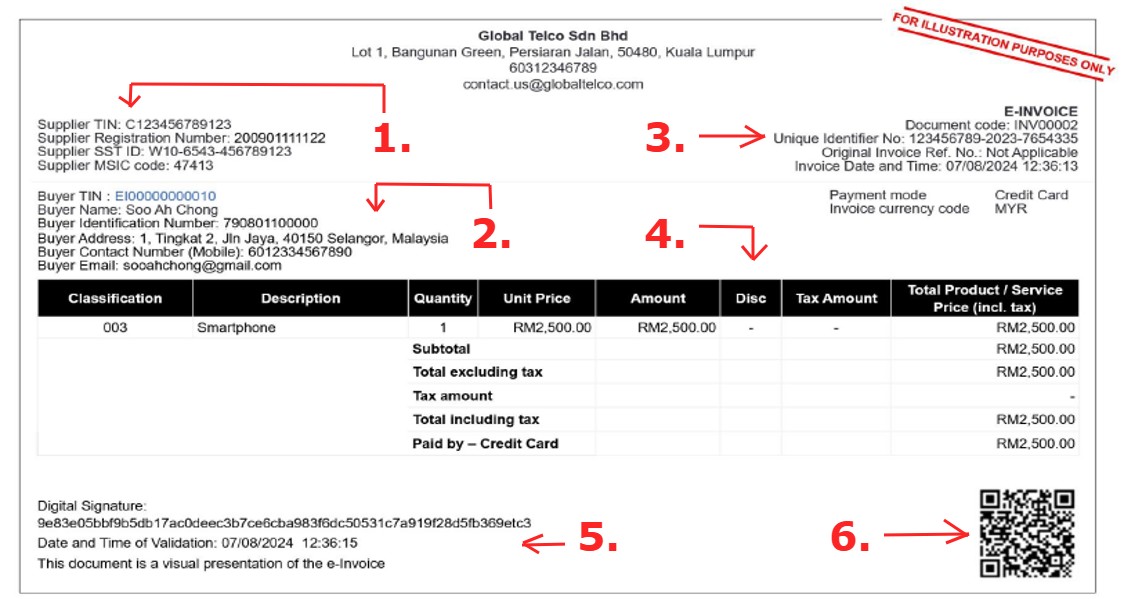
13.4 Example of e-Invoice
1. Supplier’s Information 供应商资料
2. Buyer’s Information 买家资料
3. Invoice Unique Identification No. 发票的专属识别码
4. Information of Service / Product & Payment 服务 / 商品及付款信息
5. Validated invoice’s date and time 发票已验证的日期和时间
6. Scan QR Code to view e-Invoice details & status 扫描 QR Code 可查看电子发票的信息&状态
14.0 | AutoCount Standard E-Invocie
14.1 AutoCount Standard e-Invoice 电子发票
1. | Implemented approval process with the following status 审批流程如下:
|
2. | Only user with certain level of access can approve or reject invoice 只有一定权限的用户才能批准或拒绝发票: Approved Invoice will submitted to IRBM if the transaction with TIN Reject Invoice if is any incorrect information and amendment |
3. | Any void will trigger cancellation of invoice and submit to IRBM 无效发票会触发发票取消 |
4. | Awaiting approval will automatically change to Expiry after certain period (Setting Based) 等待批准的发票将在一定时间后自动更改为到期(基于设置) |
5. | Approval Process for the purpose of e-Invoice submission 审批流程为了提交电子发票的目的 |
6. | RIBM will return with UUID (Transaction ID), Validation URL (generating QR Code) saved for tracking purpose IRBM 将返回 UUID(交易 ID)、保存用于跟踪目的的验证 URL(生成 QR 代码) |
14.2 Required Fields for e-Invoice 电子发票必填字段
Parties:
| *Supplier’s Name | *Buyer’s Name |
Supplier’s Details:
| *TIN | *Registration/IC/Passport | *SST Registration Number |
| *Tourism Tax Registration | *Number | |
| *MSIC Code | *Business Activity | *Description |
Buyer’s Details:
| *TIN | *Registration/IC/Passport |
| *SST Registration Number |
Address:
| *Supplier’s Address | *Buyer’s Address |
Contact Number:
| *Buyer/Supplier’s Contact Number |
Invoice Details:
| *Version | *Type | *Code/Number | *Original e-Invoice Reference Number | *Date & Time |
| *Issuer’s Digital Signature | *Invoice Currency Code | *Currency Exchange Rate | *Frequency of Billing | *Billing Period |
Product/Services:
| *Classification | *Description | *Unit Price |
| *Tax Type & Rate & Amount | *Details of Tax Exemption | *Amount Exempted from Tax |
| *Subtotal | *Total Excluding & Including Tax | *Total Payable Amount |
Payment Info:
| *Payment Mode | *Supplier’s Bank Account Number | *Payment Terms |
| *Prepayment Amount & Date | *Prepayment Reference Number | *Bill Reference Number |
14.3a Example of Draft e-Invoice
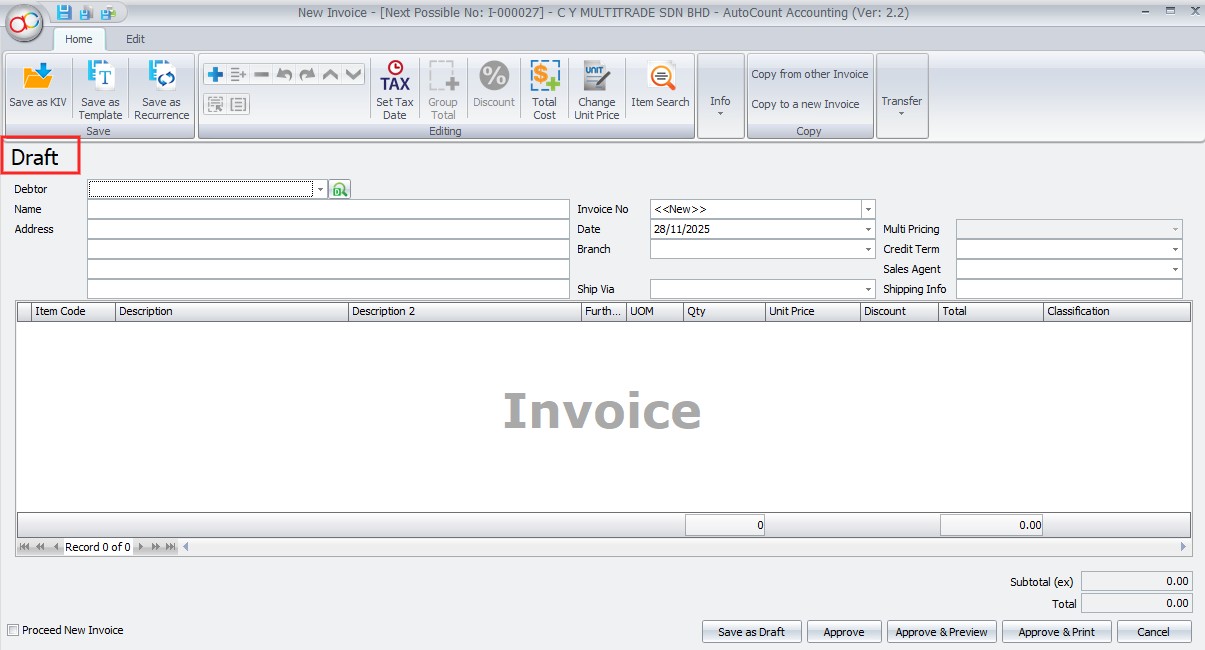
14.3b Example of Valid e-Invoice
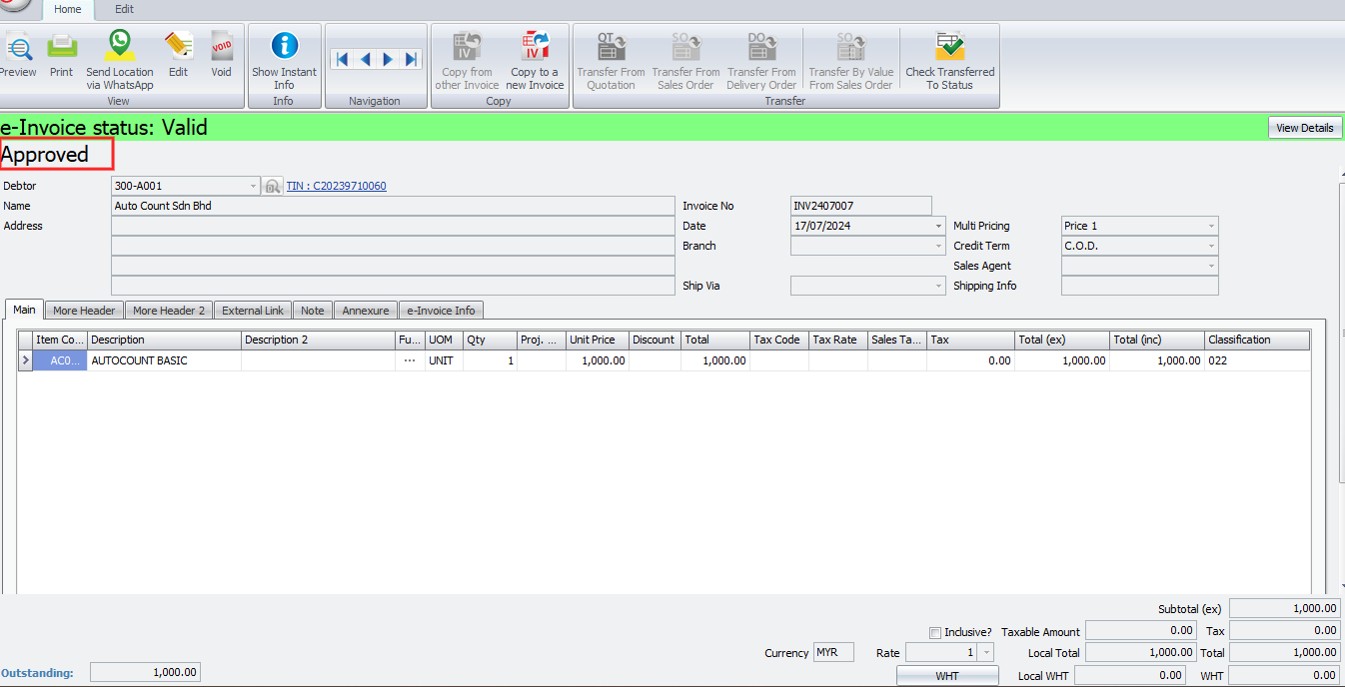
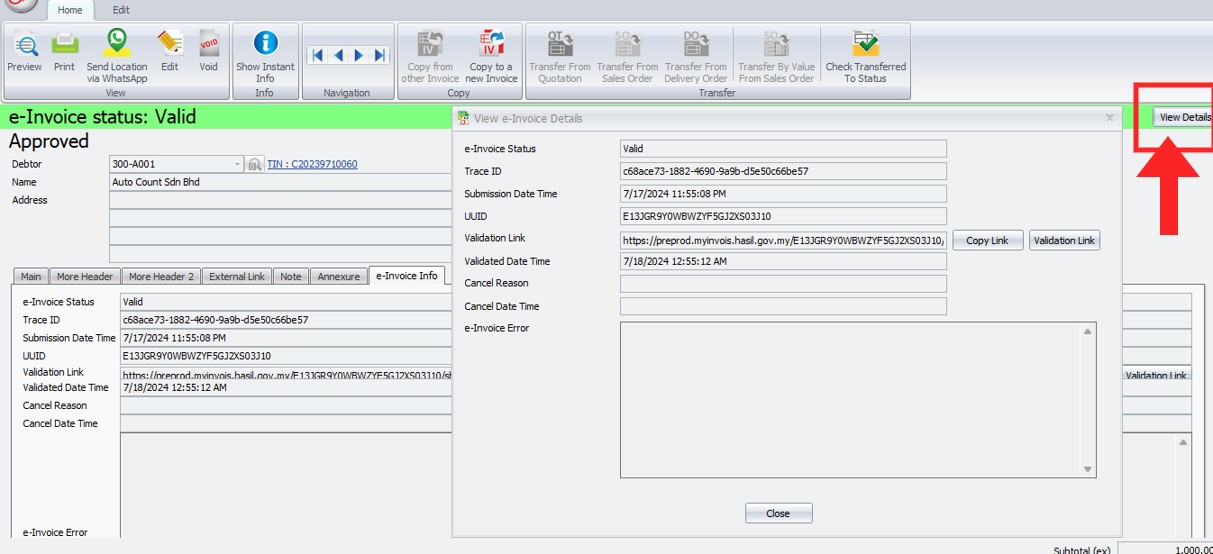
14.3c Example of Standard e-Invoice
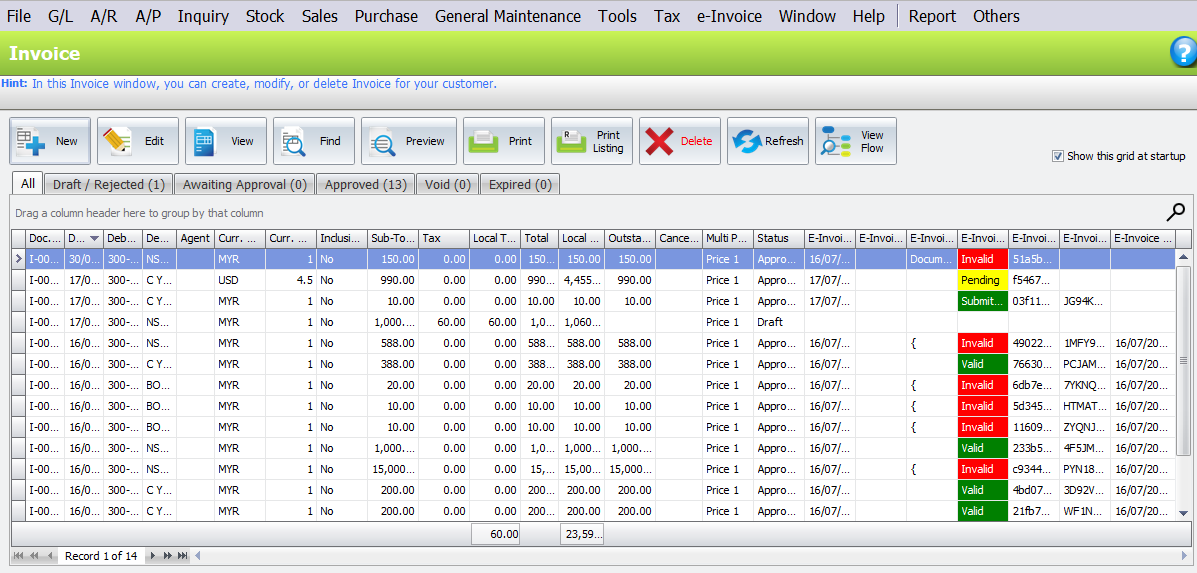
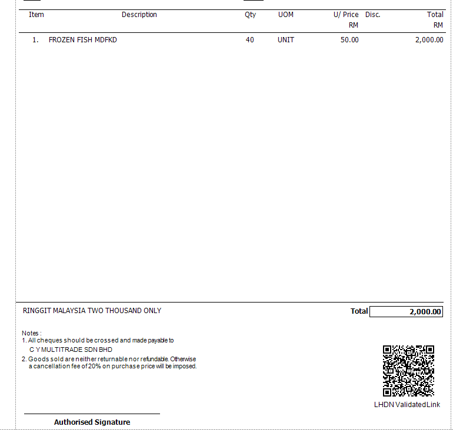
14.3d Sample AutoCount e-Invoice
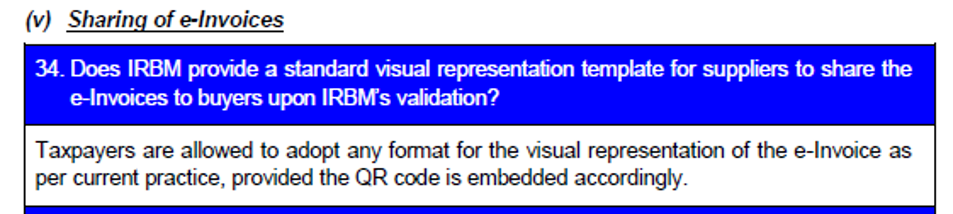
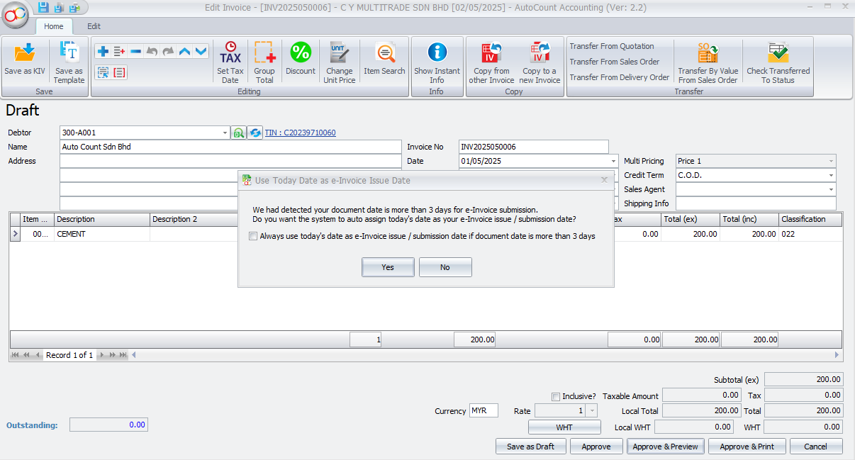
14.4 Auto Assign Approve Date as e-Invoice Issue Date
If saving a document dated over 3 days prior to today, system prompts to set e-Invoice date to today
Press “Yes” and the system will automatically update the issue date to today’s date
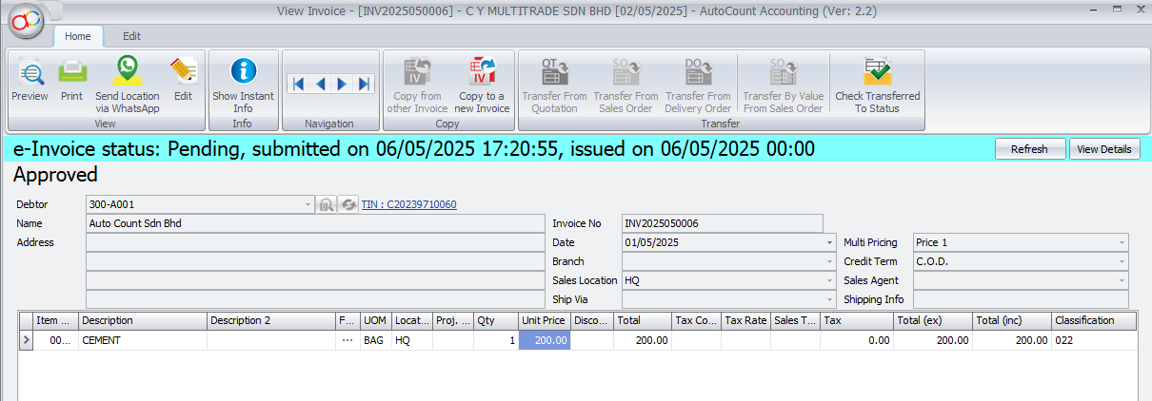
The document will be viewed as below after approved
15.0 | Consolidated e-Invoice
15.1 Consolidated e-Invoice 合并电子发票
*Buyers doesn’t need e-Inv *Business to Consumer (B2C)
| Aggregates/summarize transactions of the month into a single e-Inv
|
Normal receipt/bill/inv is used
| Buyers can not use normal receipts for tax purpose
|

15.2 Step for Consolidated e-Invoice 合并电子发票的步骤
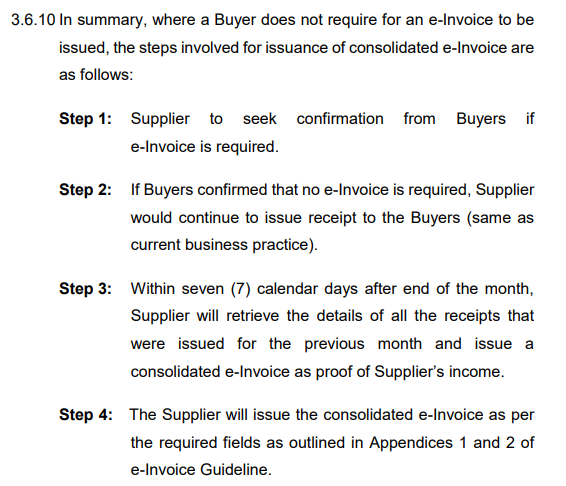
15.3 Consolidated e-Invoice
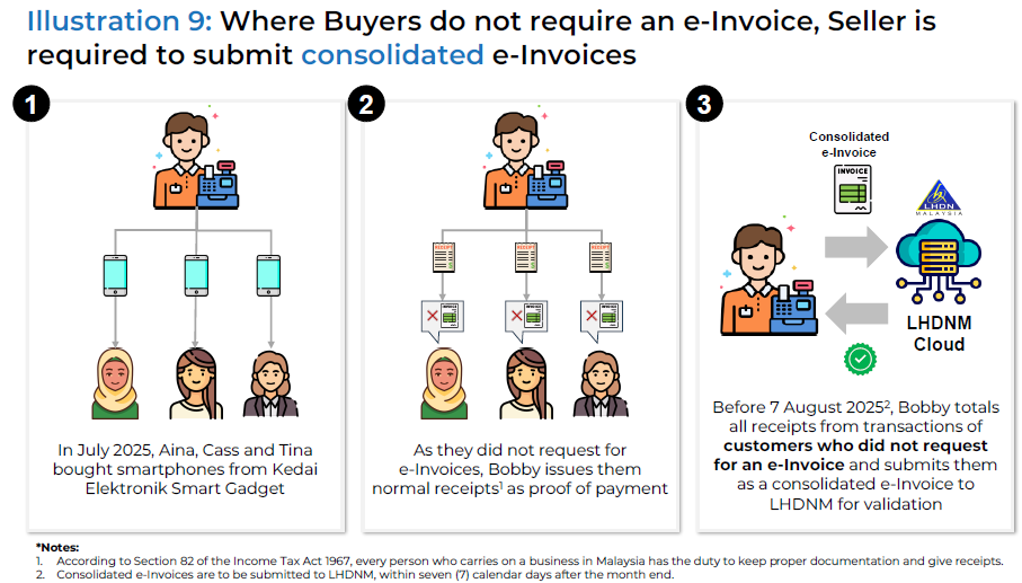
15.4 Seller Submit Consolidated e-Invoice 卖家提交合并电子发票
1. If have multiple branch or location, each outlet needs to submit a consolidated e-Inv
若有多个分店或地点,每个分店都需要提交一份合并的电子发票
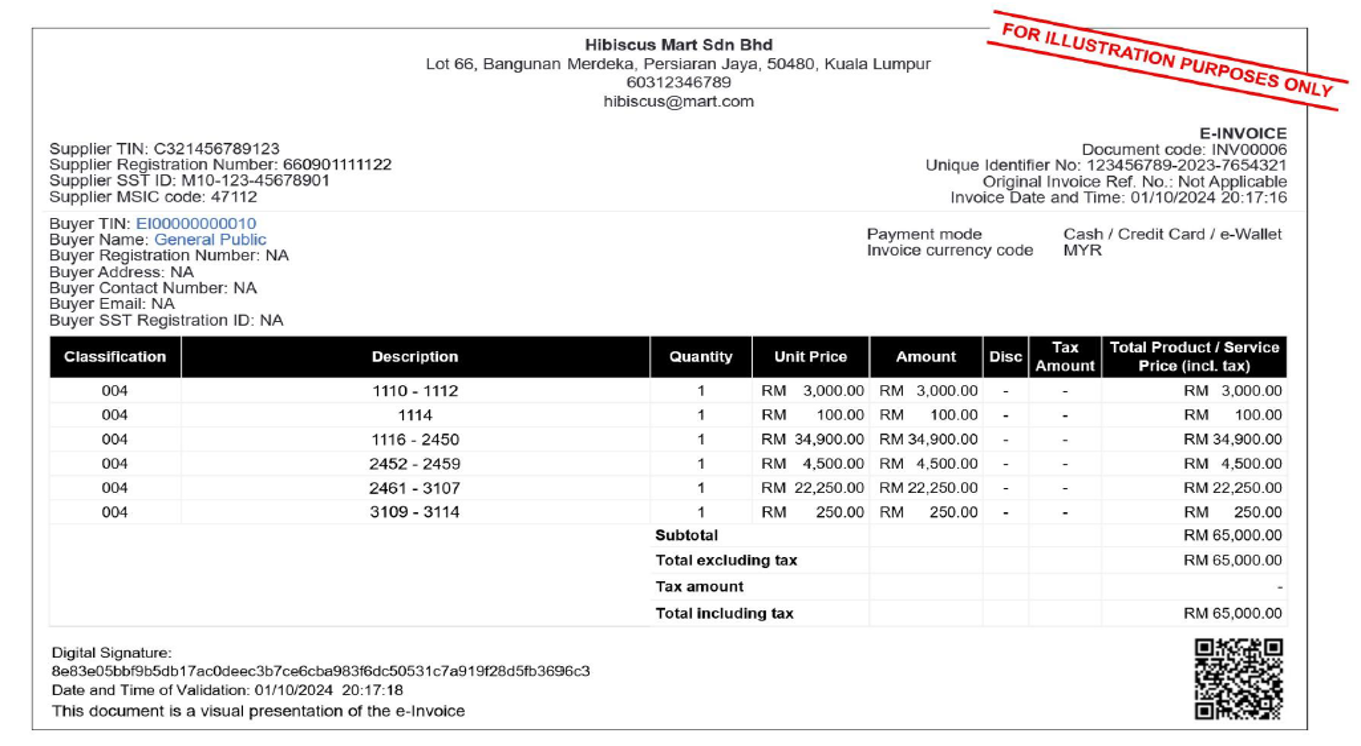
2. When consolidate, receipt/bill/inv ref. no. must be included in the “Description” field
合并时,收据/订单/库存必须包含在“描述”字段中
3. Consolidated e-Inv must be submitted to LHDN within 7 days of the following month
综合电子发票必须在下个月的7天内提交给 LHDN
15.5 Consolidated e-Inv for Multi Branch 多个分行的合并电子发票
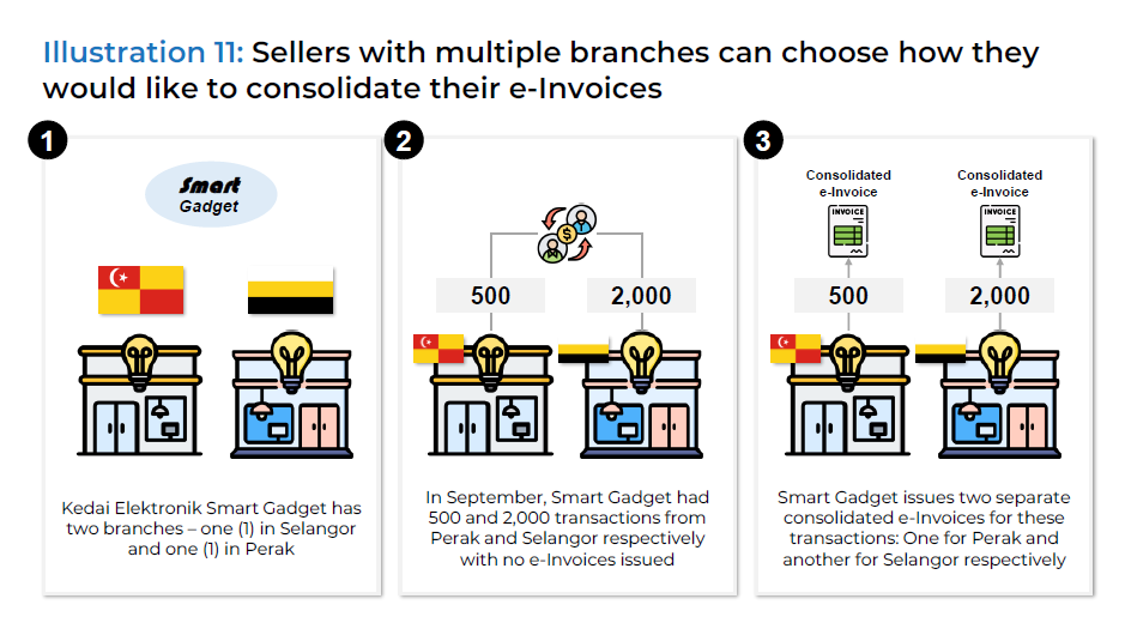
15.6 Example of Consolidated e-Inv 合并电子发票的例子
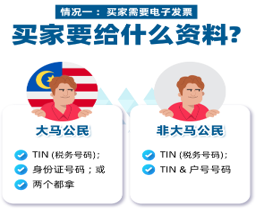
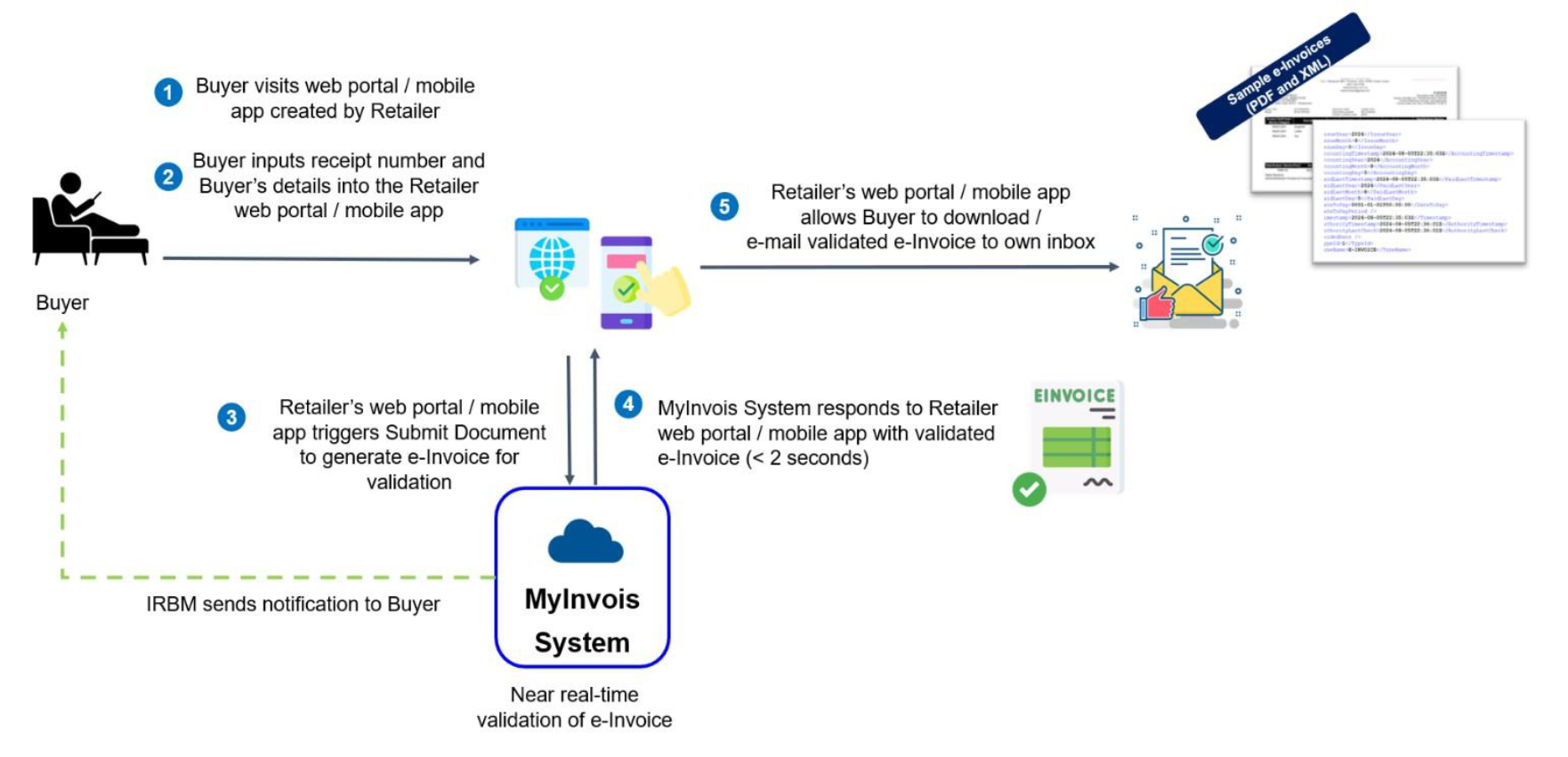
15.7 Requesting e-Inv Post Transaction 交易后请求电子发票
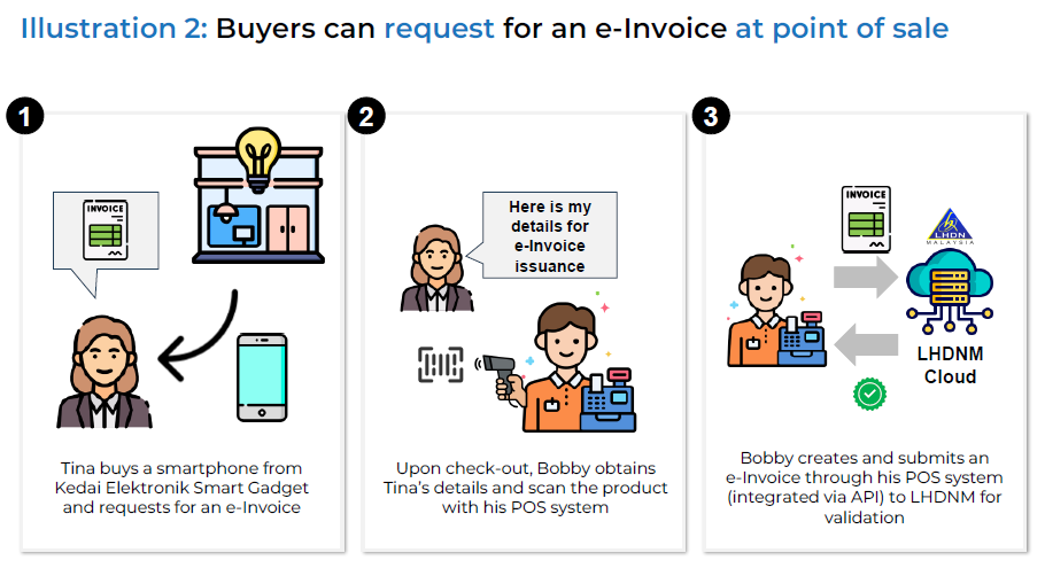
Buyers (B2B) request e-Invoice on the spot or post-transaction 当场或交易后索取电子发票 | For post-transaction, request is made within the same month of the purchase date 对于交易后,请在购买日期的同月内提出请求 |
If the transaction had been converted to e-Inv, the transaction shall not be included into consolidated e-Inv as it had already been submitted to IRBM 如果特定交易已转换为电子发票,则该交易不应包含在合并电子发票中,因为它已提交给 IRBM | Buyers will need to provide *Malaysian: TIN or MyKad/MyTentera ID No. *Non-Malaysian: TIN or Passport No.
|
15.8 On the Spot Request 当场请求电子发票
1. 顾客购买日用品并向零售商索取电子发票
2. 收银员将顾客信息输入到销售点系统
3. 收银系统向电子发票系统发送买家信息请求生成电子发票
4. 电子发票系统发送已验证的电子发票给收银系统
5. 收银系统显示已验证的电子发票给收银员
6. 收银员向买家出示已验证的电子发票
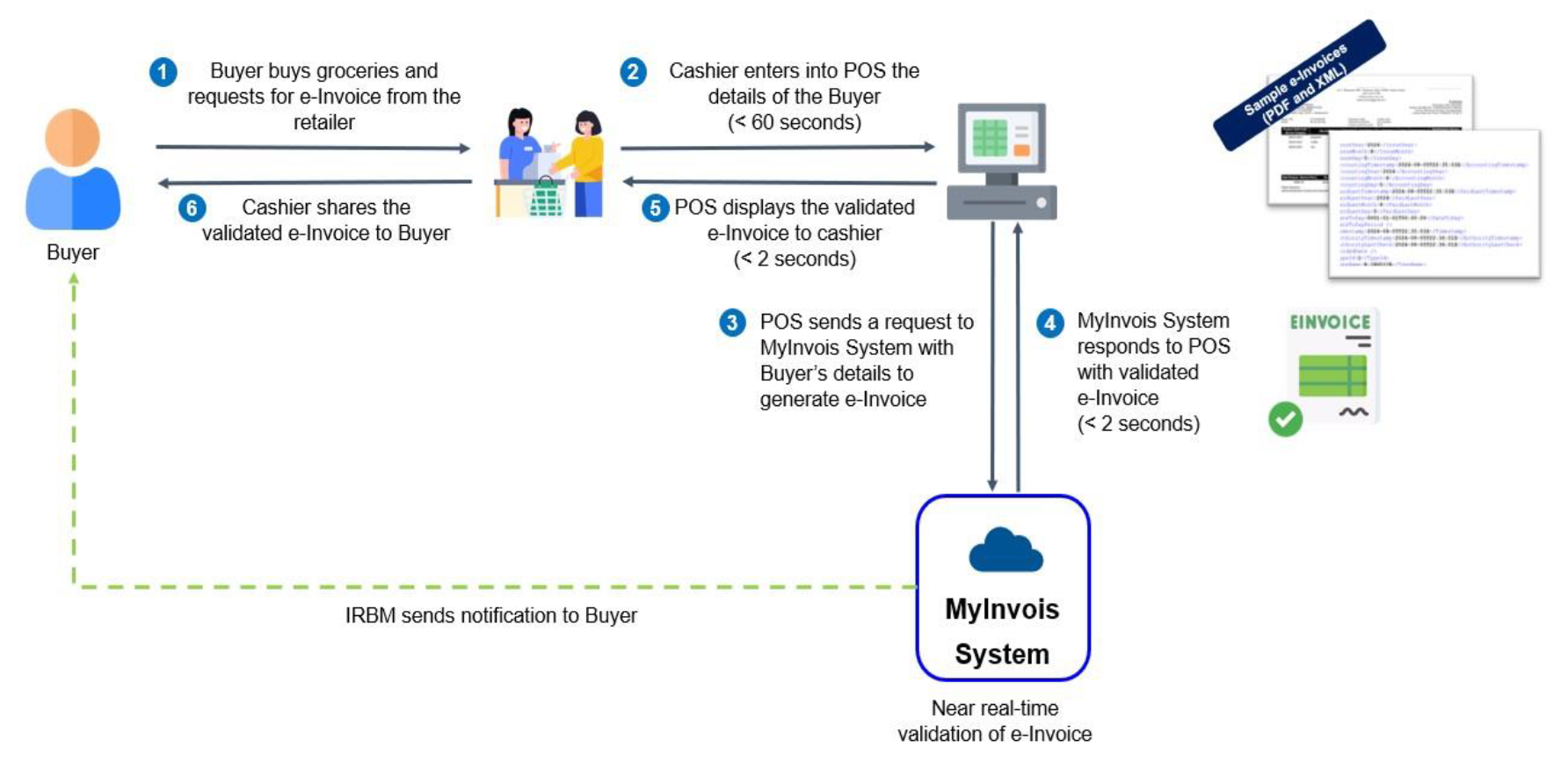
15.8b On the Spot Request 当场请求
15.8c Post-Transaction Request 交易后请求
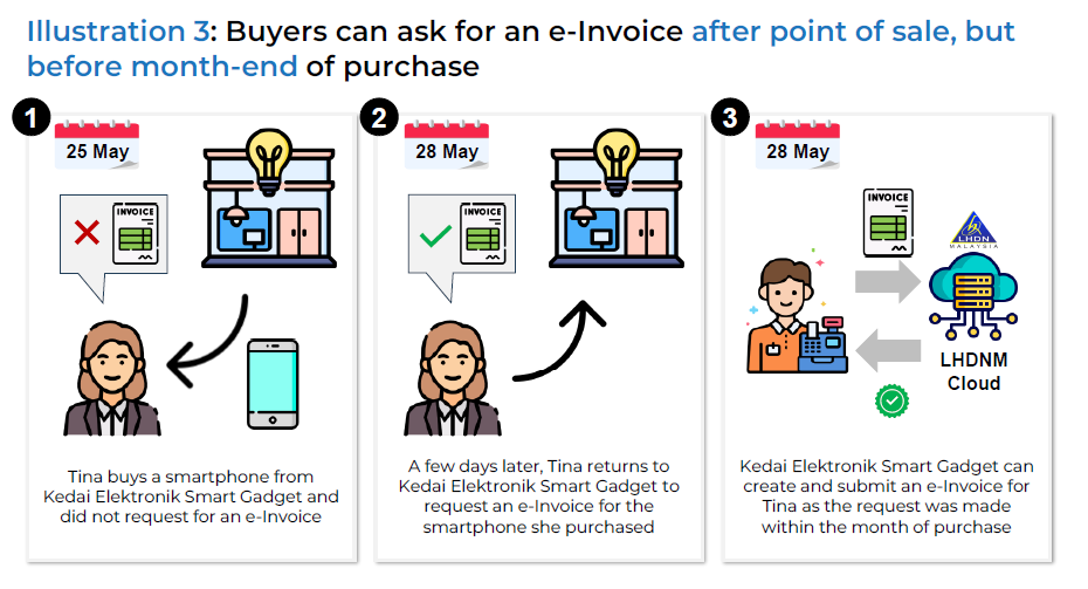
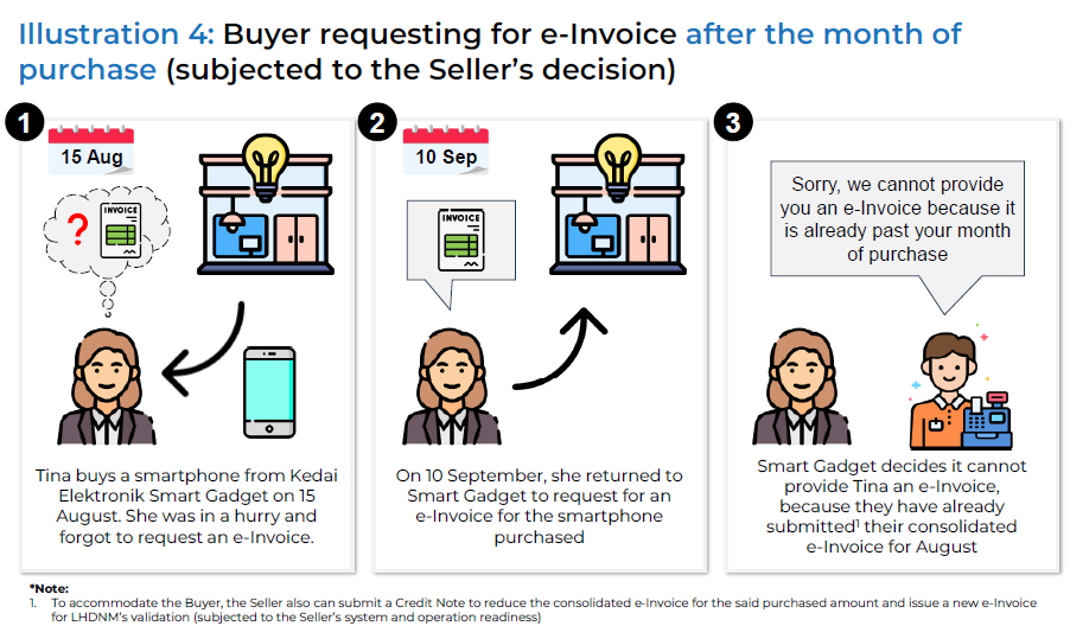
15.9a Not Allowed to Consolidate e-Inv 无法合并电子发票
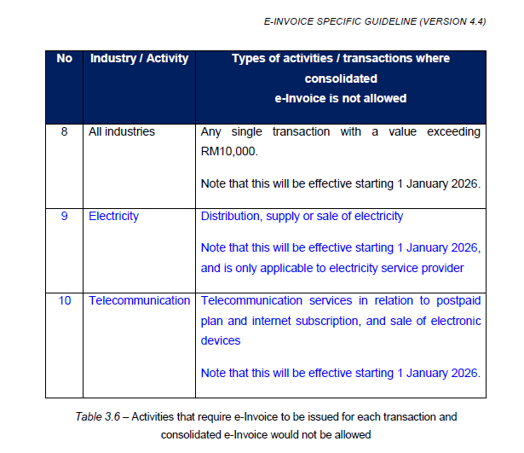
| Industry/Activity | Description | |
| 1. | Automotive 汽车 | Sales of any motor vehicles 任何机动车辆的销售 *Motor vehicles include any self-prepolled vehicle designed for road use, along with trailers |
| 2. | Aviation 航空 | Sales of flight ticket, sales of private charter 机票销售,私人包机销售 |
| 3. | Luxury goods and jewelry 奢侈品和珠宝 | Details TBC 细节待定 *Currently on hold until further details. Taxpayers may issue consolidated e-Invoices if buyer do not request e-Invoices |
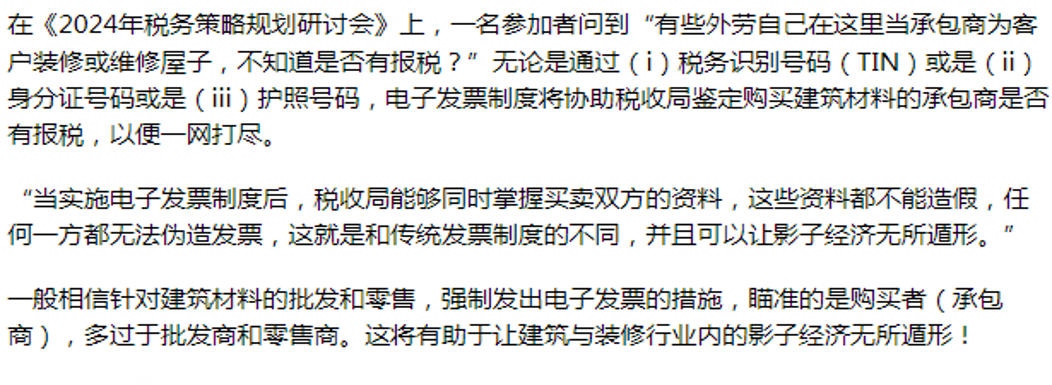
| 4. | Construction 建筑 | Constructions contractor undertaking construction contract as defined in the Income Tax (Construction Contracts) Regulation 2007 所得税(建筑合约)条例所界定的建筑合约下从事建筑工程的承包商 |
| 5. | Licensed betting & gaming 持牌投注和游戏 | Pay-out winners for all betting & gaming, activities 所有博彩和游戏活动的获奖 *Casino & gaming machines are exempted until further notice 赌场和游戏机暂时豁免 Note: Pay-outs for casino & gaming machine winners are exempt from e-Invoice temporarily |
| 6. | Payments to agents, dealers & distributors 向代理商,经销商和分销商的付款 | Payment made to agents, dealers & distributors (Commission) 支付给代理商、经销商和分销商的款项(佣金) *Under Section 83A(4) of the Income Tax Act 1967, an “agent, dealer or distributor” is an authorized person receiving payments from a company for related sales & transactions |
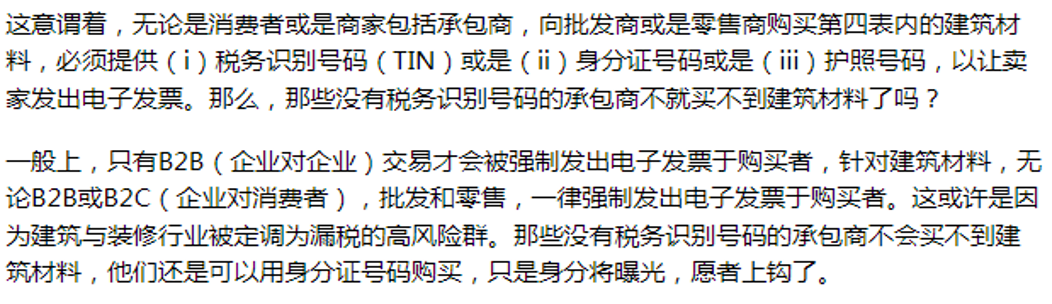
| 7. | Wholesalers & retailers of construction materials 建筑材料批发商和零售商 | Sales of construction materials regardless of volume sold 不论销售量,建筑材料的销售额 *Construction materials include any type or size used in construction, whether local or imported |
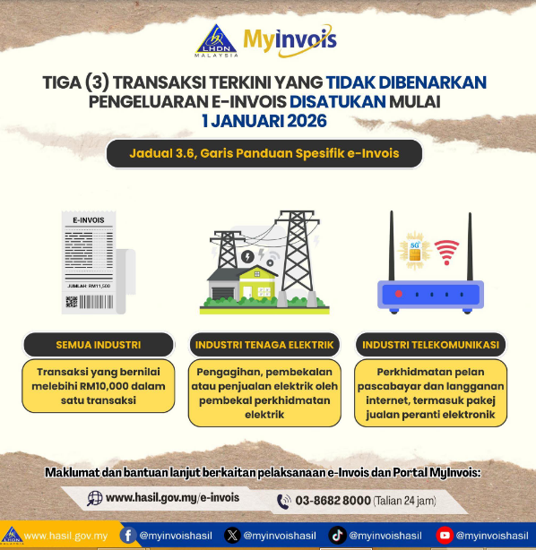
Note that the list below will be effective starting 01/01/2026 以下政策将于2026年1月1日开始实行
| 8. | All Industries 所有行业 | Any single transaction with a value exceeding RM10,000 任何单笔交易价值超过 10,000 令吉 |
| 9. | Electricity Industry 电力行业 | Distribution, supply, or sale of electricity by electricity service providers. 电力服务提供商的电力分配、供应或销售不得合并 |
| 10. | Telecommunication 电信行业 | Postpaid plans & internet subscriptions, including packages with electronic devices 后付费计划与互联网服务(包括配套设备销售) |
15.9b New for Jan 2026 – Not Allowed to Consolidate e-Inv
15.9c Transaction Exceeding RM10,000
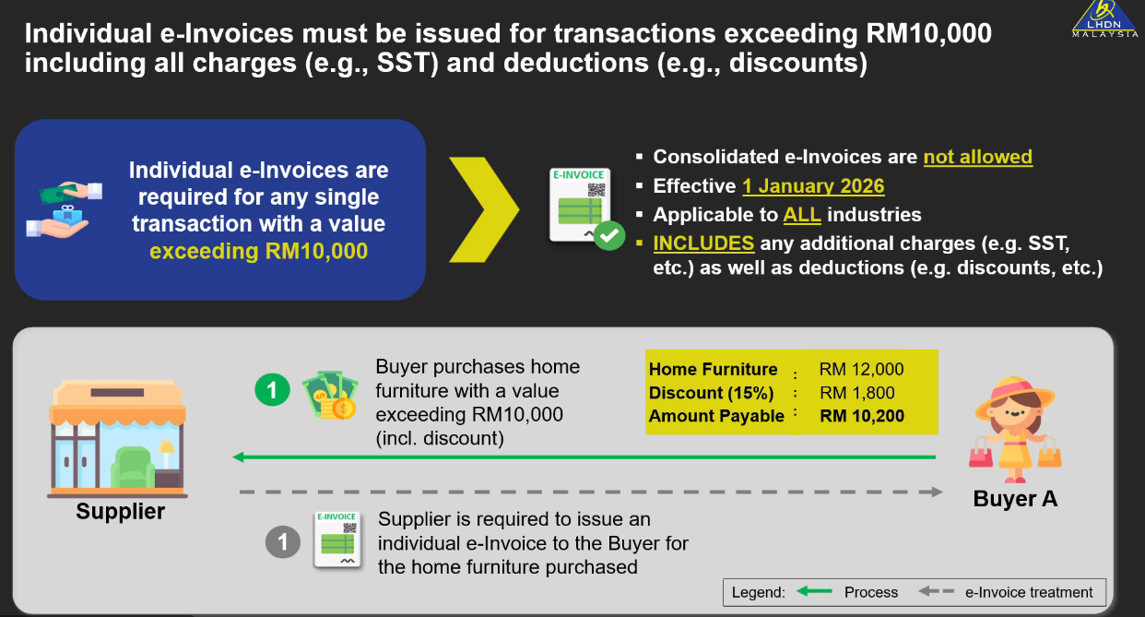
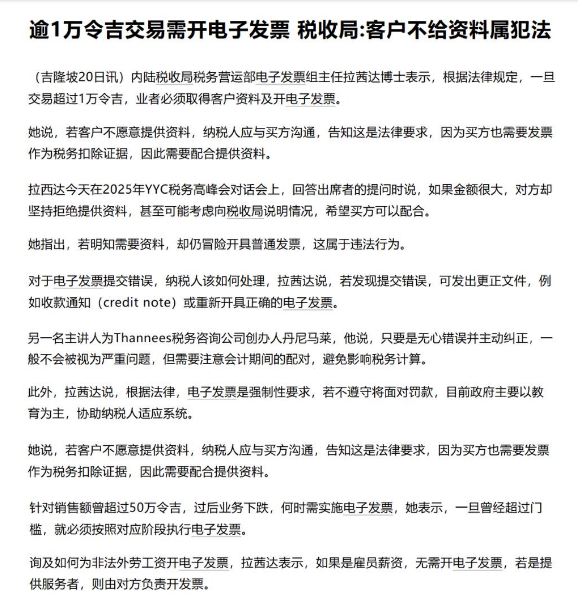
e-Invoice must be issued for transactions exceeding RM10,000 start from 1/1/2026!
从1/1/2026起,超过RM10,000的交易必须开具电子发票!
For transactions exceeding RM10,000, buyer information must be obtained and an e-Invoice issued
交易金额超过RM10,000,必须取得买家资料并开具电子发票
If customer refuses to cooperete, you can communicate with them or explain the situation to LHDN. Under no circumstances should you risk issuing a regular invoice, as this would be illegal!
客户不配合怎么办?可以沟通或向LHDN说明情况,千万不要冒险开普通发票,否则违法!
15.10 List of Construction Not Allowed to Consolidate e-Inv
15.11 Sample of e-Invoice Receipt
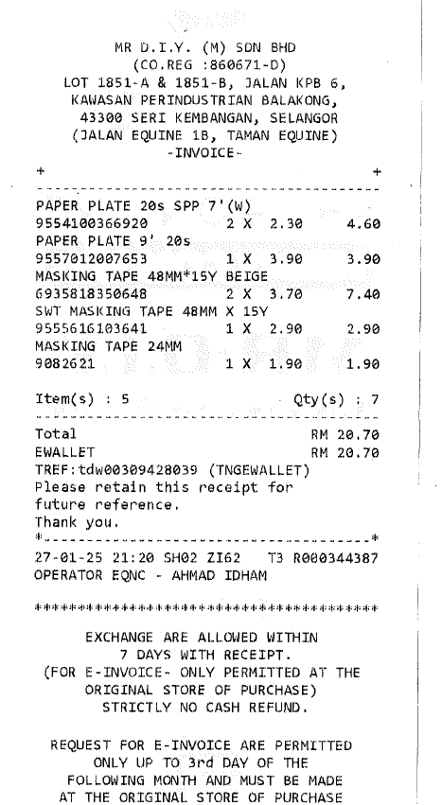
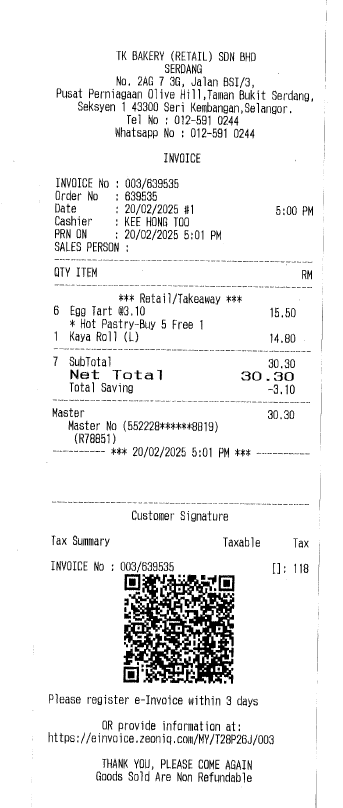
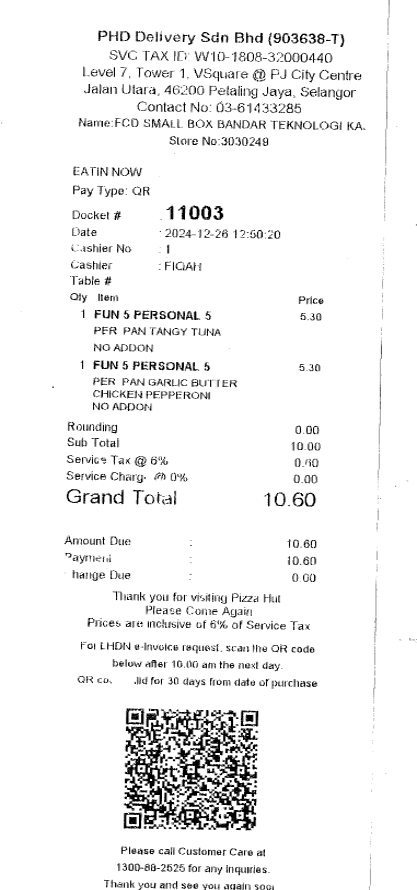
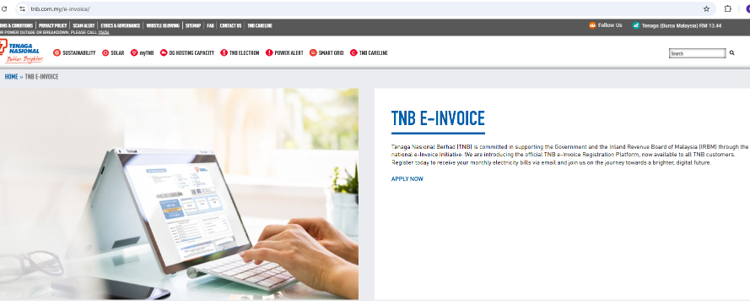
TNB e-Invoice
| 如今 TNB 已经可以以个人/企业/政府机构类型直接在网站申请注册 e-Invoice |
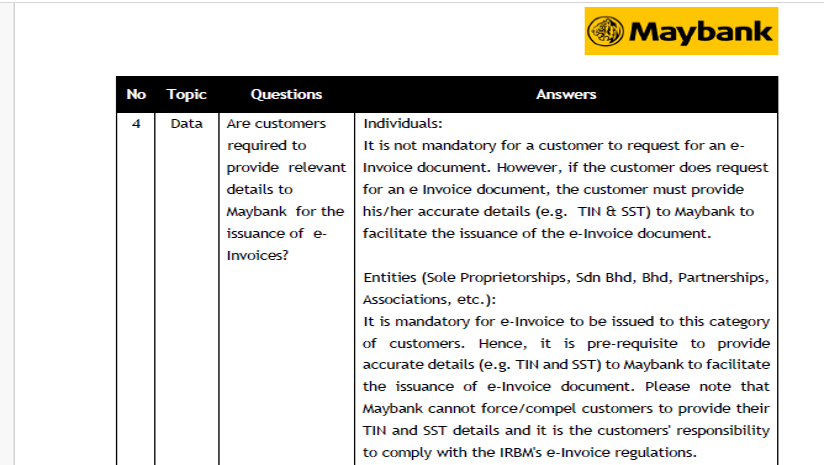
Maybank e-Invoice
FAQ
| Is there a limit to the total number of consolidated e-Invoices that can be issued monthly? 每月可开具的合并电子发票总数是否有限制? |
Yes, there are specific limits regarding the total number of consolidated e-Invoices that can be issued monthly in Malaysia. 是的,马来西亚每月可开具的合并电子发票总数有具体限制 | |
According to the e-Invoice Specific Guidelines (Version 3.1) 根据电子发票特定指南 3.1版本:
1. Maximum size per submission: Each consolidated e-Invoice submission is limited to 5MB
每次提交的最大容量:每份合并电子发票的提交限制为 5MB
2. Maximum number of e-Invoices per submission: A single submission can contain up to 100 e-Invoices
每次提交的最大电子发票数量:一次提交可包含最多100张电子发票
3. Maximum size per e-Invoice: Each individual e-Invoice within a consolidated submission cannot exceed 300KB in size
每张电子发票最大容量:合并提交中的每张电子发票不能超过 300KB
These limits are in place to ensure that the e-Invoice system remains efficient and manageable during submission to IRBM 这些限制是为了确保在向马来西亚内陆税收局(IRBM)提交时,电子发票系统保持高效且易于管理 |
If a business has more than 100 e-Invoices or if the total size exceeds the limits, they may need to split the invoices into multiple submissions 如果企业有超过100张电子发票,或者总容量超过限制,则可能需要将发票拆分为多个提交 |
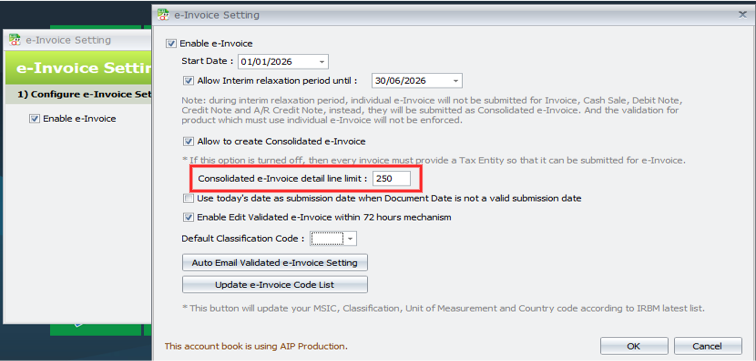
New Function: Consolidated e-Invoice Detail Line Limit
For cases where a Consolidate e-Invoice exceeds the 300KB size limit, you may try to reduce the detail line limit & try to submit again. The default value is 250 lines
16.0 | AutoCount Consolidated E-Invoice
16.1 Consolidated E-Invoice
1. Support 5 document types
| *Invoice | *Cash Sale | *Debit Note | *Credit Note | *Point of Sales (POS) |
2. User select a period to run consolidated and system will calculate based om the transaction in the period
3. Any transactions that does not have TIN provided will be included in this consolidation
4. Currently records will be split by:
| *Document Type | *Currency | *Location |
16.2 Consolidated E-Invoice Interface in AutoCount
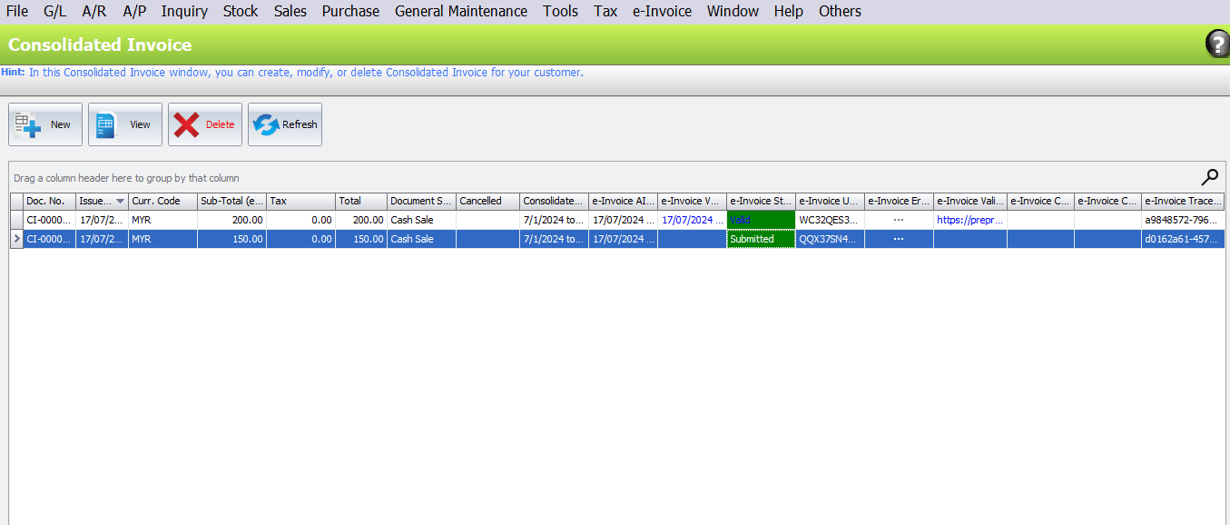
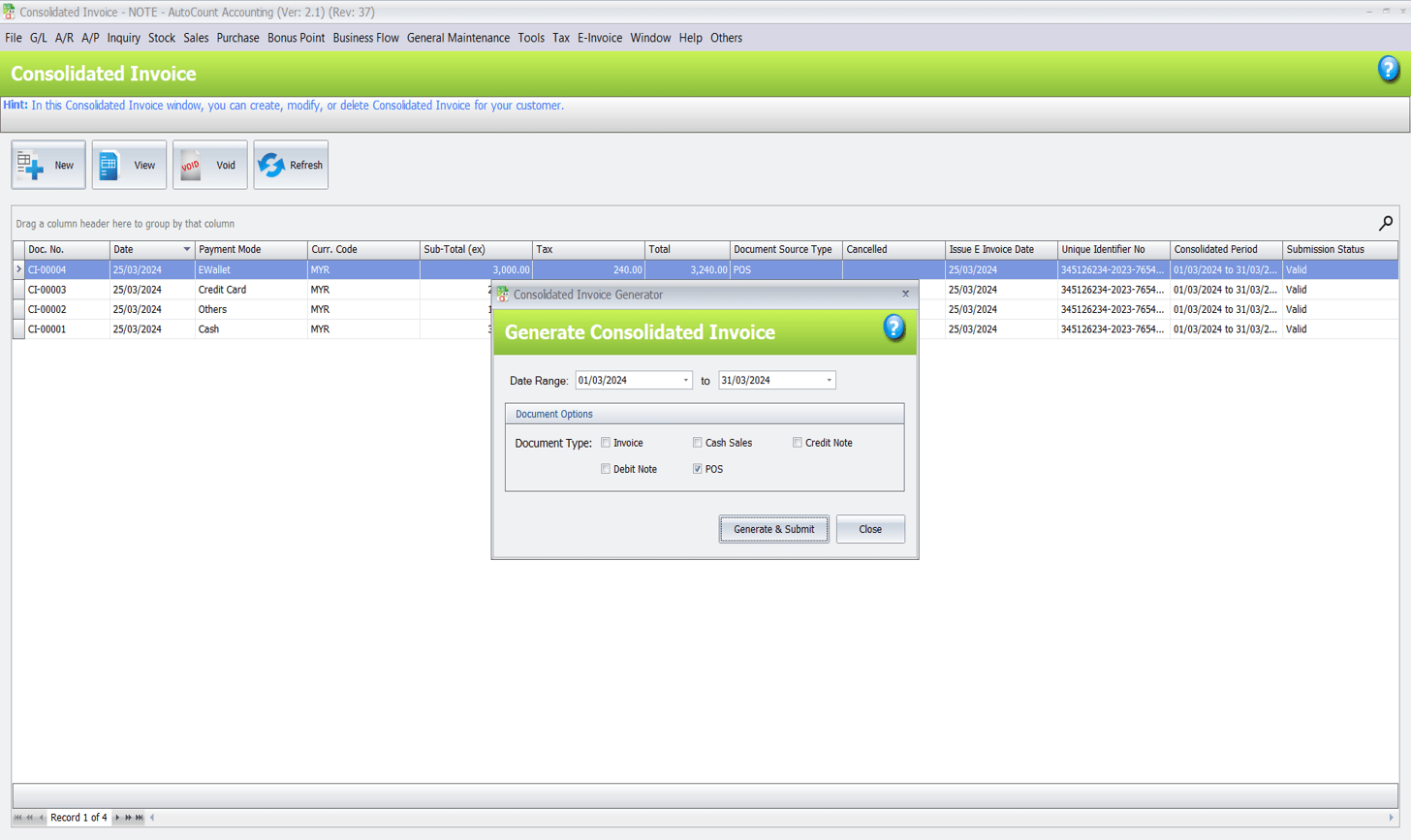
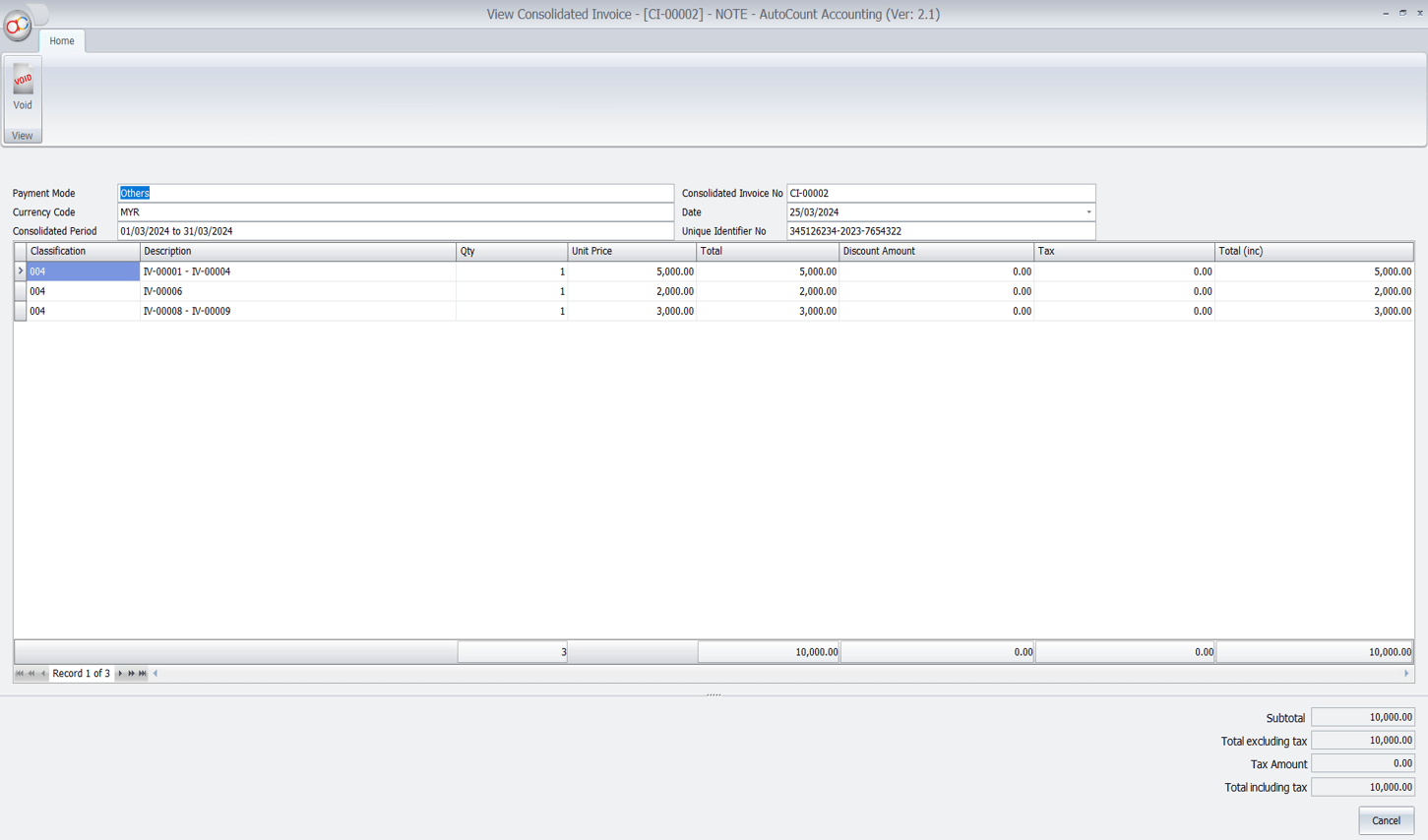
16.3 How can I Perform Consolidate e-Invoice in AutoCount Accounting?
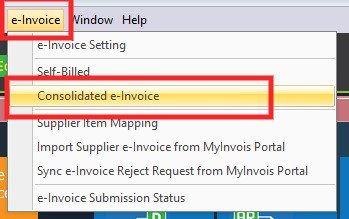
Go to e-Invoice > Consolidated e-Invoice
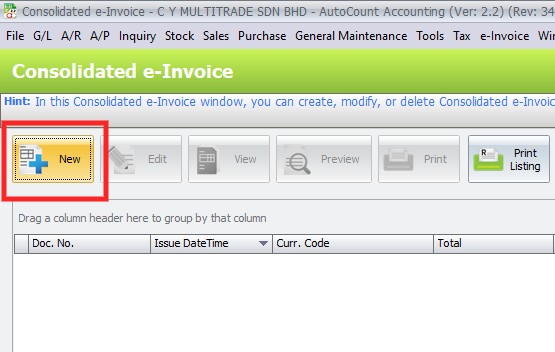
Click “New”
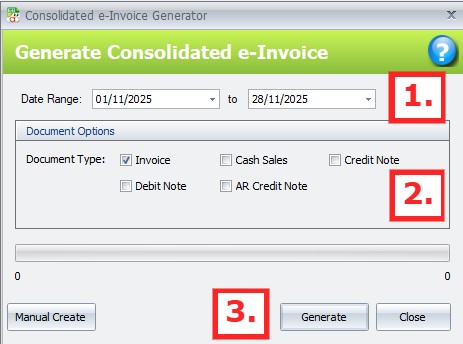
Filter your date range (1) > Choose document type, each Document Type will generate 1 Consolidated e-Invoice (2) > Click Generate (3)
A Consolidated e-Invoice summary will appear. You can double click on the line to drill down for further checking
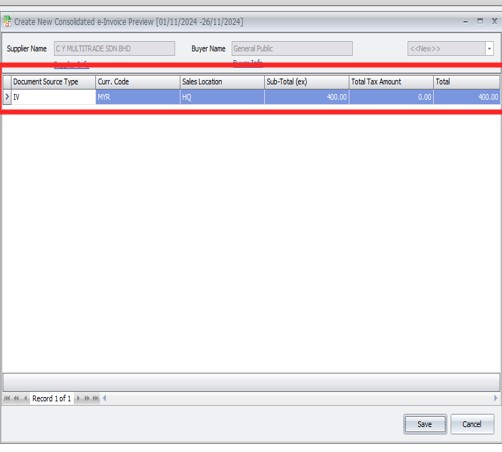
“General Public” will be used as buyer for this submission
Transactions list that are included:
1. Tick Submit e-Invoice and Consolidated e-Invoice
2. Tick Submit e-Invoice and no TIN / Tax Entity info
3. Failed or Invalid e-Invoice submissions
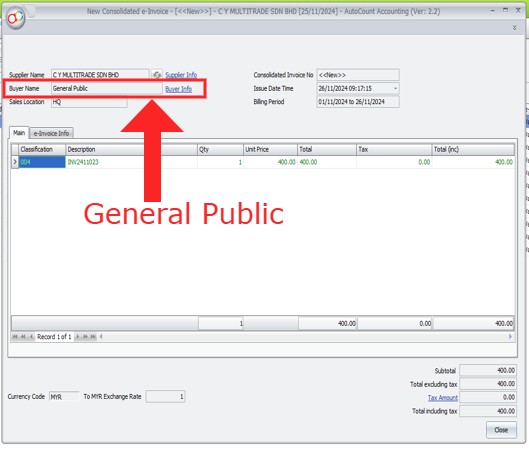
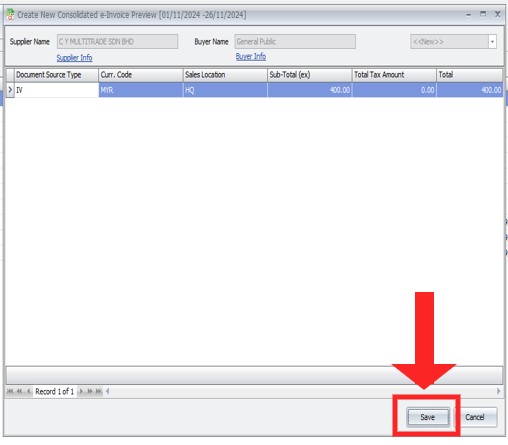
Click “Save” to submit the Consolidated e-Invoice
Your Consolidated e-Invoice will then undergo submission, you can check the “status” from this column
After a moment, you may refresh and see if your Consolidated e-Invoice is validated

Meanwhile in your MyInvois Portal, you should be able to see this record as well
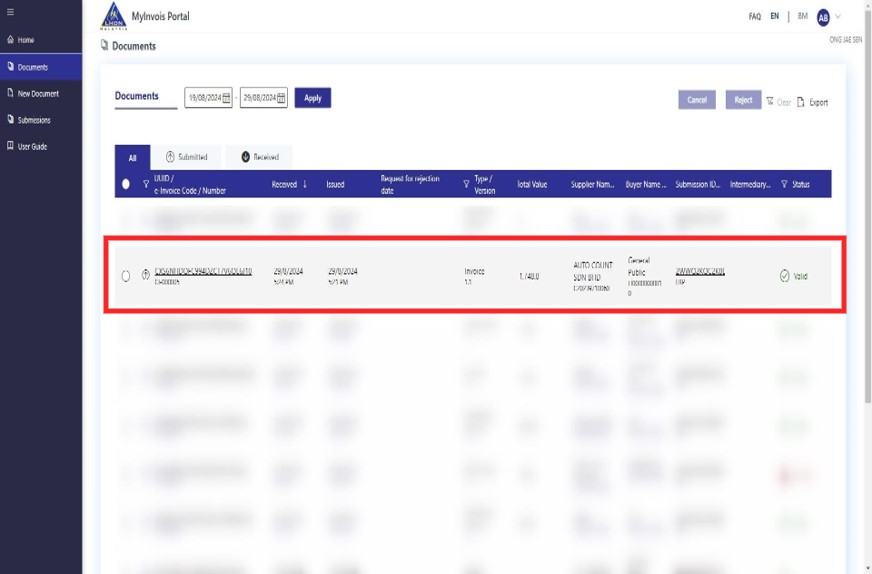
Reminder:
Kindly remind that you will need to submit Consolidated e-Invoice not later that the 7th days of the following month

16.4 Consolidated e-Invoice Detail Line Limit Option
For cases where a Consolidated e-Invoice exceeds the 300KB size limit, you may try to reduce the detail line limit and try to submit again
17.0 | Self-billed E-Invoice
17.1 Self-billing e-invoice
Type of Document:
- Self Billed Invoice
- Self Billed Credit Note
- Self Billed Debit Note
- Self Billed Refund
Description:
- Allowed in certain cases where the Supplier party is not necessary to issue e-Inv to the Buyer
- 在供应方无需向买方开具电子发票的某些情况下允许
17.2 Type for Self-Billing e-Invoice
| Type | Supplier | Buyer (Self-Billing) |
| Payment to agents, dealers, distributors and etc | Agents, dealers, distributors & etc | Taxpayer that makes the payment |
| Foreign Suppliers | Foreign seller | Malaysia purchaser |
| Profit Distribution (Dividend Distribution) | Recipients of the distribution | Taxpayer that make distribution |
| E-Commerce | Merchant, Service Provider (Driver, Rider) | E-Commerce/ Intermediary platform |
| Pay-out to all betting and gaming winners | Recipient of the pay out | Licensed betting and gaming provider |
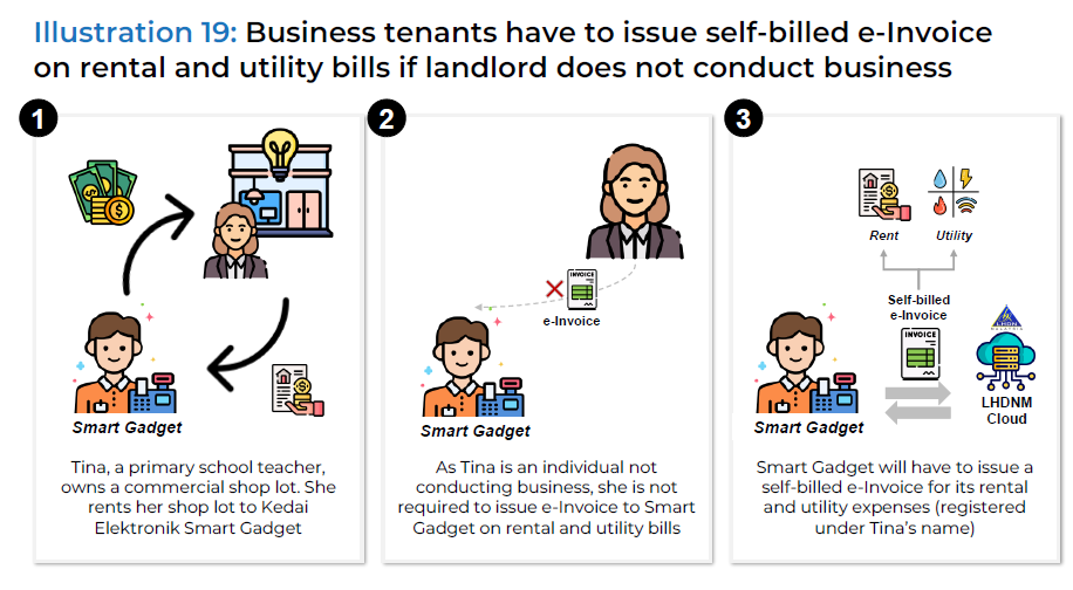
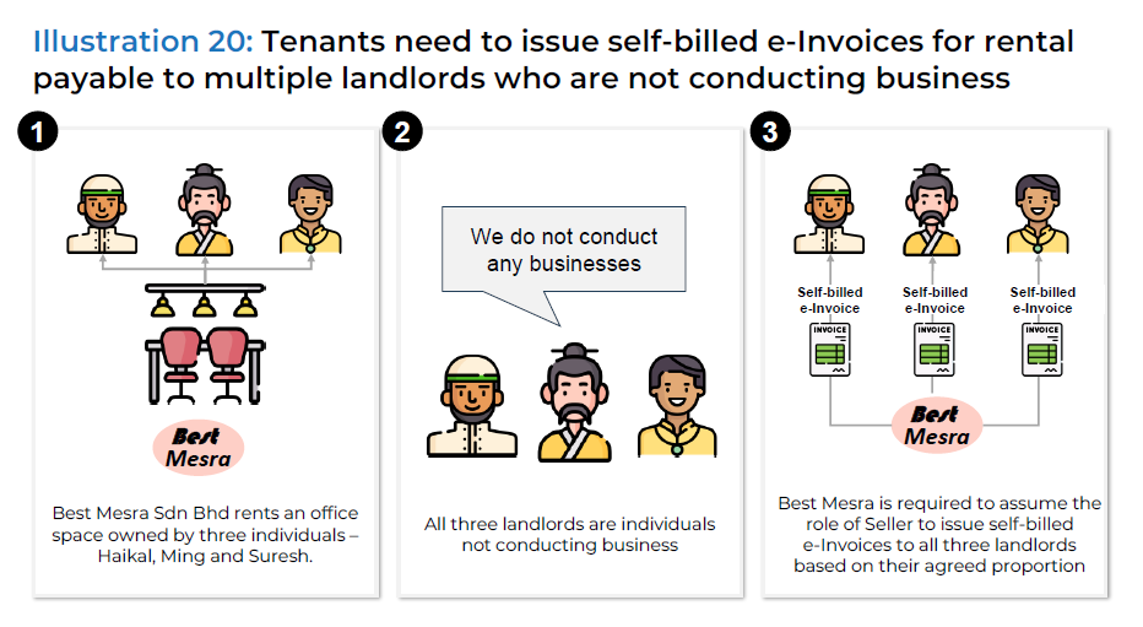
| Acquisition of goods or services from individual taxpayers who are not conducting a business | Individual taxpayer providing goods or services | Person acquiring goods or services (purchaser) |
| Payment/ Credit to taxpayer recorded in a statement/ bill issued on a periodic basis (Rebate) | Recipients of the payment /credit | Taxpayer that makes the payment/ credit |
| Interest Payment | Recipient of interest payment | Taxpayer that make the interest payment |
17.2b Issue Self Billed e-Invoice When Note Receive Bill
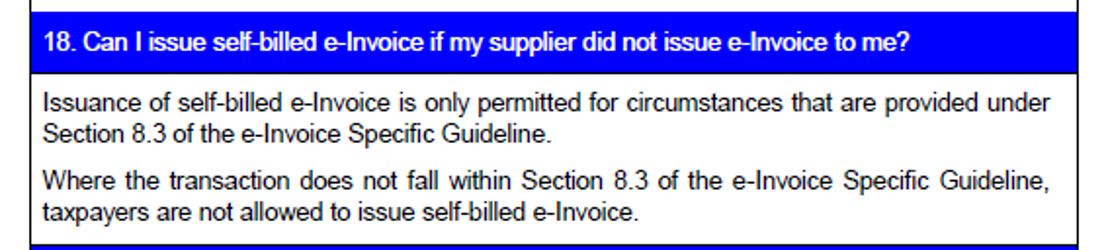

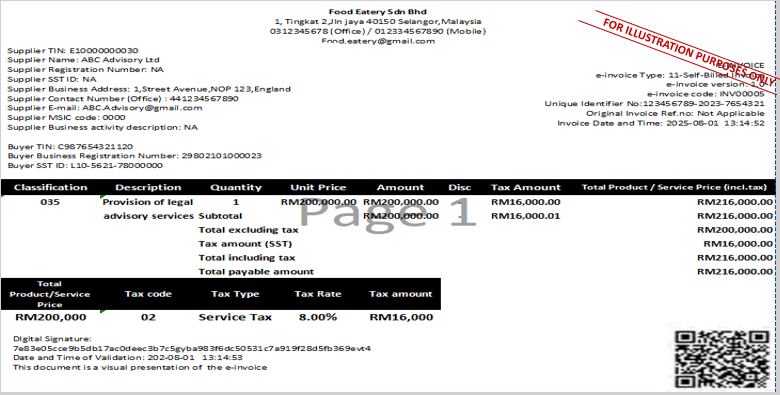
17.3 Example of self-billed invoice
17.4a Issue Self-Billed e-Invoice to Individual

17.4b Issue Self-Billed e-Invoice to Individual

17.4c Issue Self-Billed e-Invoice to Individual
17.4d Issue Self-Billed e-Invoice to Individual
17.5a Issue Self-Billed e-Invoice for Oversea Purchase
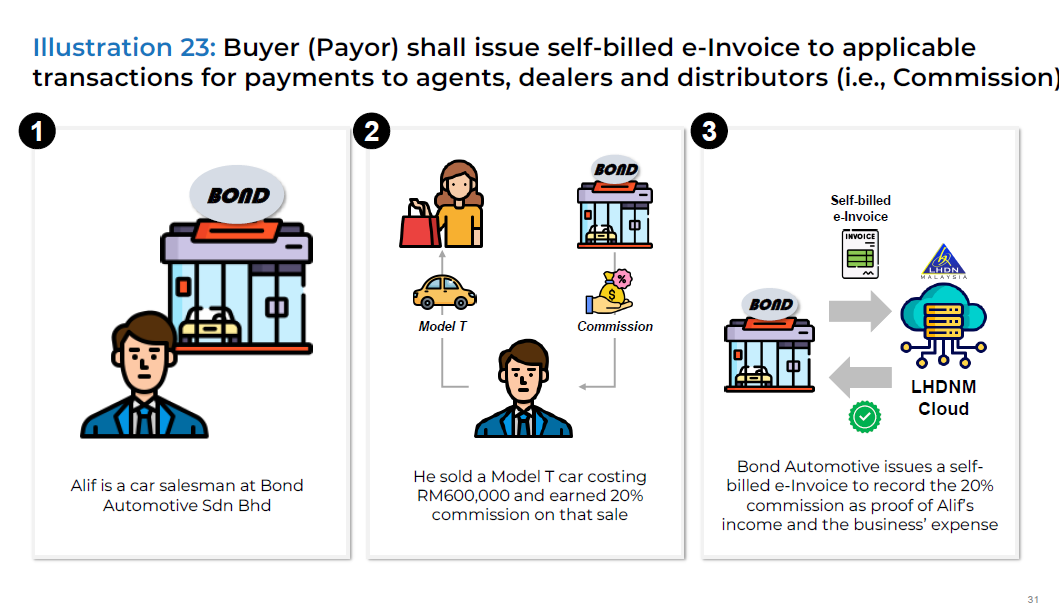
17.6 Issue Self-Billed e-Invoice for Commission
18.0 | AutoCount Self-billing E-Invoice
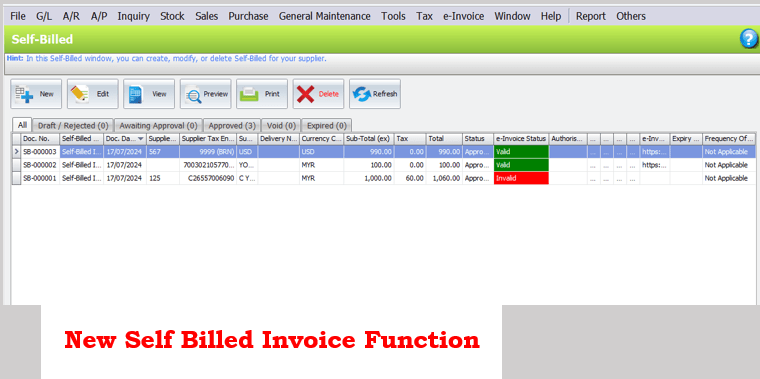
18.1 Self-billing e-Invoice
1. New function to support self-billing
支持自助计费的功能
2. Inherit approval process from Inv as an additional layer of control for submission to LHDN
从发票继承审批流程作为额外的控制层用于提交给 LHDN
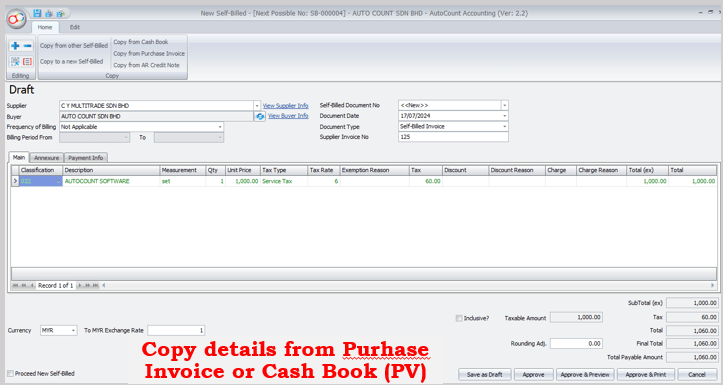
3. Support copy from Purchase Invoice and Cash Book (PV)
支持从进货发票和现金日记账(现金付款凭证)复制
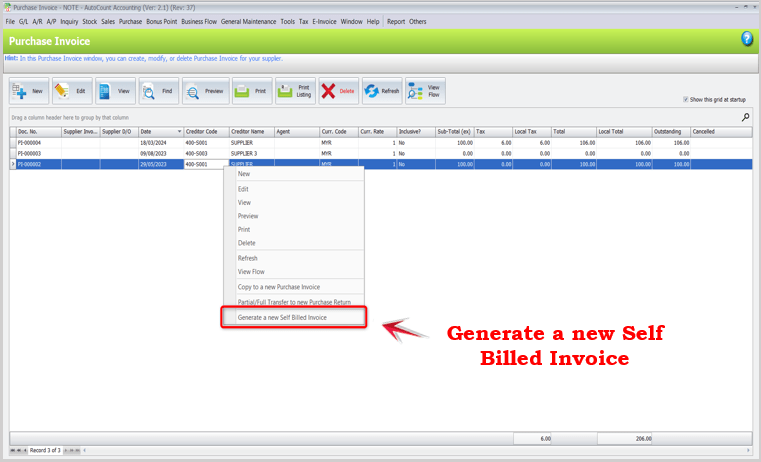
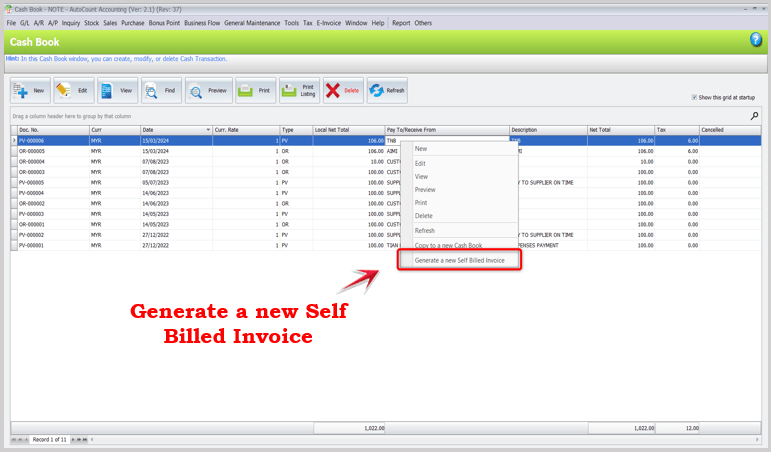
4. Support generate from Purchase Invoice and Cash Book (PV)
可以根据采购发票和现金日记账(PV)生成支持凭证
5. Self-Billing transaction will not have any GL or stock posting
自开账单交易不会有任何总帐或库存过账
18.2 Example of Self-Billing e-Invoice
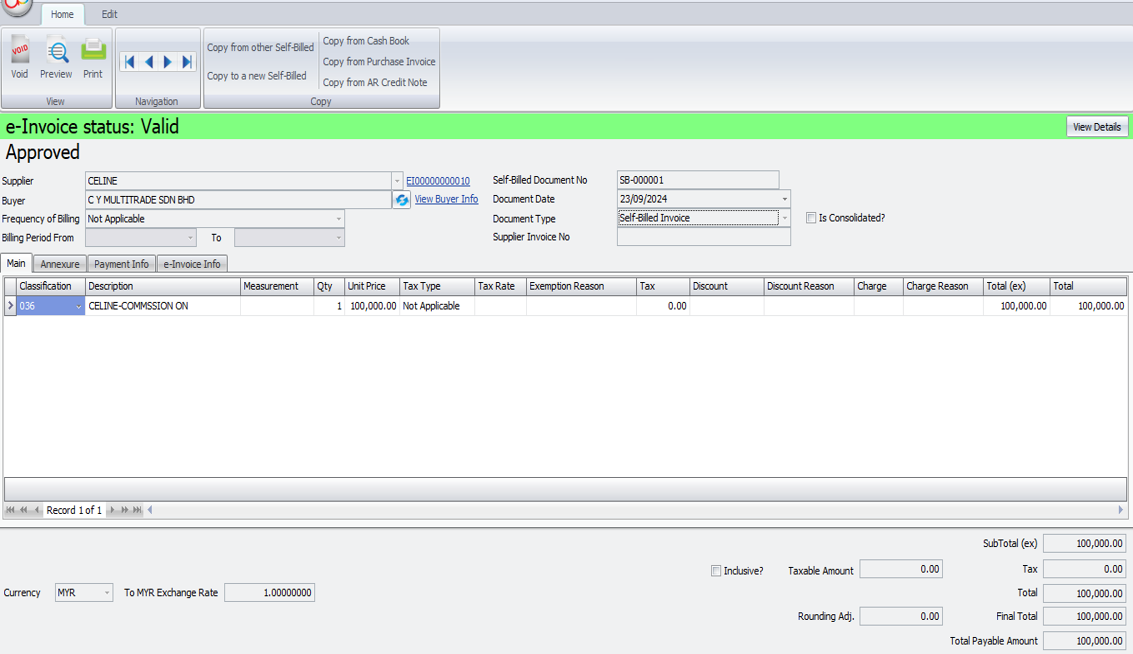
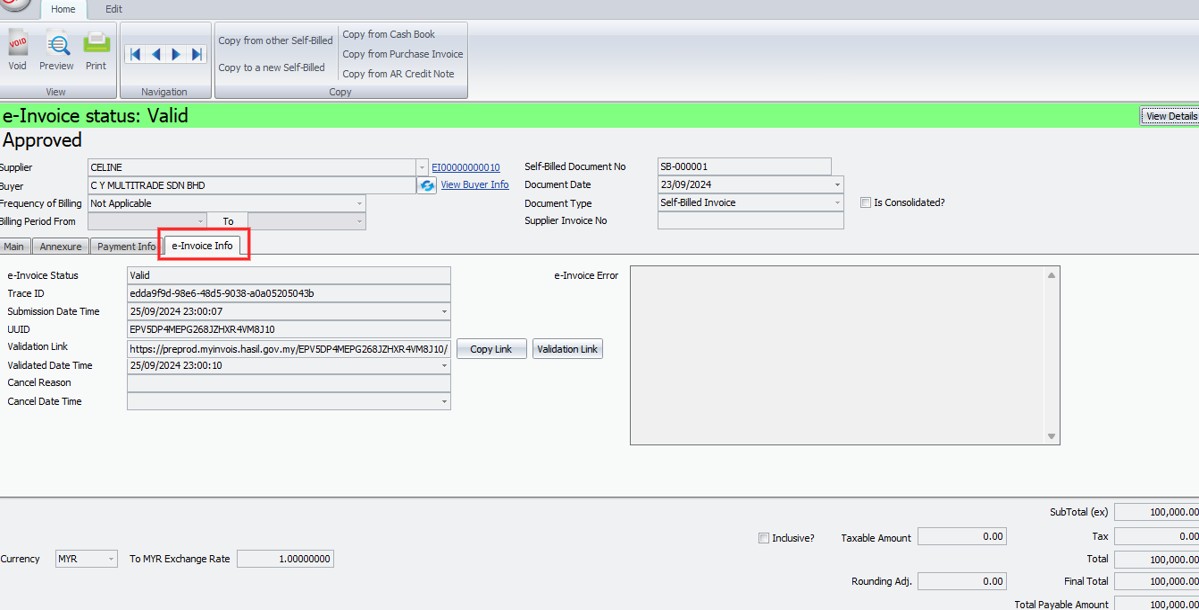
18.3 Example of Valid Self-Billing e-Invoice
18.4 How to Perform Consolidate Self-Bill e-Invoice in AutoCount Accounting?
First Thing First:
Cash Book Payment Vouchers had been created to pay commission to agents, you will need to perform consolidate self-bill for these expenses
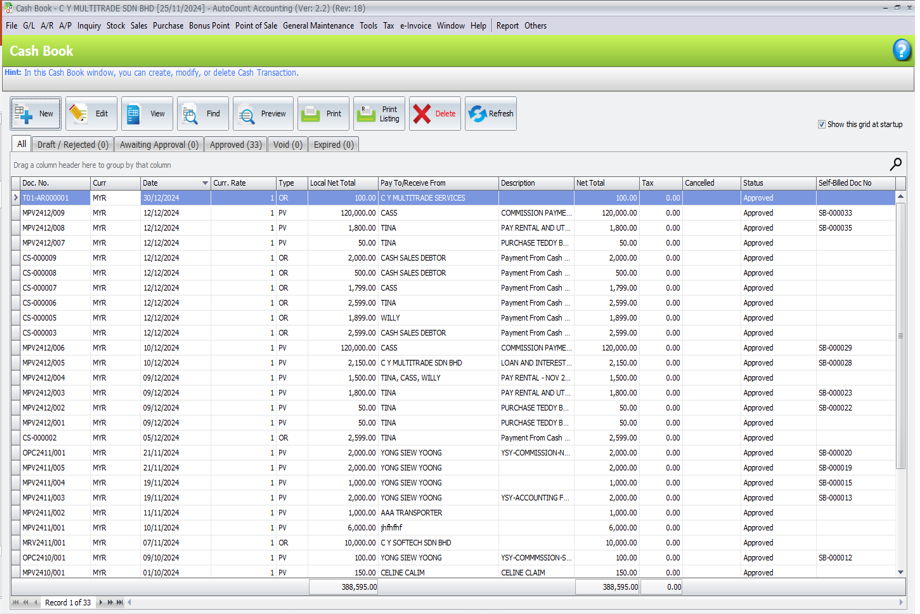
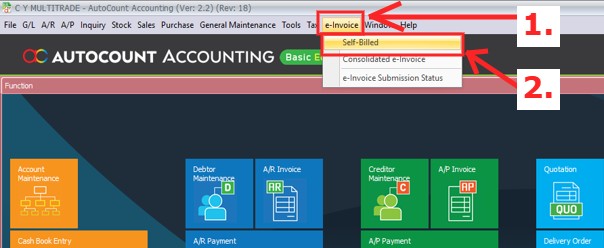
Steps: Go to e-Invoice Menu (1) > Click “Self-Billed” (2)
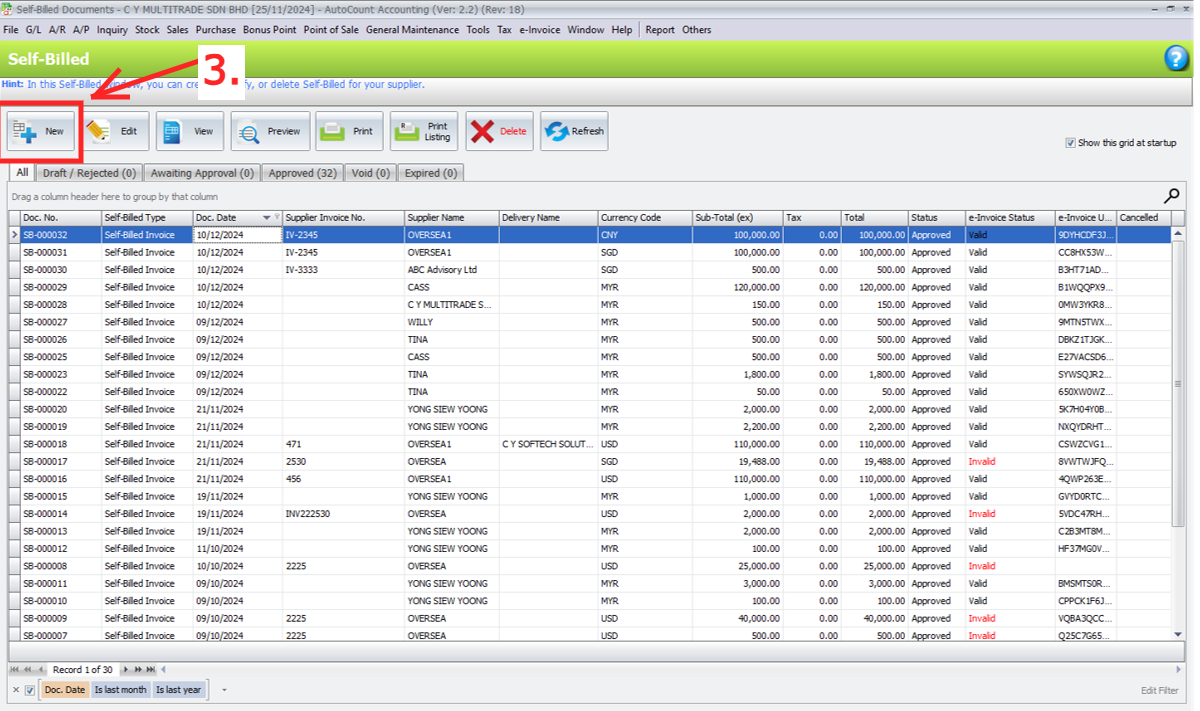
Click “New” to create Self-Bill (3)
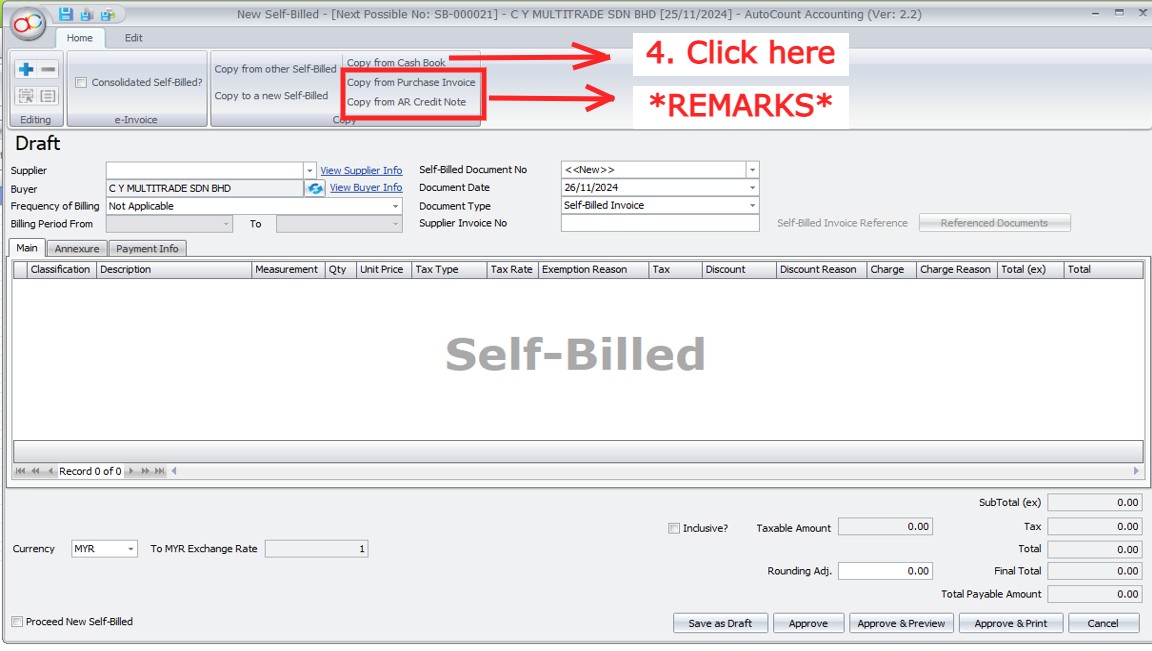
Click “Copy from Cash Book” (4)
REMARKS: Depending on different scenario, you might need to copy from Purchase Invoice / AR Credit Note
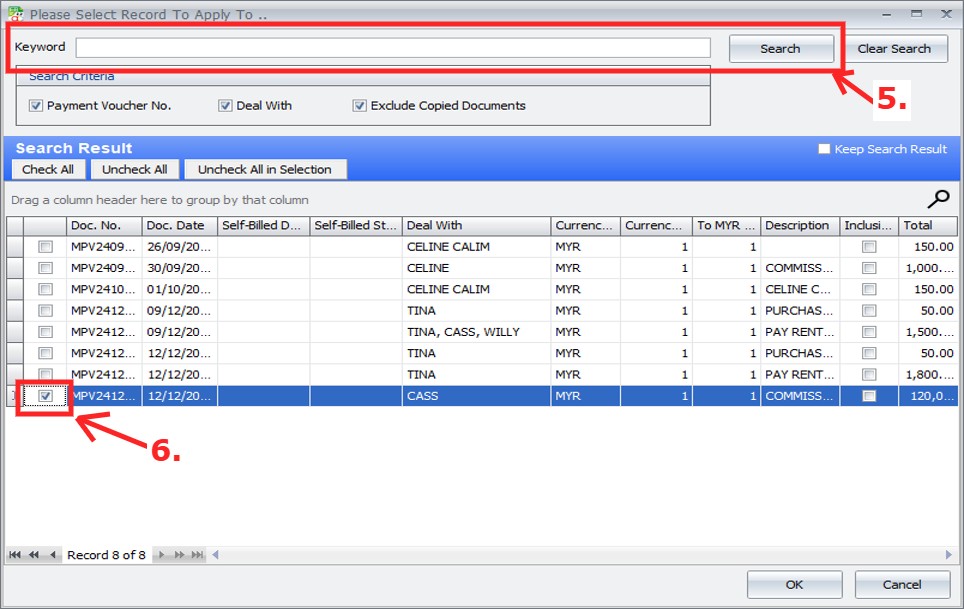
Enter the keyword & Click “Search” (5) > Tick the Payment Vouchers that you wish to self-bill (6)
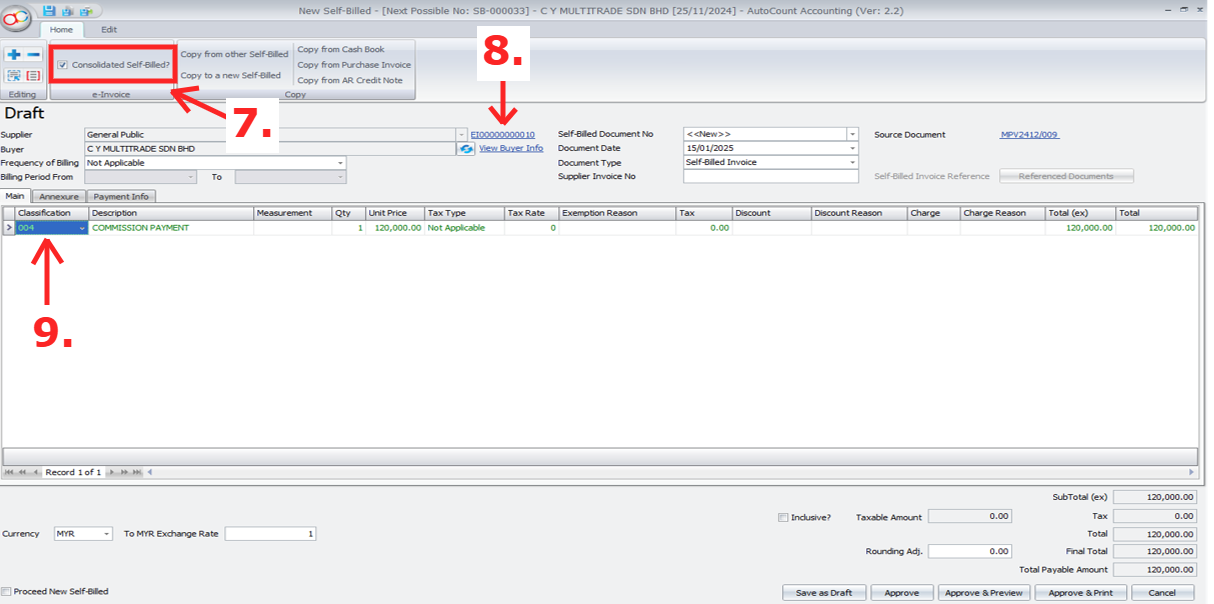
Tick “Is Consolidate” to make this self-bill into Consolidated Self-Bill (7)
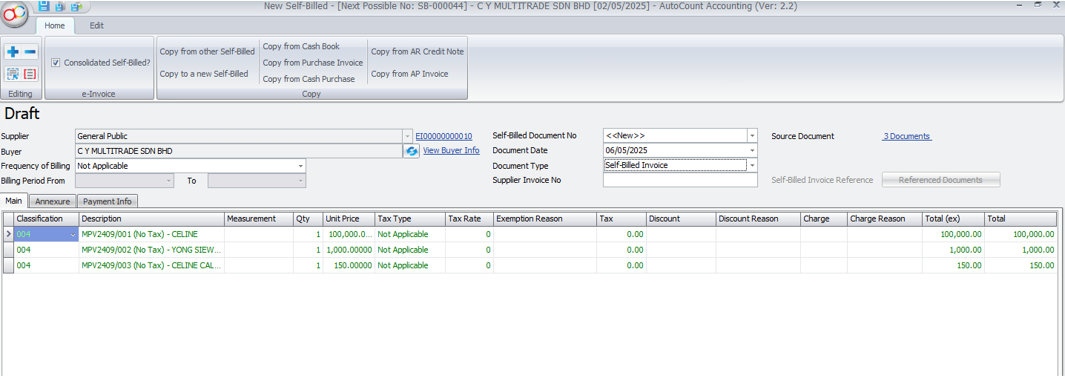
Supplier TIN will automatically change to General Public TIN (8)
Classification will automatically change to 004 Consolidate e-Invoice (9)
Optional but recommended for easy reference
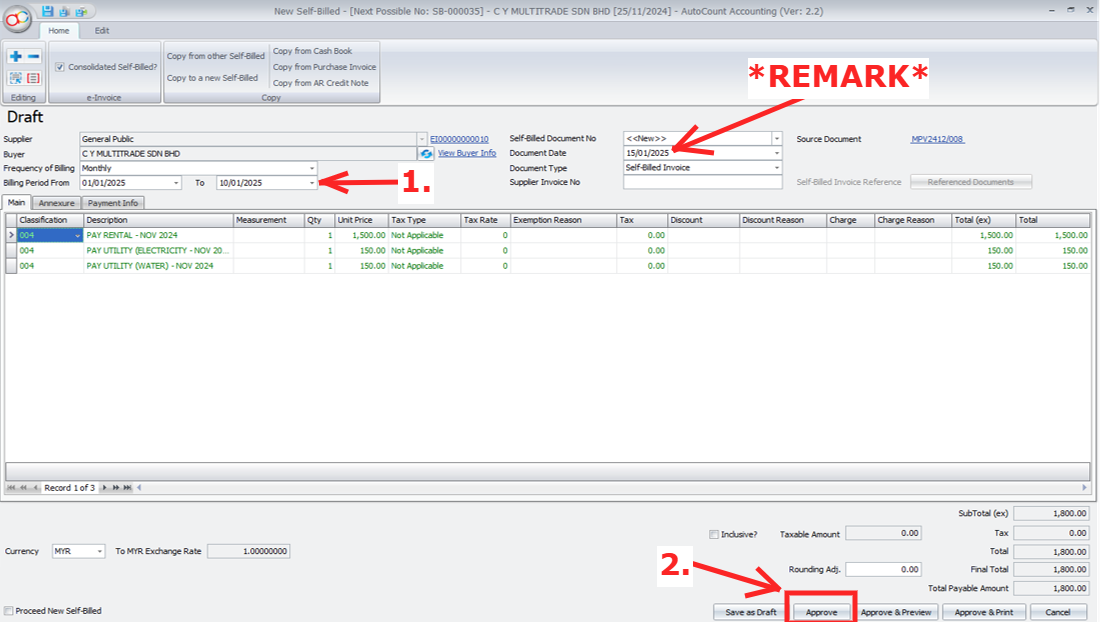
1. Set your Frequency of Billing and Billing Period
2. Click Approve to save this Consolidated Sefl-Bill
REMARK: The Document Date should not be later than 7th of the following month
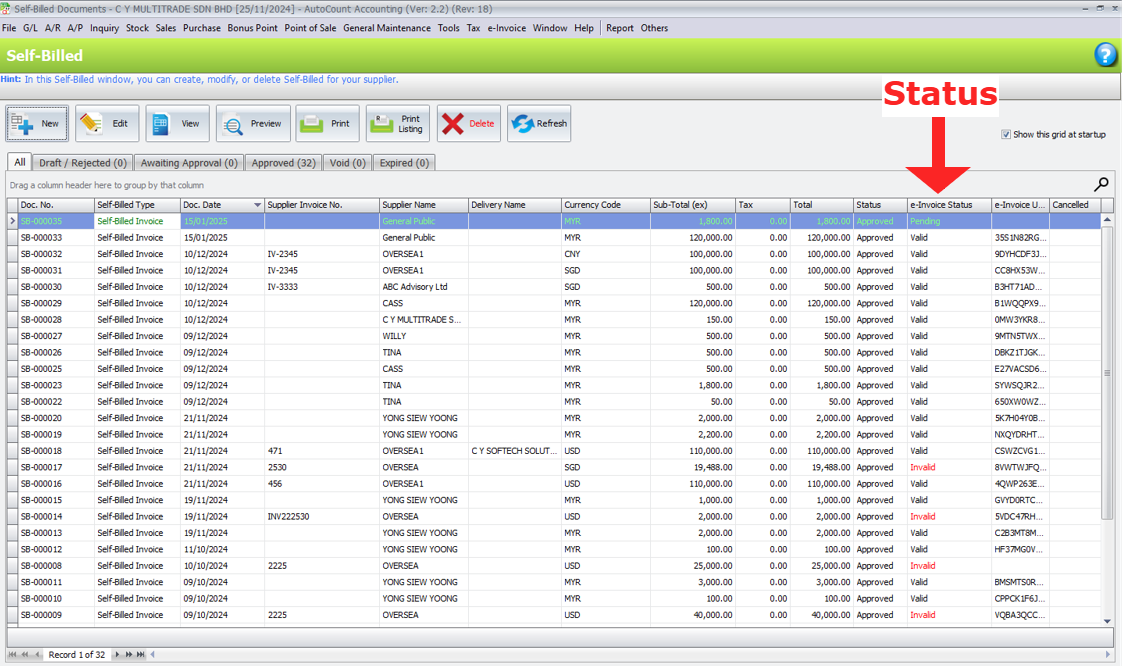
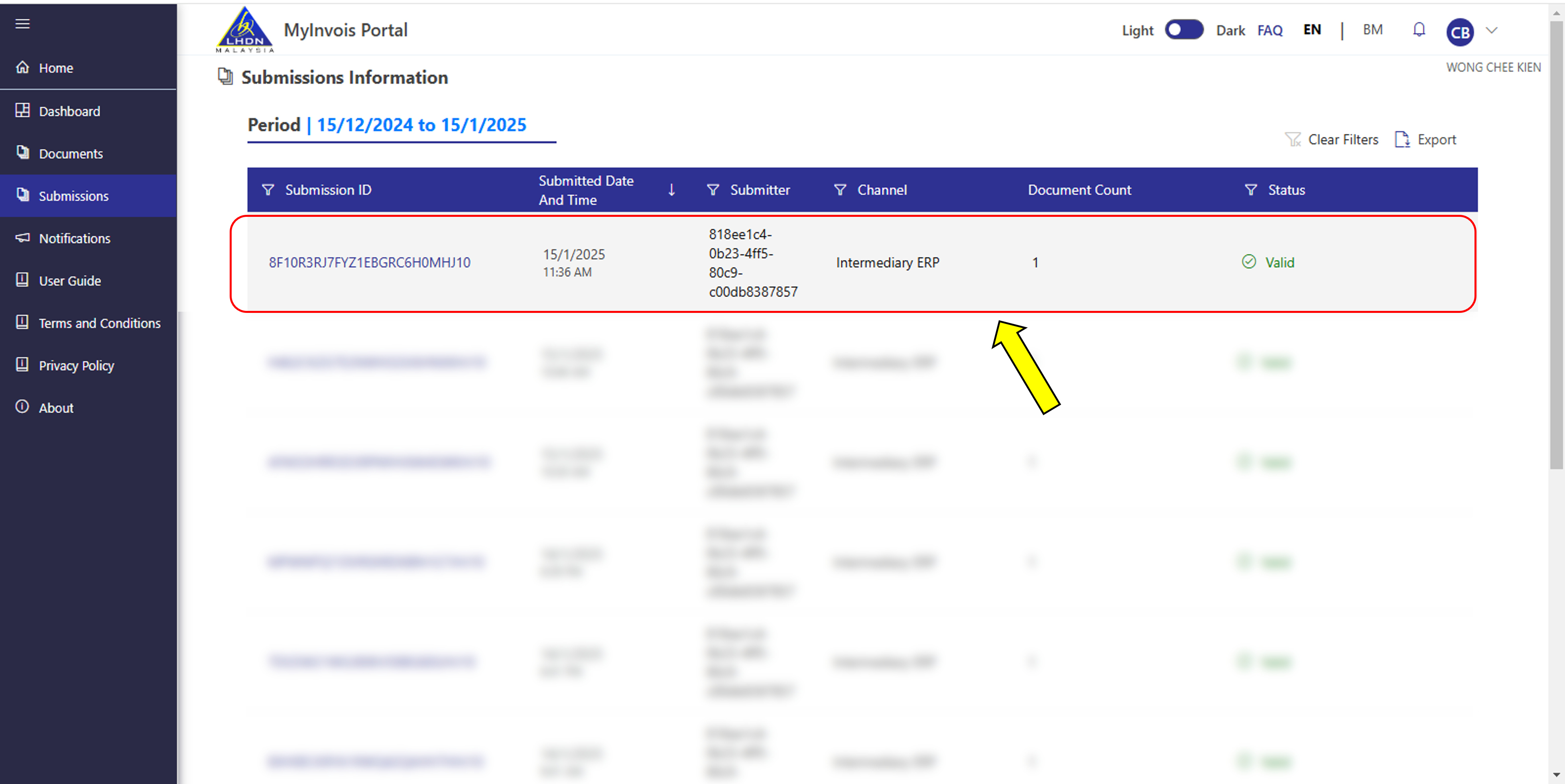
Your consolidated self-bill will then undrgo submission, you can check the status from “e-Invoice Status”
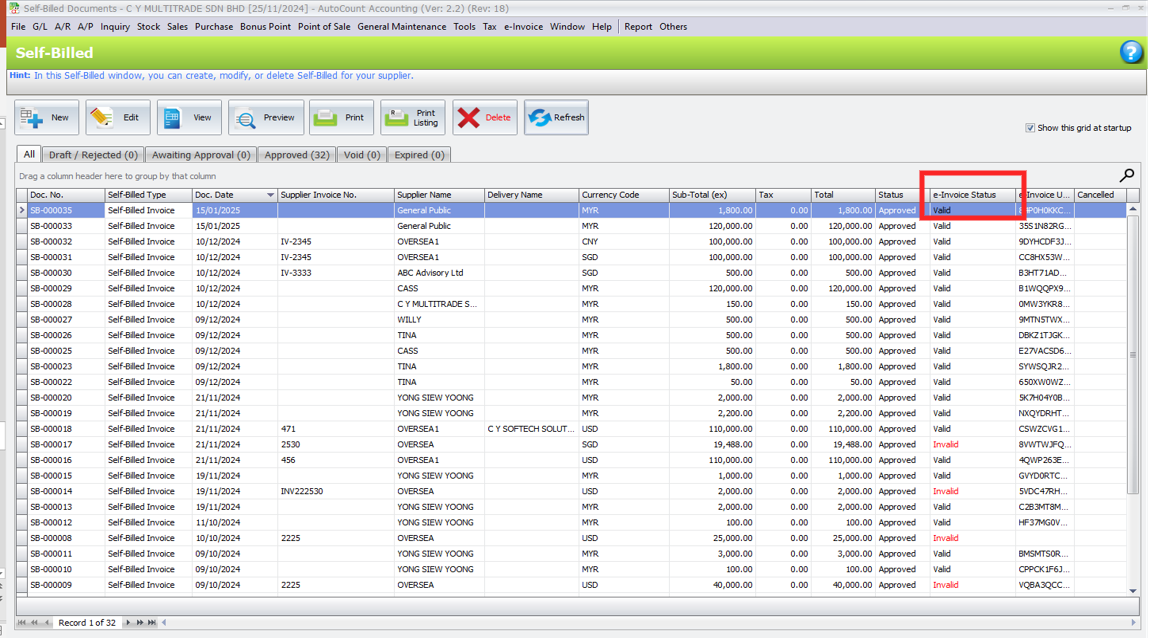
After a moment, you may refresh & see if your consolidated self-bill is validated
Meanwhile in your MyInvois Portal, you should be able to see this record as well
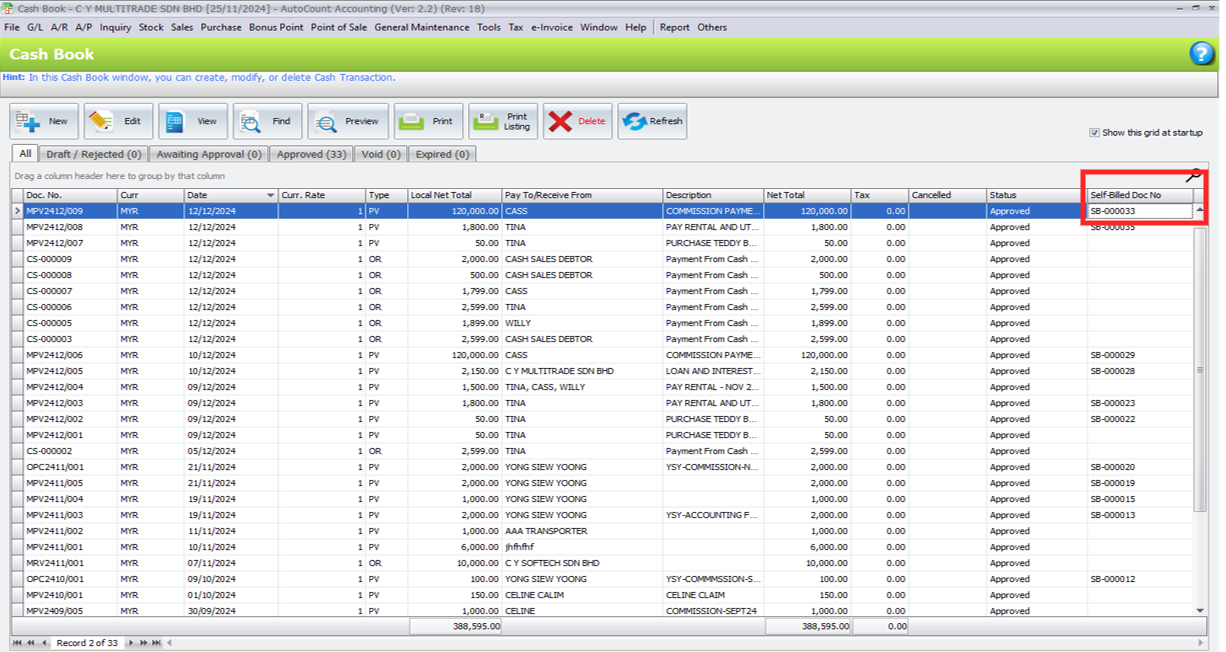
You can check from Cash Book Payment Voucher to which Self-Bill document it is copied to Self-Billed Doc No
REMINDER:
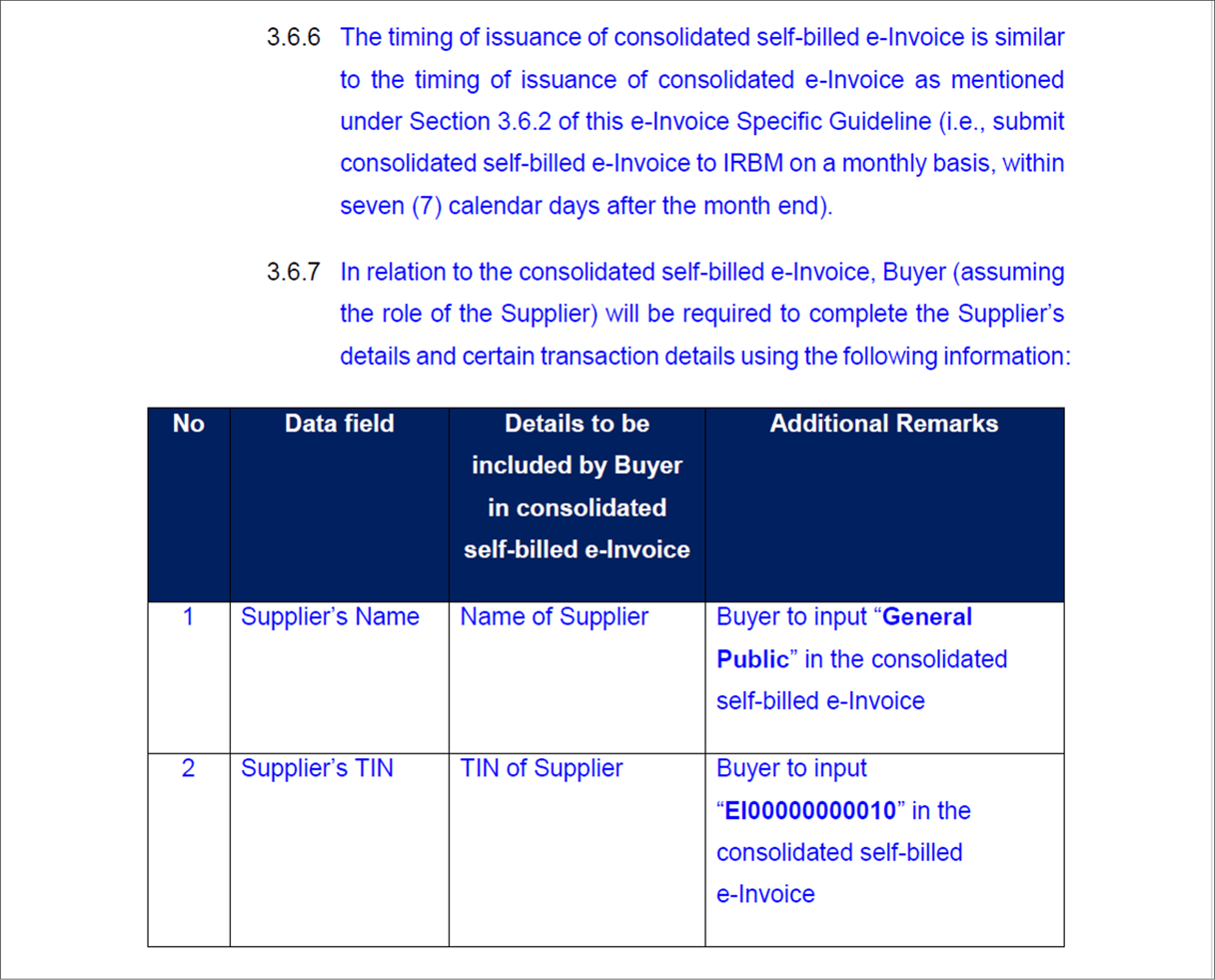
The DEADLINE to submit Consolidated Self-Bill e-Invoice is similar to Consolidated e-Invoice, which is NOT LATER THAN THE 7TH DAYS of the following month
Supplier TIN used for Consolidated Self-Bill e-Invoice will be General TIN – EI00000000010 as mentioned in the e-Invoice Specific Guide (Version 3.0)
Additional Information:
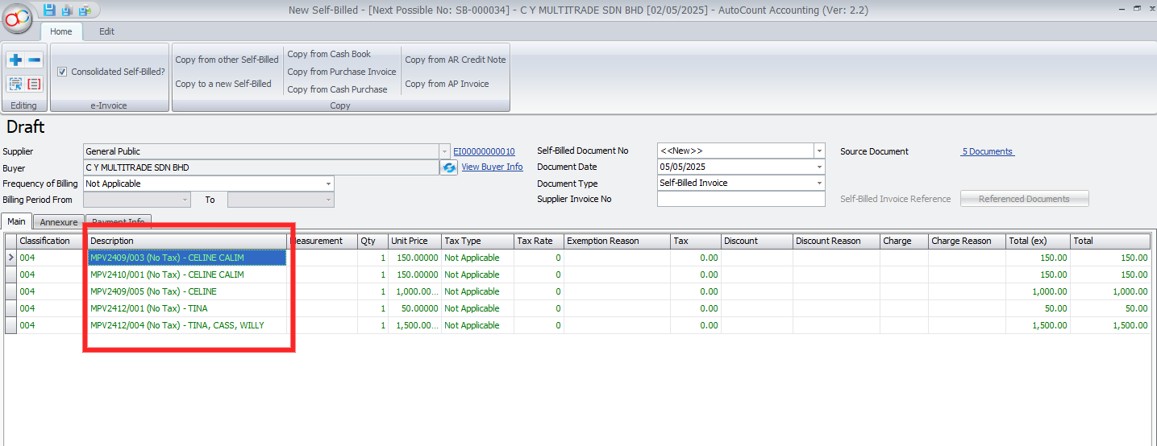
18.5 Consolidated Self-Bill New Features
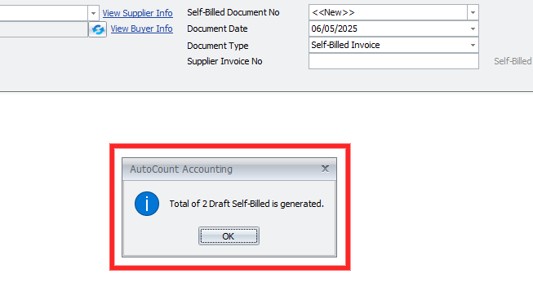
a) Enhance Consolidated Self-Bill to display “Pay To/Company Name” field in detail description field
Show DocNo + Tax + Pay To/Company Name
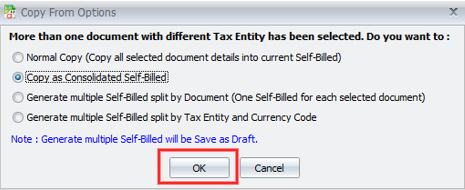
b) When copying transactions, selecting multiple Tax Entities prompts users to choose a copy action for generating Self-Bill
Option 1: Normal Copy (Copy all selected document details into current Self-Billed)
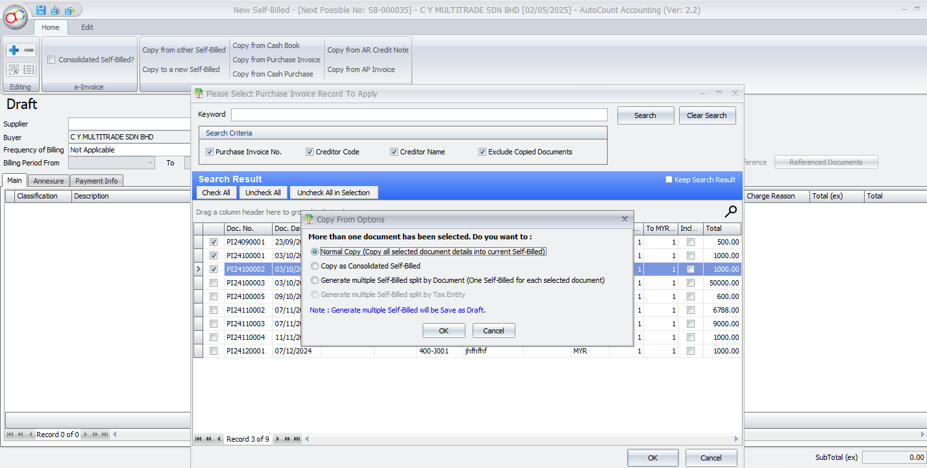
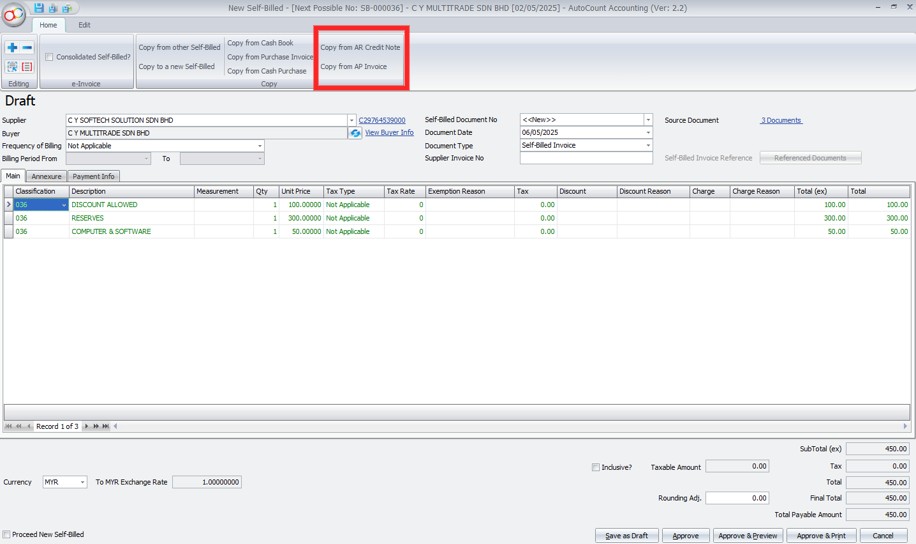
Option 2: Copy as Consolidated Self-Billed
Option 3: Generate multiple Self-Billed split by Document (One Self-Billed for each selected document)
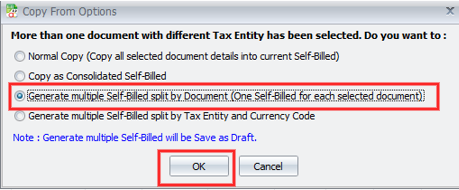
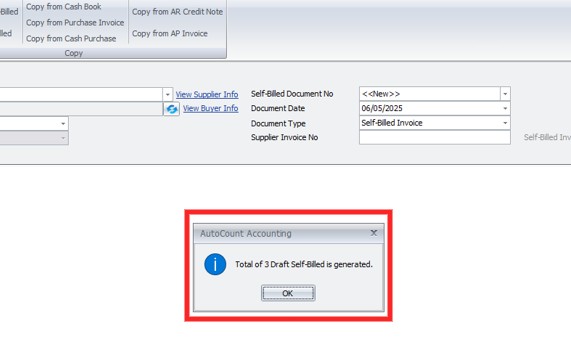
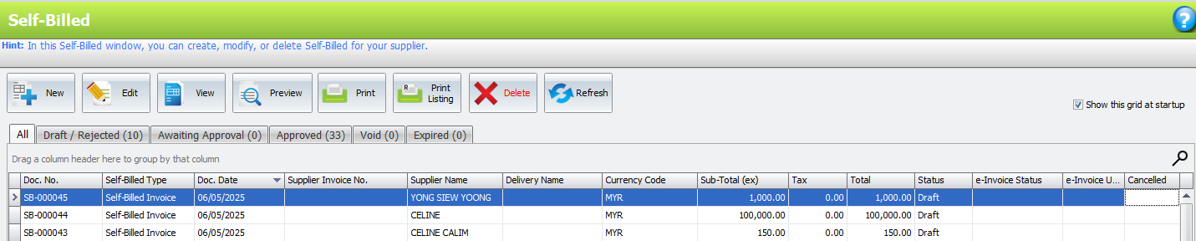
Option 4: Generate multiple Self-Billed split by Tax Entity & Currency Code
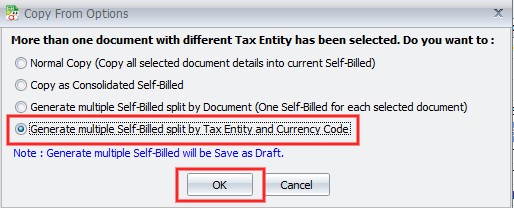

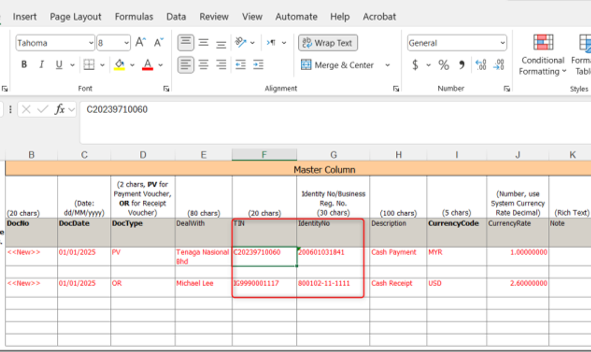
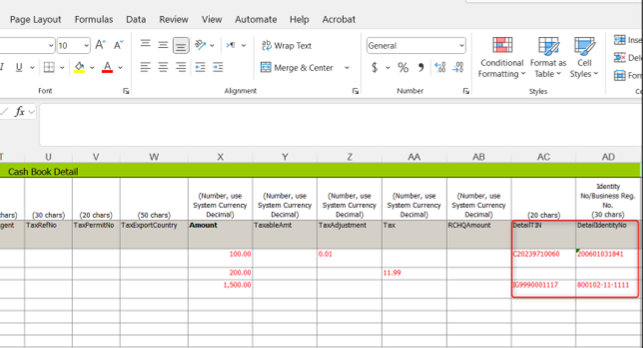
c) Enhance Import Cash Book with excel to support import TIN & Identity Number column
Import Cash Book now supports to import TIN & Identity No for Master and detail
19.0 | Expense Claim
19.1 Employee Related Expenses
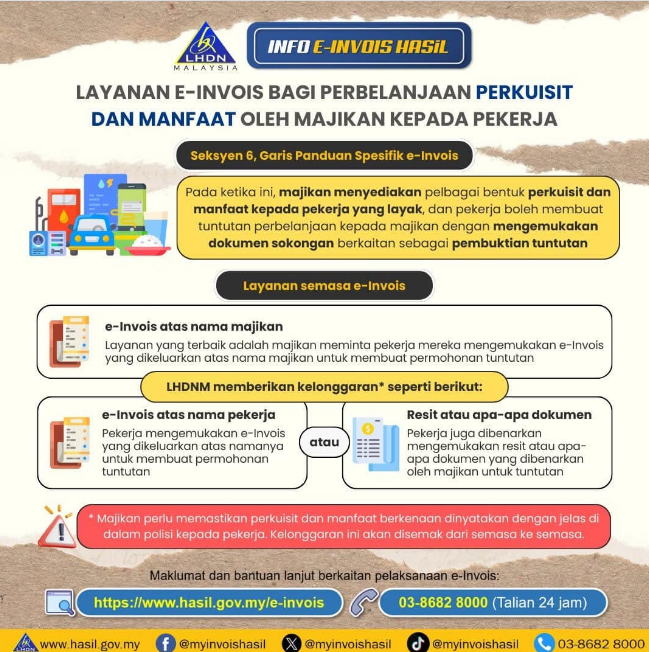
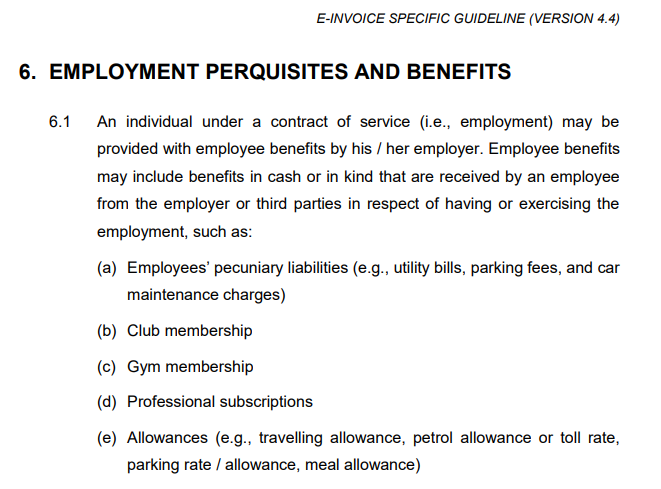
19.2 Employment Perquisites & Benefits
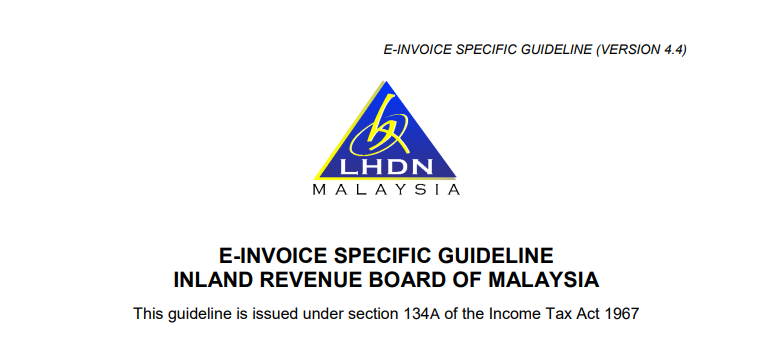
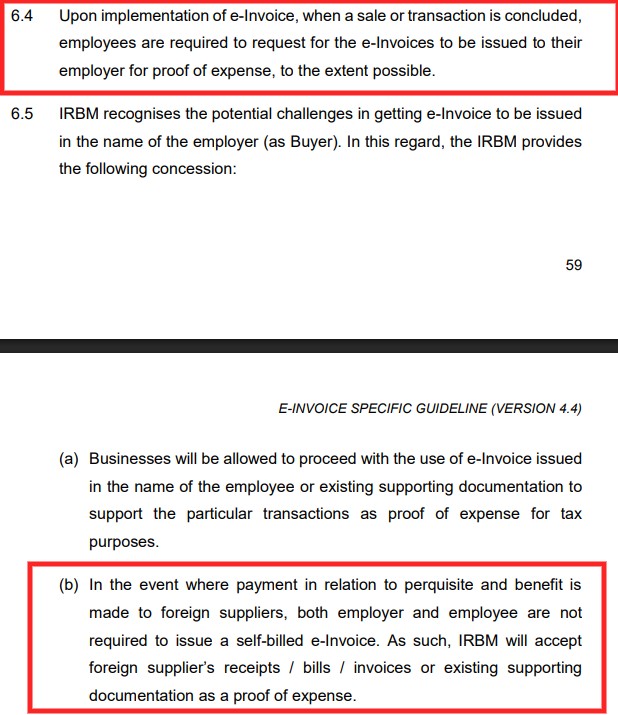
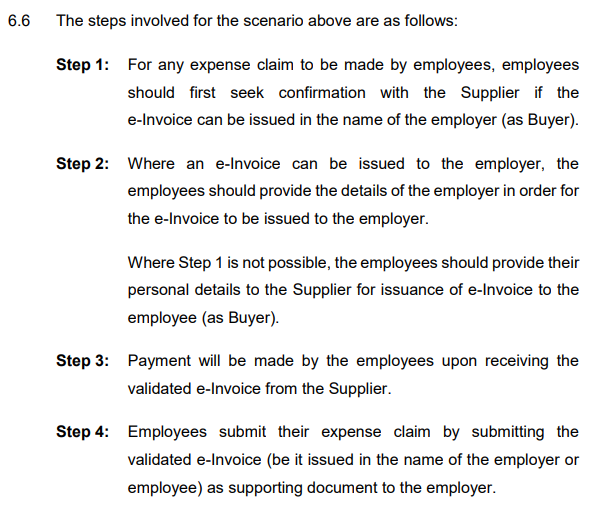
Source from: https://www.hasil.gov.my/media/uwwehxwq/irbm-e-invoice-specific-guideline.pdf
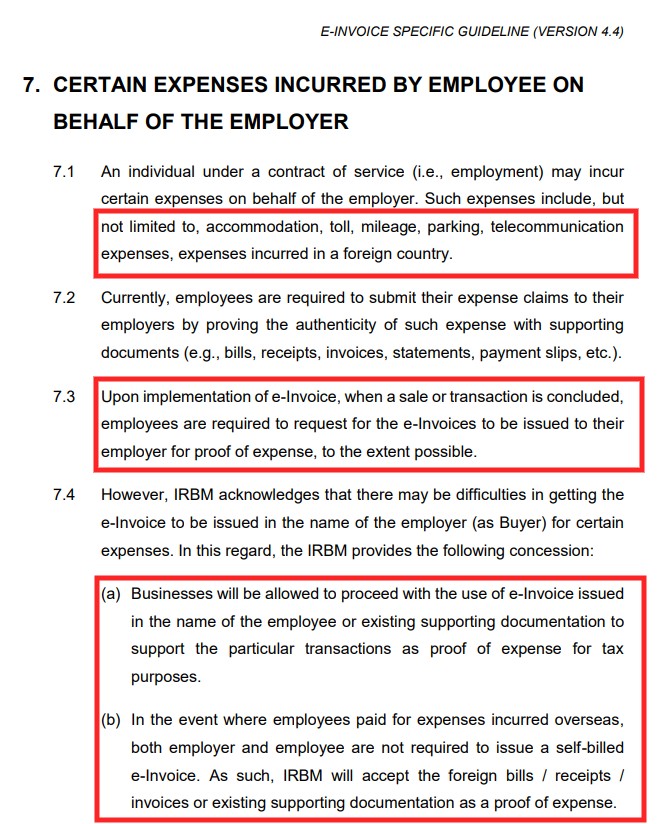
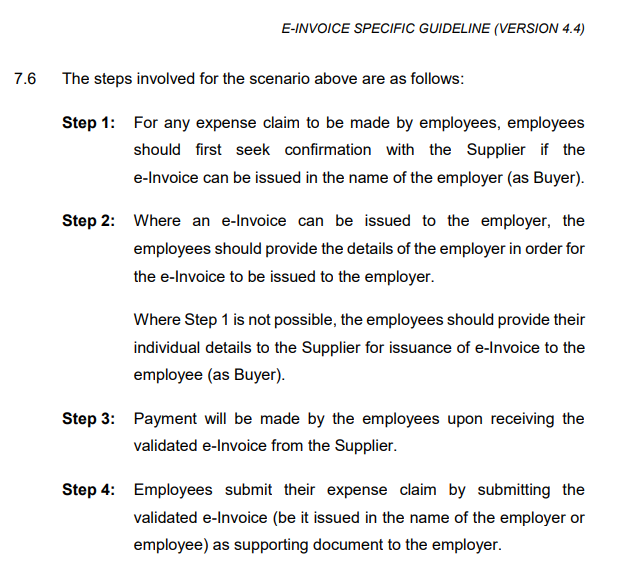
19.3 Expenses Incurred by Employee on behalf of the Employer
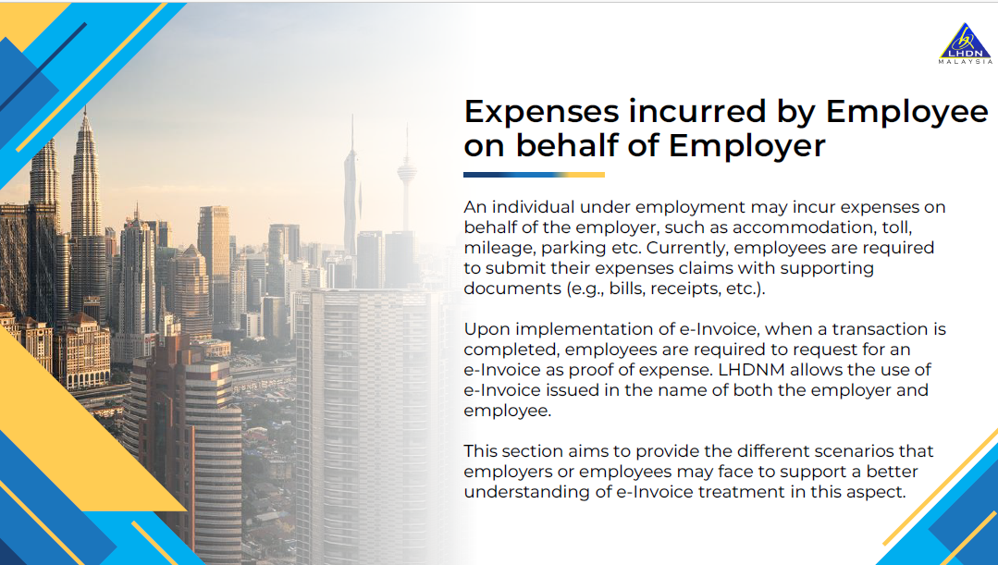
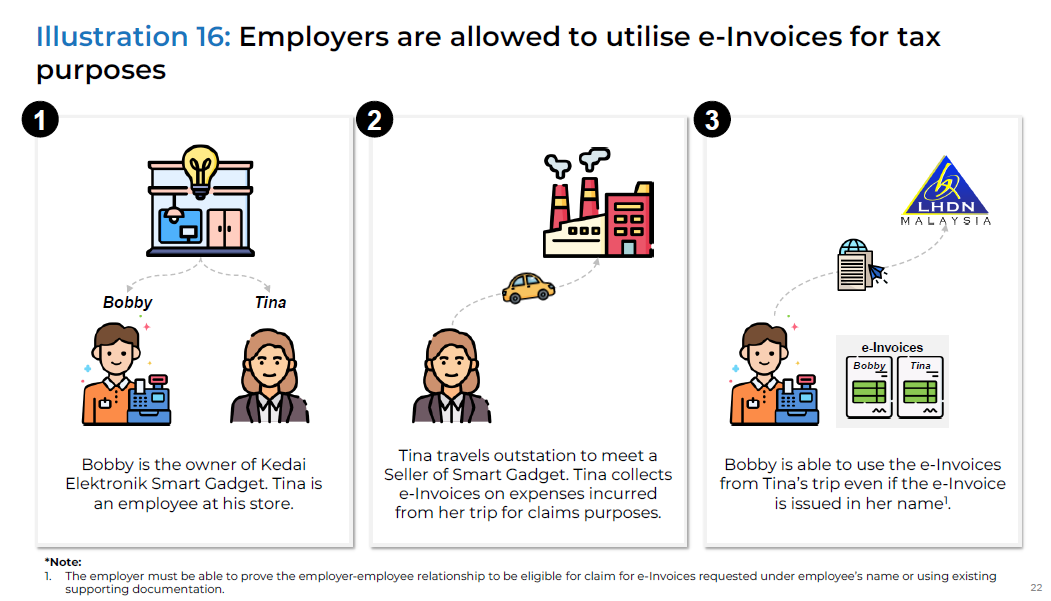
19.4 e-Invoice Under Employee Name
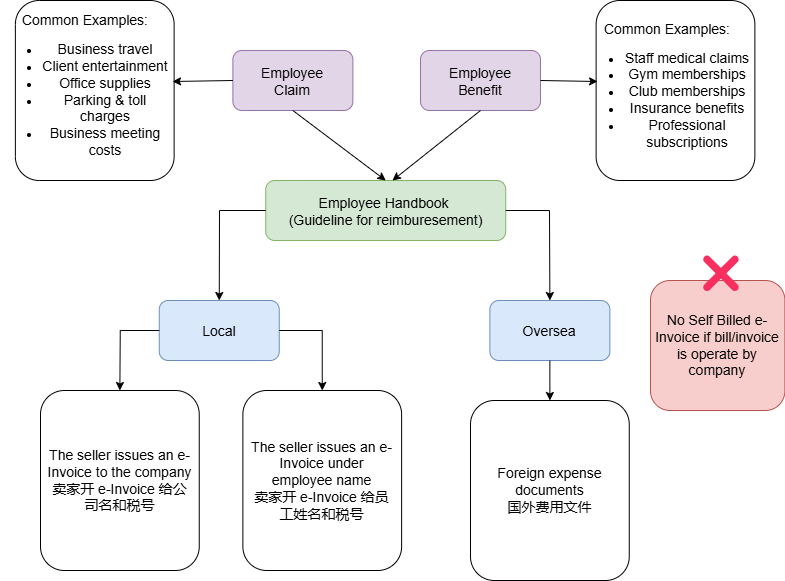
19.5 Summary Employee Claim & Benefit
19.6 Sample e-Invoice Rule for Expenses Claim
| No | Expenses | Request e-Invoice | Self Billed e-Invoice | No need e-Invoice & Self Billed |
| 1. | Parking -Individual -Operated by Company | Yes | Yes | |
| 2. | Petrol | Yes | ||
| 3. | Entertainment -Individual -Operated by Company | Yes | Yes | |
| 4. | Facebook/Google | Yes | ||
| 5. | Shopee | Yes | ||
| 6. | Oversea Travelling Expenses | Yes | ||
| 7. | TaoBao | Yes |
20.0 | Hiring Illegal Immigrants
20.1 Hiring Foreign Employee
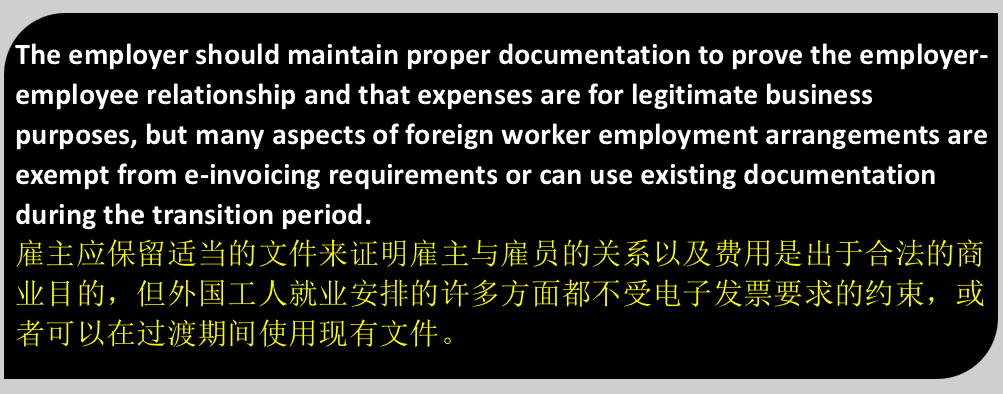
In Malaysia, an employer is generally responsible for applying for a valid pass for his foreign employee
在马来西亚,雇主通常负责为其外籍雇员申请有效通行证
Here’s how e-Invoicing would apply to employers hiring foreign employees in Malaysia:
以下是电子发票如何适用于在马来西亚雇用外国雇员的雇主:
1. As an employer paying foreign employees 作为支付外籍员工工资的雇主:
- Regular salary/employment income is exempted from e-Invoice requirements, as employment income is specifically listed as an exempted transaction type in the e-Invoice Guidelines
2. For expenses related to work pass/via applications 与工作准证/签证申请相关的费用:
- If the employer pays fees directly to government authorities (e.g. Immigration Department):
- 如果雇主直接向政府机构(例如移民局)支付费用:
- No e-Invoice is required as transactions with statutory authorities for statutory fees/charges are exempted before July 1, 2025
- 无需电子发票,因为在2025年7月1日前与法定机构进行的法定交易可豁免
- If the employer uses third-party via/immigration services:
- 如果雇主使用第三方签证/移民服务
- The service provider would need to issue an e-Invoice to the employer for their professional fees according to the standard e-Invoice requirements
- 服务提供商需要根据标准电子发票要求向雇主开具专业费用电子发票
- The employer would receive this as proof of expense
- 雇主将收到此作为费用证明
3. For reimbursements to foreign employees 外籍员工报销:
- If employees pay work pass fees personally and claim reimbursement:
- 如果员工亲自支付工作准证费并要求报销:
- The employer can accept the original government receipts/documentation
- 雇主可以接受政府收据/文件原件
- No additional e-Invoice needs to be issued for the reimbursement itself
- 报销本身无需额外开具电子发票
- The employer must prove that the employee is acting on behalf
- 雇主必须证明雇员是代表雇员行事
4. Key Points 要点:
- The core employment income is exempted from e-Invoicing 核心就业收入免于电子发票
- Supporting services from private providers require normal e-Invoicing 私人提供商的支持服务需要正常的电子发票
- Government fees/charges are exempted until July 2025 2025年7月前免除政府费用/收费
- Reimbursements can be supported by original documentation 报销可以由原始文件支持
20.2 The Legal Risks & Penalties of Hiring Illegal Immigrants
Hiring Illegal Immigrants in Malaysia, What you Need to Know? Swipe to discover the legal risks and penalties
在马来西亚雇用非法移民,你需要了解什么?滑动查看法律风险及处罚
The Basics Malaysian Immigration Law 马来西亚移民法基础知识:
1. Strict Visa Regulations: 严格的签证规定: Malaysia Immigration Act enforece stringent rules for foreigners 马来西亚移民法对外国人实施严格规定 | 2. Serious Penalties: 严重处罚: Violations lead to severe consequences for both immigrants and employers 违法行为会给移民和雇主带来严重后果 | 3. Compliance is key: 合规是关键: Ensure valid visas at all times to avoid legal troubles 始终确保签证有效,避免法律麻烦 |
Who is Considered an Illegal Immigrant? 谁被视为非法移民?
1. Non-Citizens: 非公民: Individuals without valid passes or Entry Permits 没有有效通行证或入境许可证的个人 | 2. Overstayers: 逾期居留者: Those who have exceeded their visa duration 超过签证期限的人 | 3. Misuse of Visas: 滥用签证: Using social visas for work or wrong sector permits 使用社会签证工作或错误的部门许可证 |
The Bottom Line: Compliance is Crucial 底线:合规至关重要

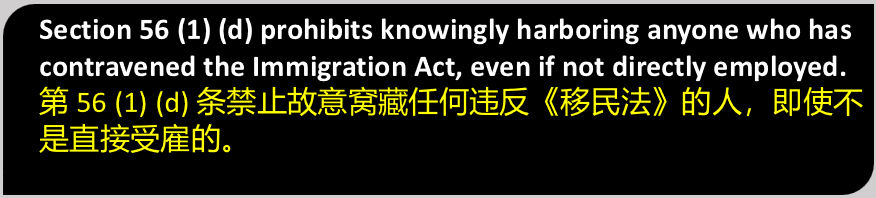
The Offense: Hiring Illegal Immigrants 罪行:雇用非法移民

Harboring Illegal Immigrants Also an Offense 窝藏非法移民也是犯罪行为
Penalties for Hiring Illegal Immigrants雇用非法移民的处罚
1. Per Illegal Immigrant: 每个非法移民: Fine: RM10,000-RM50,000 and/or up to 12 months imprisonment 罚款:RM10,000-RM50,000 和/或最高 12 个月的监禁 | 2. More than 5 Illegal Immigrants: 超过5名非法移民: 6 months to 5 years imprisonment, up to 6 strokes of whipping 6个月至5年监禁,最多6下鞭打 |
Penalties for Harboring Illegal Immigrants 窝藏非法移民的处罚
1. Per Illegal Immigrant: 每个非法移民: Fine: RM10,000-RM50,000 罚款:RM10,000-RM50,000 | 2. More than 5 Illegal Immigrants: 超过5名非法移民: 6 months to 5 years imprisonment, up to 6 strokes of whipping 6个月至5年监禁,最多6下鞭打 |
Allowing Illegal Immigrants on Premises 允许非法移民进入场所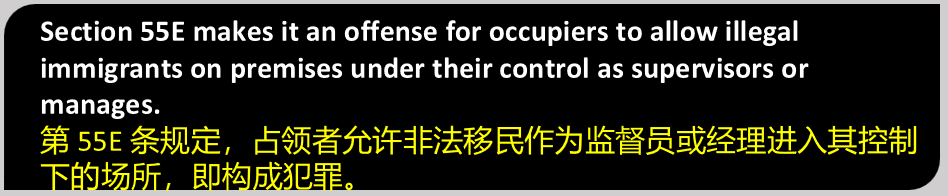
Penalties for Premises Violations 违反场所规定的处罚
1. First Offense: 初犯: Fine: RM5,000-RM30,000 and/or up to 12 months imprisonment 罚款:RM5,000-RM30,000 和/或 最高12个月的监禁 | 2. Second Offense: 第二次犯罪: Minimum RM10,000 fine, up to 2 years imprisonment, or both 最低罚款RM10,000,最高2年监禁,或两者兼施 |
Who are Prohibited Immigrants? 谁是禁止移民?
1. Financial Instability 金融不稳定 Unable to support themselves or dependent 无法养活自己或依赖他人 | 2. Health Issues 健康问题 Mental or contagious diseases, refusing medical exams 患有精神疾病或传染病,拒绝体检 | 3. Criminal History 犯罪史 Convicted offenders, those with forged documents 已被定罪的罪犯,持有伪造文件的人 |
Employer Due Diligence: Protect Your Business 雇主尽职调查:保护您的企业
1. Verify Status 验证状态 Check all employees immigration status thoroughly 彻底检查所有员工的移民身份 | 2. Document Check 文件检查 Ensure valid passes and documents for all employees 确保所有员工的通行证和文件有效 | 3. Regular Monitoring 定期监测 Keep track of visa expiry dates consistently 始终如一地检查签证到期日 |
21.0 | e-Invoice Compliance Review Framework
21.1 e-Invoice Enforcement has Begun!
01Many bosses have these misconceptions : ❌ Having a system = No problem ❌ Having an invoice = No problem ❌ Just add it later 👉But LHDN goes beyond simply ‘whether you have it or not’ 很多老板有这些误解: ❌有系统 = 没问题 ❌开了 Invoice = 没问题 ❌之后补上就好 👉但是LHDN已经不只是 ‘看你有没有开’ |
02LHDN is now officially in effect: Starting 15/12/2025, LHDN will officially commence e-Invoice compliance reviews. This review is different from a standard income tax audit & focuses on whether businesses have properly issued & reported e-Invoices in accordance with the regulations ⚠️This is the SOP used for the above checks ✅Ensure that the company has implemented e-Invoice requirements ✅ Assist the company in establishing long-term, sound compliance processes ✅ Reduce underreporting or incomplete reporting LHDN已正式生效: 自2025年12月15日起,LHDN将正式进行e-Invoice合规审查 该审查不同于一般所得税稽查,重点在于确认企业是否依规定正确开具与申报 e-Invoice 审查目的并非立即处罚,而是: ✅确保企业已落实 e-Invoice 要求 ✅协助企业建立长期、正确的合规流程 ✅减少漏报或不完整申报情况 |
03What will LHDN review? ✅ Sales e-Invoice ✅ Purchase / Self-Billed e-Invoice ✅ Debit / Credit / Refund Note ✅ Consolidated e-Invoice LHDN会怎样查? ✅销售电子发票 ✅采购 / 自开票电子发票 ✅借记 / 贷记 / 退款单 ✅合并电子发票 |
04It’s not just about the system, LHDN will also check: 🖥️ Accounting system / POS system 🏛️ Bank Statement 📃 Transaction Documents ❗ Incomplete Records, Private bank accounts may also be subject to explanation LHDN不只是看系统,还会查: 🖥️会计系统 🏛️银行帐 📃交易文件 ❗记录不完整, 私人银行户口也可能被要求解释 |
05e-Invoice Compliance Review Process 📄 A notification letter will be sent at least 14 days in advance 🏢 May communicate with the business owner, accountant, or key staff 🕒 Usually 1-3 days, longer for complex cases 🖥️ Review documents, access accounting systems, download digital data e-Invoice 合规审查流程 📄至少14天前发出通知信 🏢可能会与老板、会计或关键员工沟通 🕒一般耗时1-3天,复杂情况可能更久 🖥️查阅文件、访问会计系统、下载电子数据 |
06What happens if you don’t comply? 👉 Common issues that get caught: ❌ Not using e-Invoice ❌ Not usig Self-Billed ❌ Not submitting Consolidated ❌ Incorrect fields/formats 不合规会怎么样? 👉常见被抓的问题 ❌没开 e-Invoice ❌没做 Self-Billed ❌没提交Consolidated ❌字段/格式不符合 |
07Are the Penalties Severe? 💰 RM200 – RM20,000 📌 Calculated per [each transaction] 👉 Not a one-time fine, but accumulated from each transaction 罚款重点: 💰 RM200 – RM20,000 📌而是按每笔交易累积计算罚款额 👉不是一次罚完,可以一笔一笔累积
|
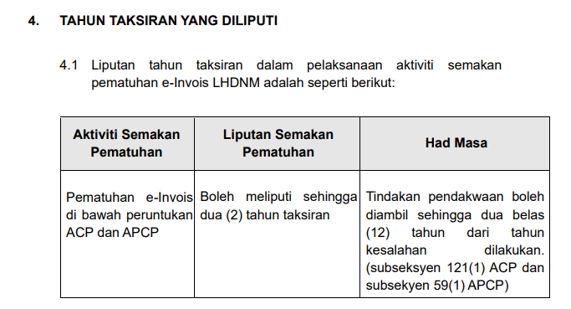
08Review Period: 📆 e-Invoice compliance: Maximum 2 YA (years’ accounts) ⚠️ But prosecution can be retroactive to 12 years 👉 This is something many business owners are unaware of 可以查几年? 📆 e-Invoice合规:最多2个YA ⚠️但提控可追溯12年 👉这一点,真的很多老板不知道 |
Full document download link: