
AutoCount New Release 2.2.25.34
Main Highlights

1. New SST-02 Form (with latest tax codes)
1.1 Update SST-02 Form Latest Format & Added New Tax Codes
Key Changes in SST-02 Form – Section B2 – Service Tax Details
ITEM 11:
- The total tax value previously combined for 6% and 8% in row c) is now split into:
c) Total Tax Value 6%
d) Total Tax Value 8%
- The previous 11 d) item has been pushed to 11 e) due to this change
ITEM 12:
- Caption updated to reflect the introduction of the new item 11 e)
ITEM 13:
- New d) row introduced for Total Tax Value of Bad Debt Relief

1.2 New Tax Codes Created for System Mapping
To support the above SST-02 changes, the following new tax codes have been created for proper mapping in the sytstem:

Note:
- ESV-6 & ESV-8 already existed, but their descriptions have been updated
- Their SST-02 mapping is now revised to match the latest format
2. e-Invoice QR Request (for Cash Sale Debtors)
- New function lets customers scan a QR code on their receipt to request an e-Invoice instantly
- No need for manual submission / email requests
How It Works:
a) Set Up Cash Sale Debtor
Ensure you have created a Debtor (1) > Enable Cash Sale Debtor (2)

b) Create a Cash Sale
Select the Cash Sale Debtor (1) > Choose a payment method (Cash/Card/Multi-Payment) (2) > Enable Print QR Submission (3)

c) Preview & Print
Click Preview (1) > Choose (Malaysia e-Invoice template) (2)


Note: Customers just scan it to request their e-Invoice
d) Customer Submission Process
When scanned, the QR opens the e-Invoice page (1) > Customers need to fill in the Buyer Information details (2)

Must validate email first if not yet verified (3)

Fill in verification code from your email (4)

Email will appeared as valid after you verified and fill in the email (5)

A confirmation will appear – click Submit to proceed with the e-Invoice

A “Submission Successful” message will appear, and the e-Invoice will be sent to your email

e) Checking Submission Status
Go to Others > e-Invoice QR Submission Status

Set the date range & click Inquiry (1) > Status shows as Pending Upload (2)

Validated records won’t appear if Exclude Validated Submission is enabled

To view validated records, untick “Exclude Validated Submission” (1) & Click Inquiry again

Note:
- When status is Valid, the report shows LHDN Validated QR for customer verification
- System auto-created / updates Tax Entity based on TIN & ID No
If Auto Email Validated e-Invoice is on, system auto sends the validated e-Invoice to customer. To enable this:
Go to e-Invoice > e-Invoice Setting > Setting (1)
Click Auto Email Validated e-Invoice Setting (2)
Tick Enable Auto Email & Enable Cash Sales (3)

*Make sure you have configure SMTP email setting to enable this feature
When e-Invoice is valid, and enable auto email, this will be appear inside your customer’s email:


f) Monitoring in Cash Sale List
In Cash Sale List, validated e-Invoices show as Valid with a 72 hour timer (can edit/resubmit)

Use Column Chooser to add Print QR Submission — if checked, the report will show a QR code for customers to scan

g) Log File Record
You can refer to the log file at: C:\ProgramData\AutoCount Server\Log Files\EInvoice

3. Sync e-Invoice Reject Reject from MyInvois Portal
New feature allows syncing e-Invoice Reject Requests from MyInvois Portal, so you can easily check if customers rejected an e-Invoice
How It Works:
Go to e-Invoice > Sync e-Invoice Reject Request from MyInvois Portal

Click Sync

Set the date range (1) > Click Start Sync (2)

Click Yes to confirm start sync

Loading for the sync

Once the sync completed, click OK

Use Column Chooser to view extra details like Document No. and Rejection Reason


Double click the document to see the rejection reason, then choose to void or edit before resubmitting

4. New Import QR in Debtor/Creditor -- Scan QR to Auto-Create Tax Entity
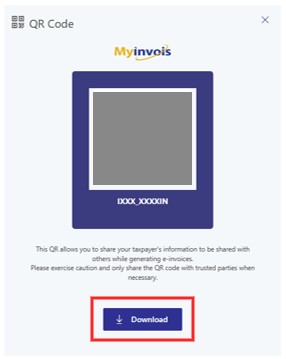
Go to MyTax Portal > MyInvois > Manage Taxpayer Profile, generate the QR code & download it

Click download
Edit the debtor you want to add tax entity. Click on the drop down menu button & Click Import QR Code

Select the QR you saved & Click Open

It will auto created tax entity based on QR code

Click save and it will auto assign tax entity to choosen debtor

5. Added Check for Debtor/Creditor Name That Differs from its Tax Entity Name
- After upgrade, the system checks for mismathced Debtor/Creditor & Tax Entity names.
- If found, a prompt appears on first login
Go to Tax > Tax Entity Maintenance > Inconsistent Company and Tax Entity Name

Click “Edit” to update the company name

Directly edit company name from the column (1) > Click Save (2)


6. Check for Debtor/Creditor Name that Differs from its Tax Entity Name
- A new “IsReject” / “Reject?” column is added when importing supplier e-Invoices from MyInvois Portal.
- Helps you quickly identify which supplier e-Invoices were rejected by the user.

7. Enhance e-Invoice Submission Function to Add POS Document Type
- You can now view POS transaction submission status in the e-Invoice Submission Status
- Only POS transaction that sync back to the backend will appear
- Unsynced POS transactions will not be shown
Go to e-Invoice > e-Invoice Submission Status


8. Hide "Get TIN from AIP Server" button when Cash Sale Debtor is enabled
The “Get TIN from AIP Server” enabled when untick “Cash Sale Debtor”

When you checked “Cash Sale Debtor”, the function “Get TIN from AIP Server” will unabled
