
AutoCount New Release 2.2.18.25
1. E-Invoice: Self-Billed Feature Updates
1.1 Support Print Self-Billed Detail Listing
Click on e-Invoice Menu > Click “Self-Billed”

In this version, system support to print Self-Billed Detail Listing Report
Click “Print Listing” (1) > Choose “Print Self-Billed Detail Listing” (2)

The document you created will listed here, you can tick the checkbox and print the document you want

1.2 Enhance Self-Billed copy from AR CN to add Tax Entity column
Click “New” to create Self-Billed

Click “Copy from AR Credit Note”
The Tax Entity column will show here

1.3 Enhance Self-Billed document’s unit price to follow Purchase Unit Price decimal setting
In this version, the system now adjusts the unit price decimal at Self-Billed to match the decimal setting of the Purchase Unit Price, instead of following the Sales Unit Price as before.

To change the Unit Price Decimal, go to Tools > Options
 |  |
Click “Decimals”, and you can change it here.

1.4 Enhance show Draft Document record in Invoice Listing & Detail Listing Report
Now, you can filter the document status in the Invoice Listing Report

Select the status and click “OK” to apply

1.5 Support e-Invoice in ARCN document
Now, you can submit e-Invoice in AR CN document. Go to AR > AR Credit Note Entry

Click “New” to create a new document / “Edit” to modify previous document

Click “Edit” tab (1) > Tick “Submit e-Invoice?” (2)

Select the “Classification”

Click on the Classification drop down menu button, select / search a classification from list

1.6 Support Consolidated e-Invoice for ARCN document
Now, you can submit Consolidated e-Invoice for AR Credit Note

1.7 Enhance Self-Billed to support copy from AP Invoice & Cash Purchase
Go to Self-Billed > “New” > You can copy the document from Cash Purchase / AP Invoice

2. Enhance Company Profile to Show Company e-Invoice Status
2.1 Enhance Company Profile to Show Company e-Invoice Status if is Connected
General Maintenance > Company Profile

Under Company Profile, users can now quickly see whether their account book is connected to their MyInvois Portal

After finish setup & registration on MyInvois Portal & linked to AutoCount, the status will be connected

3. Add Refresh Button to Update Latest Debtor/Creditor TIN
3.1 Add Refresh button to Update Latest Debtor/Creditor TIN into Transaction
Open a new invoice, click the refresh button next to the Debtor field

Click “Yes”

The TIN number will be updated after refresh

4. Don't Submit e-Invoice Features
4.1 Support Option in Debtor to Not Submit e-Invoice
When selling on an e-commerce platform, the provider is responsible for issuing e-Invoices, not the seller. A new option ‘Do Not Submit e-Invoice’ in Debtor Maintenance lets you manually exclude debtors from e-Invoice submission. |
Tick the checkbox when adding / editing a debtor account

If a debtor with “Do Not Submit e-Invoice” marked receives an invoice, the system will uncheck “Submit e-Invoice?” automatically.

5. Consolidated e-Invoice Detail Line Limit Option
5.1 Consolidated e-Invoice Detail Line Limit
For cases where a Consolidated e-Invoice exceeds the 300KB size limit, you may try to reduce the detail line limit & try to submit again.
Go to Tools > Options > Country & Tax (1) > e-Invoice (2) > Consolidated e-Invoice detail line limit (3)
The default value is 250 lines

6. Consolidated Self-Bill New Features
6.1 Enhance Consolidated Self-Bill to display “Pay To/Company Name” field in detail description field
Show Doc No. + Tax + Pay To/Company Name for Consolidated Self-Billed

6.2 When copying transactions, selecting multiple Tax Entities prompts users to choose a copy action for generating Self-Bill.
Option 1: Normal Copy (Copy selected document details into current Self-Billed)
You can copy the document from other document

After that, tick the document you want to copy (1) > Click OK (2) > Select option 1 (3) > Click OK (4)
And the document will created successfully

Option 2: Copy as Consolidated Self-Billed
After tick the document, Select option 2 > Click OK
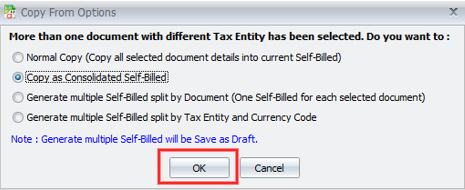
Done
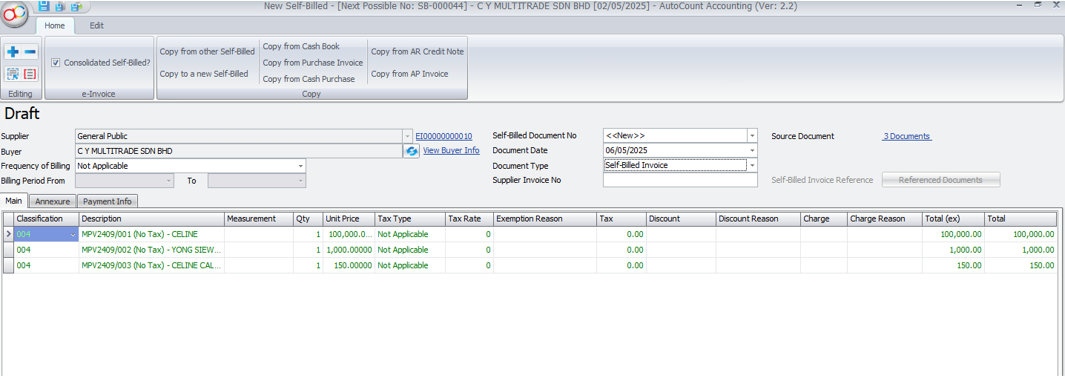
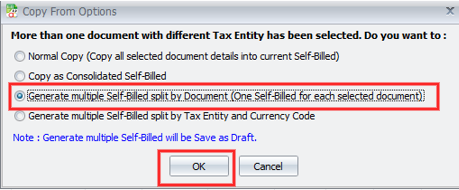
Option 3: Generate Multiple Self-Billed Split by Document (One Self-Billed for each selected document)
After tick the document you want to copy, Select option 3 > Click OK
A message will appear, click OK
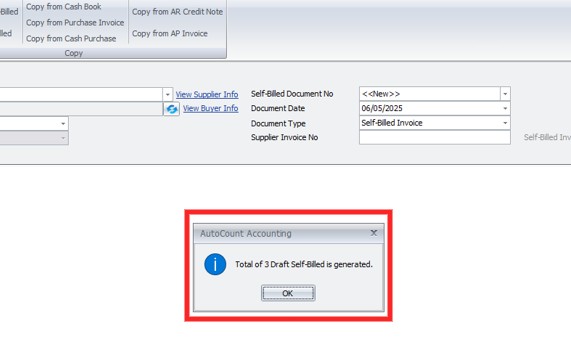
The Self-Billed created successfully
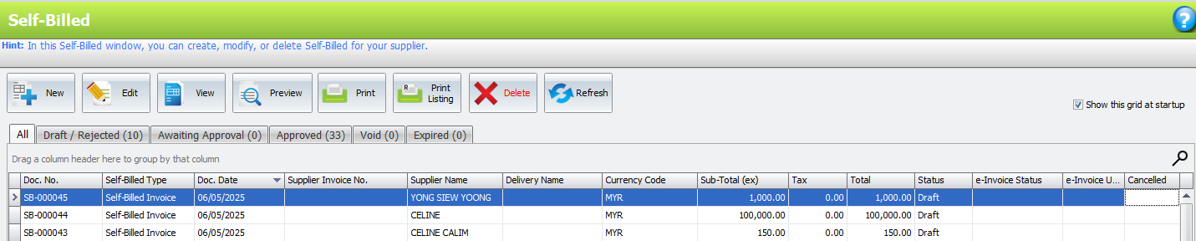
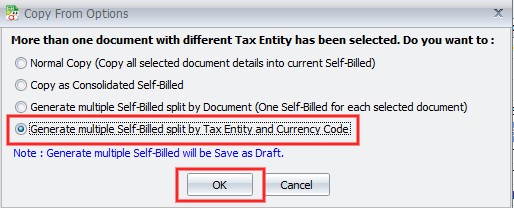
Option 4: Generate multiple Self-Billed split by Tax Entity & Currency Code
After you tick the document you want to copy, Select option 4 & Click OK
A message will appear, click OK
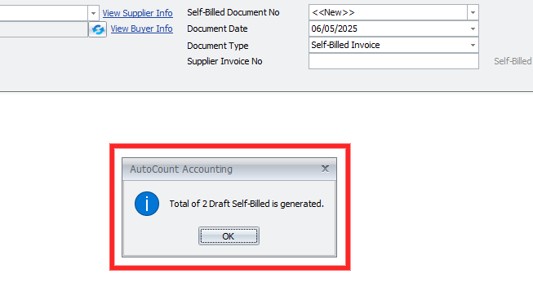
The Self-Billed created successfully

7. Enhance to Store Email SMTP Setting in Database Instead of Local PC
SMTP setting are saved in the database Mail server, allowing unique configurations for each account book

For standard emails, From Name & Email are not set on user’s PC. Auto Email Validated e-Invoices use database for From Name & Email
8. Add Auto Email Function for Validated e-Invoice to Debtor's Email
The system sends emails to debtors when e-Invoice is validated
Go to Tools > Options
| |
Country & Tax (1) > e-Invoice (2) > Auto Email Validated e-Invoice (3)

You can enable this function for specific document by selecting the document & configuring Email (SMTP) setting


The system will email your customer once the invoice is issued & e-Invoice submitted & validated

9. Add New System Report on e-Invoice for ARCN

10. Add Rounding Adjustment & Final Total in e-Invoice Grid

11. Add Search TIN Function at Tax Entity
Fill in the BRN & click Search button (1) > Click Yes (2)

Autofilled TIN number

Autofilled TIN number

For Individual (1) > Select Identity Type (2) > Fill in the IC number & click Search button (3) > Click Yes (4)

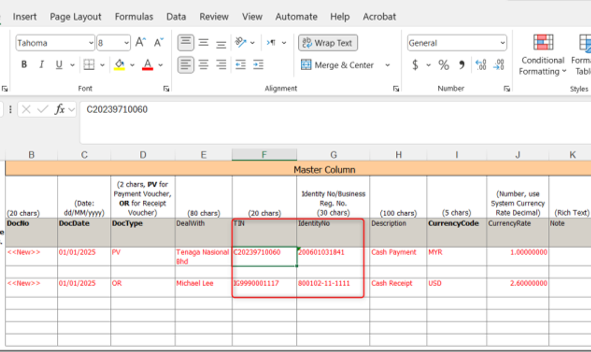
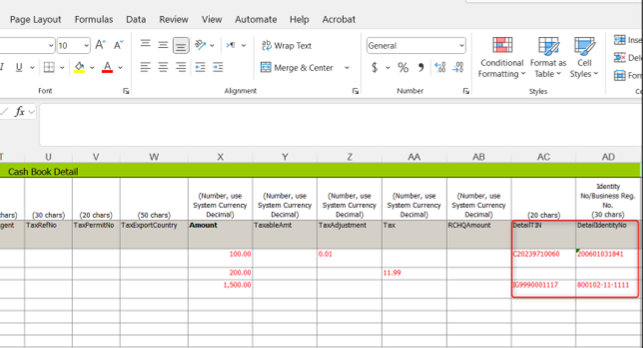
12. Enhance Import Cash Book with Excel to Support Import TIN & Identity No. Column
Import Cash Book now support to import TIN & Identity No. for Master & Detail
13. Add New Option to Auto Assign Approve Date as e-Invoice Issue Date
If saving a document dated over 3 days prior to today, system prompts to set e-Invoice date to today
If you press YES, the system will automatically update the issue date to today’s date
Enable the setting to use today’s date for e-Invoice if the document is older than 3 days to avoid repeated alerts

After approved, the document will be viewed as below

To disable this function, go to Tools > Option
|
|
Click Country & Tax (1) > e-Invoice (2) > Tick “Always use today’s date” (3)

14. Filter Document Status
Now, you can filter the document status in the CN & DN Listing & Detail Listing Report

Click on More Options (1) > Select Document Status (2)

Credit Note Detail Listing Report
Click on the drop down menu button and select document status

Debit Note Listing Report
Click More Options (1) > Select the Document Status (2)

Debit Note Detail Listing Report