AutoCount e-Invoice Setting
2) Configure e-Invoice Setting
This section allows you to set the start date for e-Invoice & configure related settings
Please check the “Enable e-Invoice” checkbox to turn it on. Once enabled, the e-Invoice Settings screen will appear, and you can begin configuring the settings

1. Enable e-Invoice
This option will be automatically enabled based on the main setting
When this option is unchecked, all other options will be disable

2. Start Date
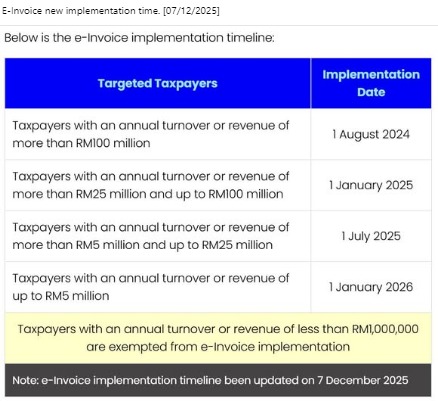
Enter the date you want to start submitting your e-Invoices to IRBM

Please refer to the screenshot below for the e-Invoice implementation timeline
3. Allow Interim Relaxation Period Until
To support a smooth transition to e-Invoicing, the Government of Malaysia announced on 26 July 2024 a six-month grace period following each phase’s mandatory start date

During the six-month relaxation period, the Government of Malaysia allows taxpayers to:
- Issue consolidated e-Invoices for all activities and transactions (including industries listed in Section 3.7 of the e-Invoice Specific Guideline)
- Issue consilidated self-billed e-Invoices for all self-billing cases (Section 8.3)
- Enter any details in the “Description of Product or Service” field. Receipt/Statement/Bill reference numbers are not mandatory
- Skip individual e-Invoices (or self-billed e-Invoices), even if requested by the buyer/supplier–provided items (1) or (2) are followed
The IRBM will also not take prosecution action under Section 120 of the Income Tax Act 1367 during this period, as long as taxpayers comply with (1) and (2)
| No. | Targeted Taxpayers | Interim Relaxation Period |
| 1. | Taxpayers with an annual turnover or revenue of more than RM100 million | 1/8/2024 to 31/01/2025 |
| 2. | Taxpayers with an annual turnover or revenue of more than RM25 million and up to RM100 million | 1/1/2025 to 30/6/2025 |
| 3. | Taxpayers with an annual turnover or revenue of more than RM5 million and up to RM25 million | 1/7/2025 to 31/12/2025 |
| 4. | Taxpayers with an annual turnover or revenue of more than RM1 million and up to RM5 million | 1/1/2026 to 30/6/2026 |
| 5. | Taxpayers with an annual turnover or revenue of up to RM1 million | 1/7/2026 to 31/12/2026 |
4. Allow to Create Consolidated e-Invoice
- Check the box of “Allow to create Consolidated e-Invoice” if your industry regulations permit it
- If this option is turned off, then every invoice must provide a Tax Entity so that it can be submitted for e-Invoice

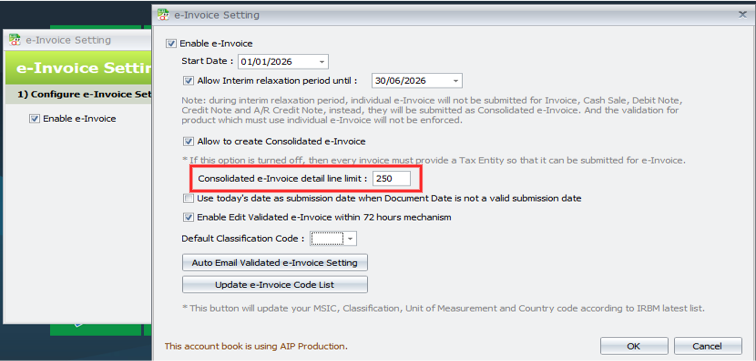
5. Consolidated e-Invoice Detail Line Limit
This setting helps manage the 300KB file size limit when submitting consolidated e-Invoices. If you encounter errors during submission, try reducing the line limit. By default, this setting is set to 250 lines
6. Use Today’s Date as Submission Date when Document Date is Not a Valid Submission Date
Check this function if you want the system to automatically use today date as the e-Invoice issue date whenever the original Document Date is not valid for submission
(Document Date earlier than 3 days or future date)
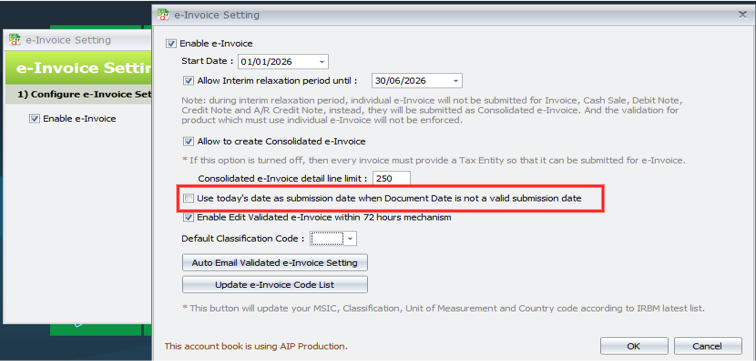
Example: If this option is checked, and you create an e-Invoice with Document Date = 1/7/2025while today is 24/7/2025, the system will automatically use 24/7/2025 as the e-Invoice submission date when you save the document
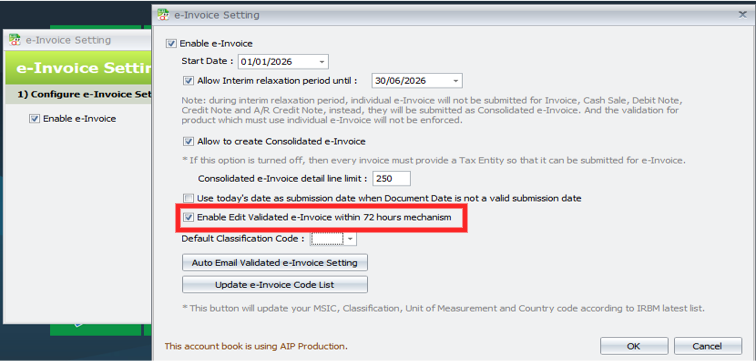
7. Enable Edit Validated e-Invoice within 72 hours Mechanism
- When disabled, only e-Invoice related fields can be edited
- This setting is checked by default. If you do not wish to run this mechanism, kidly uncheck it
- If the setting is unchecked & you attempt to edit any e-Invoice related fields, a blocking message will prompt you during save
8. Default Classification Code
Set a default classification code to be automatically applied to any item that does not have an assigned classification or has an empty item code

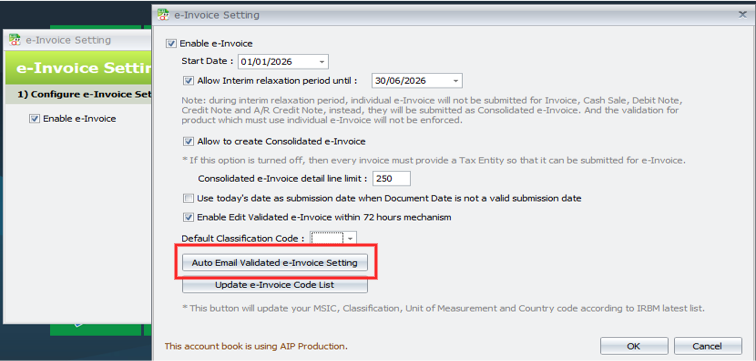
9. Auto Email Validated e-Invoice Setting
Enable this setting to automatically email the invoice to your customers once the e-Invoice has been successfully validated
10. Update e-Invoice Cost List
This button will update your MSIC Classification, Unit of Measurement & Country Code according to IRBM latest list

11. This Account Book is Using AIP Production / Staging
- This setting indicates whether the current account book is connected to AIP Production or AIP Staging
- AIP Production is connected to the MyInvois live environment (https://mytax.hasil.gov.my/)
- AIP Staging is connected to the MyInvois preprod / sandbox environment (https://preprod-mytax.hasil.gov.my/)
