Chapter 9 Cash Book Module
9.1 Cash Book Entry
This is used to record cash transaction entries. E.g. cash receipts and cash payments.
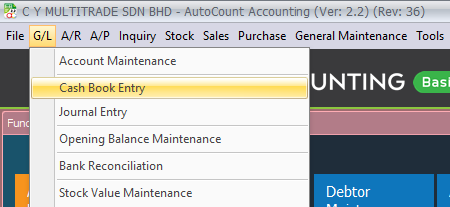
Go to G/L > Cash Book Entry
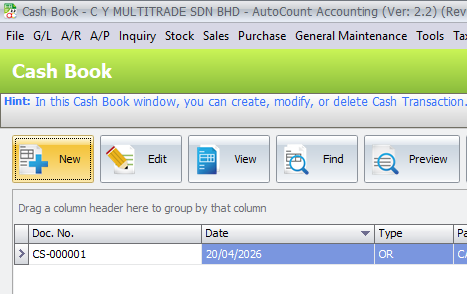
Click on Create A New Cash Transaction
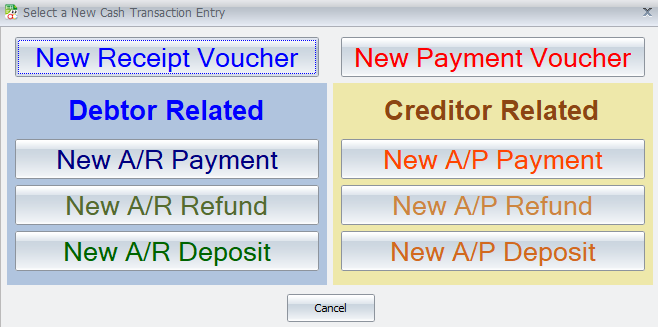
Select document type to be created
9.2 Receipt Voucher & Payment Voucher
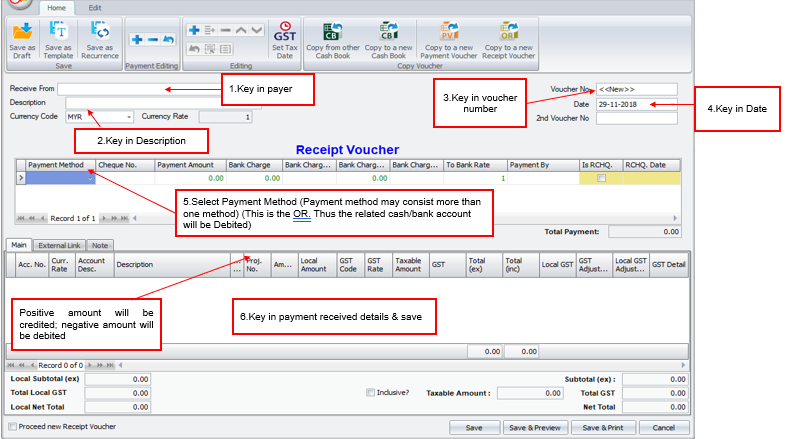
1. Receipt Voucher
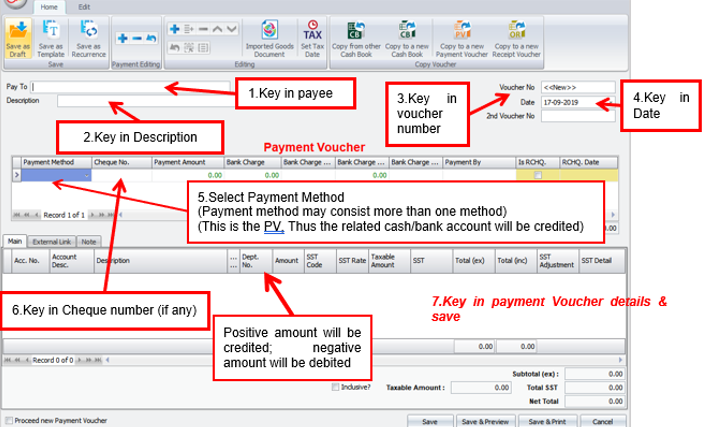
2. Payment Voucher
Details Column:
Payment Method: select the payment method; the cash/bank account this payment method belonged to will be Credited. Sometimes it may involve more than one payment methods. |
Cheque No: key in cheque number if any. |
Payment Amount: the amount of payment made with this payment method. |
Bank Charge: key in bank charge value if any. Bank Charge Tax Code: to maintain bank charges tax code Bank Charge Tax: the amount of SST for bank charges |
Payment By: key in the mode of payment. |
Is RCHQ: this used when a cheque payment made earlier is returned/bounced (use Edit mode). RCHQ Date: define the date when the cheque is returned/bounced. |
Acc. No.: select the related G/L accounts; you may key in the first few number/letters of the account number/description and select from the lookup screen. Click on ‘+’ sign to add a new row. |
Account Desc.: the description of the G/L account (auto-displayed upon selection of Acc. No.). |
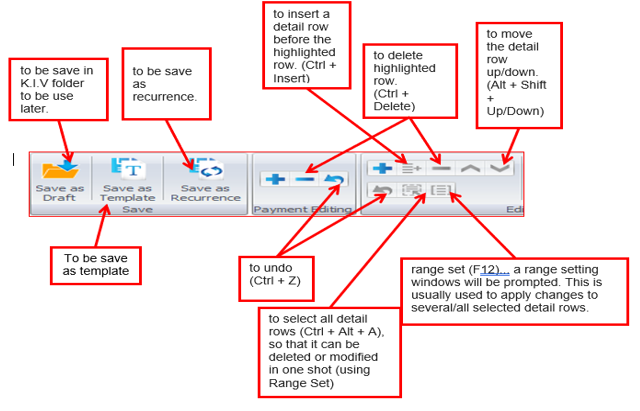
Description: the description of this entry. One fast way to fill in the same details for several rows is to use the button of Select All Details (Ctrl + Alt + A), then click on the button of Range Set (F12) to set the description and apply. |
Amount: since this is a payment, any positive amount here will be debited, and negative amount will be Credited. |
SST Code: to show the SST code. SST Rate: to show the rate of SST SST: to show the amount of SST. |
Total (ex): to show the subtotal before tax. Total (inc): to show the subtotal after tax. |
Proceed new Payment Voucher: when this is checked, a fresh screen will be ready for new entries upon Save; if unchecked will exit the transaction screen. |
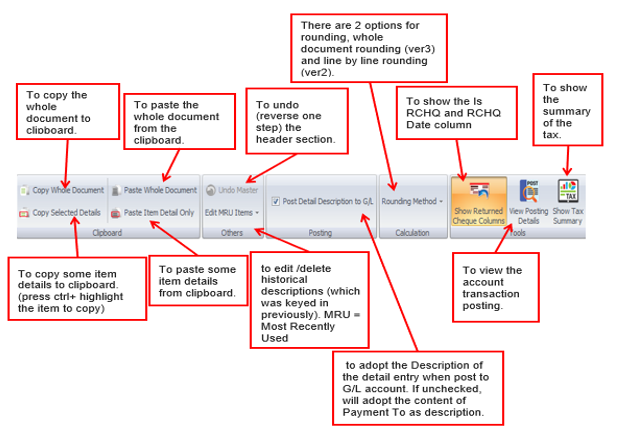
Functional Tab Buttons:
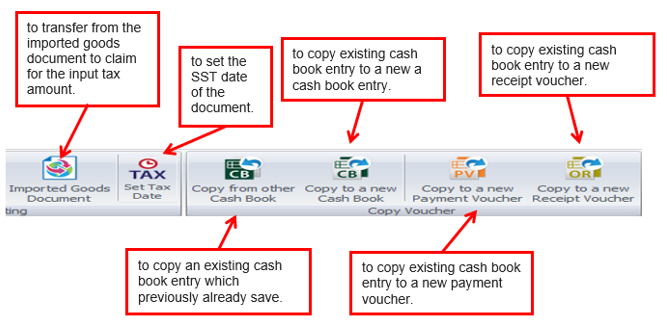 Edit Tab Buttons:
9.3 Template Function for PV & OR
Previously in AutoCount Accounting, Cash Book Receipt Voucher and Payment Voucher Templates share the same menu function, differentiating by left click (Receipt Voucher Template) and right click (Payment Voucher Template).
In AutoCount 2.0, it is separated into 2 different menu function so that it is obvious and user knows where to access it.
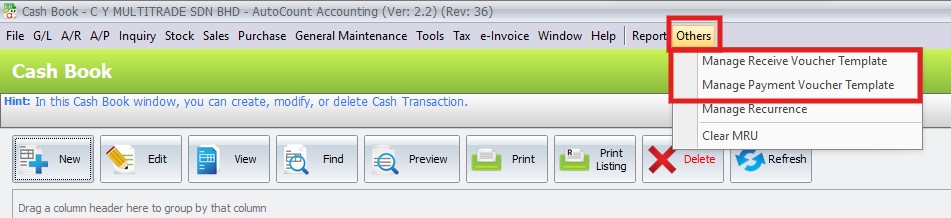
Go toCash Book Command Form → Menu → Others → Manage Receipt Voucher Template or Manage Payment Voucher Template