
CY-GRP
  • About
    • About Us
    • Certificates & Awards
    • Our Customers
  • Products
    • AutoCount Accounting
    • AutoCount Cloud Accounting
    • AutoCount HRMS Payroll
    • AutoCount POS
    • AutoCount PalmPOS
    • AutoCount Plugins
    • AutoCount On The Go
    • TD Ordering App
    • EzyPOS
  • Knowledge Base
    • AutoCount Stock Training Note
    • AutoCount POS 5 Training Note (Front End)
    • AutoCount Accounting v2.2 Fundamental Training
    • AutoCount Accounting 2.0 New Features
    • AutoCount Fixed Asset Plugin
    • MSME Digitalisation Grant 2023
    • LHDN E-Invoice
      • LHDN E-Invoice Guide
      • LHDN FAQ
    • AutoCount E-Invoice
      • AutoCount E-Invoice
      • AutoCount New Release Note
        • 2.2.18.25 Release Note
        • 2.2.22.30 Release Note
        • 2.2.25.34 Release Note
      • AutoCount POS E-Invoice FAQ
        • How To Do POS Consolidate E-Invoice?
    • AutoCount SST
      • Chapter 1 What is SST & Kastam Website Login
      • Chapter 2 Configure Malaysia SST Wizard
      • Chapter 3 Government SST Tax Code
      • Chapter 4 Tariff Maintenance
      • Chapter 5 How to Use Easy Item for Tariff Code
      • Chapter 6 Exemption Features Maintenance
      • Chapter 7 Purchased from SST Registered Supplier
      • Chapter 8 Invoice: Export
      • Chapter 9 SST Processor
      • Chapter 10 AutoCount SST Handling Payment Basis Calculation
      • Chapter 11 SST Submission
    • Social Media Library
  • Training Events
  • Media
  • Contact
    • Demo Appointment Booking
    • Dealer Enquiry
    • Contact Us
    • Career
  • Online Store
Select Page

Chapter 1 – Login Screen

Chapter 1.3 – Staff Attendance

This function allows users to keep track of their staff’s attendance. Employees enter their password to sign in and out, while managers and supervisors can edit the attendance sheet and print a Staff Attendance report to observe the actual hours worked by their employees.

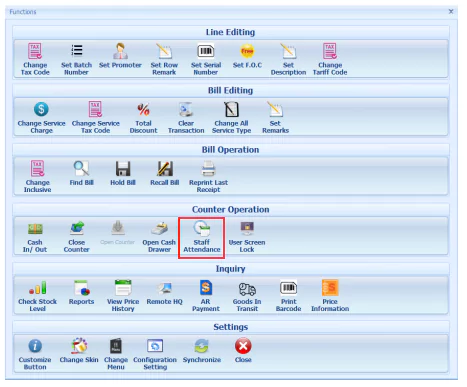
There are two ways to access staff attendance:

1st – Log in screen
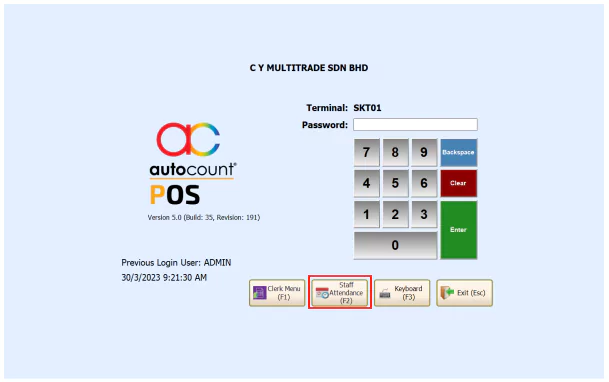
2nd – More Function > Staff Attendance
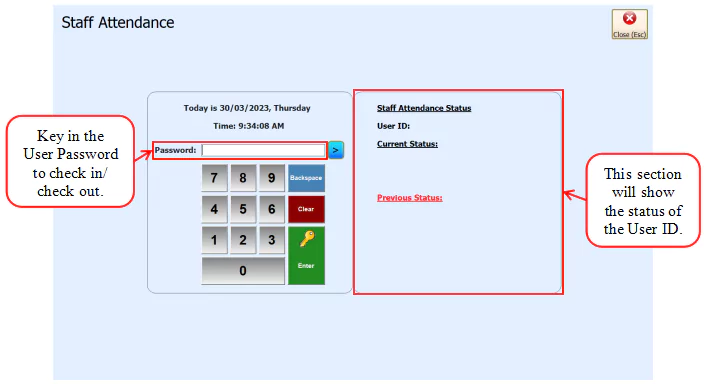
1. The image below is the Staff Attendance interface.
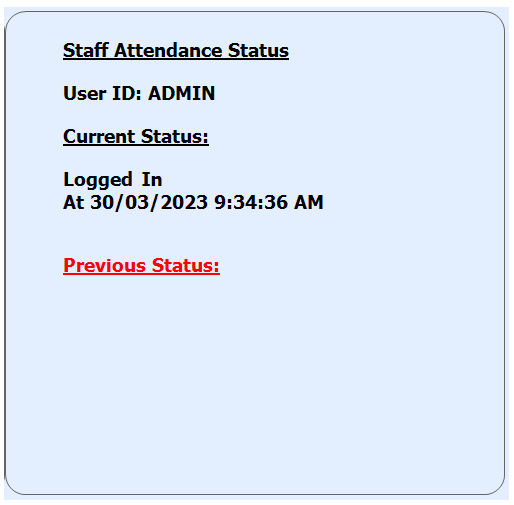
2. After successfully checking in, the image below will show up.
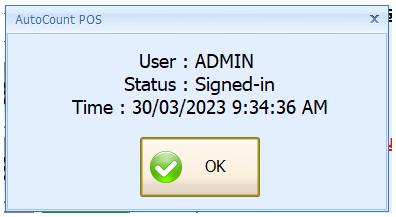
3. The status section shows the check-in time of the User ID.
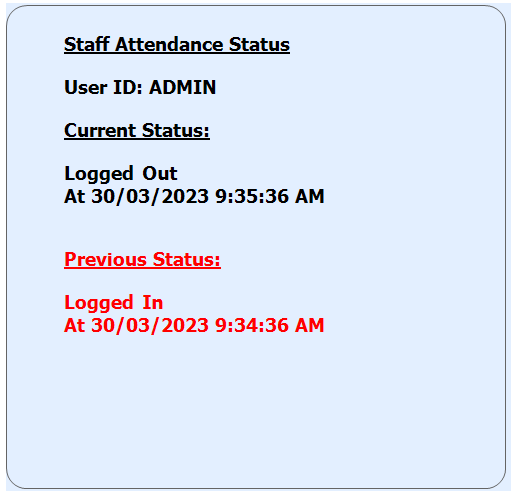
4. The image below is the check-out of User ID.
← Chapter 1.2 - Clerk MenuChapter 1.4 - Keyboard UI →

C Y Multitrade Sdn Bhd

Reg. No. 202001009028 (1365348-A)

  • Follow
  • Follow

Contact Info



012-2200380
012-2200370



customerservice@cy-grp.com


No. 18A, Jalan LP 1A/1,
Taman Lestari Perdana,
43300 Seri Kembangan,
Selangor, Malaysia.

Quick Links

About Us

Careers

Contact

Dealer Enquiries

Resources

AutoCount V2 Help Files

AutoCount Stock Training Note

AutoCount POS 5.0 Training Note (Front End)

AutoCount Accounting 2.0 New Features

AutoCount Fixed Asset Plugin

© Copyright 2024 C Y Group. All Rights Reserved.