Chapter 6 Stock Maintenance
6.1 Stock Group Maintenance
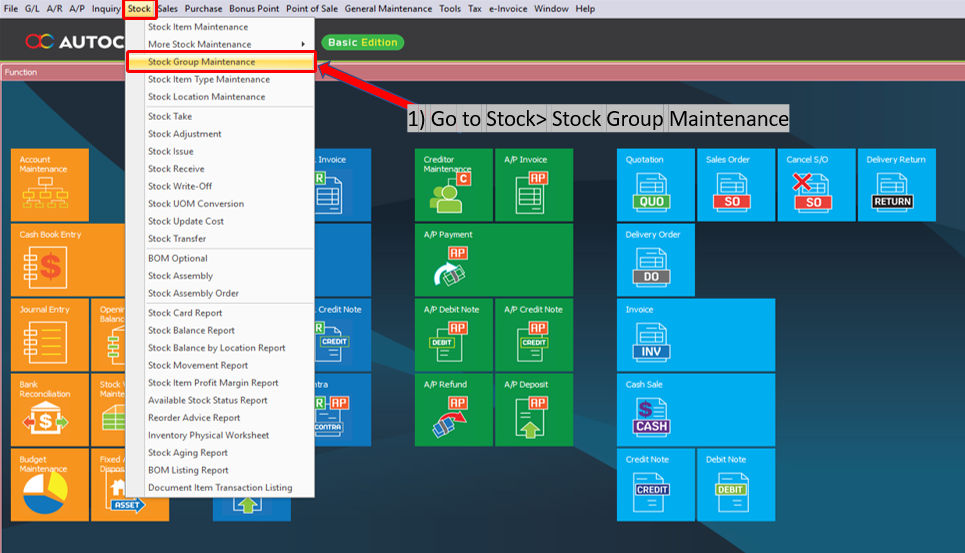
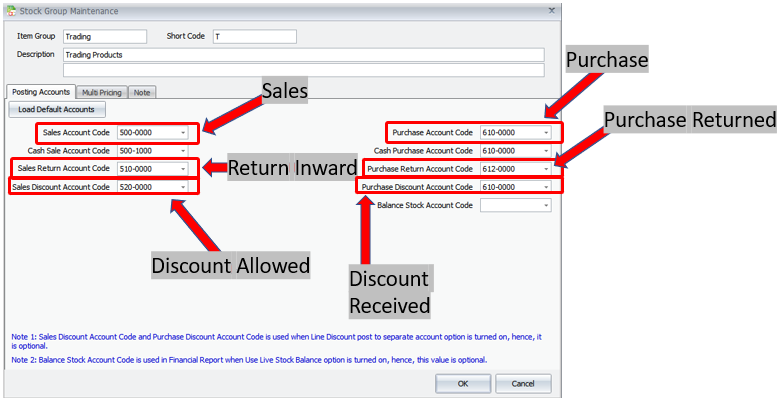
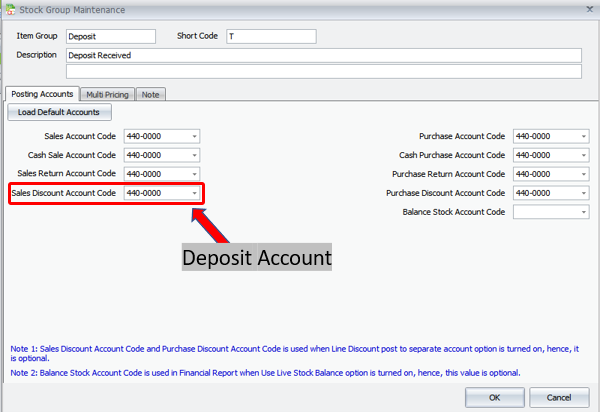
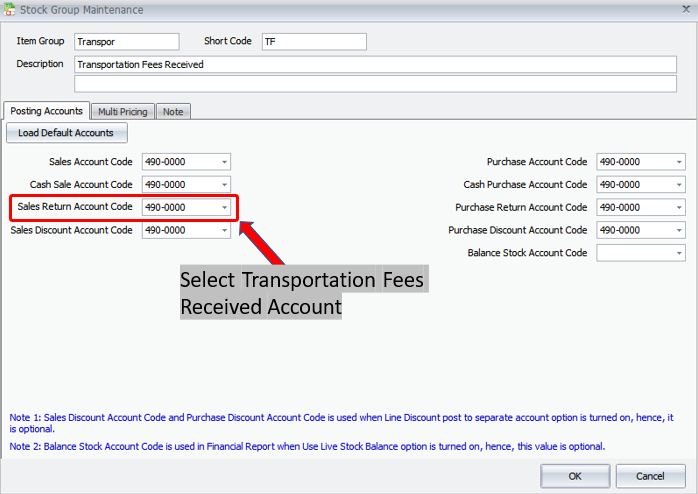
First, go to Stock > Stock Group Maintenance
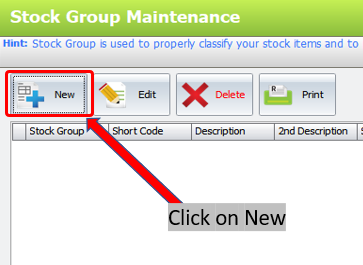
Click New
6.2 Auto Generate Stock Code
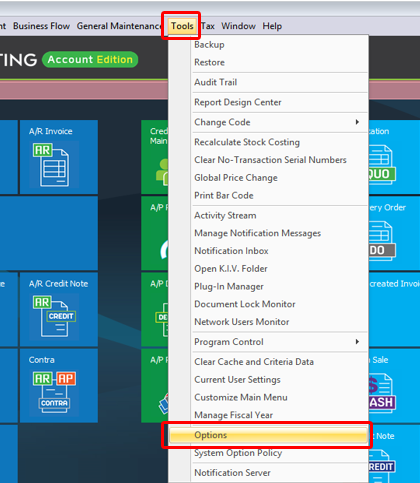
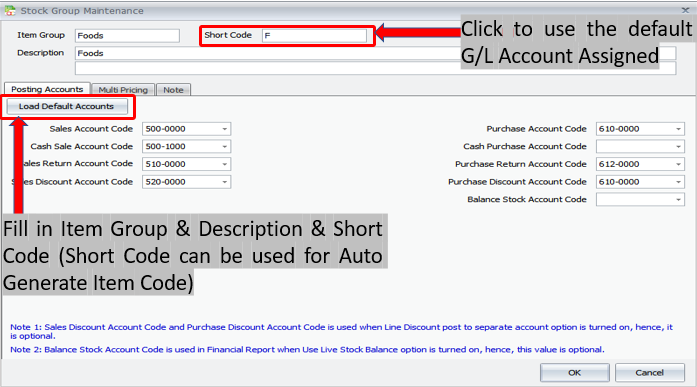
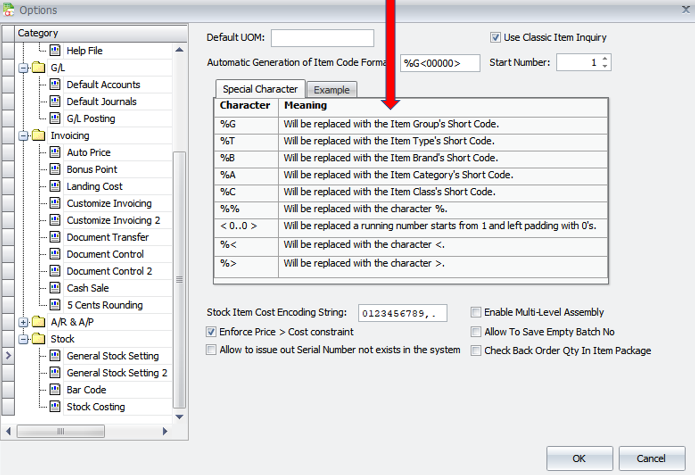
Short Code on Item Group & Item can be used on Auto Item Code Format
6.3 Stock Item Type Maintenance
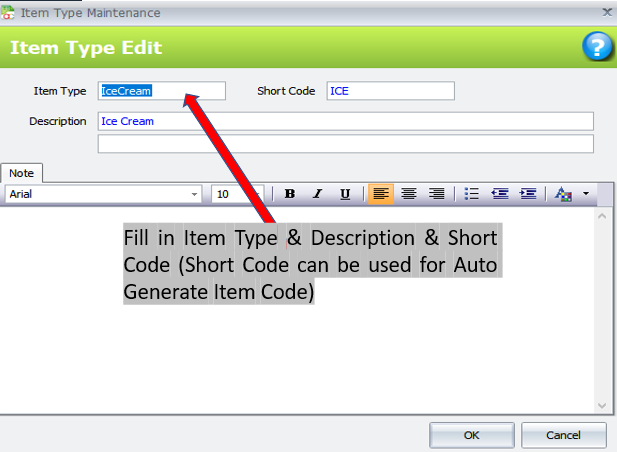
Used to Maintain for the purpose of report filtering. Go to Stock > Stock Item Type Maintenance
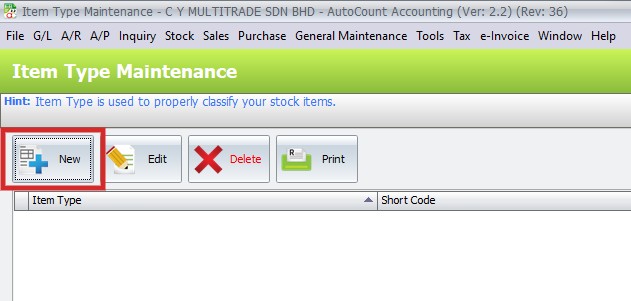
First, go to Stock > Stock Item Type Maintenance

Click on New
6.4 Stock Item Maintenance
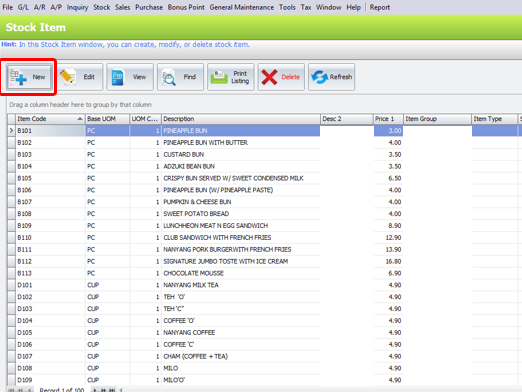
This is to maintain transaction items. Stock item listing will be displayed
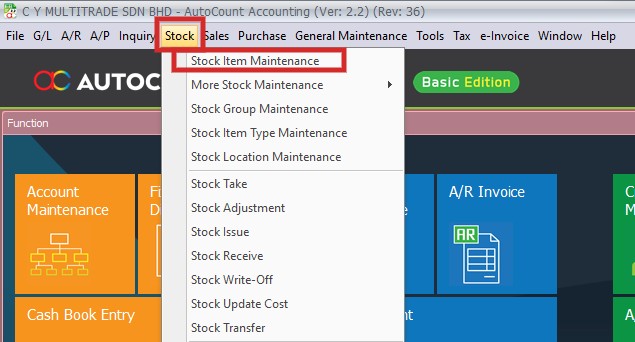
First, go to Stock > Stock Item Maintenance
Click on New
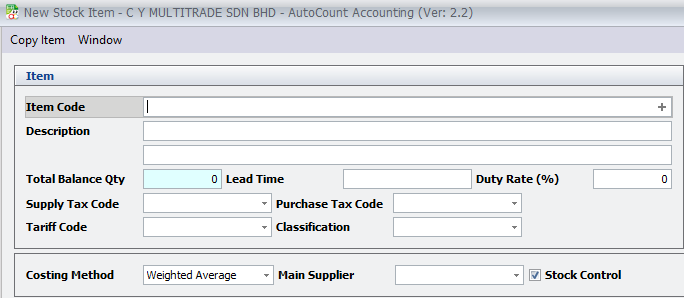
1. Item Code: key in the item code of the item, OR click on the ‘+’ button to auto generate the item code according to the format set at Tools > Options > Stock > General Stock Setting
2. Description: key in the stock item description.
3. Total Balance Qty: display of total balance quantity for the item
4. Lead Time: the estimated time of delivery by supplier once the Purchase Order is placed
5. Duty Rate: the rate of custom duty for the item
6. Supply Tax Code & Purchase Tax Code: select the tax type for the item. Tax type is maintained at Tax > Tax Code Maintenance
7. Tariff Code: tariff code of the item, can maintain at Tax > Tariff Maintenance
8. Classification: the classification code used for e-Invoicing
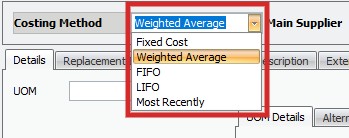
9. Costing Method: select the costing method of the item. The default method is set at Tools > Options > Stock > Stock Costing. This system supports different costing methods for different items
10. Main Supplier: the supplier will be ayto captured in purchase request when you choose the item
11. Stock Control: if unchecked will mean for service item (not to appear in Stock Card reports)
Costing Methods
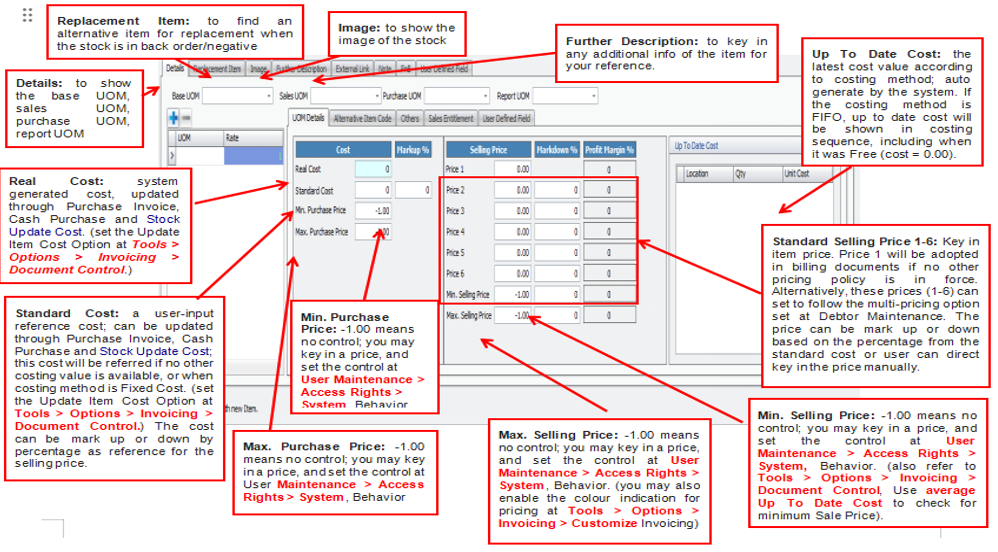
1. Fixed Cost: the standard cost will be referred
2. Weighted Average: average cost will be updated with each purchased
3. FIFO: the sequence of First In First Out is referred
4. LIFO: the sequence of Last In First Out is referred
5. Most Recently: the last purchased cost is referred
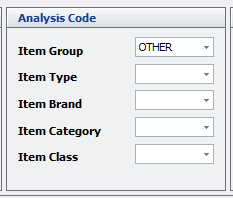
1. Item Group: select the stock group, maintained at Stock > Stock Group Maintenance, for the purpose of report filtering and posting to G/L account
2. Item Type: select the stock item type, maintained at Stock > Stock Item Type Maintenance
3. Item Brand: used to identify the manufacturer or brand of the item
4. Item Category: used to group products into their main product type or department
5. Item Class: used to further classify items into smaller subgroups within a category
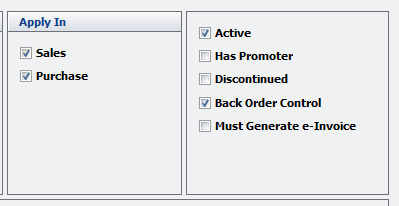
1. Sales: allow the stock item to be used in sales transactions
2. Purchase: allow the stock item to be used in purchase transactions
3. Active: used to indicate that the stock item is currently active and available for use
4. Has Promoter: this is to be used with AutoCount POS
5. Discontinued: means no more new purchases of this item (this item will not appear for selection for PO and Request Quotation); however it is still allowed for Purchase Return, Purchase Invoice, Goods Receive Note and Cash Purchase if some orders were made before. Selling of this item is allowable.
6. Back Order Control: when this checkbox is checked , the back order notification screen will be prompted when this item has reached the back order level This function subjects to the user’s access rights of back order control (General Maintenance > User Maintenance > Access Rights, look into Invoicing > Sales > Back Order Action. )
When this checkbox is not checked, it means there is no control on negative stock of this item, the notification screen will not be prompted
7. Must Generate e-Invoice: to require e-Invoice generation whenever the stock item is included in a transaction
6.5 Classic Stock
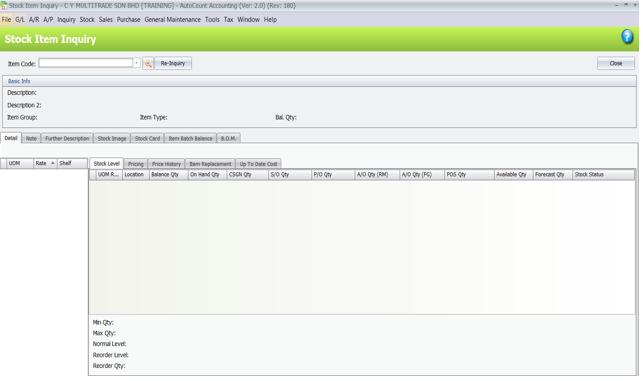
Go to Tools > Options > Stock > General Stock Setting > click on Use Classic Item Inquiry
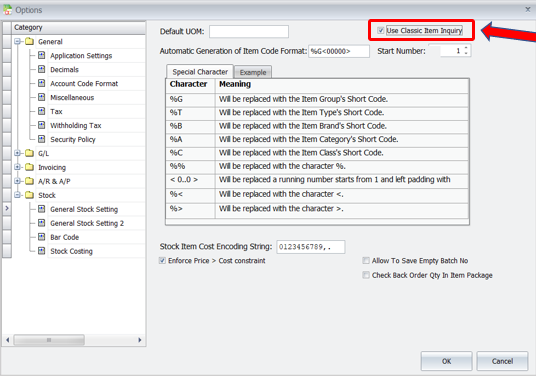
Check this option and log in AutoCount Accounting 2.0 again to get back the classic old interface. However, the classic Stock Item Inquiry does not support Customize Layout.
6.6 Multi Pricing
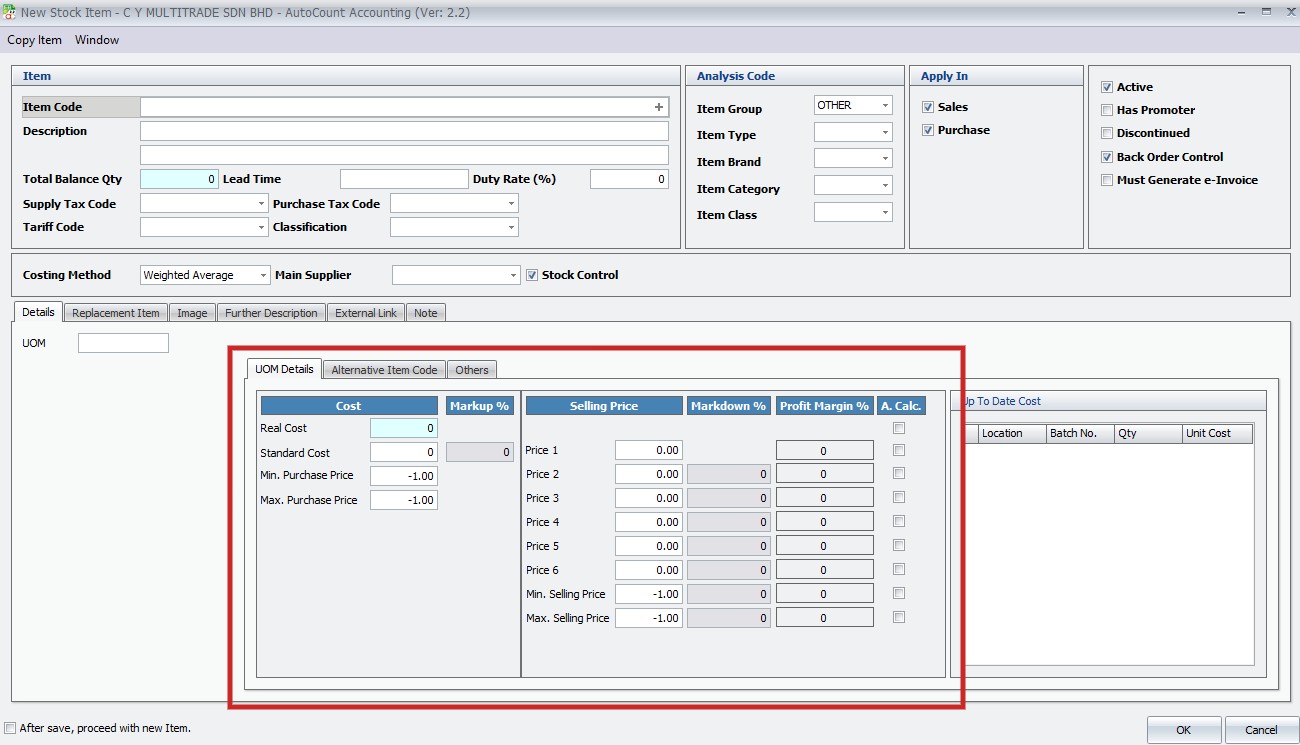
Autocount V2 can set with multi Price of
- 6 Levels of Pricing
- Multi-Pricing in Debtor & Document
- Price Caption
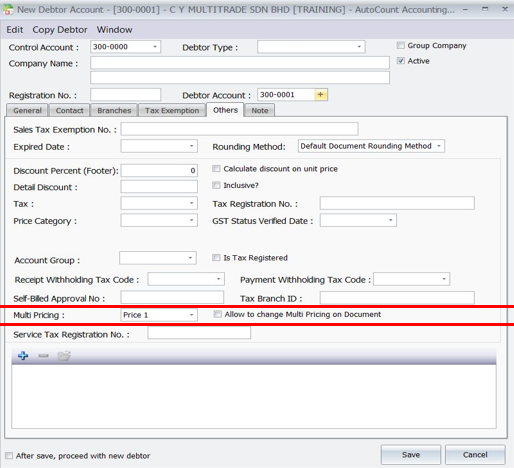
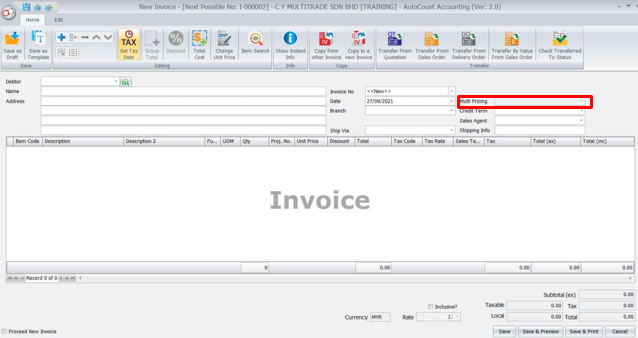
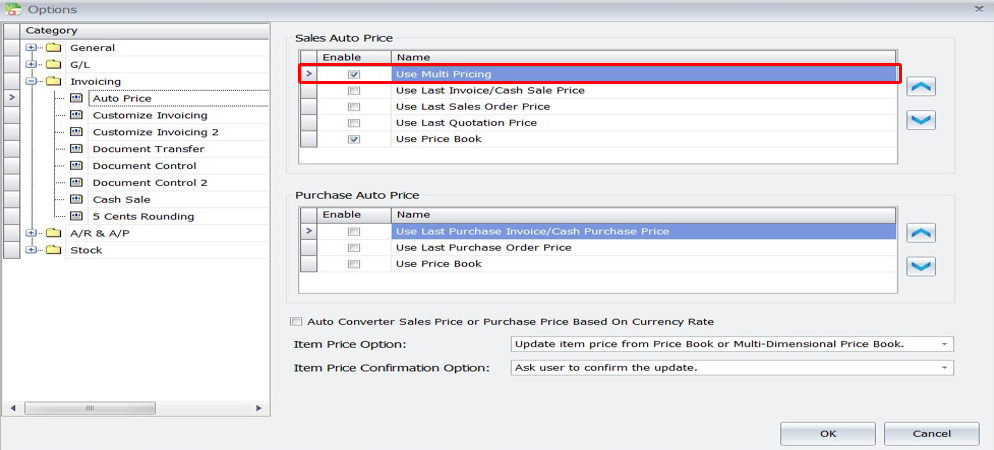
Go to Tools > Options > Invoicing > Auto Price, can check ‘Use Multi Pricing’
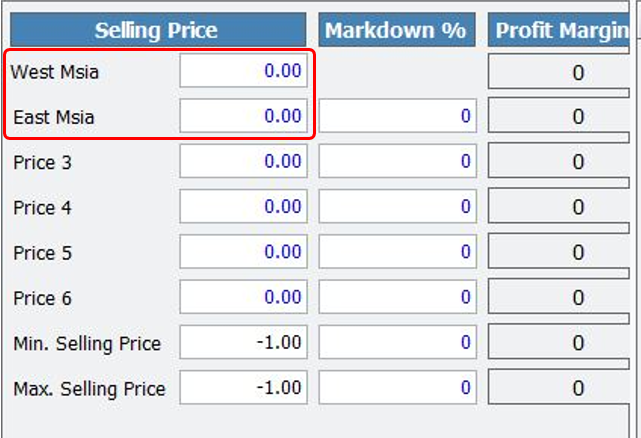
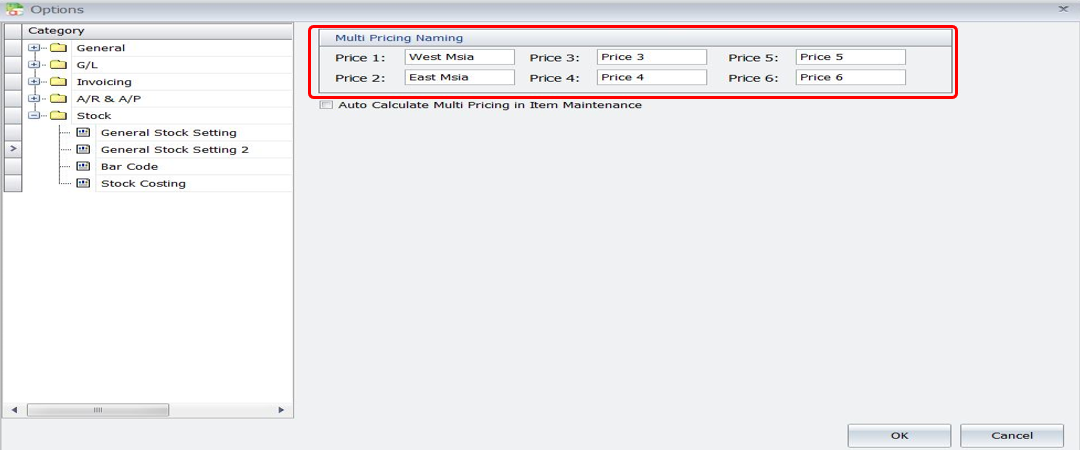
Go to Tools > Options > Stock > General Stock Setting 2, you can name the multi pricing here. For example: West Msia for price 1
Go back to Stock Item Maintenance, the saved name will apply when adding new or editing stock item