10.0 Profit & Loss
10.1 Profit & Loss Statement
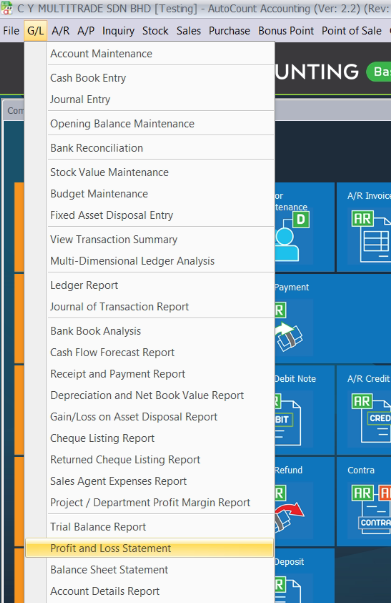
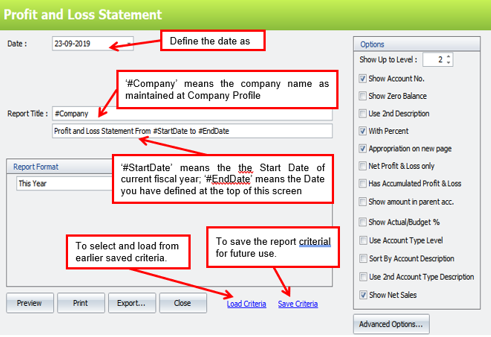
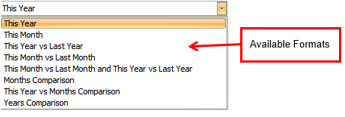
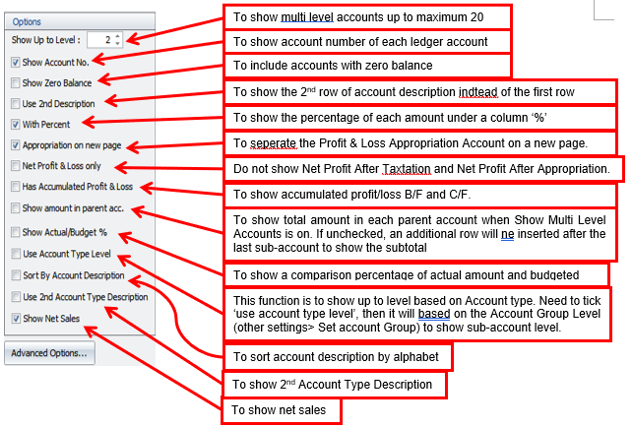
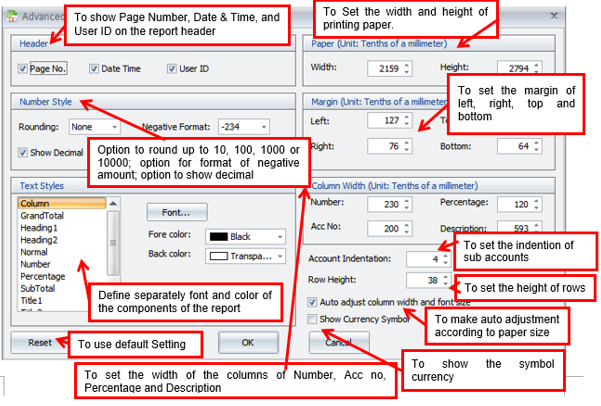
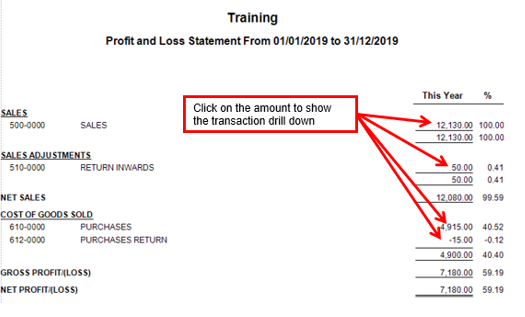
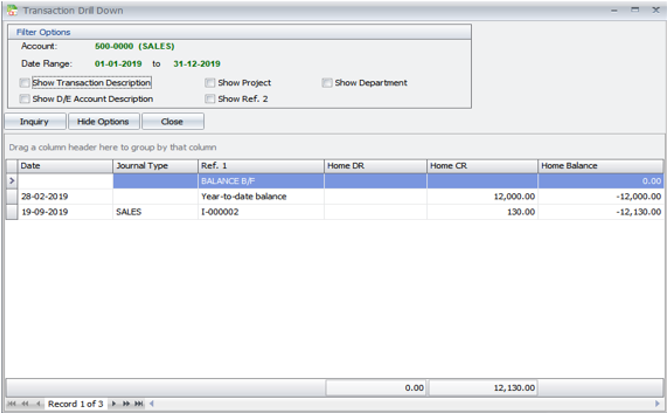
First, go to G/L > Profit and Loss Statement
10.2 Balance Sheet
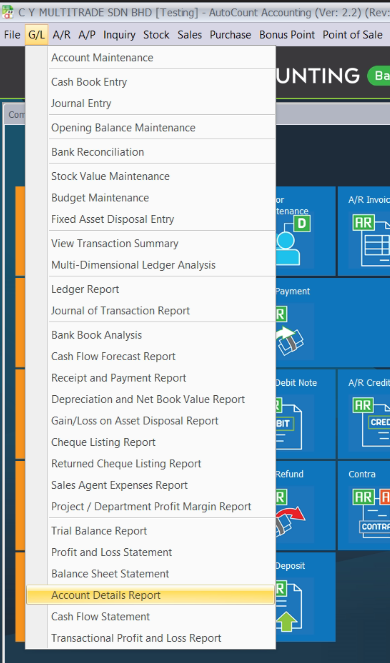
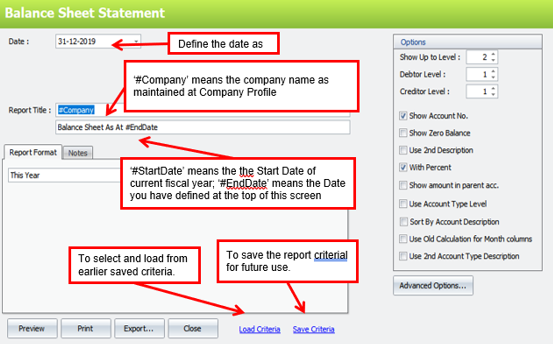
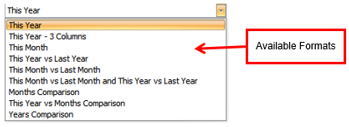
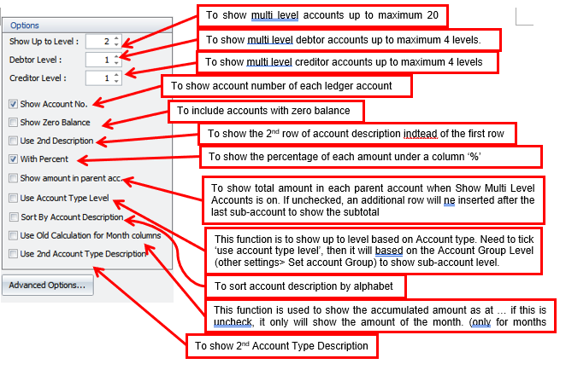
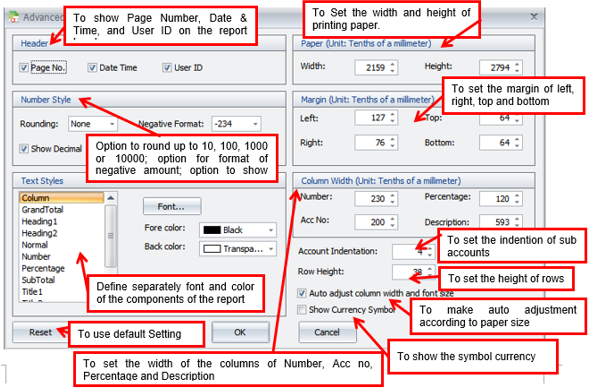
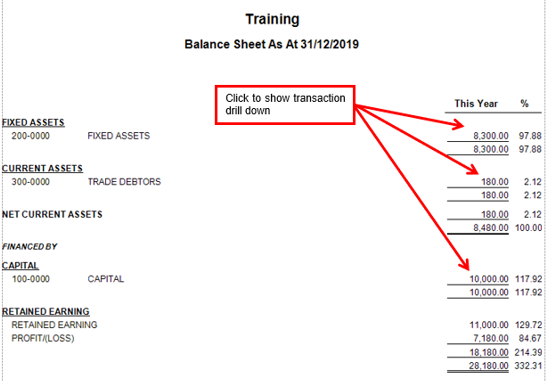
First, go to G/L > Balance Sheet Statement
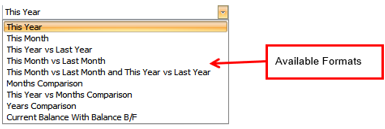
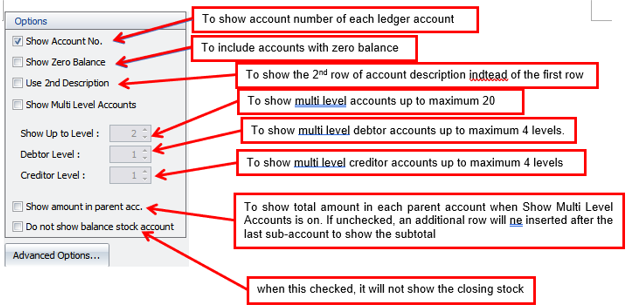
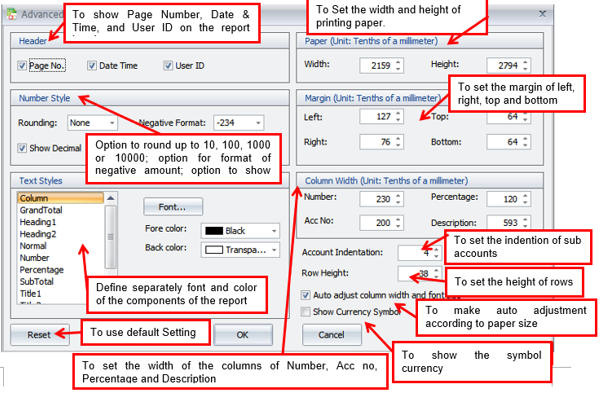
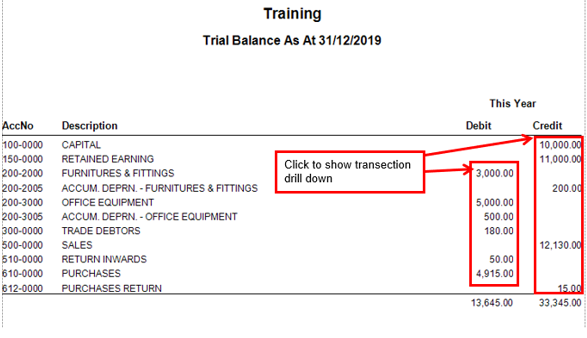
10.3 Trial Balance Report
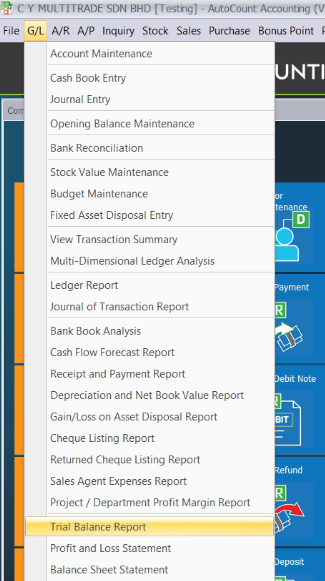
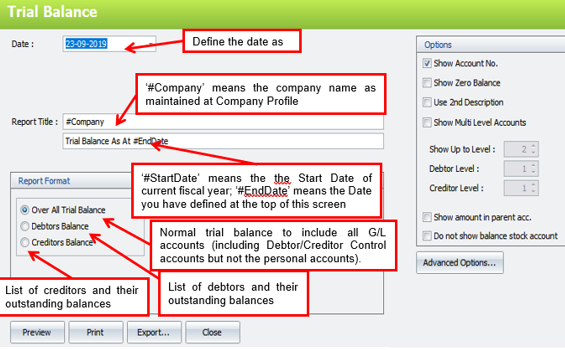
Go to G/L > Trial Balance Report. This is to view/print trial balance report
10.4 Ledger Report
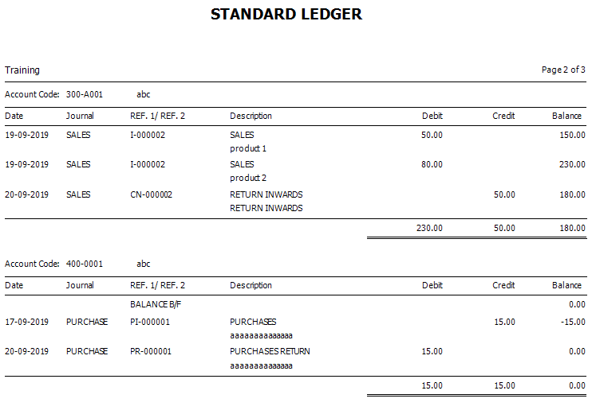
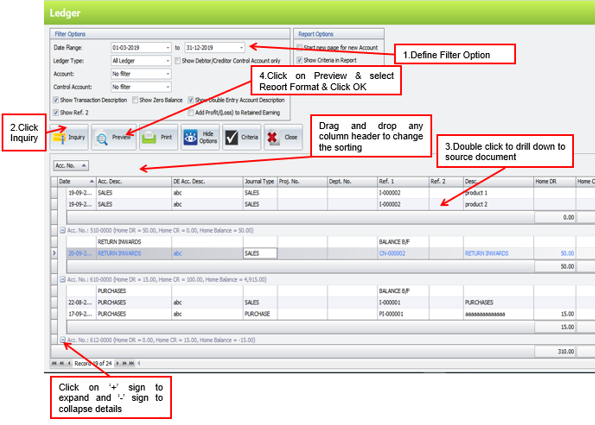
This is used to view transaction listing of each ledger. You may also drill in to the source documents.
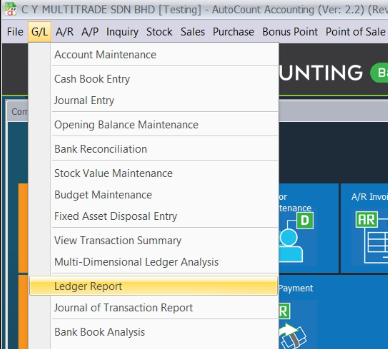
Go to G/L > Ledeger Report
Filter Options:
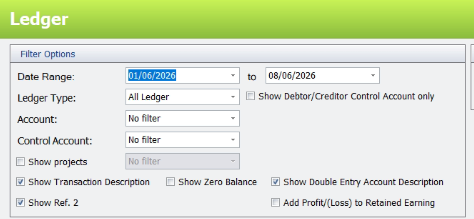
Date Range: define the date range from and to. |
Ledger Type: choose either All Ledger, Sales Ledger or Purchase Ledger. |
Account: choose either No Filter (all), Filter by Range (a range of continuous account no.) or Filter by Multi-Select (selected accounts) |
Control Account: choose either No Filter (all), Filter by Range (a range of continuous account no.) or Filter by Multi-Select (selected accounts) |
Show Transaction Description: to show the column of Desc. in Result portion (see also options setting in G/L Posting) |
Show Ref.2: to show the column of Ref.2 in Result portion |
Show Zero Balance: to include accounts with zero balance |
Show Double Entry Account Description: to show the column of DE Acc. Desc. in Result portion |
| Add Profit/(Loss) to Retained Earning: to add into Retained Earning account a row to show the profit/(loss) of the date range |
Report Options:
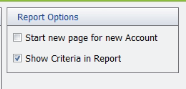
| Start new page for new Account: to start each ledger account with a new page |
| Show Criteria in Report: to show filter options in report |
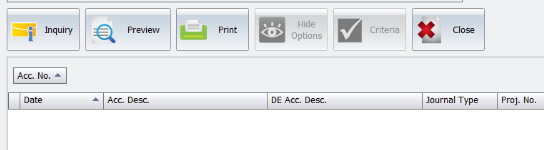
Inquiry: to refresh and show the result of filter options and report options. |
Preview: to preview report to be printed |
Print: to select printer and print report |
Hide Options: to hide the Options portion so that the screen has more space for details. Click on Show Options to show it again. |
| Close: close the screen |